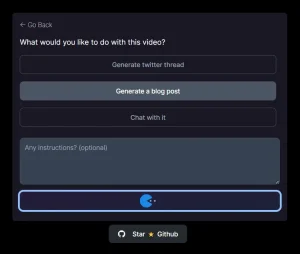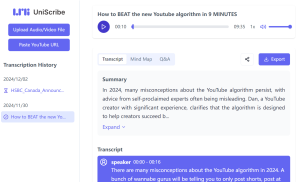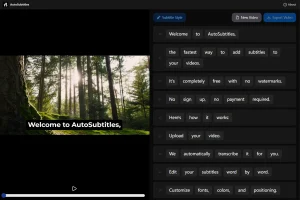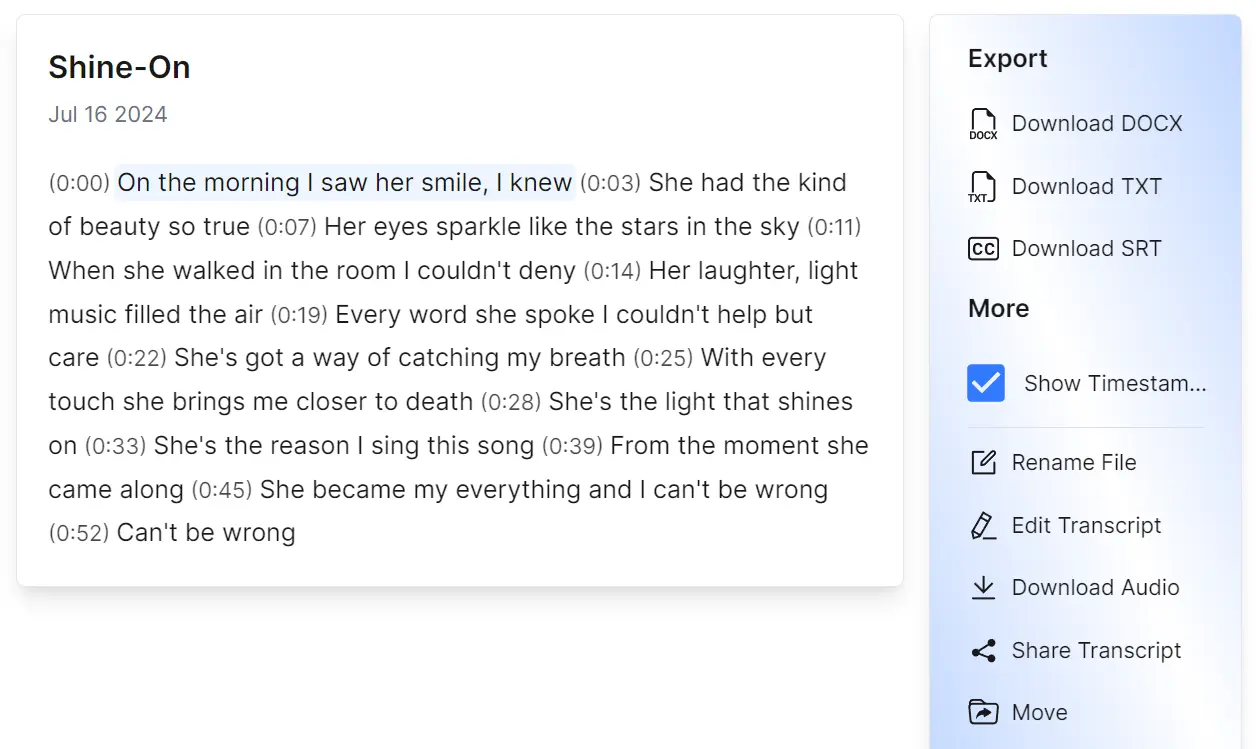
Videotowords AI is a powerful, fast, and user-friendly transcription tool that transforms audio and video files into accurately transcribed text with or without timestamps.
It supports a variety of audio/video formats, including MP3, MP4, M4A, MOV, AAC, WAV, OGG, OPUS, MPEG, WMA, and WMV. Users can export transcriptions as Docx, SRT, or plain text files.
Videotowords AI is a freemium platform, and offers registered users three credits per day. Each credit allows you to transcribe one audio or video file up to 30 minutes in length or 5GB in size. This free tier is perfect for tasks like transcribing conference calls or classroom lectures.
Paid plans are available for users with larger transcription needs. These plans offer unlimited transcription capabilities. You can find more information on their pricing page.
More Features:
- Multilingual Support: Transcribe and translate audio/video in over 100 languages.
- Bulk Exports: Download multiple transcriptions simultaneously.
- Unlimited Storage: Save your transcriptions without worrying about storage space.
- Prioritized Transcription: Your files are always transcribed quickly.
- Transcription Modes: Choose from Dolphin (Base), Cheetah (Most Accurate), or Whale (Balanced) to suit your needs.
How to use it:
1. Visit the Videotowords AI platform and create a free account using Google or email.
2. Log in to the platform and begin your first transcription.
3. Upload your audio or video file to Videotowords AI. Supported formats include MP3, MP4, M4A, MOV, AAC, WAV, OGG, OPUS, MPEG, WMA, and WMV.

4. Indicate the language spoken in your audio or video. This helps the AI accurately transcribe the content.
5. Select the transcription mode that best suits your needs:
- Dolphin (Base): This standard mode offers a good balance of speed and accuracy.
- Cheetah (Most Accurate): This mode prioritizes accuracy. Ideal for content requiring precise transcription.
- Whale (Balanced): This mode offers a balance of speed, accuracy, and file size optimization.
6. Click the “Transcribe” button to start the transcription process.
7. You can view your transcription list and track its progress in the dashboard. The time it takes depends on the file size and the chosen transcription mode.

8. Once complete, download your transcription(s) directly from the dashboard in Docx, TXT, or SRT format.

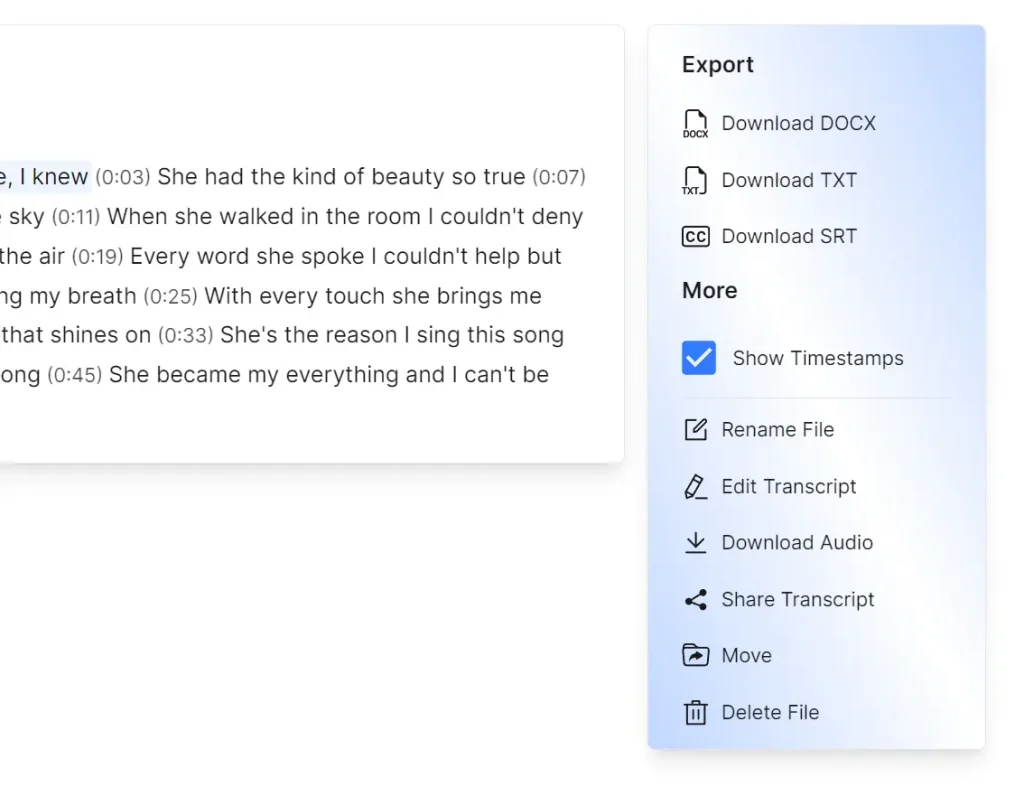
9. You can also access the transcription’s details page for additional options. On this page, you can:
- Preview and edit the transcribed text.
- Listen to the original audio/video file.
- Export the transcription in different formats.
- Share the transcription with others.
- Move or delete the transcription.
10. I tested it with AI-generated English songs and found the transcriptions highly accurate. However, when I tested it with Chinese songs, there were some inaccuracies in the transcription. This could be because the Chinese language, with its tonal nature and complex syllable structures, presents a greater challenge for AI speech recognition compared to English.

FAQs:
Q: What is Audio/Video Transcription?
A: Audio/video transcription is converting spoken language in an audio or video file into written text. This process can be done manually or using automated speech recognition software.
Q: How Accurate is Videotowords AI?
A: Videotowords AI offers high accuracy, especially when using the “Cheetah” transcription mode. However, accuracy can vary depending on factors like audio quality, background noise, and speaker accents. The tool performs best with clear audio and English language content.
Q: What Can I Do With My Transcribed Text?
A: Once your audio/video file is transcribed, you can export the text to Word, TXT, or SRT files. This allows you to edit the transcript, share it with others, or use it for further analysis.