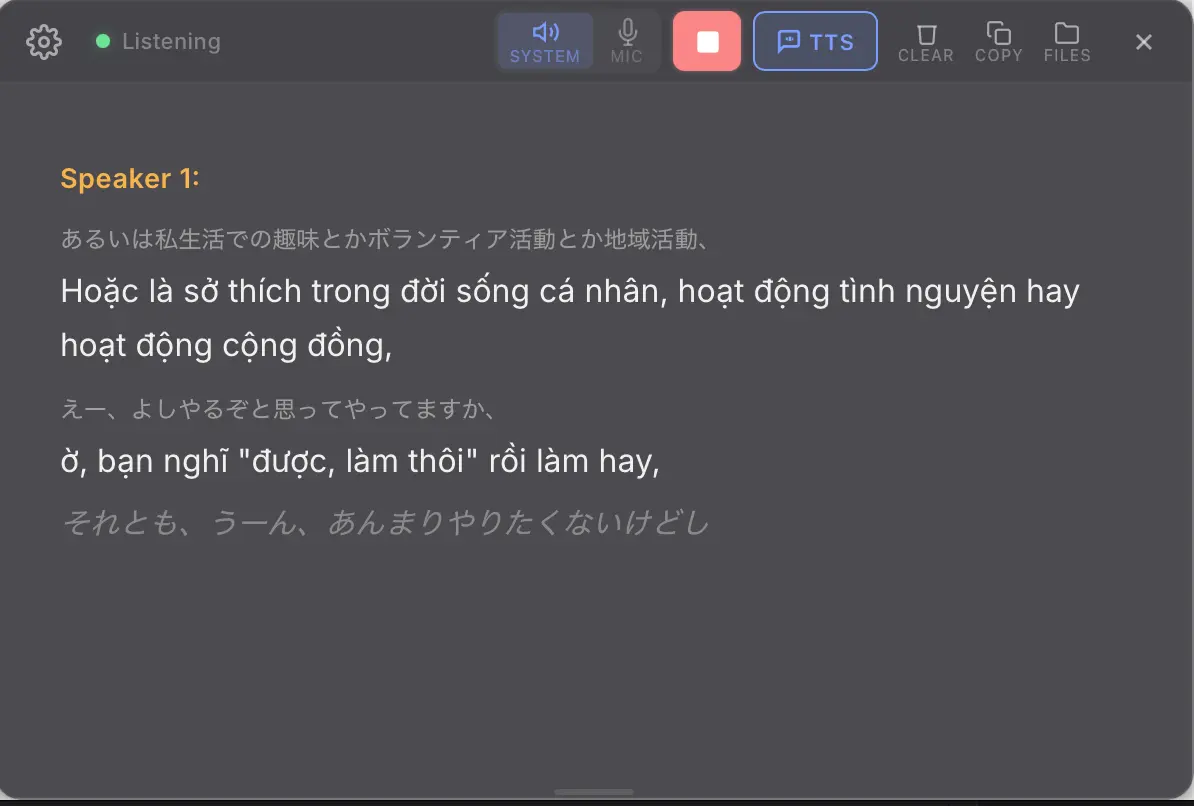
My Translator is a free, open-source real-time speech translation app that captures audio from your system or microphone, transcribes it, and displays the translation on the screen.
The app is fully free for Apple Silicon Mac users. The built-in offline local mode runs entirely on-device using MLX, Whisper, and Gemma. No API key and internet connection required.
For users who want cloud-quality translation, My Translator connects directly to the Soniox speech recognition API at roughly $0.12 per hour of audio. A $10 deposit covers 80-plus hours of active use.
Text-to-speech narration is available through three AI providers, one of which (Microsoft Edge TTS) is completely free and requires no API key. So macOS users on Apple Silicon can run the full feature set at zero ongoing cost.
Features
- Captures system audio and microphone input simultaneously.
- Transcribes and translates audio with approximately 2–3 seconds of latency in cloud mode.
- Supports 70+ source languages with translation into any target language.
- Runs an experimental local offline mode on Apple Silicon using MLX, Whisper, and Gemma, with no internet required.
- Detects multiple speakers automatically and labels them in the transcript.
- Displays output in a dual-panel view: source text on the left, translation on the right, with independent scrolling for each panel.
- Reads translations aloud through one of three TTS providers: Edge TTS (free), Google Chirp 3 HD, or ElevenLabs.
- Saves transcripts locally as Markdown or plain text files, one file per session.
- Accepts custom translation terms so domain-specific vocabulary (medical, legal, religious) renders consistently.
Use Cases
- Follow a foreign-language lecture, webinar, or YouTube video in real time.
- Translate a live Zoom or Teams meeting where participants speak a language you do not read fluently.
- Use the dual-panel view to study a language by reading both the source text and the translation side by side as a podcast plays.
- Enable TTS narration during a presentation so the translated speech plays aloud for an audience listening in a different language.
How To Use It
Table Of Contents
Install on macOS
1. Download the .dmg file from the Releases page.
My.Translator_x.x.x_aarch64.dmgfor Apple Silicon (M1/M2/M3/M4)My.Translator_x.x.x_x64.dmgfor Intel Mac
2. Open the .dmg, drag My Translator to your Applications folder, and eject the disk image.
3. On first launch, macOS will ask for Screen & System Audio Recording permission. Click Open System Settings, find My Translator in the list, toggle the switch on, then click Quit & Reopen when macOS prompts you.
Install on Windows
1. Download the .exe installer from the Releases page. Choose x64 for Intel/AMD machines or arm64 for Surface Pro X and Snapdragon devices.
2. Windows SmartScreen will display a warning because the app does not yet hold a Windows code-signing certificate. Click More info, then click Run anyway to proceed through the setup wizard. Accept the default install location and check Run My Translator on the final screen.
3. If the app does not launch, install the Microsoft Edge WebView2 Runtime separately.
Get a Soniox API Key
Create a free account at console.soniox.com. Add a payment method under Billing, deposit a minimum of $10, then go to API Keys and click Create API Key. Copy the key; it starts with soniox_.
Configure the App
Open Settings with ⌘ , (macOS) or Ctrl+, (Windows). Paste your Soniox API key into the API key field. Set the source language and target language, then choose your translation engine:
| Mode | Latency | Quality | Cost | Internet Required |
|---|---|---|---|---|
| Soniox API (Cloud) | ~2–3s | 9/10 | ~$0.12/hr | Yes |
| Local MLX (Offline) | ~10s | 7/10 | Free | No |
Local MLX mode requires Apple Silicon (M1 or later) and about 5 GB of free disk space. Models download automatically on first use.
Click Save & Close.
Start Translating
Press ⌘ Enter (macOS) or Ctrl+Enter (Windows) to start. Play audio on your computer. Translations appear in the overlay in real time.
Switch between view modes with the panel button at the bottom-right corner of the overlay (hover to reveal it):
- Single (default): Translation text only.
- Dual: Source text and translation side by side.
Adjust font size with the A-/A+ buttons (also revealed on hover).
Set Up TTS Narration
TTS is off by default. Open Settings, go to the TTS tab, and pick a provider:
| Provider | Cost | Speed Control | Setup Required |
|---|---|---|---|
| Edge TTS | Free | Yes (-50% to +100%) | None |
| Google Chirp 3 HD | Free up to 1M chars/mo, then $30/1M | Yes (0.5x–2.0x) | Google Cloud API key |
| ElevenLabs | ~$5–$22/mo | No | ElevenLabs API key |
Edge TTS setup (no key needed):
- Settings → TTS tab → Provider: Edge TTS.
- Pick a voice from the list.
- Click Save & Close.
- Toggle TTS on from the main screen with the TTS button or
⌘ T.
Google Chirp 3 HD setup:
- Go to console.cloud.google.com and create a project.
- Enable the Text-to-Speech API at console.cloud.google.com/apis/library/texttospeech.googleapis.com.
- Go to console.cloud.google.com/apis/credentials -> Create Credentials -> API Key.
- Restrict the key to Cloud Text-to-Speech API only (recommended).
- Paste the key in Settings -> TTS -> Google Chirp 3 HD -> Save & Close.
ElevenLabs setup:
- Create an account at elevenlabs.io and subscribe to the Starter plan ($5/month).
- Go to profile icon → API Keys → Create API Key.
- Paste the key in Settings → TTS → ElevenLabs → Save & Close.
Add Custom Translation Terms
Open Settings -> Translation -> Translation terms. Enter terms in Original = Translation format, one per line:
Original sin = ...
Christ = ...
Pneumonia = ...
The app applies these substitutions consistently across every session.
Keyboard Shortcuts
macOS
| Shortcut | Action |
|---|---|
⌘ Enter | Start / Stop |
⌘ , | Open Settings |
Esc | Close Settings |
⌘ 1 | Switch to System Audio |
⌘ 2 | Switch to Microphone |
⌘ T | Toggle TTS narration |
Windows
| Shortcut | Action |
|---|---|
Ctrl+Enter | Start / Stop |
Ctrl+, | Open Settings |
Esc | Close Settings |
Ctrl+T | Toggle TTS narration |
Pros
- Processes audio with low latency around two to three seconds.
- Captures system audio directly.
- You retain complete control over your API keys.
- Edge TTS requires zero setup and zero cost.
Cons
- The cloud translation mode requires a paid Soniox API account.
- The offline local mode requires Apple Silicon.
Related Resources
- Soniox Console: Manage your API key and billing for speech recognition and translation.
- Soniox API Documentation: Learn about supported languages, WebSocket streaming, and STT v4 parameters.
- Google Cloud Text-to-Speech: Reference docs for Chirp 3 HD voices, pricing tiers, and credential setup.
- ElevenLabs Documentation: API key setup, available voices, and plan details for premium TTS.
- Microsoft Edge TTS Documentation: Background on the neural speech engine behind Edge TTS.
FAQs
Q: Does My Translator record or store my audio on any external server?
A: No. The app connects directly to the Soniox API from your device. Transcripts save as local Markdown or text files on your own disk only.
Q: Can I use this app to translate Zoom or Google Meet calls?
A: Yes. Set the audio source to System Audio in Settings. The app captures everything playing through your Mac or Windows audio output.
Q: Why does the application show a “No API key” error?
A: You must generate a Soniox API key from their developer console and paste it into the general settings tab. The application requires this key to connect to the translation engine.
Q: How do I fix missing translation text on macOS?
A: You need to enable Screen and System Audio Recording in your macOS System Settings.
Q: Can I use this for live conversations in person?
A: Yes. Switch the audio source to Microphone and place the app near the speaker. For best results, use an external USB microphone positioned close to the speaker.