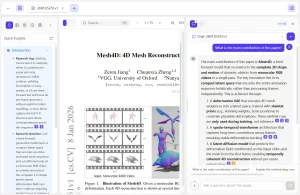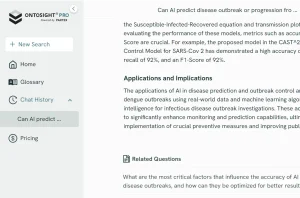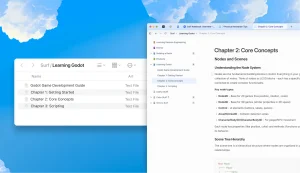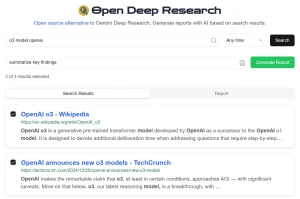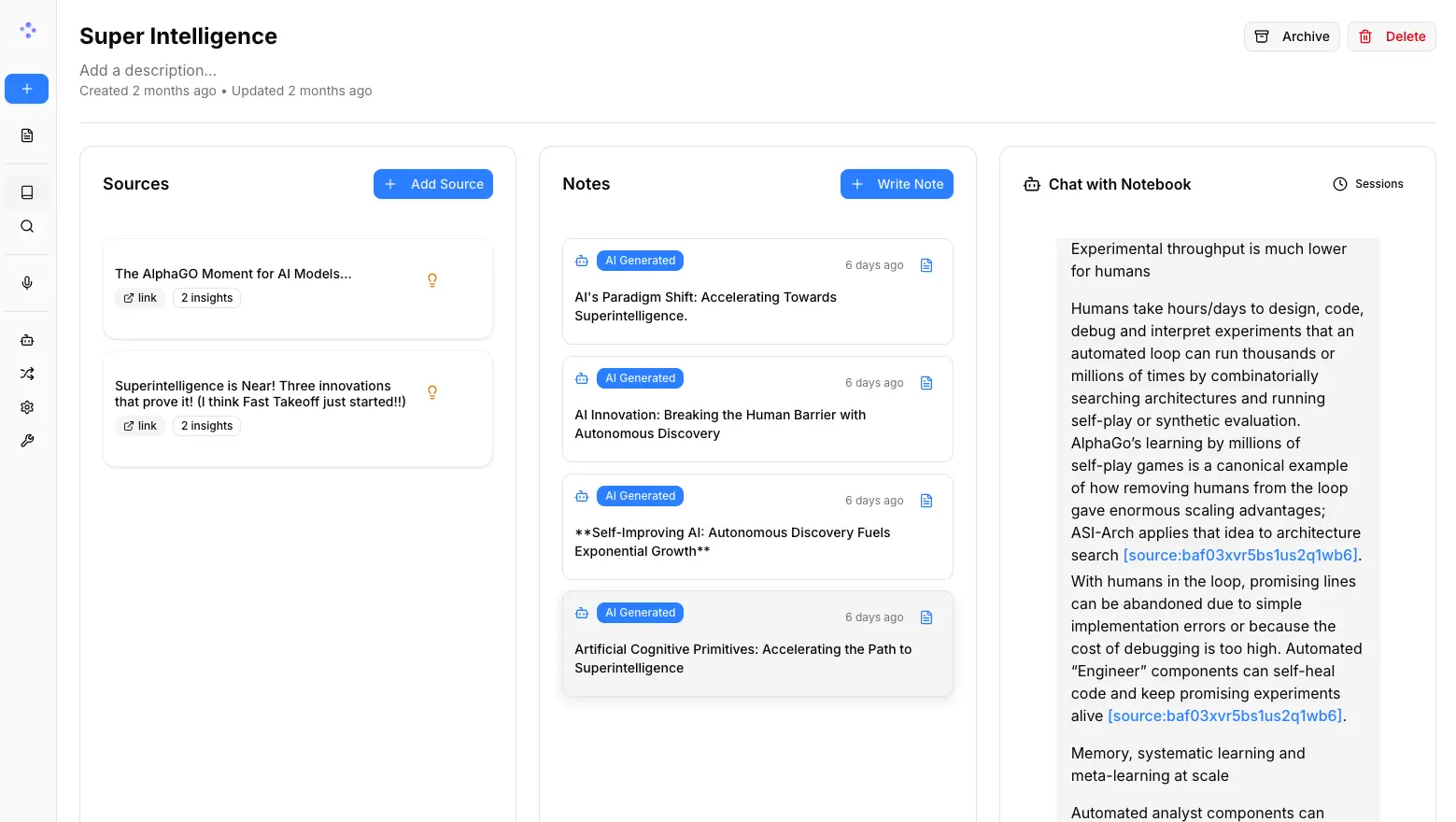
Open Notebook is a private, multi-model, and 100% local alternative to cloud-based AI research tools like Google’s Notebook LM.
You can process PDFs, videos, audio files, web pages, and Office documents, then use AI to extract insights, generate summaries, or even create multi-speaker podcasts from your notes.
Everything runs on your own machine or server. This means your research materials, notes, and AI conversations stay completely private.
Features
- Multi-Model AI Support: Choose from 16+ providers, including OpenAI, Anthropic, Ollama, LM Studio, Google, Groq, Mistral, DeepSeek, xAI, and OpenRouter. You can even switch models mid-conversation or route cheaper models for basic tasks and reserve premium ones for complex reasoning.
- Universal Content Processing: Drop in PDFs, YouTube videos, audio files, Office documents (PowerPoint, Word, Excel), EPUB files, Markdown, plain text, or entire web pages. The system automatically chunks, embeds, and indexes everything for search and AI interactions.
- Professional Podcast Generation: Convert your research notes into audio content with 1-4 customizable speakers. You get full control over speaker profiles, tone, pacing, and can edit the generated scripts before rendering.
- Granular Context Control: Set three levels of AI access for each source (Not in Context, Summary, or Full Content). This helps you manage API costs while maintaining privacy for sensitive materials.
- Content Transformations: Built-in and custom prompts let you summarize, extract key points, identify methodologies, or create custom analysis workflows. Think of it as Zapier for research processing.
- Intelligent Search: Full-text and vector search across all notebooks. Find information by keywords or semantic meaning, even if you don’t remember the exact phrasing.
- Multi-Notebook Organization: Create separate notebooks for different research projects or topics. Each notebook maintains its own sources, notes, and chat history.
- Complete REST API: Full programmatic access to all features. Build custom integrations, automate workflows, or connect Open Notebook to other tools in your research stack.
- Reasoning Model Support: Works with advanced thinking models like DeepSeek-R1 and Qwen3, with collapsible reasoning sections so you can see the AI’s thought process.
- Citation System: AI responses include inline, clickable citations that link back to source materials. Export citations as Markdown or JSON for academic work.
- Optional Password Protection: Add authentication when deploying publicly or sharing with team members.
Use Cases
- Academic Research: Graduate students can upload journal articles, conference papers, and textbooks to a notebook, then use AI to identify common themes, extract methodologies, or generate literature review summaries. The citation system makes it easy to track which insights came from which papers.
- Content Creation: Writers and bloggers can collect research materials (articles, interviews, statistics) in one place, then use transformations to generate outlines, extract quotes, or turn research into podcast episodes for their audience.
- Technical Documentation: Developers can upload API docs, GitHub issues, and technical specifications, then chat with AI to understand complex systems or generate implementation guides. The local deployment means proprietary codebases never leave your infrastructure.
- Learning and Skill Development: Self-taught learners can build topic-specific notebooks (like “How to Build Furniture” or “Understanding Transformers in AI”), add videos and articles as they find them, then use AI to test understanding or generate study guides.
- Legal Research: Lawyers can upload case files, statutes, and depositions, then use vector search to find relevant precedents or ask AI to summarize key arguments while maintaining complete confidentiality through self-hosting.
Basic Usage
1. If you’re accessing Open Notebook from the same computer where Docker runs, you’ll use localhost. If you’re accessing it from a different device (like running it on a server or NAS and accessing from your laptop), you need the remote setup with your server’s actual IP address. Mixing these up is the most common installation mistake.
2. Install Docker (if needed). Mac and Windows users can download Docker Desktop from docker.com. Linux users can typically run sudo apt install docker.io docker-compose-plugin. Already have Docker? Skip this.
3. You need at least one AI provider configured. OpenAI is the simplest for beginners. Go to platform.openai.com/api-keys, create an account, generate a new secret key (starts with sk-), and add $5 in credits. You can add other providers later through the settings interface.
4. For localhost access, create a directory, add a docker-compose.yml file with the provided configuration, replace the placeholder with your API key, and run docker compose up -d. For remote access, you’ll also need to set the API_URL environment variable to your server’s IP address (something like http://192.168.1.100:5055).
You must expose both port 8502 (web UI) and port 5055 (API). Missing either one will cause connection failures. Also, don’t add
/apito theAPI_URL; just use the base URL with the port.
5. Open the web interface (localhost:8502 or your-server-ip:8502), go to Settings, then Models. Configure your default models for chat, embeddings, and text-to-speech. You can add multiple providers and switch between them as needed.
6. Click New Notebook, give it a descriptive name and detailed description (the AI uses this for context), then start adding sources. You can paste URLs, upload files, or add text notes. Each source gets automatically processed and indexed.
7. Before chatting with AI, configure which sources should be accessible. Toggle each source between Not in Context (AI can’t see it), Summary (AI gets a summary and can request full content), or Full Content (AI gets everything). This controls both privacy and API costs.
8. Use transformations to generate initial insights (summaries, key points, custom analysis). Then chat with AI about your sources, save useful responses as notes, or generate podcasts from your accumulated research. Each notebook can have multiple chat threads for different aspects of your research.
Pros
- Privacy First: Your data never leaves your machine or server. This is the biggest advantage over cloud-based services.
- Cost Control: You can use cheaper AI providers or run local models with Ollama to reduce or eliminate costs.
- No Vendor Lock-In: You have the freedom to switch AI providers and deploy it anywhere you want.
- Highly Customizable: As an open-source project, you can modify and extend it to fit your exact needs.
- Flexible Podcast Generation: The ability to create podcasts with up to four custom speakers is a major step up from the more limited options in other tools.
Cons
- Requires Technical Setup: You need to be comfortable using Docker and the command line.
- Self-Management Overhead: Since you host it yourself, you are responsible for updates, maintenance, and troubleshooting.
- API Costs Can Add Up: While you have control, using powerful commercial AI models can still become expensive if you’re not mindful of your usage.
- Lacks Polished UI of Commercial Tools: The interface may not feel as refined as heavily funded commercial alternatives like Google’s NotebookLM.
Related Resources
- Official Documentation: Official guides covering installation, features, and advanced usage. Start here for detailed setup instructions beyond the quick start.
- Discord Community: Active community for troubleshooting, workflow ideas, and feature requests.
- CustomGPT Installation Assistant: Step-by-step installation guidance through ChatGPT. Helpful if you get stuck during setup.
- Esperanto Library: The underlying multi-provider AI abstraction library. Useful if you’re building custom integrations or want to understand how model switching works.
- Docker Documentation: If you’re new to Docker, the official docs cover installation and basic concepts needed for Open Notebook deployment.
FAQs
Q: Can I run Open Notebook completely offline without any internet connection?
A: Yes and no. You can run the application itself offline, but most AI models require API calls to external providers like OpenAI or Anthropic, which need internet. The exception is using Ollama with locally-downloaded models. This setup works completely offline once you’ve pulled the models initially. However, features like web scraping for URL sources obviously won’t work without connectivity.
Q: How does Open Notebook compare to just using ChatGPT with file uploads?
A: The key differences are organization and persistence. Open Notebook lets you build permanent research collections across multiple notebooks, with proper search functionality and citation tracking. Your sources stay organized and reusable. With ChatGPT, you’re starting fresh each conversation, and file context doesn’t persist between sessions. Open Notebook also gives you finer control over what AI can see (the three-level context system) and supports local model deployment for sensitive work.
Q: What happens to my data if I stop using Open Notebook or switch computers?
A: Everything lives in the Docker volumes you created during setup. You can back up the notebook_data and surreal_data directories and restore them on any machine. Your notebooks, sources, and chat history are all portable.
Q: Can I use Open Notebook for commercial projects or client work?
A: Absolutely. The MIT license permits commercial use without restrictions. Many consultants and agencies use it to manage client research while maintaining confidentiality.
Q: Why does my podcast sound robotic or unnatural compared to Notebook LM’s podcasts?
A: The quality depends heavily on which text-to-speech provider and voices you’ve configured. OpenAI’s TTS models generally produce natural-sounding results, while some other providers sound more synthetic. Check your Settings → Models configuration and experiment with different voice options. Also, the quality of your source material matters. Well-written notes with natural language produce better podcasts than technical bullet points.
Q: What kind of computer do I need to run Open Notebook?
A: You’ll need a computer that can run Docker. The minimum system requirements are around 4GB of RAM and 2GB of free disk space, but more is recommended, especially if you plan to run local AI models.