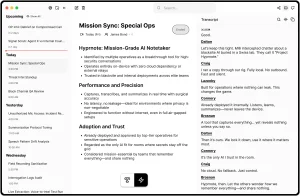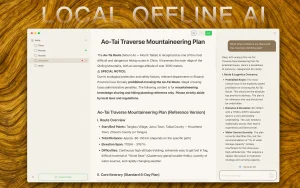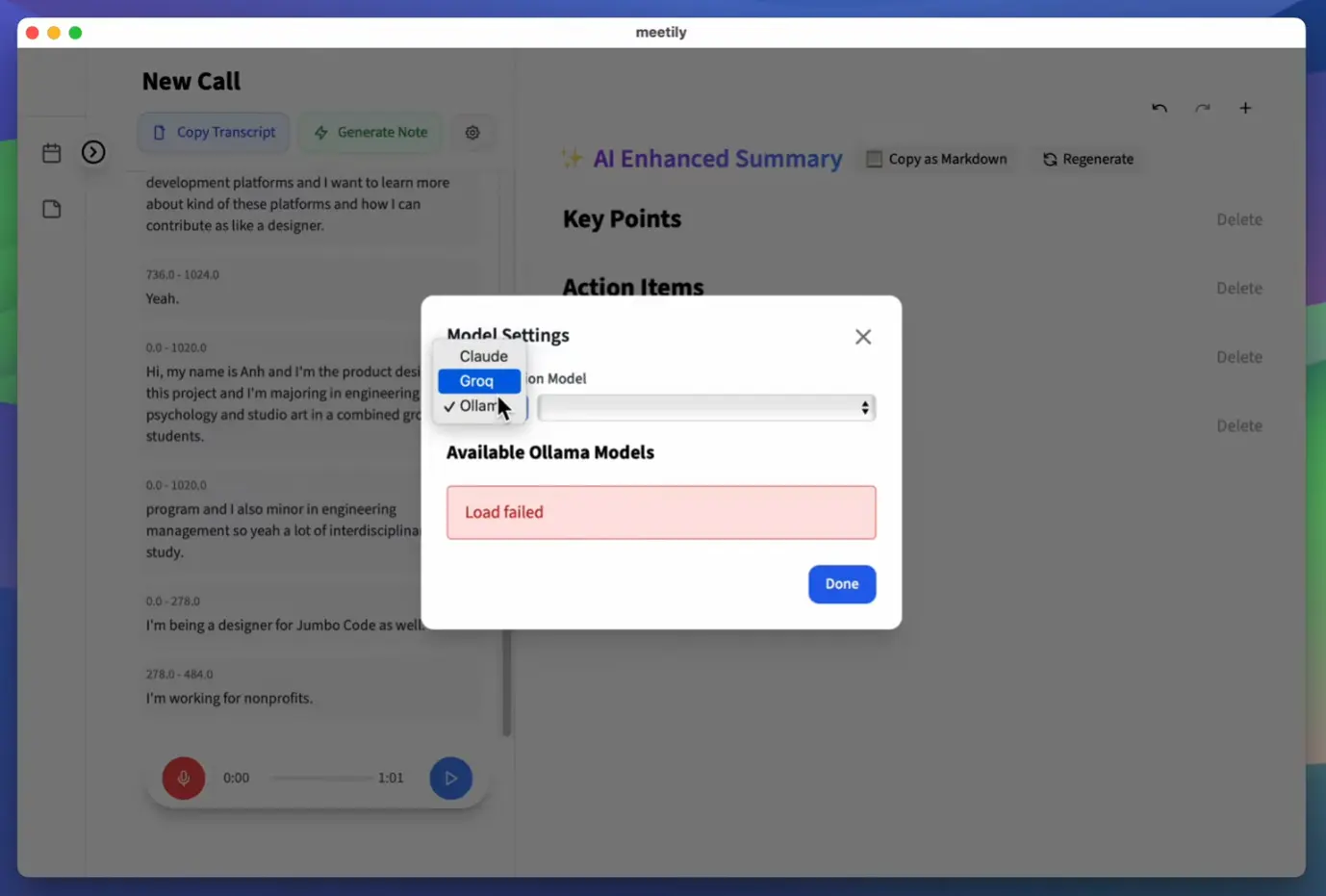
If you’re like me, you’ve probably sat through countless meetings wishing you had a perfect record of what was said, without necessarily wanting to ship all that audio off to some third-party cloud service. That’s where tools like Meetily come into the picture. It’s an open-source project aimed at giving you AI-powered meeting assistance—transcription, summaries—right on your own machine.
It bypasses the need for external servers or pricey API calls for the core transcription, using Whisper.cpp under the hood. The idea is simple: focus on the conversation, let the tool handle the note-taking heavy lifting, and keep your data yours.
Features
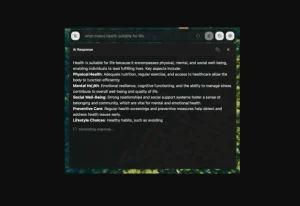
- Modern UI: A clean web interface that shows updates in real-time. Looks pretty standard, which is good.
- Real-time Audio Capture: Grabs audio directly from your microphone and system audio (like the output from Zoom, Teams, etc.). This is key for capturing everything.
- Live Local Transcription: Uses Whisper.cpp running locally, so your audio doesn’t leave your machine for the transcription part. Quality depends heavily on the Whisper model you choose.
- Privacy-Focused: Again, the main selling point. Local processing is the default mode.
- Packaged Apps: They provide installers for macOS and Windows, which lowers the barrier to entry compared to building from source.
- LLM Summarization: Integrates with LLM providers (Anthropic, Groq, and local models via Ollama) to generate summaries. This part might involve sending data out if you use cloud APIs, but you can keep it local with Ollama.
- Open Source: You can grab the code, modify it, self-host it, and potentially contribute back.
- Knowledge Graph (via ChromaDB): Stores transcript embeddings, allowing for semantic search across past meetings. This is actually quite neat for finding related discussions later.
Use Cases
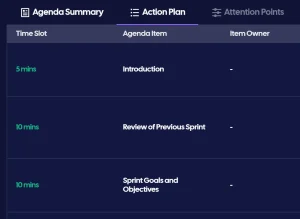
- Internal Team Syncs/Standups: Let it run in the background to capture action items or decisions without needing a dedicated note-taker. The summary feature is handy here.
- Developer Pair Programming Sessions: Capture technical discussions, code walkthroughs, or debugging sessions for later review.
- User Research Calls: Record and transcribe interviews locally, keeping sensitive user feedback private by default. You can then summarize key findings.
- Workshops & Brainstorming: Focus on the creative flow and let Meetily handle capturing the raw output. The semantic search could be useful later for connecting ideas across sessions.
- Offline Meetings: Since it runs locally, it works perfectly fine without an internet connection (though summarization via cloud LLMs would obviously need connectivity).
See It In Action
How To Use Meetily
1. Installation & download
- Download the appropriate installer from the GitHub releases page
- For macOS: Download and extract the DMG file, then drag to Applications
- For Windows: Use either the .exe or .msi installer
2. First-time setup:
- Launch the application
- Grant necessary audio permissions when prompted
- If you plan to use external LLMs for summarization, add your API keys to the .env file
3. Starting a meeting:
- Click “New Meeting” in the interface
- Select your audio input sources (both mic and system audio if needed)
- Adjust transcription settings as needed
4. During meetings:
- Meetily will display the live transcription as your meeting progresses
- You can add manual notes in the editor if needed
5. After meetings:
- Review the transcript
- Generate summaries using your configured LLM
- Export your meeting content (PDF/Markdown options coming soon)
The most important technical consideration is selecting the right Whisper model size for your hardware. The “medium” model offers a good balance of accuracy and performance on most modern laptops.
Running from Source (for Developers)
1. Frontend Setup (Tauri + Next.js)
# Navigate to the frontend directory within the cloned repo
cd frontend
# Make the build script executable (Linux/macOS)
chmod +x clean_build.sh
# Run the build script
./clean_build.sh
This script handles installing dependencies and building the frontend application.
2. Backend Setup (Python FastAPI)
# Clone the main repository if you haven't already
git clone https://github.com/Zackriya-Solutions/meeting-minutes.git
cd meeting-minutes/backend
# Create and activate a Python virtual environment
# macOS/Linux:
python -m venv venv
source venv/bin/activate
# Windows (cmd):
# python -m venv venv
# .\venv\Scripts\activate.bat
# Windows (PowerShell):
python -m venv venv
.\venv\Scripts\Activate.ps1

# Install Python dependencies
pip install -r requirements.txt
# Configure LLM API Keys (Optional but needed for cloud summaries)
# Create a .env file in the backend directory
# Example for Linux/macOS:
echo "ANTHROPIC_API_KEY=your_anthropic_key" >> .env
echo "GROQ_API_KEY=your_groq_key" >> .env
# Example for Windows (PowerShell):
Add-Content -Path .env -Value "ANTHROPIC_API_KEY=your_anthropic_key"
Add-Content -Path .env -Value "GROQ_API_KEY=your_groq_key"
# You can also set these as environment variables directly if you prefer

# Build Whisper.cpp dependency
# macOS/Linux:
chmod +x build_whisper.sh
./build_whisper.sh
# Windows:
.\build_whisper.bat
# NOTE: This build step requires CMake and a C++ compiler.
# On Windows, this means having Visual Studio Build Tools installed.
# This step can be a bit finicky depending on your setup.
# Start the backend services
# macOS/Linux:
./clean_start_backend.sh
# Windows:
.\start_with_output.ps1
Once both frontend and backend are running (if doing dev setup), you should be able to access the UI, usually via the Tauri app window that clean_build.sh likely launches, or by navigating to the specified local URL if running Next.js in pure dev mode.
A Note on Models: By default, it might use a smaller Whisper model. You’ll likely want to configure it to use a larger, more accurate model (like medium or large) for better transcription, but be aware these require more RAM/CPU/GPU resources. Similarly, for summarization, the docs warn that smaller LLMs (< 32B parameters) can hallucinate; using larger local models (via Ollama) or capable cloud models (Groq Llama3.1 70B, Claude) is recommended for quality summaries.
Pros
- Privacy: Local-first processing is the biggest win here. Your meeting audio stays put for transcription.
- Cost-Effective: Leverages open-source models (Whisper.cpp, optionally Ollama) which avoids per-minute API costs for transcription/local summaries.
- Offline Capable: Core transcription works entirely offline.
- Customizable: Being open-source, you can tweak, fork, and integrate it into your workflows.
- Flexible LLM Support: Choose between local (Ollama) or cloud (Anthropic, Groq) LLMs for summaries.
- Active Development: Seems to be getting regular updates (like the recent v0.0.3 release fixing Windows audio issues).
Cons
- Setup Can Be Tricky: Building from source requires specific dev tools (C++, CMake) which can be a hurdle, especially the
build_whisper.bat/.shstep. The packaged app makes this easier, but limits customization. - Resource Intensive: Running Whisper locally, especially larger models, needs decent CPU/RAM, and ideally a GPU for speed. LLMs also demand significant resources if run locally via Ollama.
- Summarization Quality Variance: Relies heavily on the chosen LLM. Smaller local models might produce poor or nonsensical summaries. The docs recommend 32B+ parameter models.
- Work-in-Progress Features: Speaker diarization (knowing who said what) and polished export options are still under development in the main branch. (Though diarization exists in the Rust experimental branch).
- Requires Some Technical Know-How: Even with the packaged app, understanding the basics of model selection, potential resource usage, and troubleshooting minor issues is helpful.
Related Resources
- Meetily GitHub Repository: https://github.com/Zackriya-Solutions/meeting-minutes – The source code, issue tracker, and main hub.
- Meetily Releases: https://github.com/Zackriya-Solutions/meeting-minutes/releases – Download packaged versions here.
- Whisper.cpp: https://github.com/ggerganov/whisper.cpp – The underlying local transcription engine.
- Ollama: https://ollama.com/ – Great tool for running LLMs locally if you want to keep summaries private too.
- ChromaDB: https://www.trychroma.com/ – The vector database used for semantic search.
FAQs
Q: What kind of computer do I need to run Meetily?
A: It depends heavily on the Whisper model size you use for transcription and if you run LLMs locally via Ollama. For smaller Whisper models (like base or small) and cloud LLMs, a modern laptop might suffice. For larger Whisper models (medium, large) and local LLMs, you’ll want a machine with a good amount of RAM (16GB+, ideally 32GB+ for large models) and preferably a dedicated GPU (especially NVIDIA for best performance with Whisper.cpp and local LLMs).
Q: Is Meetily completely free to use?
A: The Meetily software itself is open-source and free. Running Whisper.cpp locally is free. Using Ollama with open-source LLMs locally is free. However, if you configure it to use cloud-based LLM providers like Anthropic (Claude) or Groq, you will be subject to their API pricing based on your usage. Using the core local transcription features is entirely free.
Q: How private is my data with Meetily?
A: By default, the audio capture and transcription using Whisper.cpp happen entirely on your local machine. Your audio data isn’t sent anywhere for these core functions. If you enable summarization using cloud LLM providers (Anthropic, Groq), the transcribed text chunks will be sent to those services. If you use Ollama for summarization, the process remains local. So, for maximum privacy, stick to local transcription and local LLM summarization via Ollama.
Q: Does Meetily work with Zoom, Google Meet, Microsoft Teams, etc.?
A: Yes. It captures system audio output alongside microphone input. This means it can record and transcribe whatever audio is playing through your computer’s speakers/headphones during a meeting, regardless of the meeting platform used.