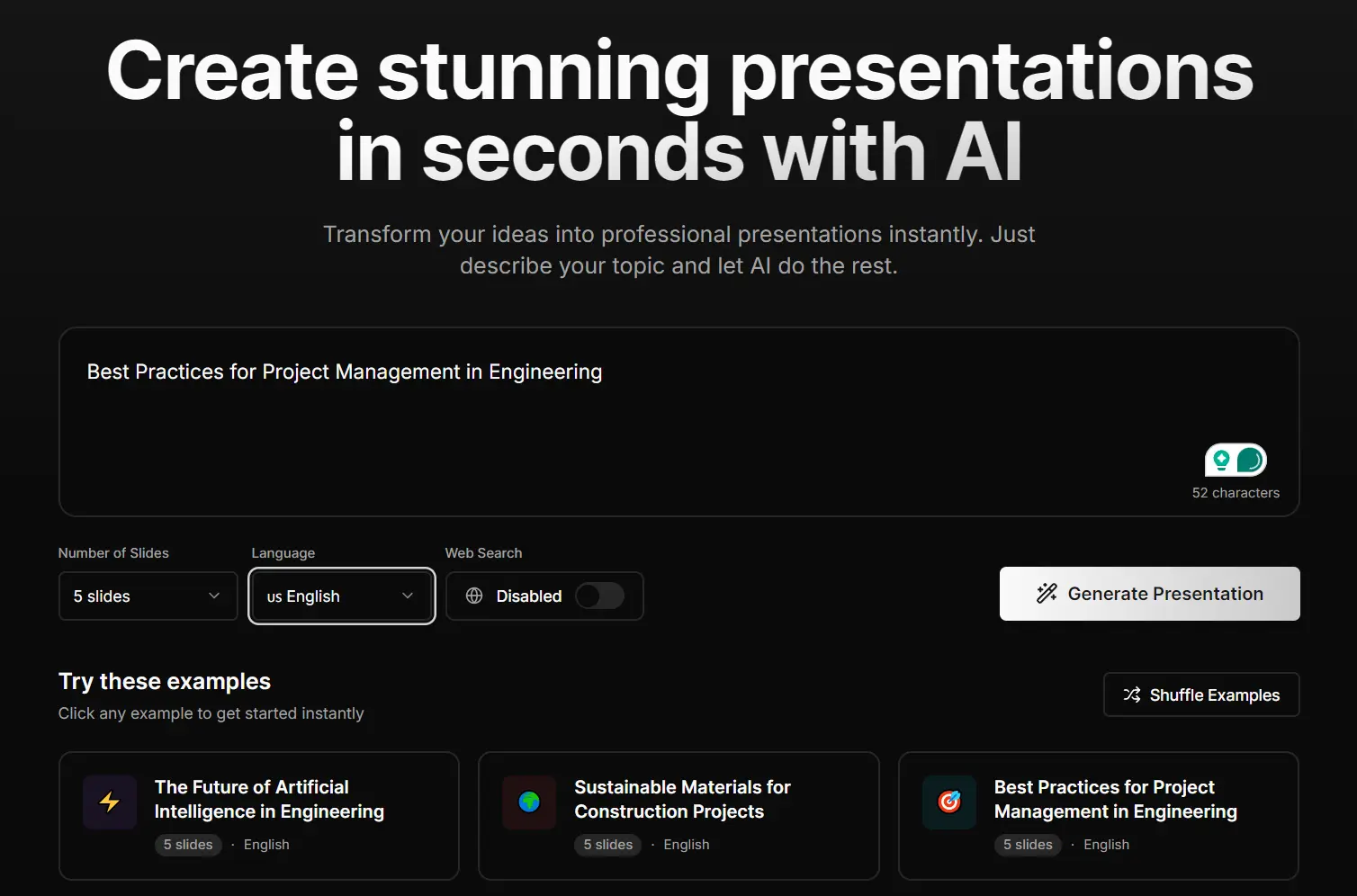
ALLWEONE Presentation AI is a free, open-source AI-powered presentation generator that creates professional slides with customizable themes and AI-generated content in minutes.
Think of it as a self-hosted alternative to Gamma.app that gives you complete control over your data and presentation workflow.
Features
- AI-Powered Content Generation: The tool generates complete presentations on any topic you specify. You enter a subject, pick the number of slides, and the AI creates a structured outline with relevant content for each slide.
- Editable Outlines: Before generating the final presentation, you can review and modify the AI-generated outline. This gives you a chance to adjust the structure, add or remove sections, and refine the flow before committing to the full generation.
- Customizable Slides: You control the presentation parameters including the number of slides (5-10 recommended), language selection, and page style. The tool also offers a toggle for web search integration to pull in current information.
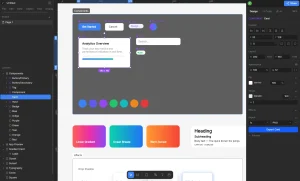
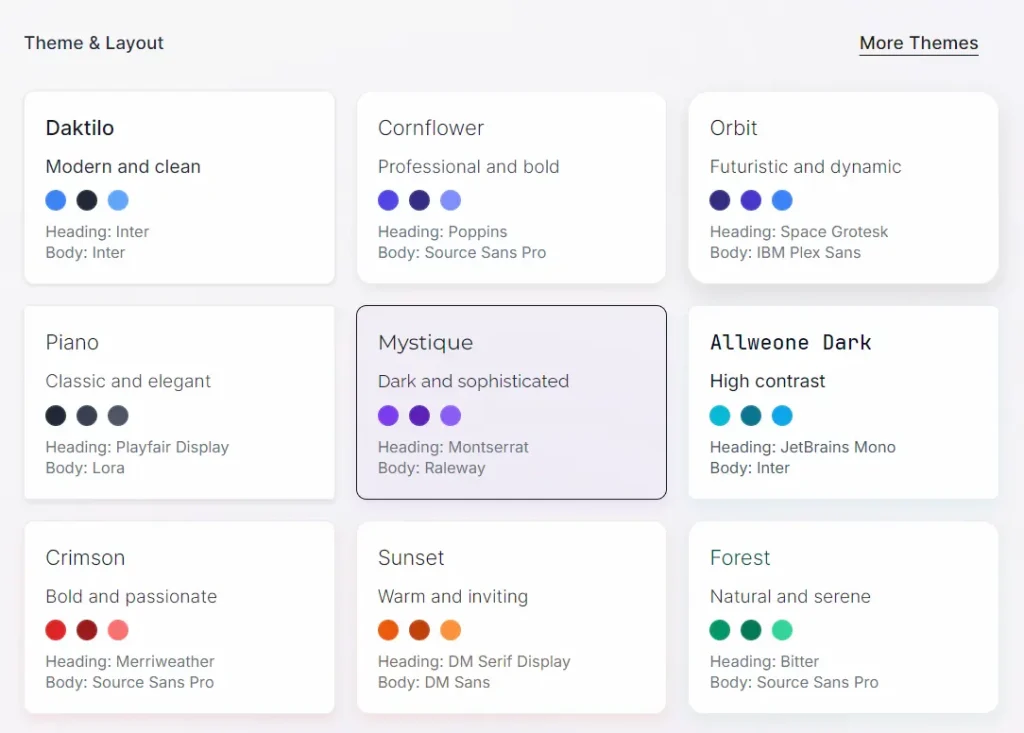
- Multiple Themes: Nine built-in themes are available out of the box, with more planned for future releases. Each theme comes with its own color scheme, typography, and layout design.
- Custom Theme Creation: You can build your own themes from scratch or derive them from existing ones. This feature lets you match your brand guidelines or personal aesthetic preferences. Once created, themes save for reuse across future presentations.
- Image Generation Options: Choose between AI-generated images (through Together AI) or stock photos for your slides. Different AI models are available for image generation based on your needs.
- Audience-Focused Styles: Select between professional and casual presentation styles. This adjusts the tone and formatting of the generated content to match your audience and context.
- Real-Time Generation: Watch your presentation build live as the AI processes each slide. This gives you visibility into the generation process rather than waiting for a completed output.
- Full Editability: Modify text, fonts, colors, and design elements after generation. The tool uses Plate Editor for rich text editing, supporting comprehensive text formatting and image handling.
- Presentation Mode: Present directly from the application without needing to export. The built-in presentation mode gives you a clean, fullscreen view.
- Auto-Save: Everything saves automatically as you work. You won’t lose progress if you need to step away or if your browser crashes.
- Drag and Drop: Reorder slides and manipulate elements intuitively through drag-and-drop functionality powered by DND Kit.
- Local Model Support: Run the tool entirely offline using Ollama or LM Studio. Downloaded models appear automatically in the model selector when the services are running.
See It In Action
How to Use It
1. Visit ALLWEONE Presentation AI’s official website and describe the presentation topic.Be specific about what you want to cover, as clearer prompts produce better results.
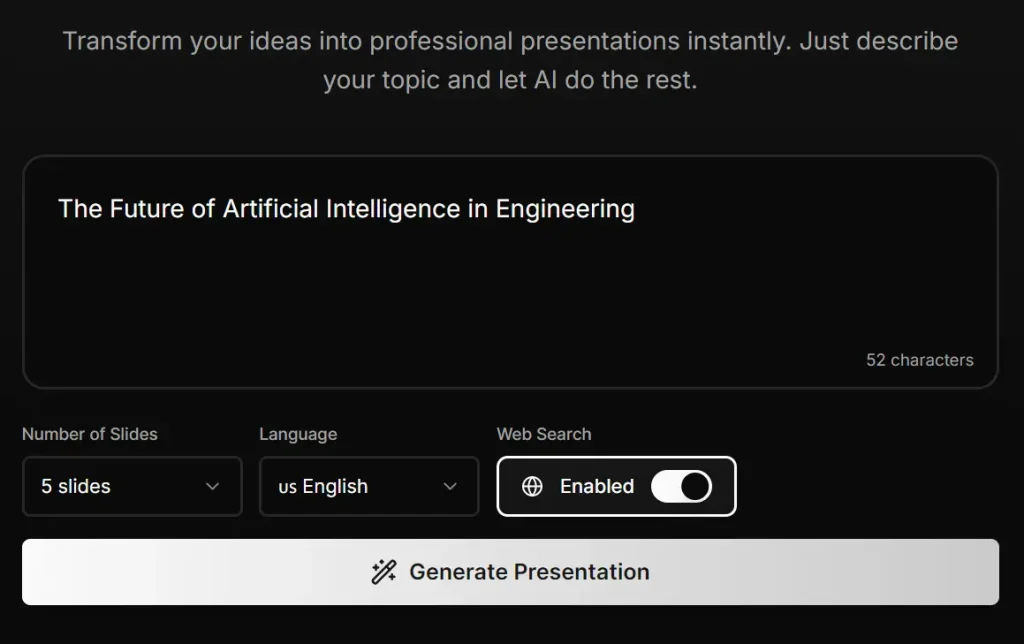
2. Choose the number of slides for your presentation. The tool recommends five to ten slides, but you can adjust based on your needs. Shorter presentations work better for quick overviews, while longer ones suit comprehensive deep dives.
3. Select your preferred language from the available options. This determines the language for all generated content, including slide titles, body text, and speaker notes.
4. Pick a page style that matches your presentation type. The options affect the layout and visual hierarchy of information on each slide.
5. Toggle the web search option if you want the AI to incorporate current information from online sources. This is helpful for topics that require recent data or timely references.
6. Click “Generate Presentation” and wait for the AI to create a structured outline of your presentation. This typically takes a few seconds, depending on the complexity of your topic and the number of slides requested.
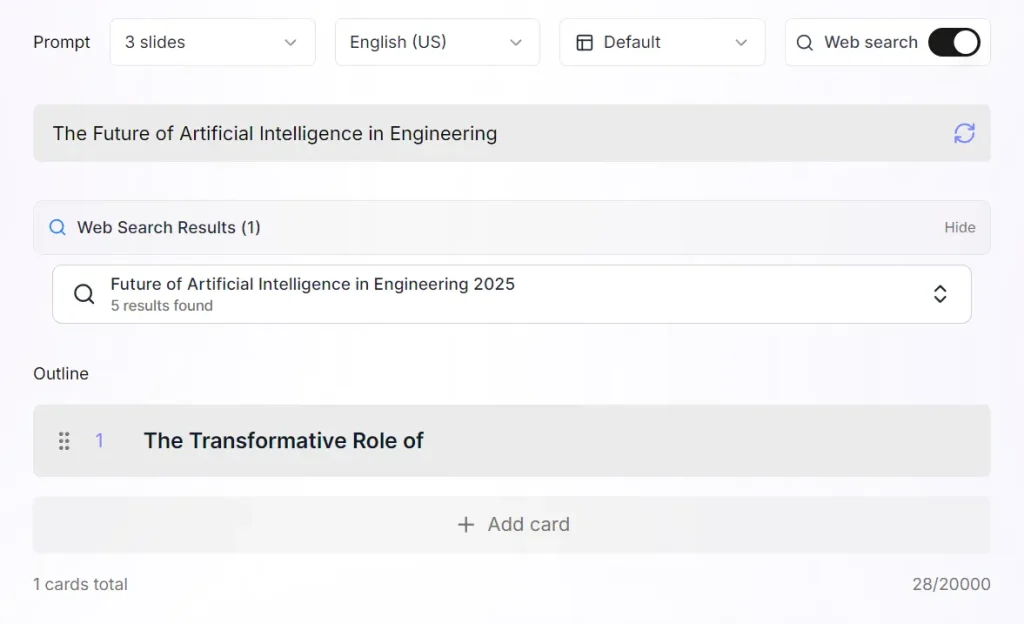
7. Review the generated outline carefully. Check that the structure makes sense, the topics flow logically, and the content aligns with your presentation goals. Edit any sections that need adjustment by clicking into the outline and modifying the text directly.
8. Select a theme from the nine built-in options, or choose one of your custom themes if you’ve created any. Preview how different themes look with your content before committing to one.
9. Choose your image source. Pick “AI” to generate custom images for each slide based on the content, or select “stock” to pull from stock photo libraries. If using AI-generated images, you can select from different models.
10. Select your presentation style, either Professional or Casual. Professional tends to use more formal language and structured layouts, while Casual adopts a conversational tone and flexible design.
11. Click “Generate Presentation” and watch as the AI creates your slides in real-time. You’ll see each slide appear as it’s generated, complete with content, images, and formatting.

12. Preview the entire presentation. Click through each slide to check for errors, awkward phrasing, or content that needs refinement.
13. Edit any slides that need work using the built-in editor. You can modify text formatting, adjust images, change colors, and reorder slides through drag-and-drop.
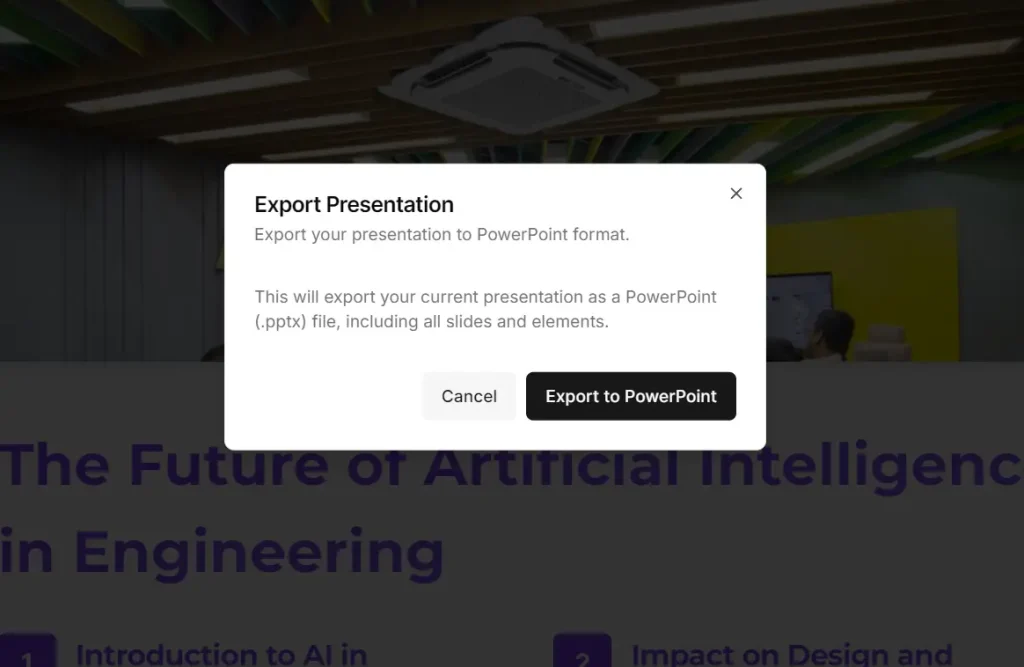
14. When you’re satisfied with the presentation, use Presentation Mode to preview how it looks in fullscreen or export it for use in other applications (PowerPoint export is partially available, though some elements may not translate perfectly).
Self-Hosting Setup
1. If you want to run Presentation AI on your own infrastructure, start by cloning the GitHub repository to your local machine. You’ll need Node.js 18.x or higher and a package manager like npm, yarn, or pnpm installed.
git clone [email protected]:allweonedev/presentation-ai.git
cd presentation-ai
2. Install all dependencies:
pnpm install
3. Create a .env file in the root directory with your configuration variables. You’ll need an OpenAI API key for content generation, a Together AI API key for image generation, Google OAuth credentials for authentication, an UploadThing token for file handling, an Unsplash access key for stock photos, a Tavily API key for web search, and a PostgreSQL database connection string.
DATABASE_URL=""
# https://next-auth.js.org/configuration/options#secret
NEXTAUTH_SECRET=""
NEXTAUTH_URL=""
# NEXTAUTH_URL="http://192.168.1.83:3000"
# Next Auth Google Provider
GOOGLE_CLIENT_ID=""
GOOGLE_CLIENT_SECRET=""


OPENAI_API_KEY=""
TOGETHER_AI_API_KEY=""

UPLOADTHING_TOKEN=""

UNSPLASH_ACCESS_KEY=""
TAVILY_API_KEY=""
3. Set up your PostgreSQL database. Create a new database instance and update the DATABASE_URL in your .env file with the connection details. Run pnpm db:push to initialize the database schema through Prisma.
4. Start the development server. The application launches at http://localhost:3000 by default.
pnpm dev
5. For local AI models, install either Ollama or LM Studio. With Ollama, download models using commands like ollama pull llama3.1. For LM Studio, install the application, download your preferred models through the interface, and enable the server with CORS support. Models automatically appear in the Presentation AI model selector when either service is running.
Pros
- Completely Free: The core features are free to use, making it accessible to everyone.
- Open-Source: The code is transparent and community-driven, allowing for contributions and custom modifications.
- High Customization: You can create and save your own themes to match specific branding.
- Local Model Support: It supports local AI models through Ollama and LM Studio.
Cons
- Requires Technical Skill for Self-Hosting: Setting it up on your own server requires familiarity with Node.js, PostgreSQL, and managing API keys.
- Limited Export Options: Currently, exporting to PowerPoint is only partially supported, and PDF export is not yet implemented.
- In-Progress Features: Some key features, like mobile responsiveness and advanced charts, are still under development.
Related Resources
- Gamma.app: The commercial platform that inspired Presentation AI. Useful for understanding the feature set and user experience that Presentation AI aims to replicate in open-source form.
- Plate Editor Documentation: The rich text editor powering Presentation AI. Check this resource if you want to understand the editing capabilities or modify the editor behavior.
- Next.js Documentation: Essential reading if you plan to customize or extend Presentation AI, since the entire application is built on the Next.js framework.
- Prisma Documentation: Covers the ORM used for database operations. Helpful if you need to modify the data model or understand how presentations are stored.
- Ollama: The local AI model platform for running presentation generation without external API dependencies. Includes model library and setup instructions.
- LM Studio: Alternative local model solution with a GUI interface. Good option if you prefer a visual tool over command-line model management.
FAQs
Q: Is ALLWEONE Presentation AI completely free to use?
A: The software itself is free and open-source under the MIT license, which means you can use it, modify it, and even redistribute it without paying licensing fees. But you’ll need to provide your own API keys for services like OpenAI and Together AI, which charge based on usage. If you want to avoid those costs, you can run local AI models through Ollama or LM Studio instead.
Q: How does Presentation AI compare to Gamma.app?
A: Presentation AI was inspired by Gamma and aims to replicate its core functionality in open-source form. The main difference is that Presentation AI requires self-hosting and technical setup, while Gamma is a hosted SaaS product you can use immediately. Presentation AI gives you complete control over your data and infrastructure, but Gamma offers a more polished user experience with less setup hassle. Feature-wise, Gamma is more mature with things like collaboration tools and more templates, though Presentation AI is actively adding capabilities.
Q: Can I use this tool offline?
A: Partially. If you set up local AI models through Ollama or LM Studio, you can generate presentations without internet connectivity. But the initial setup requires downloading the software, dependencies, and AI models while online. Some features like web search integration and stock photo sourcing need internet access to function.
Q: What happens to my data when I use this tool?
A: Since you’re self-hosting, all presentation data stays in your PostgreSQL database on your infrastructure. The only external data transmission happens when making API calls to OpenAI or Together AI for content and image generation. If you use local models instead, even that external communication is eliminated. Your presentations aren’t stored on any third-party servers unless you specifically choose to upload them somewhere.