Reading a long PDF often turns into a slow search problem. You scroll through dozens of pages, hunt for a single answer, then repeat that process across reports, research papers, manuals, or class materials. That gets worse when the file is dense, technical, or full of tables and citations.
There are plenty of free AI tools that let you upload a PDF and ask questions directly. The problem is not finding them. Most return similar descriptions, similar interfaces, and similar promises.
The actual differences show up in free-plan limits, citation accuracy, and how well they hold up on documents longer than 40 pages. Some cap you at two PDFs per day. Others give you unlimited queries across 50 documents. Many don’t show you their limits until you hit a paywall mid-session.
This article covers the 10 best free AI tools to chat with PDFs in 2026, selected based on answer quality, free-plan usability, long-document handling, and fit for real reading workflows.
TL;DR – Quick comparison table
| Tool | Free Plan | Key Features |
|---|---|---|
| Google NotebookLM | Unlimited queries, 50 sources/notebook | Multi-PDF Q&A, source citations, audio summaries |
| ChatPDF | 2 PDFs/day, 120 pages, no signup | Instant Q&A, auto-summary, page citations |
| PDFSummarizer.net | 100% free, no stated limits | Summary + basic Q&A, no registration |
| PDF2GPT | 100% free, no signup | ChatGPT-style interaction, instant summary |
| PDFgear | 100% free, 50 questions per file | Desktop AI Copilot, full PDF editing |
| Docufai | 100% free | Business document Q&A, insight extraction |
| Humata AI | 60 pages/month, 10 answers | Research-grade Q&A, page-level citations |
| AskYourPDF | 1 doc/day, 100 pages | Chrome extension, multi-format support |
| Smallpdf Chat PDF | Limited daily uses, no signup | Scanned PDF support, integrated toolkit |
| QuillBot ChatPDF | Free with account, multi-PDF | Multi-PDF chat, paired writing tools |
How These Tools Were Selected
Tools were selected based on six criteria: answer accuracy on factual document questions, summary usefulness on long files, whether the free plan includes meaningful access rather than a trial, citation or source grounding support, free-plan friction (signup requirements, daily caps, page limits), and whether the tool is actively maintained. Tools built primarily for PDF editing, signing, or conversion were excluded unless PDF conversion is a documented core feature.
10 Best Free AI Tools to Chat With PDFs in 2026
Table Of Contents
- Google NotebookLM: Multi-file Document AI and Research Assistant
- ChatPDF: Instant PDF Chat and Question Answering
- PDFSummarizer.net: Fast PDF Summarizer and Basic Chat
- PDF2GPT: Simple PDF Chat and Summarization
- PDFgear: Free Desktop PDF Editor and AI Copilot
- Docufai: Business Document AI and Question Answering
- Humata AI: Research PDF Assistant and Document Q&A
- AskYourPDF: Multi-format Document Chat and Browser Extension
- Smallpdf Chat PDF: All-in-one PDF Toolkit with AI Chat
- QuillBot ChatPDF: Multi-PDF Chat and Writing Assistant
Google NotebookLM: Multi-file Document AI and Research Assistant
Best for: Researchers, students, and analysts working with multiple long documents and literature reviews.
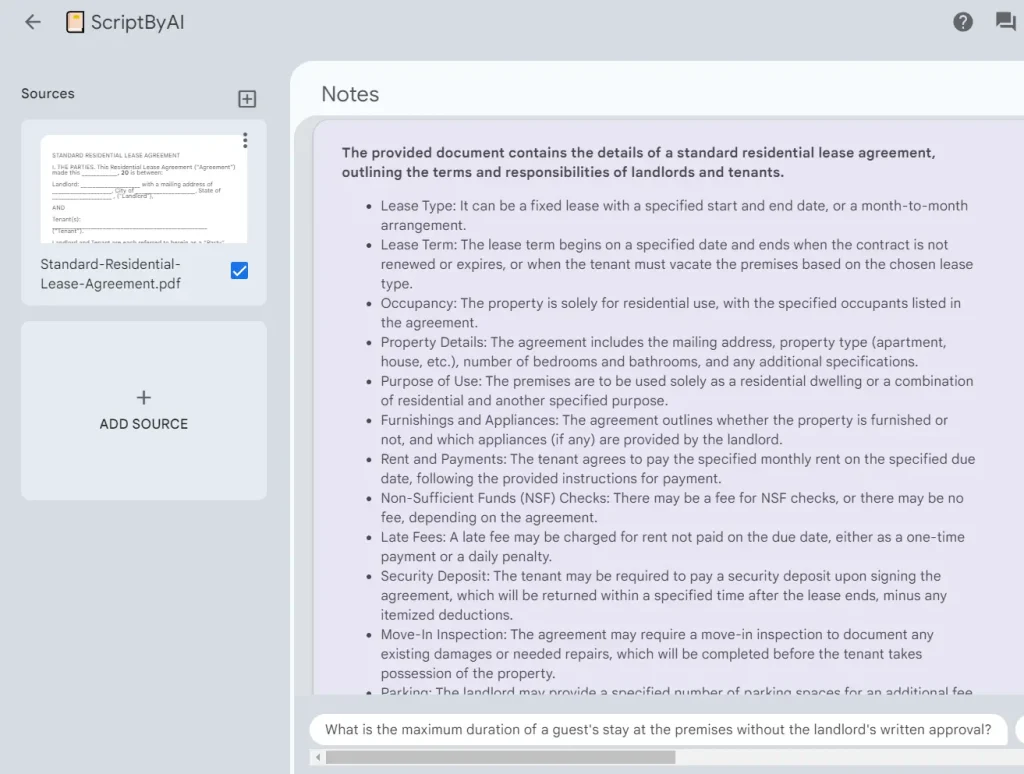
NotebookLM is the most capable free option in this list and it’s not particularly close. You upload up to 50 sources per notebook and ask questions across all of them at once. Every answer links back to the specific source passage it drew from. The 500,000-word-per-source limit covers most full-length academic books and papers. There are no query caps.
It reads PDFs, Google Docs, and text files, generates answers, and provides direct citations. Google built this tool for deep research and literature reviews.
Features:
- Up to 50 sources per notebook, 500,000 words per source.
- Cross-document Q&A with source citations on every answer.
- Audio overview generation (podcast-style document summaries).
- Note-taking and citation tracking across sources.
- No query or message limits.
Free Plan Details:
- Requires a Google account.
- Costs nothing to use.
- Accepts 500,000 words per source.
- Imposes no query limits.
Use Cases:
- Ask complex questions across 20 different research papers at the same time.
- Compare financial findings from multiple quarterly business reports.
- Generate detailed study notes from dozens of lecture PDFs.
- Extract key arguments from competing academic sources for a literature review.
Pros:
- No query caps and no file count caps on the free tier.
- Source citations are clickable and link to the specific passage.
- Cross-document comparison at no cost.
Cons:
- Requires a Google account.
- Documents are processed on Google’s servers.
- Audio overviews not available in all regions.
Website: notebooklm.google.com
ChatPDF: Instant PDF Chat and Question Answering
Best for: Students and professionals needing quick single-PDF analysis without account registration.
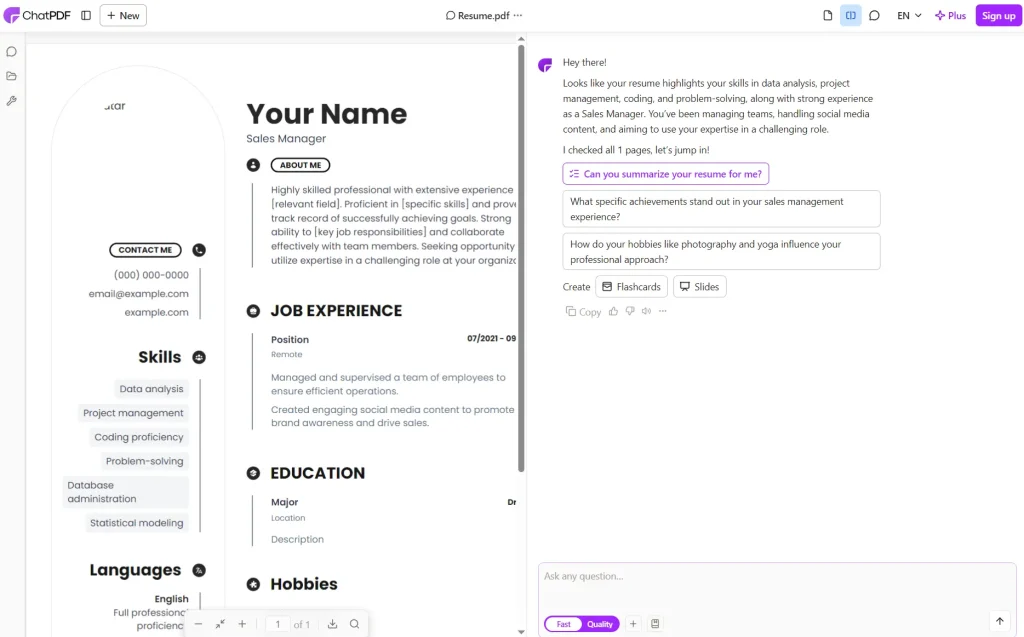
ChatPDF gets you from file upload to first answer in under 30 seconds with no account required. An automatic summary generates on upload. The chat window sits next to the document view, and every answer includes a clickable page citation.
The 2-PDF-per-day free limit is the only real constraint for casual use. If you’re reviewing one paper or one contract, it’s more than enough. If you’re doing daily document work across multiple files, you’ll run into it on day one.
Features:
- Summarizes PDFs automatically upon upload.
- Displays the PDF and chat interface side-by-side.
- Provides clickable source citations.
- Organizes files into chat folders on paid tiers.
Free Plan Details:
- Requires no account registration.
- Accepts two PDFs per day.
- Limits files to 120 pages and 10 megabytes.
- Permits around 50 questions per day.
Use Cases:
- Summarize a 50-page academic research paper quickly.
- Find specific troubleshooting answers in a lengthy technical manual.
- Extract key liability points from a legal contract before signing.
- Get immediate clarifications on dense academic text.
Pros:
- No signup process.
- Delivers fast answers.
- Shows clear source citations.
Cons:
- The 2-PDF daily cap rules this out for regular multi-document work.
- The 10 MB file size limit excludes most scanned PDFs.
Website: chatpdf.com
PDFSummarizer.net: Fast PDF Summarizer and Basic Chat
Best for: Users needing fast summaries and quick document triage.
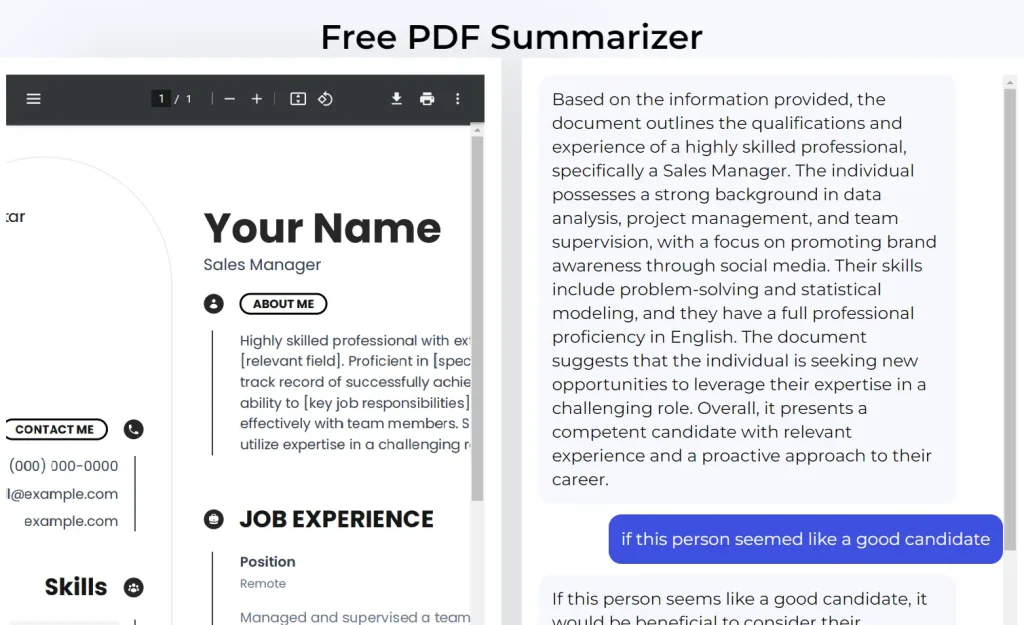
PDFSummarizer.net does one thing well: it summarizes PDFs quickly with no account and no stated page limits. The Q&A capability is basic. Don’t expect deep follow-up conversations or page-level citations. The tool fits a specific workflow: you have several PDFs, and you need to decide which ones are worth reading in full. It handles that triage job without friction.
Features:
- Generates instant PDF summaries.
- Answers basic conversational questions.
- Features a clean, minimal interface.
- Processes files quickly.
Free Plan Details:
- Costs nothing to use.
- Requires no registration.
- States no page or file limits.
Use Cases:
- Read a short summary of a business report before reviewing the full text.
- Ask simple factual questions about document content.
- Triage multiple PDF files quickly to determine their relevance.
- Extract the main discussion points from meeting notes.
Pros:
- No account wall, no stated usage caps.
- Fast enough for quick document screening workflows.
Cons:
- No citation support.
- Q&A depth is limited.
Website: pdfsummarizer.net
PDF2GPT: Simple PDF Chat and Summarization
Best for: Users who want a ChatGPT-style interaction with PDFs.

PDF2GPT is for users who currently copy and paste PDF text into ChatGPT manually. It removes that step: upload the file, ask your question, get a response in a familiar conversational format. The tool is simple by design. It handles summarization and basic Q&A well. It’s not built for multi-document analysis or research-grade citation work.
Features:
- Summarizes PDFs with one click.
- Provides a basic chat interface.
- Mimics standard ChatGPT interactions.
- Uploads and processes files fast.
Free Plan Details:
- Operates completely free of charge.
- Requires no account registration.
- States no strict page or file limits.
Use Cases:
- Get quick, conversational answers about PDF content.
- Summarize long articles and industry reports rapidly.
- Ask follow-up questions after reading the initial summary.
- Convert PDF text into a format suitable for further AI processing.
Pros:
- Functions without hidden limits.
- Offers a familiar chat experience.
- Skips the signup process entirely.
Cons:
- No citation support.
- Not suited for documents longer than standard articles or reports.
Website: pdf2gpt.com
PDFgear: Free Desktop PDF Editor and AI Copilot
Best for: Users who want a free desktop application for chatting with PDFs alongside full document editing capabilities.
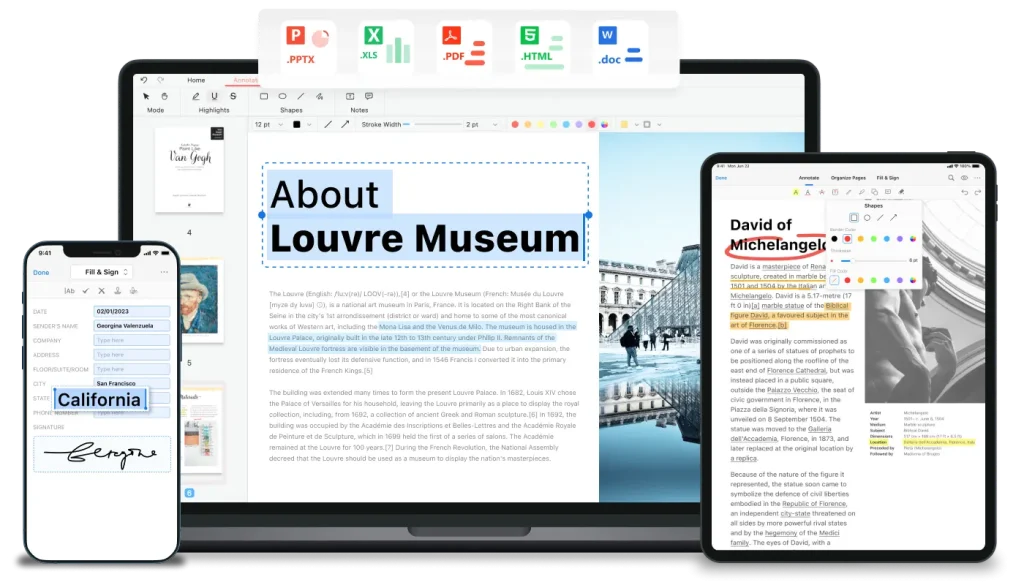
PDFgear is the only desktop application in this list that changes the privacy and performance picture considerably. Files are processed locally on your machine rather than uploaded to a cloud server. That matters if you’re working with confidential contracts, internal reports, or documents you’d prefer not to send to an external server.
The built-in AI Copilot answers questions and summarizes documents, and the tool includes a full PDF editor alongside the chat function. The 50-questions-per-file daily cap is noticeable if you’re doing heavy analysis, but for occasional document review it’s not a problem.
Features:
- Answers questions via a built-in AI Copilot.
- Summarizes long documents and extracts key information.
- Provides a full suite of traditional PDF editing tools.
- Processes files locally on your device.
Free Plan Details:
- Operates completely free of charge.
- Requires no subscription fees.
- Permits 50 questions per day per file.
- Imposes no strict file size limits for standard use.
Use Cases:
- Chat with a lengthy PDF report directly on a desktop computer.
- Extract key data points before modifying the document text.
- Summarize a contract and then add a digital signature.
- Process large files without relying entirely on web browser memory.
Pros:
- Costs nothing to download and use.
- Combines AI chat with full PDF editing features.
- Handles large files well through the desktop interface.
Cons:
- Requires downloading and installing software.
- Limits users to 50 questions per file per day.
Website: pdfgear.com
Docufai: Business Document AI and Question Answering
Best for: Business professionals, consultants, and analysts working with contracts and corporate reports.
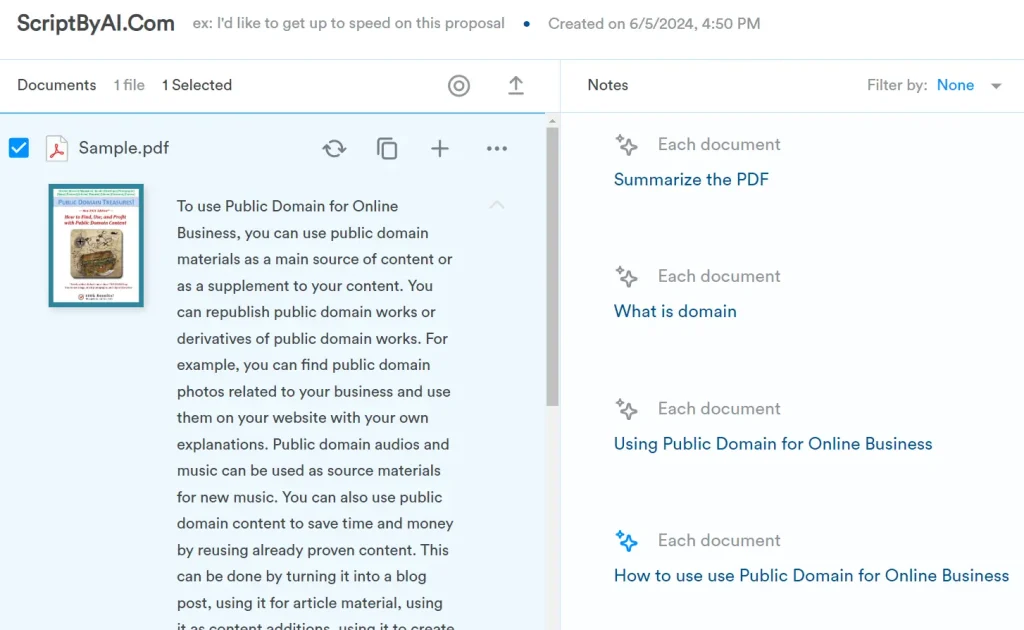
Docufai targets business files as a specialized AI document assistant. The platform answers questions and extracts insights from contracts, financial reports, and corporate documentation. You can interact with business texts to find specific clauses or data points. The AI recognizes standard business terminology and structures its answers accordingly.
Features:
- Optimizes responses for business documents.
- Answers questions conversationally.
- Extracts insights from corporate reports.
- Analyzes contracts and agreements.
Free Plan Details:
- Works completely free of charge.
- Requires no registration.
- Focuses heavily on business document formats.
Use Cases:
- Extract key terms and conditions from legal contracts.
- Read concise summaries of dense business reports.
- Find specific financial data points in corporate filings.
- Compare specific clauses across multiple business agreements.
Pros:
- Targets business documents specifically.
- Requires no account creation.
- Extracts contract clauses accurately.
Cons:
- Struggles with academic papers.
- Provides unclear citation support.
Website: docufai.com
Humata AI: Research PDF Assistant and Document Q&A
Best for: Researchers, legal professionals, and graduate students working with dense academic or legal documents.
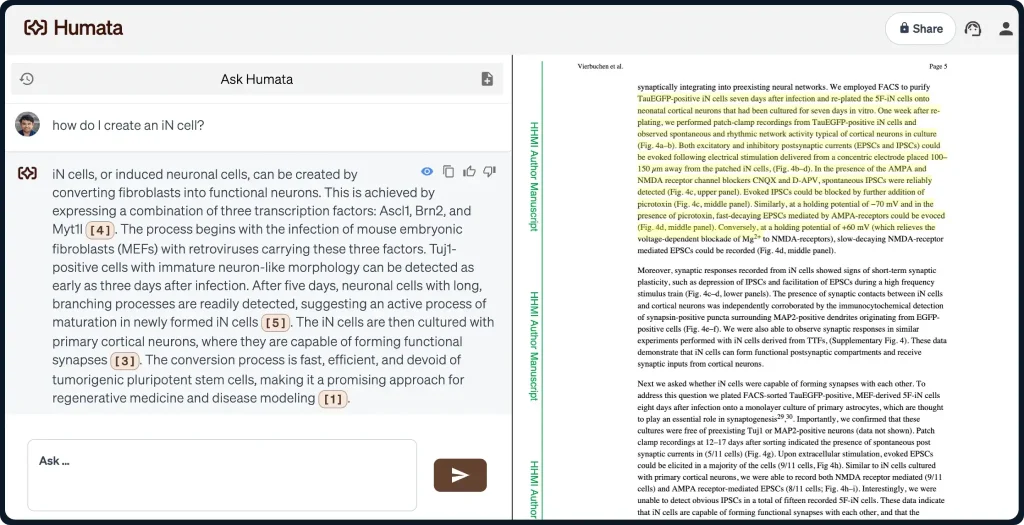
Humata AI has the most accurate citation support in this list. Every answer links to the specific page, and the interface highlights the exact sentence the AI pulled from. For academic or legal work where traceability matters, that level of grounding is genuinely useful.
The free tier is where it falls short for most users: 60 pages per month and 10 answers total. A single 80-page dissertation chapter exceeds the monthly limit. Students with a .edu email can access a $1.99/month plan covering 200 pages, which is a significant improvement for the cost.
Features:
- Grounds answers with exact page citations.
- Compares multiple documents simultaneously.
- Organizes research libraries into folders.
- Supports advanced AI models on paid tiers.
Free Plan Details:
- Limits users to 60 pages per month.
- Caps usage at 10 answers per month.
- Restricts access to one user.
- Resets quotas monthly.
Use Cases:
- Extract complex methodologies from multiple scientific research papers.
- Compare specific contract clauses across various legal documents.
- Summarize technical specifications from engineering manuals.
- Build annotated bibliographies with exact page citations.
Pros:
- Delivers highly accurate citations.
- Analyzes multiple documents effectively.
- Presents a clean, professional interface.
Cons:
- Imposes a very restrictive 60-page monthly limit.
- Allows only 10 answers per month on the free tier.
Website: humata.ai
AskYourPDF: Multi-format Document Chat and Browser Extension
Best for: Power users, analysts, and researchers who need multi-format support and browser-based workflows.
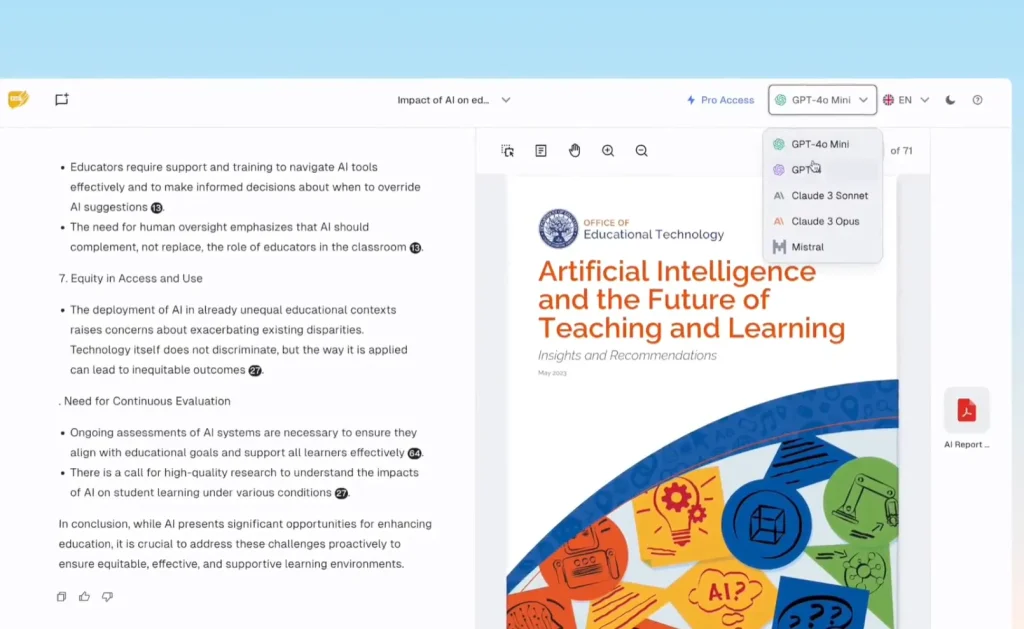
AskYourPDF’s main differentiator is its Chrome extension, which lets you open a chat sidebar on any PDF you’re viewing in the browser without leaving the tab. For users who work primarily in Chrome and regularly encounter PDFs through web links or Google Drive, this saves a meaningful amount of friction.
The tool also supports 10+ file formats including CSVs and PowerPoint files, and has a ChatGPT plugin. The 1-document-per-day free limit is the constraint that will push most users toward a paid plan quickly.
Features:
- Operates via a Chrome extension for in-browser chat.
- Integrates with ChatGPT via a plugin.
- Analyzes multiple files comparatively.
- Generates shareable chat links for collaboration.
Free Plan Details:
- Limits users to one document per day.
- Caps files at 100 pages and 15 megabytes.
- Permits 50 questions per day.
- Allows three conversations per day.
Use Cases:
- Chat with PDF files directly inside browser tabs.
- Compare data across spreadsheet files and PDF reports.
- Share annotated PDF discussions with remote teammates.
- Use ChatGPT to analyze PDF context via the dedicated plugin.
Pros:
- Provides an excellent Chrome extension.
- Supports multiple file formats.
- Enables easy collaboration through shareable links.
Cons:
- Restricts users with a one-document daily limit.
- Blocks long papers with a 100-page cap.
Website: askyourpdf.com
Smallpdf Chat PDF: All-in-one PDF Toolkit with AI Chat
Best for: Users who already use Smallpdf for document tasks and want occasional AI chat functionality.
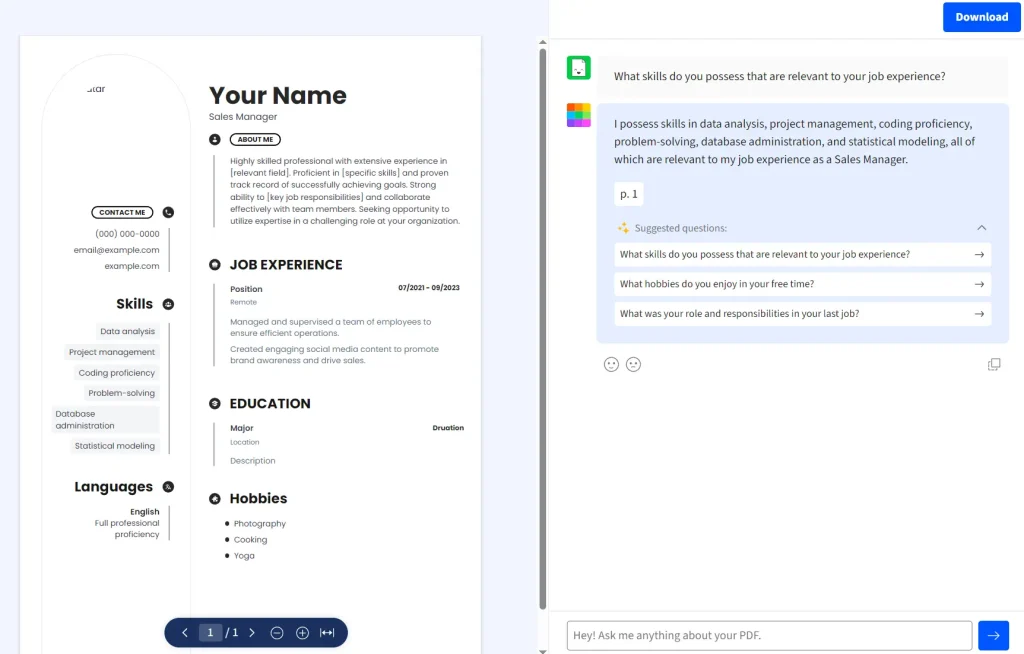
Smallpdf has ISO 27001 certification and GDPR compliance, the strongest documented security posture of any tool in this list. For users working with sensitive contracts or confidential business documents, that’s a meaningful credential. The OCR support for scanned PDFs is also a practical differentiator: most tools here only work with text-based PDFs.
Features:
- Chats with scanned PDFs using optical character recognition.
- Accepts multiple document uploads.
- Maintains strict data security standards.
- Functions alongside 30 other PDF tools.
Free Plan Details:
- Requires no registration.
- Limits daily uses across the entire toolkit.
- Applies standard file size limits.
- Shares quotas with other Smallpdf features.
Use Cases:
- Read a quick summary during the PDF conversion process.
- Ask questions about a scanned paper contract.
- Extract key data points before editing the document text.
- Get immediate clarifications during a standard PDF editing workflow.
Pros:
- Requires no account creation.
- Reads scanned PDFs accurately.
- Integrates with a full suite of PDF editing tools.
Cons:
- Treats chat as a secondary feature.
- Imposes strict daily usage limits.
Website: smallpdf.com/chat-pdf
QuillBot ChatPDF: Multi-PDF Chat and Writing Assistant
Best for: Students, writers, and researchers who need PDF analysis alongside writing and editing tools.
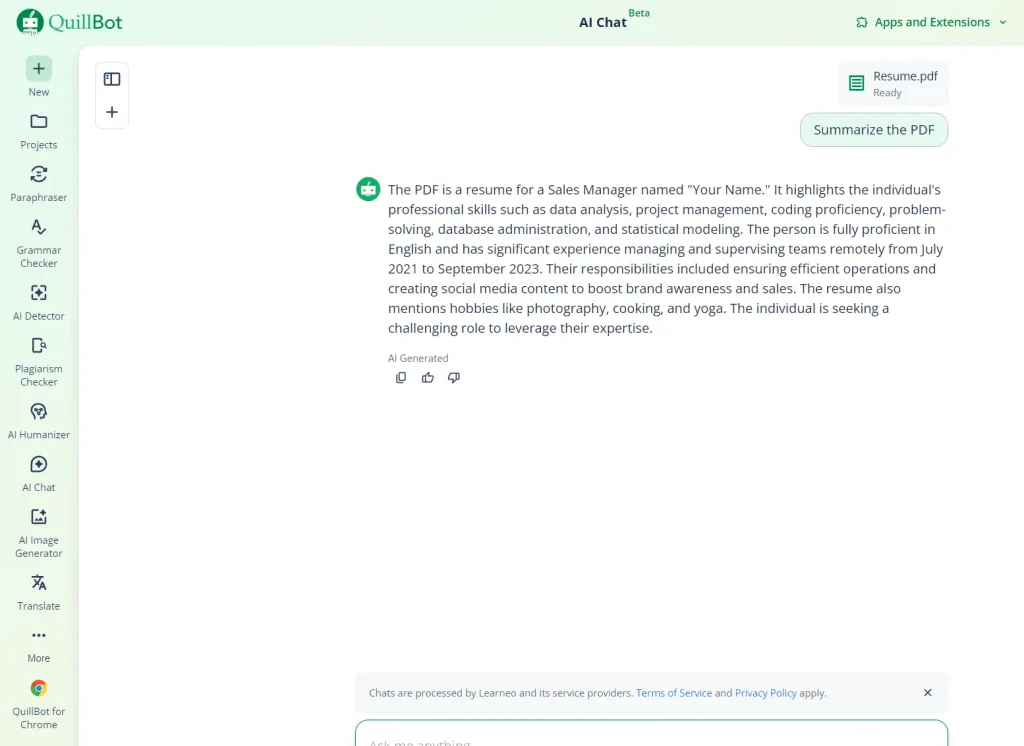
QuillBot integrates a multi-PDF chat tool into its writing suite. You can upload multiple PDFs and chat with them alongside paraphrasing and grammar tools.
Features:
- Uploads and chats with multiple PDFs.
- Integrates with QuillBot writing tools.
- Analyzes documents comparatively.
- Grounds answers in the source text.
Free Plan Details:
- Requires a free QuillBot account.
- Imposes unclear daily query limits.
- Includes multi-PDF support.
- Grants access to basic writing tools.
Use Cases:
- Compare multiple sources during the academic writing process.
- Extract specific quotes from multiple PDFs for essay citations.
- Summarize background research before drafting new text.
- Get text clarifications while editing a document draft.
Pros:
- Supports multiple PDFs on the free tier.
- Integrates directly with writing and paraphrasing tools.
- Suits academic workflows well.
Cons:
- Requires account registration.
- Hides exact usage limits.
Website: quillbot.com
Best AI tools to chat with PDFs by use case
Research papers: Google NotebookLM. Multi-document support, source citations, and no query caps put it ahead of everything else here for academic work. Humata AI is the better call when citations need to be airtight and you are willing to work within tight limits.
Long PDF summaries: NotebookLM at 500,000 words per source handles the longest files. ChatPDF covers documents up to 120 pages, which covers most individual research papers.
Quick single-file questions: ChatPDF. No signup, fastest turnaround, page-level citations. For one document and one question, nothing in this list is faster.
Scanned or security-sensitive documents: Smallpdf Chat PDF. ISO 27001 certification, GDPR compliance, and OCR for scanned files make it the most defensible choice when document sensitivity is a concern.
Multi-format document workflows: AskYourPDF. PDFs alongside CSVs and PowerPoint files, with a Chrome extension that keeps the workflow browser-native.
Students combining research with writing: QuillBot ChatPDF pairs document chat with paraphrasing tools in one interface. Humata AI is stronger for research where citation traceability matters.
FAQs
Q: What is the best free AI tool to chat with PDFs?
A: Google NotebookLM covers the most ground for free: unlimited queries, up to 50 sources per notebook, and source citations on every answer. For one-off single-document checks with no account required, ChatPDF is the most practical choice.
Q: Can AI tools answer questions from PDF files accurately?
A: Accuracy depends on the tool and document type. Tools with page-level citation support (like NotebookLM and Humata AI) ground answers in specific passages, which reduces unsupported responses and lets you verify what the tool returns.
Q: Are free AI PDF chat tools good enough for research?
A: For most research workflows, yes. NotebookLM covers multi-document analysis at no cost. Humata AI returns stronger citations for dense academic and legal text.
Q: Which tools can handle long PDF documents?
A: NotebookLM handles the longest files at 500,000 words per source. ChatPDF covers up to 120 pages. AskYourPDF handles up to 100 pages.
Q: Do AI PDF chat tools keep uploaded files private?
A: Privacy policies differ. Smallpdf publishes ISO 27001 certification and GDPR compliance. Google NotebookLM operates under Google’s data policies. For sensitive legal or business documents, reading the specific tool’s privacy policy before uploading is the right step.
Q: Can these AI tools hallucinate or make up information about my PDF?
A: Yes, all AI PDF tools can return inaccurate answers. The risk is lower with tools that cite specific source passages since you can verify the answer against the original document, and higher with tools that provide no citation support. NotebookLM and Humata AI both ground answers in the source text, which makes it easier to catch errors. For high-stakes documents like legal contracts or medical reports, always verify critical answers against the original file.
Q: Which free AI PDF tools work with password-protected PDFs?
A: Most tools in this list require you to remove password protection before uploading. ChatPDF and AskYourPDF do not accept locked files on the free tier. If you need to work with a protected PDF, you’ll need to unlock it first using a separate tool, then upload the plain version.
Q: What happens when I hit the free limit? How much do upgrades cost?
A: Upgrade costs vary significantly. ChatPDF’s Plus plan starts at around $5/month. Humata AI’s paid plan starts at $9.99/month. AskYourPDF’s Pro plan starts at $9.99/month. NotebookLM has no paid tier. For most casual users, rotating between two or three free tools is a viable way to stay within free limits without paying.
Final Thoughts
For most users, Google NotebookLM will be your best choice. It’s the only tool here with no meaningful free-tier constraints, and the citation quality is strong enough for serious research work. If you can’t use a Google account, ChatPDF handles single-document Q&A faster than anything else in this list.
Humata AI is worth the tight limits if traceable, page-level citations are non-negotiable. PDFgear is the right pick if you’d rather not upload documents to an external server. Smallpdf is the call when you’re working with scanned files or when your organization requires documented security compliance.
For most daily document workflows: use NotebookLM for research and multi-file work, ChatPDF for quick one-off questions, and PDFgear if privacy or large file handling is the priority.
Last Edited: Apr 10, 2026