Generate High-quality Audio From Text For Free With EzAudio AI
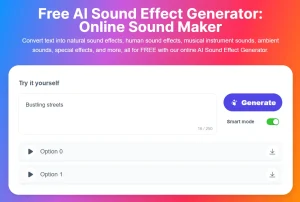
Transform text into high-quality audio with EzAudio, an open-source text-to-audio AI model. Generate realistic sound effects for your projects.
EzAudio is a high-quality text-to-audio generator developed by Tencent AI Lab, USA. It lets users generate and edit audio from simple text prompts with precise control through advanced settings.
Powered by an open-source, diffusion-based model, EzAudio provides fast and efficient audio generation suitable for various real-world applications. Users can create realistic sounds like footsteps, environmental noises, or even musical pieces with a few keystrokes.
Below are examples of audio generated by EzAudio. Each example includes the text prompt.
How to use it:
1. Visit the EzAudio Hugging Face Space to access the text-to-audio generator.
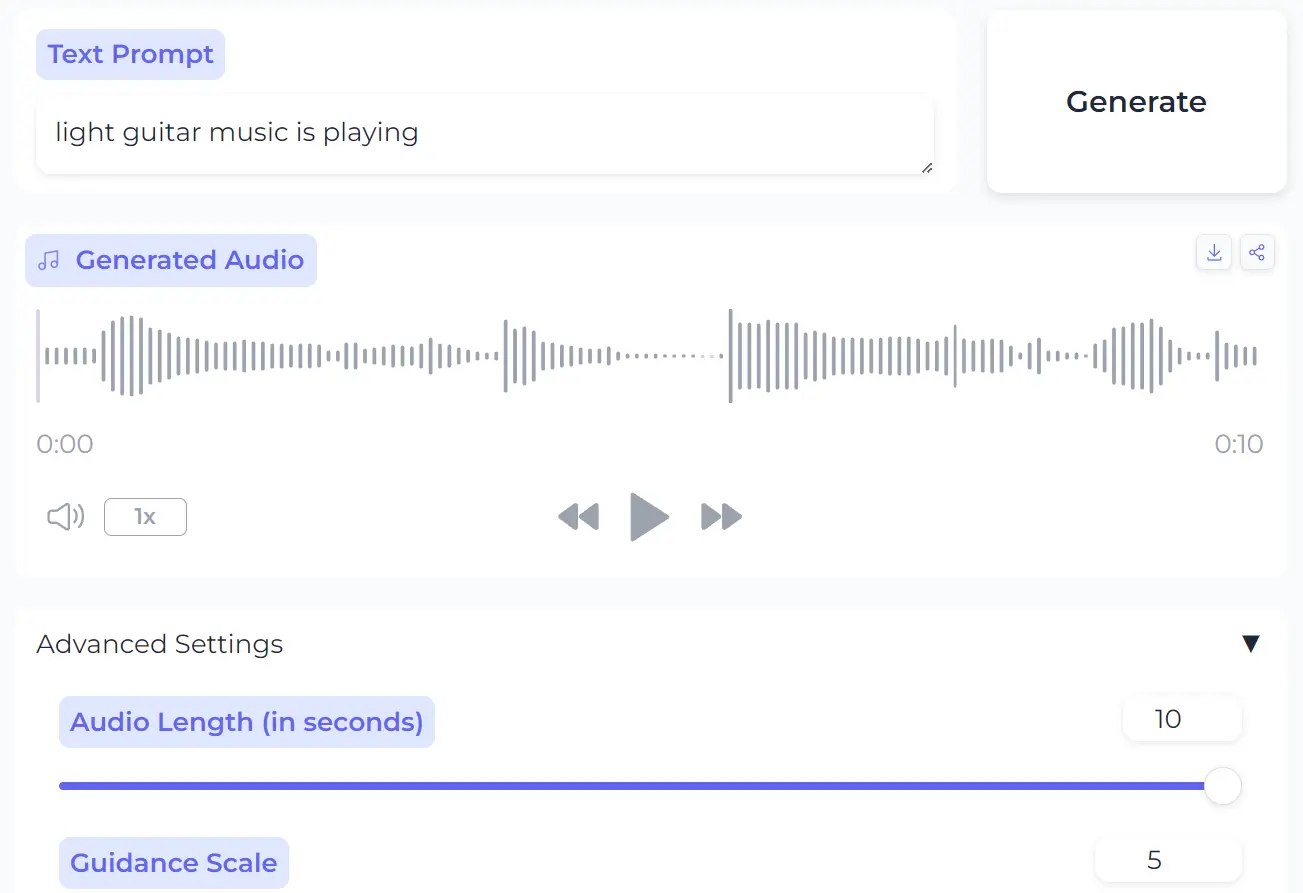
2. Enter your text prompt. For example:
- a horse clip-clops in a windy rain as thunder cracks in the distance
- a dog barking in the distance
- light guitar music is playing
- a duck quacks as waves crash gently on the shore
- footsteps crunch on the forest floor as crickets chirp
3. Click “Generate.” Your audio will be ready in seconds. The tool utilizes a diffusion-based model, allowing for high-quality audio generation with reduced computational requirements. This results in faster processing and more realistic sounds compared to other open-source text-to-audio models.

4. Use advanced settings to customize your audio further. You can tweak specific parameters to get more precise control over the sound. Options include:
- Randomize Seed: Disables the seed value.
- Audio Length (seconds): 10 (default)
- Guidance Scale: 5 (default)
- Guidance Rescale: 0.75 (default)
- DDIM Steps: 50 (default)
- Eta: 1 (default)
- Seed: 0 (default)

These settings allow you to control factors like how long the sound lasts, the clarity of the generated sound, and the randomness in audio variation. This customization helps you achieve the specific audio output you need for your project.
5. For audio editing, head to the “Audio Editing and Inpainting” tab. Here, you can make detailed edits to your audio files by adjusting settings like:
- Edit Prompt: Add new prompts to further refine or change the audio result.
- Edit Start: Choose where the edit begins in the audio.
- Edit Length: Set the duration of the segment you want to modify.
- Outpainting Mode: Automatically extends beyond the original audio length.

6. To explore the text-to-audio model in greater detail, refer to their published research paper at the following URL: https://haidog-yaqub.github.io/EzAudio-Page/static/pdf/ezaudio.pdf.