JumprAI is a free Chrome extension that uses AI-powered semantic search to find specific moments inside YouTube videos. You describe the moment you want in plain language, and the extension returns a list of clickable timestamps that drop you directly to that exact point in the video.
The extension works on any YouTube video with captions. It adds a search button directly into the YouTube player, so you don’t need to leave the current video page or open additional tabs.
Features
- Runs semantic AI search against video transcripts to match meaning.
- Returns a list of clickable timestamps that link to specific moments in the video.
- Works on any YouTube video with captions, including auto-generated and manually uploaded subtitles.
- Handles transcripts for videos of any length.
- Caches prior search results for the same video to speed up repeat queries.
- Sends only the video ID and your search query to its servers. No user tracking or personal data stored.
Use Cases
- Search a three-hour conference keynote for the exact moment a product feature gets announced, then jump straight to it.
- Find the segment in a cooking tutorial where the chef explains a specific technique like tempering chocolate.
- Locate the pricing discussion in a car review by typing “price” and jumping past several minutes of intro content.
- Pull out the Q&A section of a long podcast interview by searching “audience questions” or “listener questions.”
- Track down a specific stretch or drill in a fitness video by describing it in plain terms.
Case Study
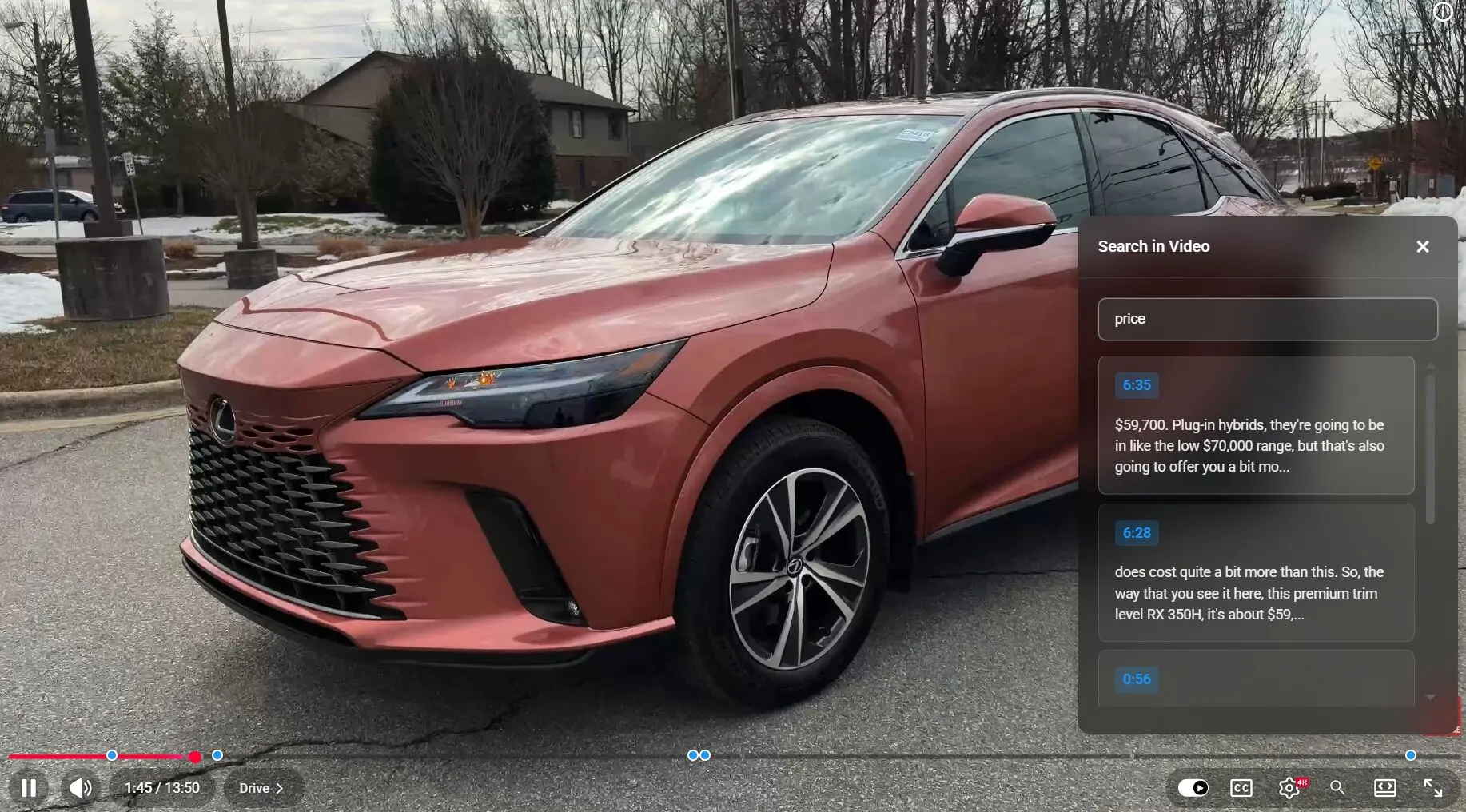
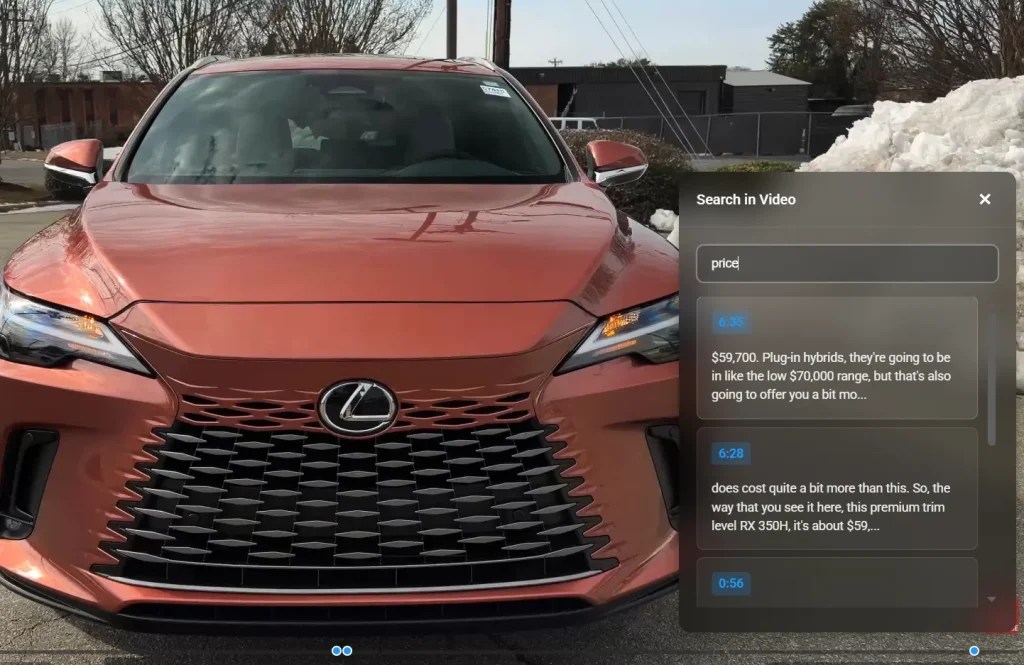
I tested JumprAI on a review of the 2026 Lexus RX 350h. The video runs well past six minutes before discussing pricing.
I typed “Price” into the JumprAI search box, and it returned two timestamps: 6:28 and 6:35. One click dropped me directly into that segment. The whole process took about five seconds from query to answer.
How to Use It
1. Go to the JumprAI Chrome Web Store page and click Add to Chrome.
2. Pin JumprAI to the address bar for quick access.
3. Navigate to any YouTube video. The JumprAI 🔍 button appears directly inside the YouTube player. If the button does not appear, refresh the page or restart the browser.
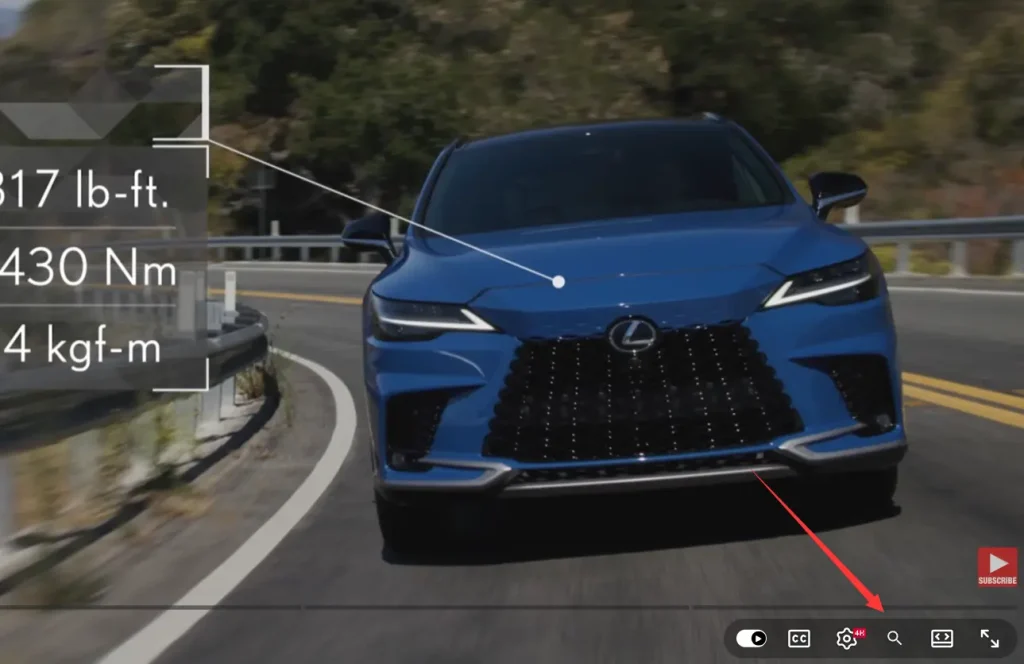
4. Click the 🔍 button to open the search panel. Type a natural language description of the moment you need in the search box. Queries like “price,” “how to set up lighting,” or “funniest moment” all work.
5. Click any timestamp in the returned results list to jump directly to that moment in the video.
Pros
- Understands natural language queries accurately.
- Works on all videos with available captions.
- Requires zero configuration or account setup.
- Keeps browsing history completely private.
Cons
- Fails on videos with disabled or unavailable captions.
- Works only within the Google Chrome browser.
FAQs
Q: What languages does JumprAI support?
A: The search function works in any language, as long as captions are available on the video in that language. The extension reads whatever transcript YouTube provides, so language support is tied directly to caption availability.
Q: What do I do if the search button does not appear in the YouTube player?
A: Refresh the page or restart Chrome. The extension injects the button into the player after the page loads, and a reload resolves the issue in most cases.
Q: How accurate are the returned timestamps?
A: Accuracy depends on caption quality. Auto-generated captions on well-recorded audio return tight, reliable results.