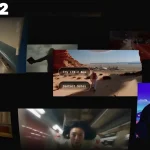
Pyramid Flow generates high-quality videos using a training-efficient method called flow matching. Trained on open-source datasets, it produces 10-second, 768p videos at 24 frames per second and supports image-to-video generation.
This open-source model, developed by Peking University, Kuaishou Technology, and Beijing University of Posts and Telecommunications, is available on GitHub.
Unlike traditional diffusion models that work at full resolution, its efficiency comes from interpolating between different resolutions and noise levels. This allows simultaneous generation and decompression, resulting in high-quality output with fewer computational resources.
Users can create diverse video content from descriptions or static images. The model produces smooth motion and maintains visual quality throughout the generated clips.
Featured Videos Generated By Pyramid Flow:
How to Use It:
You can experiment with Pyramid Flow on Hugging Face Spaces. This online playground allows you to test the model with shorter videos.
1. Set up your environment. We recommend using conda with Python 3.8.10 and PyTorch 2.1.2. Clone the repository:
git clone https://github.com/jy0205/Pyramid-Flow
cd Pyramid-Flow
2. Create a conda environment:
conda create -n pyramid python==3.8.10
conda activate pyramid
pip install -r requirements.txt
3. Download the model from Hugging Face:
from huggingface_hub import snapshot_download
model_path = 'PATH'   # Your local directory
snapshot_download("rain1011/pyramid-flow-sd3", local_dir=model_path, local_dir_use_symlinks=False, repo_type='model')
4. For a quick start, try the Gradio demo:
python app.py5. For more control, use the provided Jupyter Notebook (video_generation_demo.ipynb). Load the model:
import torch
# ... (Import other necessary modules as shown in the provided code snippet)
torch.cuda.set_device(0)
model_dtype, torch_dtype = 'bf16', torch.bfloat16
model = PyramidDiTForVideoGeneration(
    'PATH', # Your checkpoint directory
    model_dtype,
    model_variant='diffusion_transformer_768p',
)
# Enable tiling and CPU offloading as demonstrated in the provided snippet.
6. Generate text-to-video:
# Example prompt and generation parameters as provided in the original documentation.7. Generate image-to-video:
# Example using an image as input and text prompt for generation. Follow the provided example for parameter settings and code structure.8. For lower GPU memory, utilize cpu_offloading=True within the generate function or model.enable_sequential_cpu_offload(). Multi-GPU inference is also available using the provided script. Remember to adjust guidance_scale and video_guidance_scale for optimal results. Experiment with different values to control visual quality and motion.