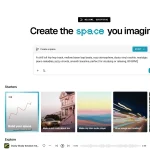
Image to Prompt AI is an open-source web application that allows you to upload images and receive detailed text prompts generated from the image content.
Powered by Replicate API, it also functions as an image-to-text tool for extracting details from images. This can be useful for creative professionals or developers working with AI who need to create accurate and detailed text descriptions from images.
How to use it:
1. Visit the Image to Prompt AI website and upload a JPEG or PNG image (up to 4MB) that you want to analyze.
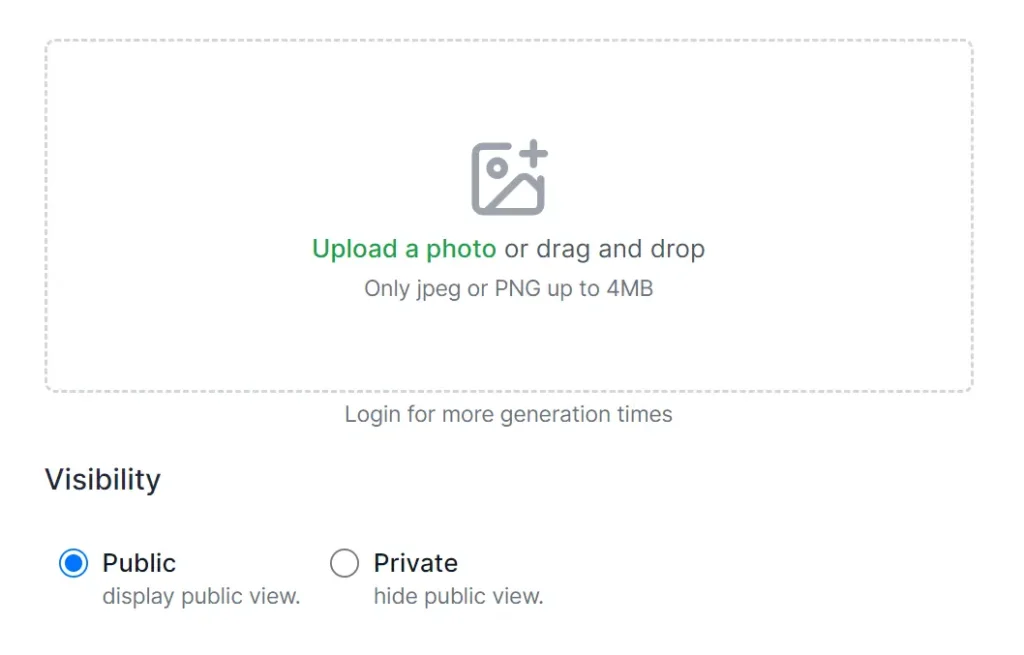
2. Choose your desired visibility setting:
- Public: Your uploaded image and the generated prompts will be visible in the public gallery.
- Private: Your images and prompts remain hidden from the public gallery.
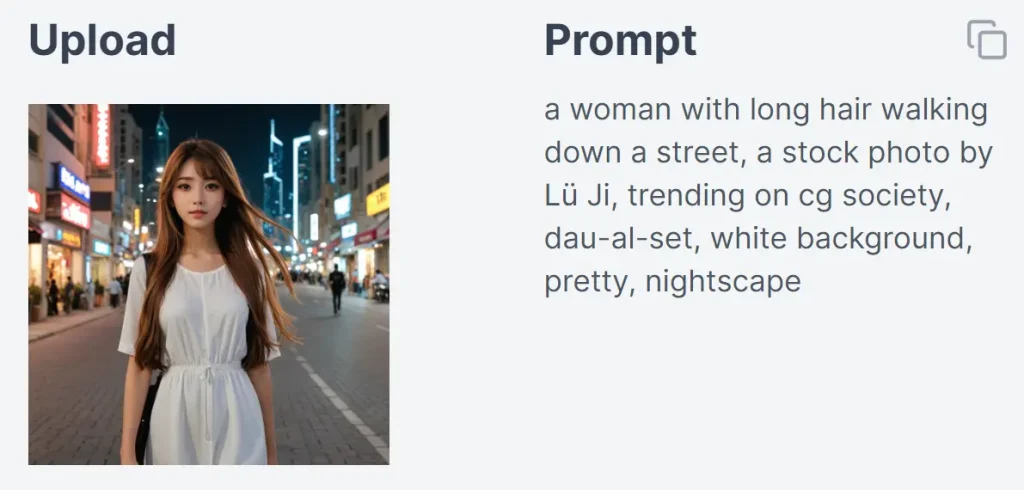
3. After a brief processing period, the AI will analyze your image, extract key information, and generate relevant text prompts. For instance, when I uploaded an example image, the AI-generated the following prompt:
"a woman with long hair walking down a street, a stock photo by Lü Ji, trending on cg society, dau-al-set, white background, pretty, nightscape"
How to Deploy It:
As an open-source project, Image to Prompt AI can be deployed locally or self-hosted on your preferred server.
1. Prerequisites:
- NextJS 14 App Router
- Next-Auth for user authentication
- Cloudflare R2 for image storage
- Prisma ORM + PostgreSQL for data processing
- Tailwind CSS for page building
- Replicate API for generating prompts
2. Clone the repository from GitHub:
git clone https://github.com/wuyasong/imagetoprompt-ai.git
3. Navigate to the project directory and install dependencies:
cd imagetoprompt-ai
pnpm i
4. Set up your database: You can use a local PostgreSQL instance or a service like Supabase.
npx prisma generate
prisma migrate dev
5. Rename .env.example to .env and configure environment variables, including API keys, database credentials, and other relevant settings.
GOOGLE_ID=
GOOGLE_SECRET=
NODE_ENV=development

GITHUB_ID=
GITHUB_SECRET=

EMAIL_SERVER=
EMAIL_FROM=

NEXTAUTH_URL=http://localhost:3000
NEXTAUTH_SECRET=

REPLICATE_API_URL=https://api.replicate.com/v1/predictions
REPLICATE_API_TOKEN=
REPLICATE_API_VERSION=


R2_ACCOUNT_ID=
R2_BUCKET=
R2_ACCESS_KEY_ID=
R2_SECRET_ACCESS_KEY=
R2_DOMAIN_URL=


POSTGRES_DATABASE="postgres"
POSTGRES_HOST="localhost"
POSTGRES_PASSWORD="admin"
POSTGRES_PRISMA_URL="postgres://postgres:admin@localhost:5432/localdb"
POSTGRES_URL="postgres://postgres:admin@localhost:5432/localdb"
POSTGRES_URL_NON_POOLING="postgres://postgres:admin@localhost:5432/localdb"
POSTGRES_URL_NO_SSL="postgres://postgres:admin@localhost:5432/localdb"
POSTGRES_USER="postgres"
6. Run the development server: pnpm dev and open http://localhost:3000 to view the app.
7. Alternatively, you can deploy it on Vercel with a single click.
FAQs:
Q: What types of images can I use with “Image To Prompt AI”?
A: The tool accepts JPEG and PNG image formats, with a maximum file size of 4MB.
Q: Can I use Image to Prompt AI for commercial projects?
A: Yes, as an open-source project, Image to Prompt AI can be used for both personal and commercial projects.
Q: What are the benefits of self-hosting Image to Prompt AI?
A: Self-hosting gives you complete control over data privacy, security, and customization options.
Q: Where can I find support or contribute to the project?
A: You can find the project’s GitHub repository here. Feel free to open issues, submit pull requests, or join the community discussions.