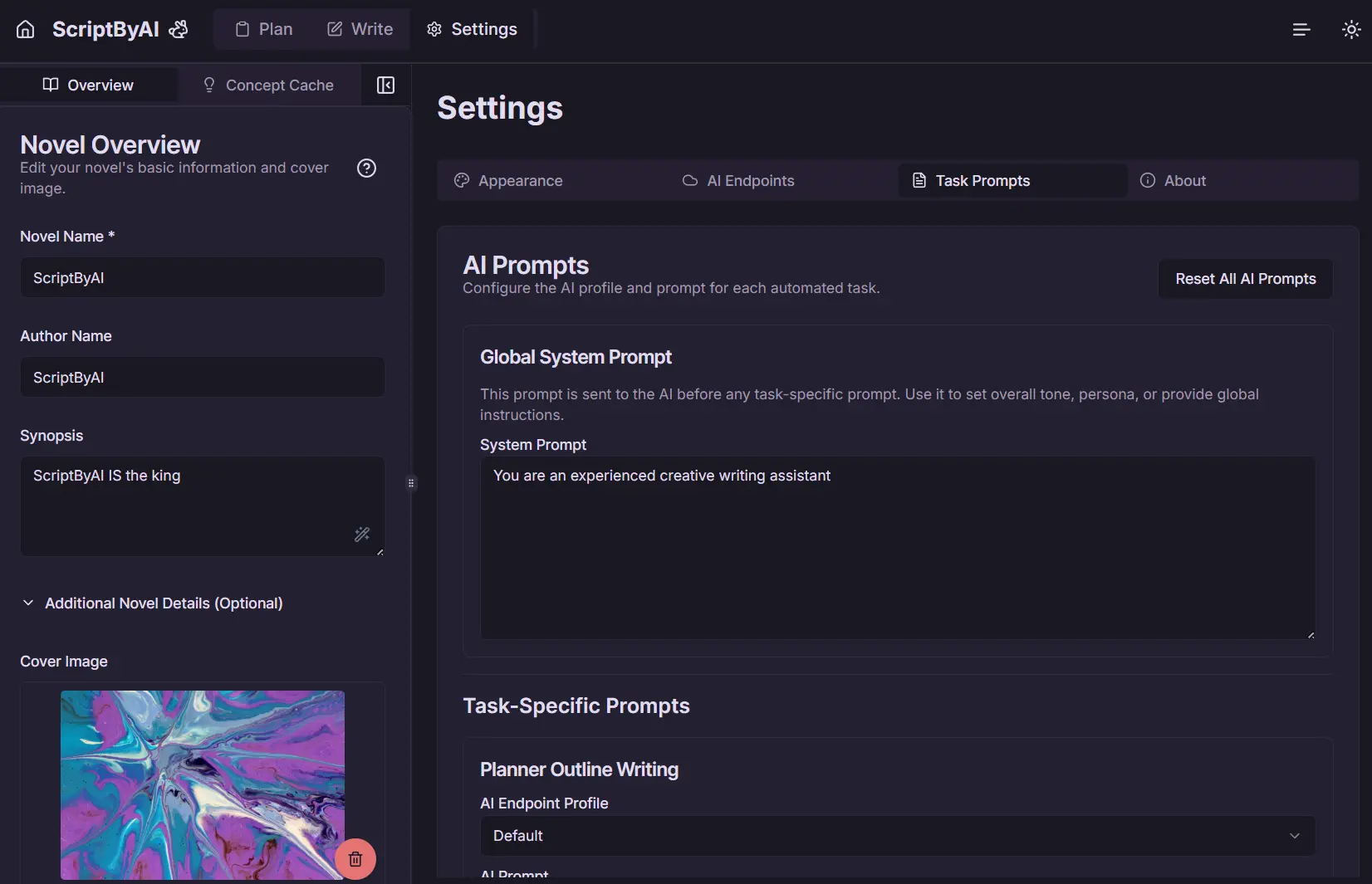
Plot Bunni is an open-source novel writing tool that helps novelists organize their ideas, structure stories, and use AI for brainstorming and drafting.
It runs directly in your browser, works on desktop and mobile, and keeps all your data stored locally on your machine using IndexedDB. This means no accounts are needed, and your work stays private.
This tool is for writers who want a structured approach to their novel, from the initial concept to the final manuscript. It addresses common frustrations like scattered notes, convoluted plotlines, and the dreaded writer’s block by offering a unified interface for planning, writing, and managing story elements.
Key Features
- Novel Management – Create and manage multiple novels with a visual grid interface
- Hierarchical Planning – Organize your story into acts, chapters, and scenes with an intuitive visual structure
- Concept Cache – Track characters, locations, and lore in a centralized database
- Distraction-Free Writing – Focus on your manuscript with a clean writing environment
- AI Assistance – Get help with brainstorming, scene development, and drafting
- Local Storage – All your data stays private, stored in your browser with IndexedDB
- Customizable Interface – Choose from light/dark modes and customize colors to your preferences
- Export Options – Save your work as JSON, Markdown, or plain text for backup or publishing
Use Cases
- Structured Novel Outlining: For writers who love to plan meticulously, the hierarchical structure of Acts, Chapters, and Scenes provides a clear framework to build their narrative. You can see your whole story laid out.
- Worldbuilding and Concept Management: If your story involves intricate worlds, numerous characters, or complex lore, the Concept Cache is a lifesaver. Keeping all these details organized and linkable to scenes prevents consistency errors. I found this particularly helpful for tracking character arcs alongside plot developments.
- Overcoming Writer’s Block: The AI Story Chat and AI Scene Suggestions can be a good way to get unstuck. Even if the AI’s first idea isn’t perfect, I’ve found it often sparks a new direction or helps reframe a problematic scene. The creator themselves mentioned using it like a “rubber duck” – sometimes just articulating the problem to the AI (and seeing its attempt at an answer) helps you find your own solution.
- Focused Drafting Sessions: The
WriteViewoffers a clean interface that minimizes distractions. The auto-expanding textareas and direct editing of titles mean less fiddling and more writing. - Cross-Device Writing: Because it’s browser-based and responsive, you can jot down ideas or edit scenes on a tablet or phone, then switch to a desktop for more intensive writing sessions. Your data, being in IndexedDB, is available on that specific browser.
How To Use It
1. You can run it locally if you clone the GitHub repository and follow the setup instructions, or use the official demo app at https://app.plotbunni.com/.
2. Create a New Novel:
- On the main
NovelGridView, click “New Novel.” - A form will pop up asking for:
- Novel Name (required)
- Author Name
- Synopsis
- Optional details like Point of View, Genre, Time Period, Target Audience, Themes, Tone, and a Cover Image.
3. Click ‘Create Novel’. This takes you to the Novel Editor.
- Plan Your Story: Head to the
Plantab. Create Acts, then Chapters within those Acts, and Scenes within those Chapters. If you already have an outline, use theImport Outlinefeature to quickly populate this structure. - Develop Concepts: In the
Conceptssection (sidebar on desktop, tab on mobile), start adding your characters, locations, etc. Use templates if you like. - Write Your Manuscript: Switch to the
Writetab. Your Acts, Chapters, and Scenes will be listed. Click into a scene’s textarea to start writing. - Use AI (Optional): If you want AI assistance, look for the AI buttons/icons. For example, in the
Writeview, scene textareas have a button for AI suggestions. You might want to configure your AI endpoint inSettingsfor better results, especially for the “AI Novel Writer” feature. - Customize: Play with the theme and font settings (usually via a gear or palette icon in the header) to make the environment comfortable for you.
- Save/Export: Your work is saved locally in the browser as you go. For backups or moving between browsers/computers, use the “Download Project” (JSON) or “Export Manuscript” (Markdown/Text) options in the
Novel Overviewsection.
Pros
- Completely Free – Open-source with no subscription fees or paywalls
- Privacy-Focused – All data stays local on your device with no cloud storage
- Offline Access – Works without an internet connection once loaded
- Clean Interface – Focuses on writing without unnecessary distractions
- AI Integration – Optional AI assistance for brainstorming and drafting
- Hierarchical Organization – Intuitive structure for complex stories
- Cross-Device Compatible – Works on desktop and mobile browsers
- Regular Updates – Active development with new features being added
Cons
- Browser-Based Limitations – Storage space depends on your browser’s IndexedDB limits
- No Cloud Sync – Manual export/import needed to transfer between devices
- Limited Formatting – Focused on content creation rather than formatting
- AI Features Require API – You’ll need your own AI provider API key for AI features
FAQs
Q: Is Plot Bunni completely free to use?
A: Yes, Plot Bunni is 100% free and open-source. There are no subscription fees, hidden costs, or premium features locked behind paywalls.
Q: Do I need to create an account to use Plot Bunni?
A: No, Plot Bunni doesn’t require account creation. All your data is stored locally in your browser’s IndexedDB.
Q: How secure is my novel data in Plot Bunni?
A: Very secure. Since all data is stored locally on your device rather than on remote servers, your work remains private. For additional security, regularly export your novels as backup files.
Q: Can I use Plot Bunni on my phone or tablet?
A: Yes, Plot Bunni has a responsive design that works on mobile devices. The interface adapts to smaller screens with a tab-based navigation system instead of the desktop’s two-pane layout.
Q: How do I transfer my novel between devices?
A: Use the “Download Project” feature in the Novel Overview to export your complete novel as a JSON file. You can then import this file on another device.