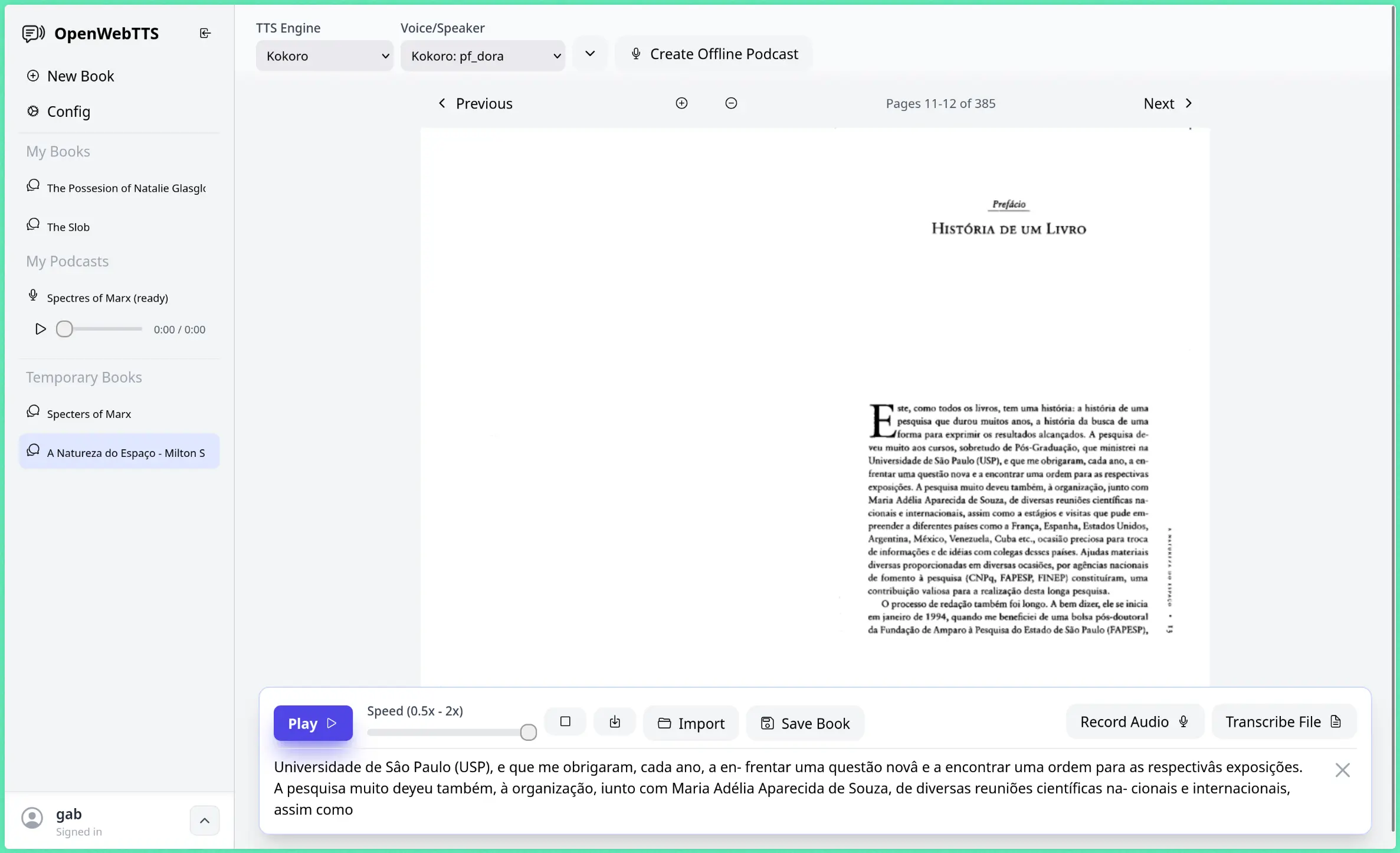
OpenWebTTS is a local web-based application for generating speech from text, PDFs, and EPUB files using various AI Text-to-Speech (TTS) models on your own device.
This tool is built as an open-source alternative to premium services like Speechify. It runs entirely on your computer without sending data to external servers.
Features
- Multiple TTS Engine Support: Choose from Piper, Kokoro, Coqui TTS engines, or use OpenAI Whisper for speech-to-text conversion.
- Document Format Compatibility: Process PDFs, EPUB files, DOCX documents, and URLs directly through the web interface.
- Real-time Audio Generation: Listen to generated speech as it is processed, with smooth playback and caching for improved performance.
- Automatic Content Processing: Skip headers and footers automatically, plus OCR capability for scanned PDFs without selectable text.
- Desktop Mode: Experimental desktop application mode using webview for a more native app experience.
- OpenAI API Compatibility: Integrate with existing AI models that use OpenAI API endpoints for text-to-speech functionality.
Use Cases
- Academic Research: Convert lengthy research papers and academic journals into audio format for multitasking while commuting or exercising.
- Professional Development: Listen to industry reports, documentation, and training materials during downtime or while performing other tasks.
- Accessibility Support: Assist individuals with reading disabilities, visual impairments, or learning differences by providing high-quality audio alternatives.
- Content Creation: Generate voiceovers for presentations, educational content, or podcast introductions using customizable voice models.
- Language Learning: Practice pronunciation and listening comprehension with multilingual TTS models while studying foreign language texts.
- Productivity Enhancement: Convert long emails, articles, and documents into audio format to consume information more efficiently during busy schedules.
How to Use It
1. To get started, make sure you have Python 3.11+ installed on your device. You’ll also need pip and venv for managing Python packages. For the Kokoro TTS engine, you’ll need to install espeak-ng.
2. Create a virtual environment to avoid conflicts with other Python projects.
python3.11 -m venv venv3. Activate it:
- macOS/Linux:
source venv/bin/activate - Windows:
.\venv\Scripts\activate
4. Install the necessary Python libraries with this command:
pip install -r requirements.txt
pip install https://github.com/KittenML/KittenTTS/releases/download/0.1/kittentts-0.1.0-py3-none-any.whl
4. Download the TTS Models you prefer through the downloader in the web UI. Alternatively, you can download them manually and place them in the corresponding folders inside the models directory.
- Piper: Download models from the official repository and place them in
models/piper/. - Kokoro: Get models from their official repository and put them in
models/kokoro/. - Coqui TTS: This is still in development, but you can find models in the Coqui TTS releases and place the model directory in
models/coqui/.
5. Start the application, and you can then access the web interface at http://127.0.0.1:8000.
python app.py6. For a more desktop-like experience, you can try running it with the --desktop flag, though this is an experimental feature.
7. Upload documents through the web interface or paste text directly into the input field. Select your preferred TTS engine and voice model, then click generate to create audio. The system processes content in real-time. Generated audio files are cached for faster playback on subsequent uses.
Pros
- Completely Free and Open Source: No subscriptions or hidden costs.
- Runs Locally: Your data stays on your machine.
- Support for Multiple TTS Engines: You can choose from different voice models to find the one that best suits your needs.
- No API Keys Needed: It operates completely offline without requiring external services.
Cons
- Technical Setup: The installation process might be a bit challenging for non-technical users.
- Resource Intensive: Running AI models locally can be demanding on your computer’s CPU or GPU, especially for longer texts.
FAQs
Q: Can I use OpenWebTTS with my existing PDF library without converting files first?
A: Yes, OpenWebTTS supports direct PDF processing through its web interface. Simply upload PDF files and the application will extract text automatically. For scanned PDFs without selectable text, the built-in OCR functionality will convert images to text before generating speech.
Q: How does the voice quality compare to commercial services like Speechify or NaturalReader?
A: Voice quality depends on the TTS engine and models you choose. Piper and Kokoro models can produce very natural-sounding speech, though they may not match the absolute highest-quality commercial voices. The advantage is complete control over your data and no subscription costs.
Q: What hardware requirements should I expect for smooth operation?
A: OpenWebTTS requires Python 3.11 and sufficient RAM to load TTS models (typically 1-4GB depending on model size). A modern CPU helps with processing speed, and some models may benefit from GPU acceleration if available. Most computers from the last five years should handle basic operation adequately.
Q: Is it possible to add new voices?
A: Yes, you can download and add new compatible voice models for Piper, Kokoro, and Coqui TTS into their respective folders within the models directory.