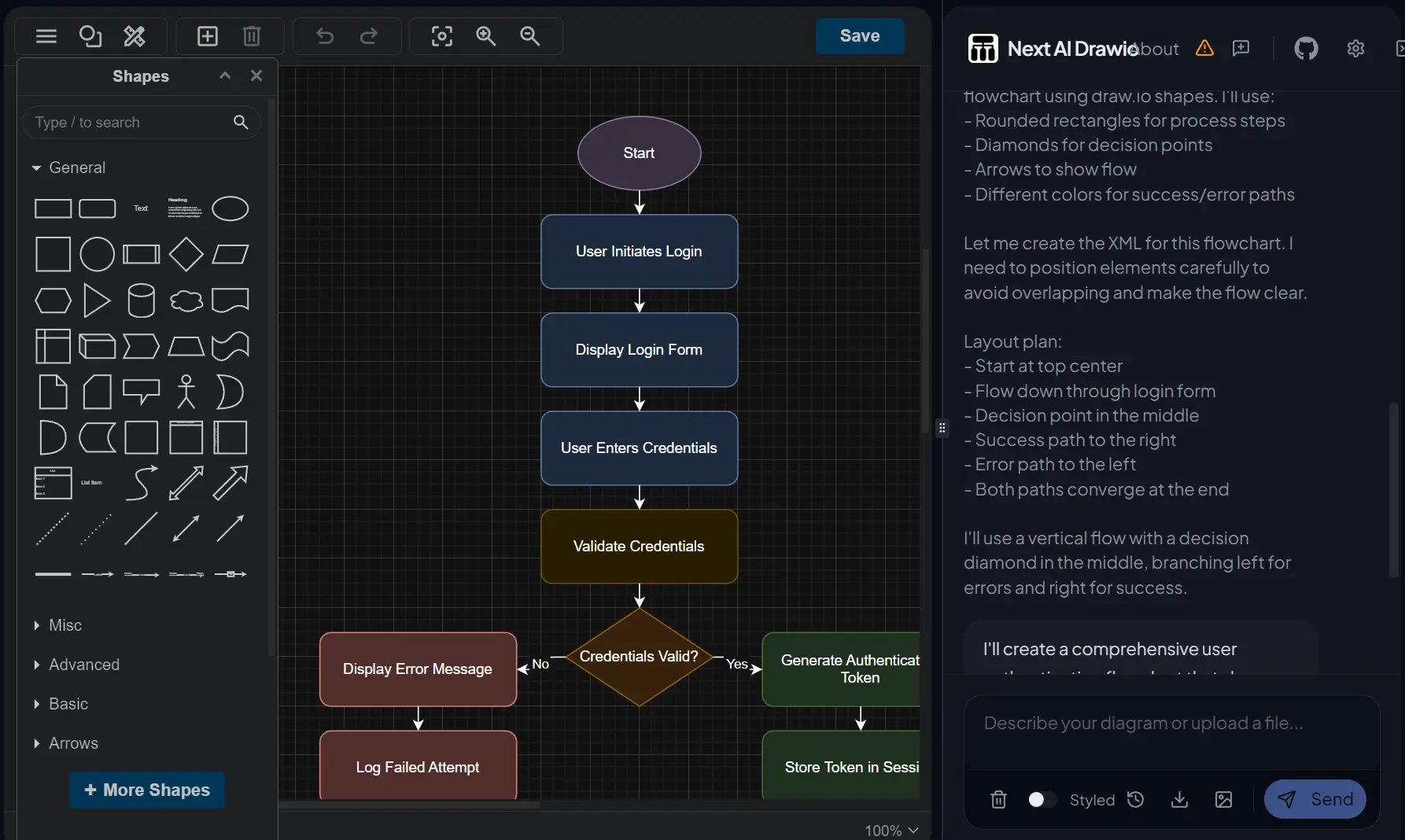
Next AI Draw.io is a free, open-source AI-powered diagram generator that allows you to create professional diagrams from natural language.
Describe what you need in plain text, and the tool generates ready-to-use diagrams from your descriptions. The system understands complex instructions and produces diagrams that match your specifications without manual drawing.
The tool has gained 11.2K stars on GitHub and topped the platform’s daily trending list. It combines the familiar draw.io editor with AI capabilities powered by Large Language Models (LLMs).
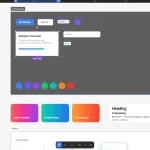
You can create everything from AWS architecture diagrams to simple flowcharts just by chatting with the AI. The AI processes your commands and generates XML that renders as editable diagrams in the draw.io interface.
More Features
- Multi-Provider AI Support: Support popular AI providers like OpenAI, Anthropic, Google AI, Azure OpenAI, AWS Bedrock, Ollama, OpenRouter, DeepSeek, or SiliconFlow.
- Image-to-Diagram Conversion: Upload existing diagrams or sketches, and the AI replicates them as editable draw.io diagrams.
- PDF and Text File Support: Upload PDF documents or text files, and the tool extracts content to generate relevant diagrams.
- Version Control System: You can view all previous versions of your diagrams and restore any past version with a single click.
- Interactive Chat: Ask the AI to add elements, modify connections, or restructure layouts without starting over.
- Animated Connectors: Create dynamic, animated connections between diagram elements.
- Docker Deployment: Run the entire application in a container with a single command.
Live Demo
Use Cases
- Software Architecture Documentation: Developers can describe their system architecture in plain language, and the tool generates detailed diagrams showing services, databases, APIs, and connections.
- Cloud Infrastructure Planning: DevOps engineers can map out AWS, GCP, or Azure deployments by describing the infrastructure needs.
- Business Process Visualization: Business analysts can convert text descriptions of workflows into flowcharts.
- Educational Materials: Teachers can create diagrams for lessons by describing concepts.
- Meeting Documentation: During planning sessions, you can quickly sketch ideas by describing them.
How To Use It
Try the Online Demo
Visit the live demo at https://next-ai-drawio.jiang.jp to test the tool immediately. You can use the default AI model (minimax-m2) or bring your own API key for better results.
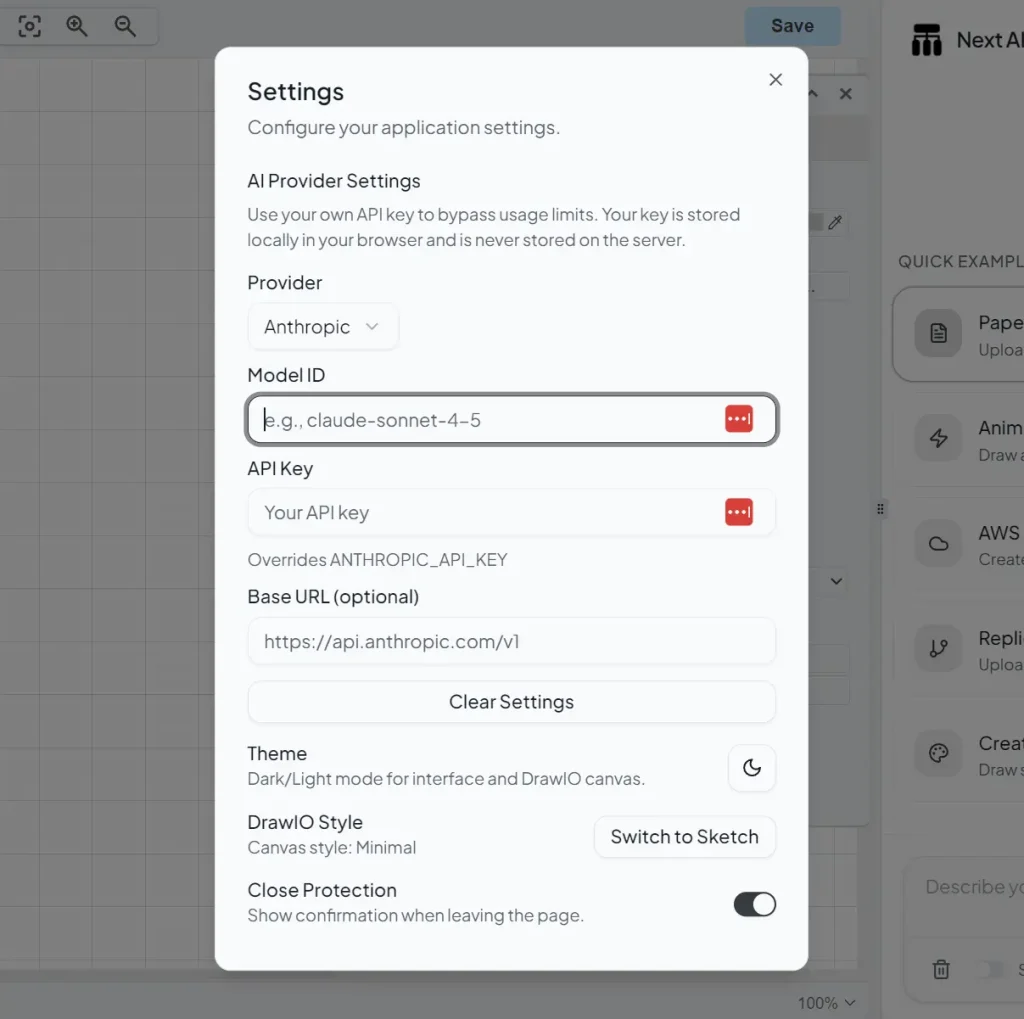
Click the Settings icon in the chat panel to configure your preferred AI provider and API key. Your key stays in your browser and never touches the server.
Creating Your First Diagram
Type your diagram description in the chat box. Be specific about what you need. For example: “Create a flowchart showing user authentication flow with login, validation, token generation, and error handling.” The AI processes your request and generates the diagram in seconds.
You can iterate on the result by asking for changes. “Add a forgot password branch” or “Make the validation step more detailed” will modify the existing diagram. The version control system saves each iteration, so you can always roll back to previous versions.
Uploading Files for Diagram Generation
Click the file upload button in the chat interface to upload PDFs, text files, or images. The AI analyzes the content and suggests diagram types based on what it finds. For images, the AI replicates the structure and creates an editable version in draw.io format.
Model Selection
Different AI models work better for different tasks. Claude Sonnet 4.5 and Opus 4.5 perform best for cloud architecture diagrams since they’ve been trained on draw.io diagrams with AWS, Azure, and GCP logos.
GPT-4o works well for general diagrams and has strong multimodal capabilities for image-to-diagram conversion. DeepSeek V3/R1 offers budget-friendly options with good performance. Gemini Pro is good at complex reasoning tasks.
The tool requires models capable of generating long-form text with strict formatting constraints (draw.io XML). Weaker models may produce invalid diagrams or fail to follow complex instructions.
Docker Installation (Recommended)
The fastest way to run Next AI Draw.io locally is through Docker. You need to install Docker from the official site. Then run this command:
docker run -d -p 3000:3000 \
  -e AI_PROVIDER=openai \
  -e AI_MODEL=gpt-4o \
  -e OPENAI_API_KEY=your_api_key \
  ghcr.io/dayuanjiang/next-ai-draw-io:latest
Replace the environment variables with your chosen AI provider. You can also create an environment file for easier management:
cp env.example .env
# Edit .env with your configuration
docker run -d -p 3000:3000 --env-file .env ghcr.io/dayuanjiang/next-ai-draw-io:latest
Open your browser to http://localhost:3000, and you’re ready to create diagrams.
Manual Installation
Clone the repository from Github and install dependencies:
git clone https://github.com/DayuanJiang/next-ai-draw-io
cd next-ai-draw-io
npm install
Create a .env.local file in the root directory:
cp env.example .env.localConfigure your AI provider settings in the .env.local file.
# AI Provider Configuration
# AI_PROVIDER: Which provider to use
# Options: bedrock, openai, anthropic, google, azure, ollama, openrouter, deepseek, siliconflow
# Default: bedrock
AI_PROVIDER=bedrock

# AI_MODEL: The model ID for your chosen provider (REQUIRED)
AI_MODEL=global.anthropic.claude-sonnet-4-5-20250929-v1:0

# AWS Bedrock Configuration
# AWS_REGION=us-east-1
# AWS_ACCESS_KEY_ID=your-access-key-id
# AWS_SECRET_ACCESS_KEY=your-secret-access-key
# Note: Claude and Nova models support reasoning/extended thinking
# BEDROCK_REASONING_BUDGET_TOKENS=12000  # Optional: Claude reasoning budget in tokens (1024-64000)
# BEDROCK_REASONING_EFFORT=medium        # Optional: Nova reasoning effort (low/medium/high)

# OpenAI Configuration
# OPENAI_API_KEY=sk-...
# OPENAI_BASE_URL=https://api.openai.com/v1  # Optional: Custom OpenAI-compatible endpoint
# OPENAI_ORGANIZATION=org-...  # Optional
# OPENAI_PROJECT=proj_...      # Optional
# Note: o1/o3/gpt-5 models automatically enable reasoning summary (default: detailed)
# OPENAI_REASONING_EFFORT=low   # Optional: Reasoning effort (minimal/low/medium/high) - for o1/o3/gpt-5
# OPENAI_REASONING_SUMMARY=detailed  # Optional: Override reasoning summary (none/brief/detailed)

# Anthropic (Direct) Configuration
# ANTHROPIC_API_KEY=sk-ant-...
# ANTHROPIC_BASE_URL=https://your-custom-anthropic/v1
# ANTHROPIC_THINKING_TYPE=enabled            # Optional: Anthropic extended thinking (enabled)
# ANTHROPIC_THINKING_BUDGET_TOKENS=12000     # Optional: Budget for extended thinking in tokens

# Google Generative AI Configuration
# GOOGLE_GENERATIVE_AI_API_KEY=...
# GOOGLE_BASE_URL=https://generativelanguage.googleapis.com/v1beta  # Optional: Custom endpoint
# GOOGLE_CANDIDATE_COUNT=1                   # Optional: Number of candidates to generate
# GOOGLE_TOP_K=40                            # Optional: Top K sampling parameter
# GOOGLE_TOP_P=0.95                          # Optional: Nucleus sampling parameter
# Note: Gemini 2.5/3 models automatically enable reasoning display (includeThoughts: true)
# GOOGLE_THINKING_BUDGET=8192                # Optional: Gemini 2.5 thinking budget in tokens (for more/less thinking)
# GOOGLE_THINKING_LEVEL=high                 # Optional: Gemini 3 thinking level (low/high)

# Azure OpenAI Configuration
# Configure endpoint using ONE of these methods:
#   1. AZURE_RESOURCE_NAME - SDK constructs: https://{name}.openai.azure.com/openai/v1{path}
#   2. AZURE_BASE_URL - SDK appends /v1{path} to your URL
# If both are set, AZURE_BASE_URL takes precedence.
# AZURE_RESOURCE_NAME=your-resource-name
# AZURE_API_KEY=...
# AZURE_BASE_URL=https://your-resource.openai.azure.com/openai  # Alternative: Custom endpoint
# AZURE_REASONING_EFFORT=low                 # Optional: Azure reasoning effort (low, medium, high)
# AZURE_REASONING_SUMMARY=detailed

# Ollama (Local) Configuration
# OLLAMA_BASE_URL=http://localhost:11434/api  # Optional, defaults to localhost
# OLLAMA_ENABLE_THINKING=true                 # Optional: Enable thinking for models that support it (e.g., qwen3)

# OpenRouter Configuration
# OPENROUTER_API_KEY=sk-or-v1-...
# OPENROUTER_BASE_URL=https://openrouter.ai/api/v1  # Optional: Custom endpoint

# DeepSeek Configuration
# DEEPSEEK_API_KEY=sk-...
# DEEPSEEK_BASE_URL=https://api.deepseek.com/v1  # Optional: Custom endpoint

# SiliconFlow Configuration (OpenAI-compatible)
# Base domain can be .com or .cn, defaults to https://api.siliconflow.com/v1
# SILICONFLOW_API_KEY=sk-...
# SILICONFLOW_BASE_URL=https://api.siliconflow.com/v1  # Optional: switch to https://api.siliconflow.cn/v1 if needed

# Langfuse Observability (Optional)
# Enable LLM tracing and analytics - https://langfuse.com
# LANGFUSE_PUBLIC_KEY=pk-lf-...
# LANGFUSE_SECRET_KEY=sk-lf-...
# LANGFUSE_BASEURL=https://cloud.langfuse.com  # EU region, use https://us.cloud.langfuse.com for US

# Temperature (Optional)
# Controls randomness in AI responses. Lower = more deterministic.
# Leave unset for models that don't support temperature (e.g., GPT-5.1 reasoning models)
# TEMPERATURE=0

# Access Control (Optional)
# ACCESS_CODE_LIST=your-secret-code,another-code

# Draw.io Configuration (Optional)
# NEXT_PUBLIC_DRAWIO_BASE_URL=https://embed.diagrams.net  # Default: https://embed.diagrams.net
# Use this to point to a self-hosted draw.io instance

# PDF Input Feature (Optional)
# Enable PDF file upload to extract text and generate diagrams
# Enabled by default. Set to "false" to disable.
# ENABLE_PDF_INPUT=true
# NEXT_PUBLIC_MAX_EXTRACTED_CHARS=150000  # Max characters for PDF/text extraction (default: 150000)
Run the development server:
npm run devOpen http://localhost:3000 in your browser.
Deploy It to Vercel
Deploy to Vercel with a single click using the deployment button. You need to set environment variables in the Vercel dashboard matching your local .env.local configuration.
Pros
- Editable Outputs: The tool produces real diagram files, not flat images.
- Model Agnostic: You can switch between GPT, Claude, Gemini, or local models via Ollama.
- 100% Free: You only pay for the API tokens you consume.
- Privacy Focused: Local deployment keeps your architecture designs off third-party servers.
Cons
- API Key Required: You must have your own API keys.
- Hallucinations: The AI may occasionally connect components illogically or use incorrect icons.
- Requires Technical Setup: Self-hosting demands basic comfort with Docker, environment variables, and command-line tools.
Related Resources
- Draw.io Official Documentation: Learn about draw.io’s features, XML format, and advanced customization options.
- Vercel AI SDK Documentation: Understand the underlying AI SDK used for multi-provider support and streaming responses.
- Next.js Deployment Guide: Get detailed instructions for deploying Next.js applications to various platforms.
- Next AI Draw.io GitHub Repository: Access the source code, report issues, and view the latest updates.
- Provider Configuration Guide: Find setup instructions for each supported AI provider with specific configuration examples.
FAQs
Q: Can I use this tool without any coding knowledge?
A: Yes. The Docker installation requires running a single command in your terminal, and the online demo requires no installation at all. Once running, you just type what you want and the AI generates the diagram.
Q: Can I export diagrams to other formats?
A: Yes. Draw.io supports exporting to PNG, JPEG, SVG, PDF, and HTML formats. You can also export the raw XML to use in other draw.io-compatible tools or import the diagrams into documentation systems.
Q: Do I need to keep the chat interface open?
A: No. You can hide the chat panel with Ctrl+B (or the toggle button) to focus on your diagram. The chat panel reopens whenever you need to make changes.
Q: Can I use this offline?
A: Yes. You can configure the application to run offline. You will need to point the Draw.io embed to a local instance or a reachable offline version if embed.diagrams.net is blocked on your network.