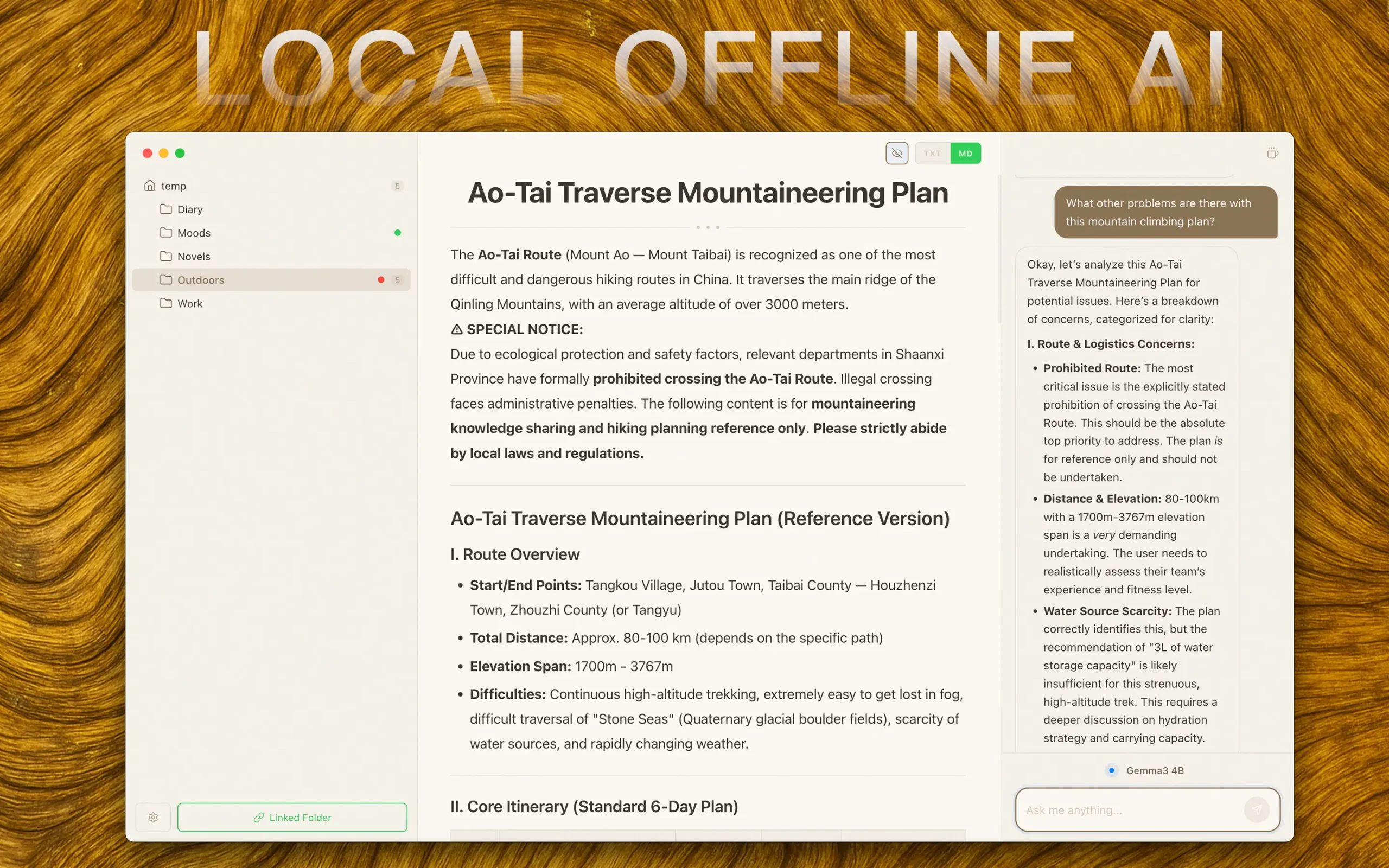
WitNote is a free, open-source AI note-taking tool that runs entirely on your device. It connects to three different AI engines (WebLLM, Ollama, and Cloud APIs) through a minimalist card-based UI. Your notes stay on your hard drive, and the AI processing happens locally when you choose the local engines.
The tool is ideal for writers, privacy-conscious users, and anyone seeking AI assistance without subscription fees or cloud dependencies. WitNote supports both .txt and .md file formats. You can switch between AI engines based on your hardware capabilities and privacy requirements.
Features
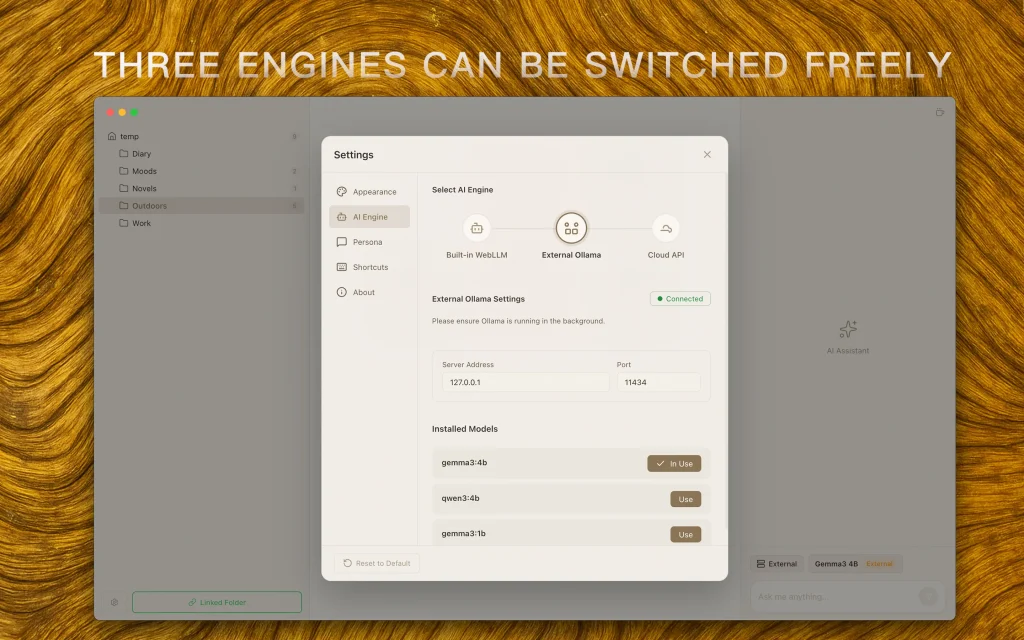
- Three AI Engines: Switch between WebLLM (built-in lightweight browser model), Ollama (local models from 7B to 14B+ parameters), or Cloud APIs (OpenAI-compatible services). WebLLM includes a qwen2.5:0.5b model that downloads once and runs offline. Ollama requires a separate installation but handles larger models. Cloud APIs need an API key like OpenAI and Google Gemini.
- Local-First Note Storage: You select any folder on your computer as your notes vault. Notes save as plain .txt or .md files. No cloud sync means zero upload of your data. Your file system remains your single source of truth.
- 10+ Built-in AI Roles: Pre-configured prompts include Writer, Translator, Polisher, and more. Each role tailors the AI’s responses to specific tasks. You can modify system prompts or create custom roles.
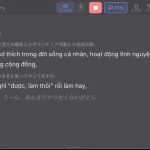
- 8 Languages: Support for English, Simplified Chinese, Traditional Chinese, Japanese, Korean, French, German, and Spanish. Both the UI and AI responses adapt to your selected language.
- iOS-Style Card Management: Notes appear as visual cards you can drag to reorder.
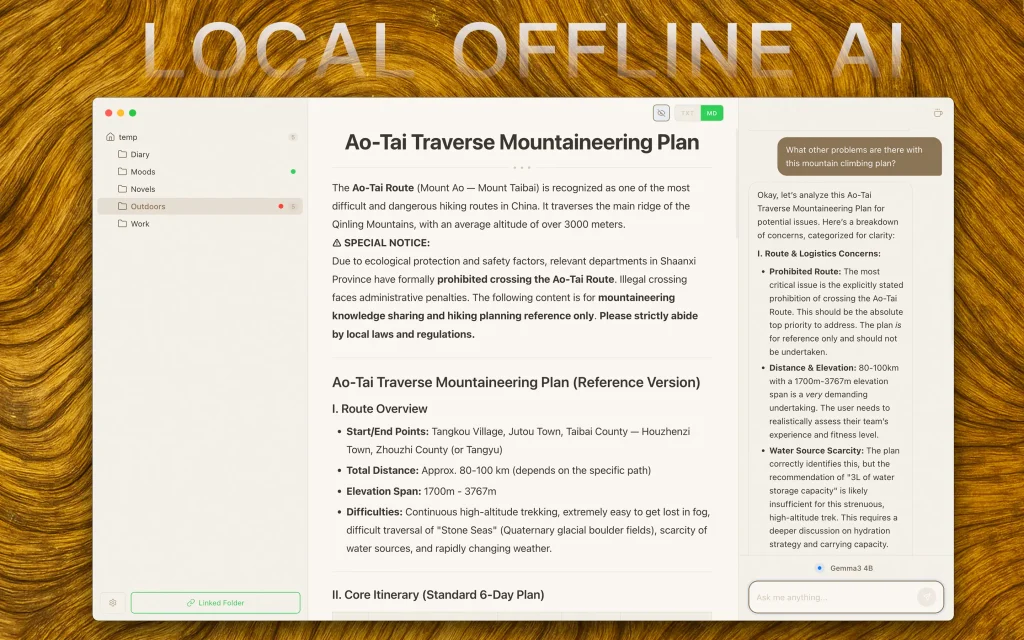
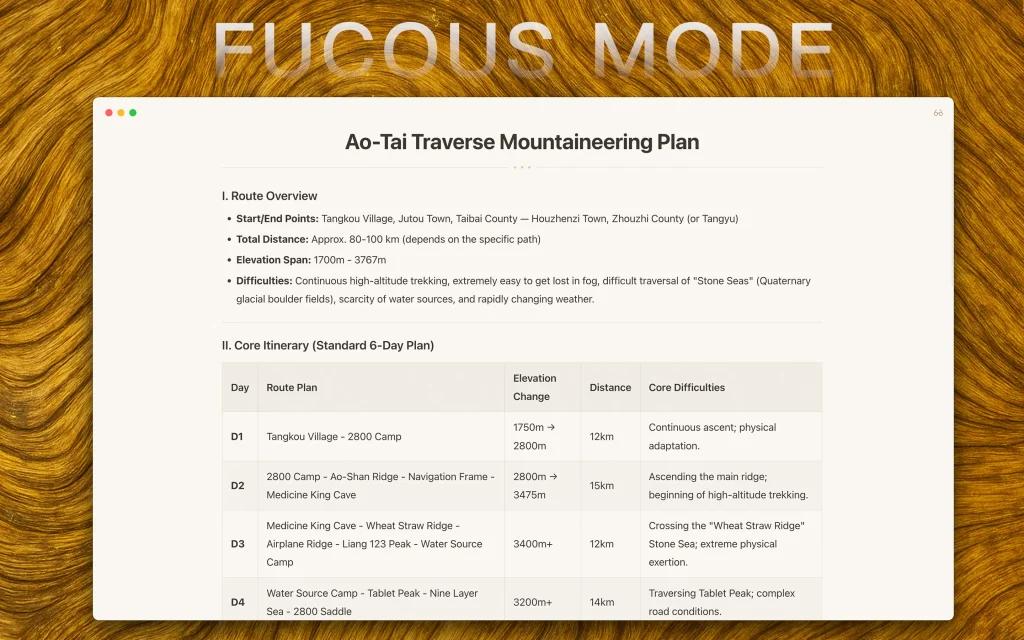
- Focus Mode: The UI simplifies automatically when you narrow the window.
- Context-Aware AI: The AI can read your current note or scan your entire folder when generating responses.
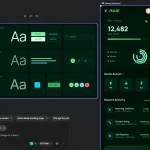
- Multiple Themes: Choose between Light, Dark, and Zen Tea color schemes. Dark mode gets special optimization for extended night work sessions.
- Privacy-First: When using local engines, all AI inference happens on your device. Zero telemetry, zero tracking, zero data collection.
Use Cases
- Drafting Confidential Documents: Write and edit sensitive reports, legal documents, or business plans with AI help. Your data remains entirely on your computer.
- Offline Research and Writing: Work on essays, articles, or code documentation in environments with poor or no internet. Use the local Ollama engine to brainstorm, summarize, or polish text without a connection.
- Multilingual Content Creation: Quickly translate drafts or get writing suggestions in multiple languages. The built-in translator role and multilingual interface support smooth cross-language work.
- Organizing Scattered Notes: Use the card-based grid view to visually organize snippets, ideas, and drafts. Drag and drop cards to structure your thoughts before expanding them into full documents.
Installation
For macOS users, download the .dmg file from the GitHub releases page. Double-click the DMG to mount it, then drag WitNote into your Applications folder. Launch the app from Applications.
Windows users download the .exe installer. Run the installer and follow the setup wizard. You can customize the installation path. If Windows SmartScreen blocks it, click “More info” then “Run anyway.” Right-click and “Run as administrator” helps avoid permission issues.
How to Use It
Setting Up Your Notes Vault
Launch WitNote for the first time. You’ll need to select a folder as your notes vault. This can be any existing folder with .txt or .md files, or create a new empty folder. WitNote doesn’t copy or move files—it works directly with your chosen folder. You can change this vault location later in settings.
Configuring Your AI Engine
The app defaults to WebLLM. This works immediately but offers limited capabilities (good for quick edits and simple questions). The first time you use WebLLM, it downloads the qwen2.5:0.5b model (around 500MB). This happens once, then the model runs offline.
For Ollama, you must install it separately from ollama.com. After Ollama runs on your system, go to WitNote settings and switch the engine to Ollama. You can then download models through the settings interface. The qwen2.5:7b model provides substantially better results than WebLLM but requires 4-6GB of RAM. llama3 and other models are available depending on your hardware.
Cloud API users enter their API endpoint and key in settings. WitNote supports any OpenAI-compatible API (OpenAI, Gemini, DeepSeek, Moonshot, and others). This gives you access to frontier models like GPT-4 or Claude, but you’ll pay per token and your data goes to those services.
Working with Notes
Create a new note by clicking the “+” button or using the keyboard shortcut. Notes appear as cards in the grid view. Click any card to open the editor. The editor supports Markdown formatting if you’re working with .md files.
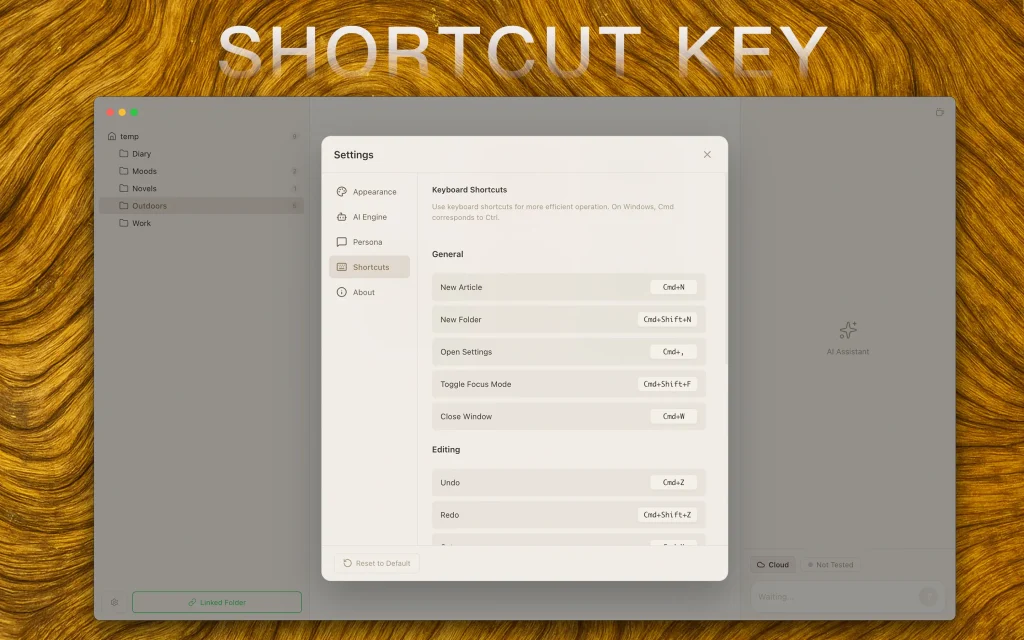
To use AI assistance, select text in your note and invoke the AI (keyboard shortcut or button—check the shortcuts screenshot in the repo). The AI will process your selection based on the active role. You can ask it to continue writing, summarize, translate, or any other task your role supports.
The context-aware feature means you can ask questions like “Is this consistent with my other notes?” and the AI will read your vault to answer. This works best with smaller vaults (under 100 notes) for performance reasons.
Focus Mode
Resize your window to a narrow width. Focus Mode activates automatically. The card grid disappears, leaving only your current note. This removes visual clutter when you want to concentrate on writing. Widen the window again to return to the normal view.
Keyboard Shortcuts
WitNote includes multiple keyboard shortcuts for common actions. The exact shortcuts appear in the app’s shortcuts reference. Learn the shortcuts for creating notes, switching between cards, and invoking AI functions to speed up your workflow.
Pros
- Privacy First: Local storage and inference options keep your data completely offline.
- Flexible AI Backends: You are not locked into a single provider and can mix local and cloud resources.
- Zero Cost: The software is free to use, and local models require no subscription fees.
- Minimalist UI: The iOS-style card interface and Focus mode create a clean writing environment.
Cons
- Hardware Dependent: Local models (Ollama) require decent RAM and preferably Apple Silicon or a dedicated GPU for good performance.
- Windows Installation Friction: The lack of an EV Code Signing Certificate causes SmartScreen warnings on Windows.
- Initial Setup: Users must manually install Ollama or download models.
Related Resources
- Ollama Official Website: Download Ollama to run local LLMs with WitNote.
- WebLLM Documentation: Learn about the browser-based LLM technology that powers WitNote’s built-in engine.
- Obsidian: A knowledge base tool with local-first philosophy similar to WitNote.
- OpenAI API Documentation: Set up cloud API access for WitNote.
- WitNote GitHub Repository: The source code, issue tracker, and release downloads.
FAQs
Q: Can I use WitNote completely offline?
A: Yes, but you need to set up properly first. Use either WebLLM or Ollama as your engine.
Q: How much disk space do I need for local AI models?
A: WebLLM’s built-in model takes about 500MB. Ollama models vary widely. A 7B parameter model (like qwen2.5:7b) needs 4-6GB of disk space. Larger models like 14B need 8-10GB. If you plan to try multiple Ollama models, reserve 20-30GB of disk space.
Q: Can I sync my notes between devices?
A: WitNote doesn’t include built-in sync. Your notes are just regular files in a folder you choose. You can use any file sync service (Dropbox, Google Drive, iCloud Drive, Syncthing) to sync that folder between devices.
Q: Is my writing data safe?
A: When using local engines (WebLLM or Ollama), your data never leaves your computer. The app doesn’t phone home, doesn’t collect telemetry, and doesn’t have analytics. Your notes are plain files on your hard drive.
Q: Can I customize the AI roles?
A: Yes. Go to settings and you’ll find the system prompts for each role. You can edit these prompts to change how the AI behaves. You can also create entirely new custom roles.
Q: Why does Windows Defender flag the installer?
A: The developer is an individual without an expensive EV Code Signing Certificate (these cost thousands of dollars annually). Windows SmartScreen doesn’t recognize the signature, so it shows a warning.
Q: Does WitNote support collaboration or team features?
A: No. WitNote is explicitly designed as a single-user, local-first tool. There’s no real-time collaboration, no sharing links, no comments from teammates.