Microsoft Edge is now a free AI browser that integrates intelligent features to understand context, automate tasks, and personalize your online experience.
With its built-in Copilot Mode, Edge aims to transform from a simple web browser into a proactive AI assistant. This isn’t just about adding a chatbot to the sidebar; it’s a fundamental shift in how the browser interacts with you and the web.
Features
Copilot Mode packs several AI capabilities into Microsoft Edge that go beyond typical browser assistants:
Copilot Actions (Task Automation)
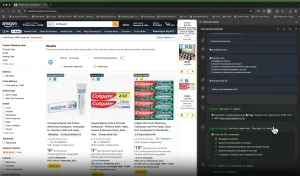
Performs real-world tasks directly within your browser, from ordering groceries based on a recipe to booking dinner reservations or managing your email inbox. Currently available in limited preview in the US only.
Multi-Tab Context (Cross-Tab Analysis)
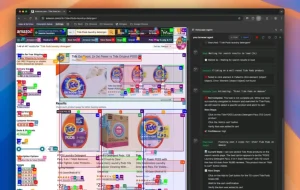
Reads and analyzes all your open tabs simultaneously with your permission, pulling together comparisons with specific metrics like motor power, capacity, price, and user reviews across multiple products or information sources.
Journeys (Browsing History Organization)
Automatically groups your past browsing sessions into topic-based cards that appear on your new tab page, complete with AI-generated summaries and actionable next steps for research projects you’ve been working on.
Intelligent New Tab Page
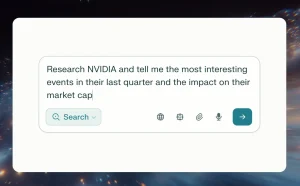
Features a single input field that determines whether you’re searching the web, chatting with Copilot, or navigating to a specific site. Includes reasoning depth controls (quick response, think deeper, or smart mode where Copilot decides).
Quick Assist (Dynamic Side Panel)
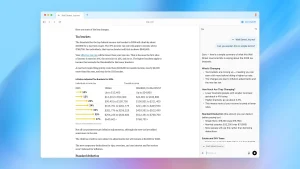
Opens Copilot in a persistent side panel so you can get help without leaving your current page, useful for tasks like summarizing long articles or analyzing comment sentiment on videos.
Voice Navigation and Commands
Supports natural voice input for hands-free browsing and task completion, accessible via Alt-C keyboard shortcut or the Copilot icon.
Privacy-Focused Design
All features are opt-in, with clear visual indicators when Copilot is viewing or listening. Data handling follows Microsoft Privacy Statement standards.
Use Cases
Dinner Party Planning: Open recipe tabs from different sites, then ask Copilot to adjust each recipe for your guest count, create a coordinated cooking schedule that maximizes your single oven, and generate a complete grocery list. Copilot can even add those ingredients directly to your Instacart cart.
Product Research: When comparing stand mixers (or any product category), have three options open in tabs, then prompt Copilot to “compare my open tabs and tell me which mixer is best for baking cookies.” You’ll get a detailed breakdown including motor power, bowl capacity, speed settings, and price, plus recommendations for best overall, best value, and budget-friendly options. Follow up by asking which is quietest or has the best long-term reviews.
Travel Planning: Browse hotels, restaurants, trains, and attractions across multiple tabs over several days. Copilot’s Journeys feature groups all this research into a single card on your new tab page. Click it to see a comprehensive itinerary summary with pro tips, all sourced from the exact tabs you viewed.
Content Analysis: While watching a YouTube video, use Quick Assist to ask Copilot to summarize the video from the transcript or analyze the sentiment across all the comments. Get immediate insights about whether reception is positive, mixed, or critical without reading hundreds of comments yourself.
Email Management: Ask Copilot through Quick Assist to go through your inbox and unsubscribe you from all those shopping newsletters clogging your email. Copilot handles the multi-step process across multiple messages.
How to Use It
1. Open Microsoft Edge and sign in with your Microsoft account to unlock personalized features. You’ll need to be signed in for Copilot Mode features to work properly.
2. Visit aka.ms/copilot-mode and select the toggle to turn on Copilot Mode in Edge. This activates all the AI features.
You can turn it off the same way if you want to return to the standard Edge experience.
3. When you open a new tab, you’ll see the streamlined Copilot interface with a single search box. Type your query or question here. The system decides whether to perform a web search, start a chat with Copilot, or navigate to a URL based on what you type.
4. To use Multi-Tab Context, open all the tabs you want to compare or analyze. Click the Copilot icon in the toolbar, start a new chat, and enter your prompt. For example: “compare my open tabs” or “which of these products has the best reviews?” You can use the @ symbol to select specific tabs if you don’t want Copilot to consider all of them.
5. For Copilot Actions, navigate to a page with content you want to act on (like a recipe), click the Copilot icon, and give it an instruction like “order all the ingredients for this recipe on Instacart.” Copilot reads the page, finds the items, and adds them to your cart. It asks for confirmation before completing any transaction.
6. Access Quick Assist by clicking the Copilot icon in the top right or pressing Alt-C on your keyboard. This opens Copilot in a side panel where you can ask questions about the current page without losing your place. Try “summarize this video” or “analyze the sentiment of these comments.”
7. View your Journeys by opening a new tab. If you’ve granted permission for Copilot to track your browsing patterns, you’ll see topic-based cards representing different research projects. Click any card to see a detailed summary of what you explored, complete with recommendations and the ability to edit or expand the content.
8. Use voice commands by clicking the microphone icon in Copilot and speaking your request. This works for both navigation (“open YouTube”) and analysis (“tell me what this article is about”).
9. Control your privacy settings at any time through Edge settings. You can revoke permissions for Multi-Tab Context or Journeys, clear your history, or toggle Copilot Mode off entirely.
Pros
- Zero Cost: Copilot Mode is completely free for all Edge users on Windows and Mac. No subscription required for the core features.
- Real Task Completion: Unlike chatbots that just provide information, Copilot Actions can complete actual tasks like adding items to shopping carts, making reservations, and managing emails.
- Intelligent Tab Management: Multi-Tab Context saves significant time when researching or comparing options by pulling insights from all open tabs instead of forcing you to manually switch between them and compile information yourself.
- Contextual Memory: Journeys eliminates the “where was I?” problem by organizing past research into resumable projects with AI-generated summaries.
- Flexible Interaction: Supports typing, voice commands, and different reasoning depths (quick vs. deep thinking) depending on your needs.
- Privacy Controls: Everything is opt-in with clear visual indicators. You control what Copilot can access and can disable features or clear data anytime.
- No Tab Overload: The streamlined new tab page and automatic organization reduce cognitive load compared to traditional browsing with dozens of tabs.
Cons
- Limited Availability: Copilot Actions and Journeys are currently US-only in limited preview.
- Requires Trust: Letting an AI see all your tabs and browsing history requires comfort with that level of access, even with privacy protections in place.
- Task Confirmation Needed: While Copilot can automate tasks, it still asks for confirmation before completing actions like purchases, which adds an extra step.
- Accuracy Depends on Content: The quality of summaries and comparisons depends on how well Copilot can parse the content on your tabs. Poorly structured websites may yield less useful results.
- Windows and Mac Only: Mobile availability is coming soon, but currently not available on phones or tablets.
Related Resources
- Microsoft Edge Official Page: Download the latest version of Edge to access Copilot Mode features.
- Copilot Mode Activation Page: Direct link to toggle Copilot Mode on or off in your Edge browser.
- Microsoft Privacy Statement: Full details on how Microsoft handles your data when using Copilot features.
- Microsoft Edge Blog: Official announcements and updates about new Edge features and improvements.
FAQs
Q: Can Copilot see everything I browse?
A: Only if you explicitly grant permission. Multi-Tab Context and Journeys require you to opt in before Copilot can access your tabs or browsing history. You’ll see clear visual indicators when Copilot is viewing content, and you can revoke permissions or turn off Copilot Mode completely at any time through your Edge settings.
Q: Will Copilot Actions complete purchases without asking me?
A: No. While Copilot can add items to your cart and navigate through shopping sites, it asks for your confirmation before completing any transaction or checkout process. You remain in control of final actions.
Q: How do I make Copilot compare only specific tabs instead of all of them?
A: Use the @ symbol in your prompt field when chatting with Copilot. This lets you select which specific tabs Copilot should analyze. For example, if you have five tabs open but only want to compare two products, @mention just those two tabs in your request.
Q: What’s the difference between “quick response” and “think deeper” reasoning modes?
A: Quick response gives you fast answers for straightforward questions, while think deeper mode uses more advanced reasoning for complex queries that require multi-step analysis. Smart mode lets Copilot automatically choose the best approach based on your question.
Q: Does Copilot Mode work on mobile devices?
A: Not yet. Copilot Mode is currently available only on Edge for Windows and Mac. Microsoft has indicated that mobile versions are coming but hasn’t announced a specific timeline.
Q: What happens to my Journeys if I clear my browsing history?
A: Clearing your browsing history will remove the underlying data that Journeys uses to create topic groupings. If you want to keep your Journeys while clearing other history, you’ll need to selectively delete items rather than clearing everything at once.
Q: Can I use Copilot Mode if I’m in a country outside the US?
A: Yes and no. Copilot Mode’s basic features (new tab page, Multi-Tab Context, Quick Assist) work in all markets where Copilot is available. However, Copilot Actions and Journeys are currently limited to US users only in preview. Microsoft plans to expand availability to more regions.