Open-source Context-Aware AI Assistant for Desktop – Everywhere
Free AI assistant for desktop. Get instant help with coding errors, translations, and document summaries using screen context awareness.
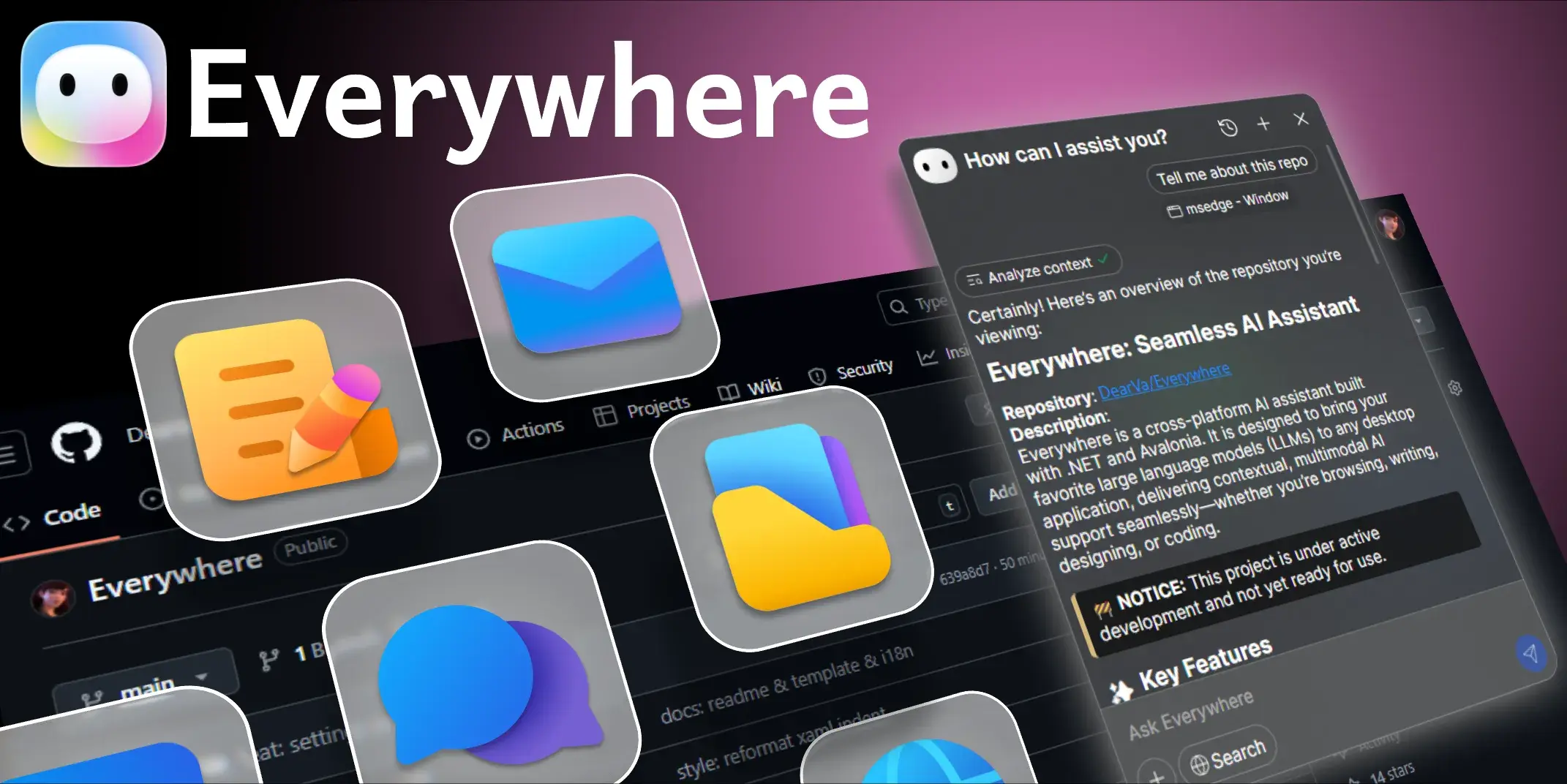
Everywhere is a free, open-source, context-aware AI assistant for your desktop that intelligently responds to whatever is on your screen.
By pressing a keyboard shortcut, you can ask questions, get summaries, or request edits without taking screenshots, copying text, or switching between applications. It brings the AI directly to your work, not the other way around.
Features
- Context Recognition: Reads screen content around your cursor automatically when invoked, understanding which app you’re using and what information is visible.
- Multiple LLM Support: Works with OpenAI, Anthropic (Claude), Google (Gemini), DeepSeek, Moonshot (Kimi), OpenRouter, SiliconCloud, Ollama, and custom API endpoints.
- Keyboard-Driven Interface: Activate with a customizable hotkey and interact entirely through keyboard commands without touching your mouse.
- Web Search: Connects to search engines to retrieve current information when answering questions that require recent data.
- Markdown Rendering: Displays responses with proper formatting, code blocks, and syntax highlighting for technical content.
- Modern UI Design: Features a frosted glass interface that overlays your current work without blocking your view completely.
Use Cases
- Debugging Assistance: When you hit an error while coding, invoke Everywhere next to the error message and ask what went wrong. It reads the stack trace and suggests fixes based on the specific error text.
- Document Summarization: Reading long technical documentation or research papers? Ask Everywhere to extract the key points into a three-sentence summary so you can decide if the full document is worth your time.
- Real-Time Translation: Encountered text in another language while researching? Get instant translations without opening Google Translate or copying text, keeping your research flow intact.
- Writing Polish: Drafting emails or documentation and unsure about tone? Highlight your text and ask Everywhere to make it more professional, casual, or concise based on your audience.
- Quick Fact Checking: When reading articles or social media posts that make questionable claims, ask Everywhere to verify the information using web search, getting sourced answers in seconds.
How to Use It
1. Download the latest release from the GitHub repository. You’ll see two Windows options: the Setup.exe installer or the portable .zip file. Both contain identical files, so choose based on your preference (the zip version doesn’t require installation rights).
2. Run the installer or extract the zip to your preferred location. Launch Everywhere.exe and you’ll see it appear in your system tray. Right-click the tray icon and select Settings to configure your first AI model.
3. In the settings panel, choose your preferred LLM provider from the dropdown menu. For OpenAI, you’ll need an API key from platform.openai.com. Paste your key into the API Key field, select your model (like gpt-5), and click Save. The configuration process is similar for other providers, each requiring their respective API credentials.
4. Set your activation hotkey in the Keyboard Shortcuts section. You can also configure the context capture radius, which determines how much screen content Everywhere reads when invoked.
5. To use Everywhere, position your cursor near the content you want to ask about and press your hotkey. The frosted glass interface appears with a text input box. Type your question naturally, like “what does this error mean?” or “translate this to English.” Press Enter and Everywhere captures the screen context around where you invoked it, sends it to your configured LLM along with your question, and displays the response in the same window.
Pros
- Zero Context Switching: Ask questions about what you’re viewing without copying text or taking screenshots.
- Model Flexibility: Switch between different AI providers based on your needs (use GPT-5 for analysis, Claude for coding, or local Ollama models for privacy).
- Privacy Options: Run entirely local models through Ollama if you don’t want to send data to external APIs.
- Lightweight Operation: Uses minimal system resources when idle, only activating when you invoke it.
- Free and Open Source: No subscription fees, no usage limits beyond your chosen API provider’s rates.
Cons
- Windows Only Currently: macOS and Linux versions are planned but not available yet.
- Requires API Keys: You need to provide your own API credentials for commercial LLM services.
- Web Search Needs Configuration: Unlike ChatGPT or Claude’s web interfaces, you must set up an external search API (Google or Brave) manually if you want current information retrieval.
- Early Development Stage: Some features like voice input and MCP tool integration are still in progress.
Related Resources
- Everywhere GitHub Repository: Official source code, documentation, and release downloads for the latest version.
- OpenAI API Documentation: Learn about OpenAI’s API capabilities, pricing, and model options if you’re considering GPT models for Everywhere.
- Anthropic Claude API: Reference documentation for integrating Claude models, including prompt engineering tips that work well with Everywhere.
- Ollama: Run local LLMs on your machine for complete privacy when using Everywhere without sending data to external services.
FAQs
Q: Why isn’t the custom model provider I’m using working correctly?
A: Everywhere is officially tested and supported for major providers like OpenAI, Gemini, and Anthropic. While it can connect to any OpenAI-compatible API, the developers cannot guarantee stability for all third-party services. If you encounter issues, first check that your API URL is formatted correctly (e.g., ends in /v1) and then contact your model provider for support.
Q: I asked a question, but the AI didn’t give an answer. What’s wrong?
A: This sometimes happens if there’s an issue with your API URL configuration. A common mistake is omitting the /v1 suffix from OpenAI-compatible URLs. For example, https://api.openai.com/v1 is correct, while https://api.openai.com is not.
Q: Does Everywhere work with all applications?
A: Everywhere can read content from most Windows applications because it captures screen text through accessibility APIs. However, some apps with custom rendering (like certain games or protected media players) might not expose their text content. Standard applications like browsers, code editors, terminals, and office software work reliably.