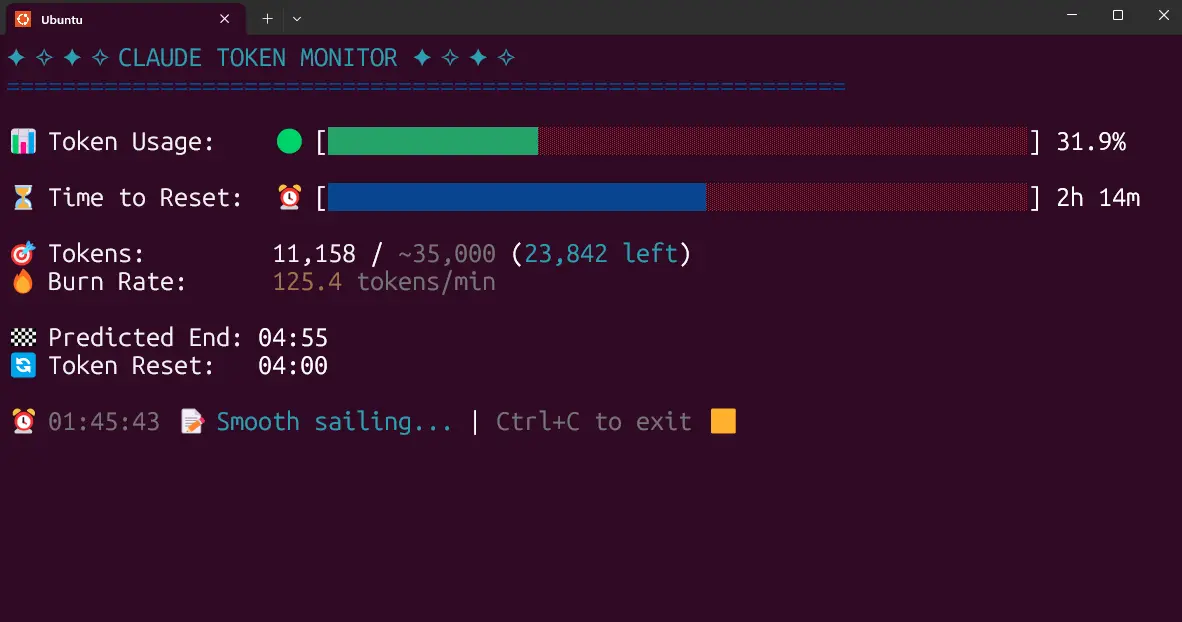
Claude Code Usage Monitor is a free, open-source terminal-based monitoring tool that tracks your Anthropic Claude token consumption in real-time.
It provides visual progress bars, burn rate calculations, and predictions about when you’ll run out of tokens during your 5-hour Claude Code sessions.
Features
- Real-time monitoring: The display refreshes every 3 seconds, so you get a live look at your token consumption.
- Visual progress bars: It includes color-coded progress bars for both token usage and the time remaining in your session. This makes it easy to see your status at a glance.
- Smart predictions: The tool calculates your token “burn rate” and estimates when you will run out of tokens if you maintain your current pace.
- Auto-detection: Automatically switches from Pro to custom limits when usage exceeds 7,000 tokens.
- Multiple plan support: Works with Pro (~7,000 tokens), Max5 (~35,000 tokens), Max20 (~140,000 tokens), and auto-detect plans.
- Custom scheduling: You can configure the tool to align with your work schedule by setting your own reset times and time zones.
Use Cases
- Active Project Development: When you’re deep into coding with Claude, you can keep the monitor running in a separate terminal window. It helps you pace your work. If you notice the burn rate is high, you may decide to tackle less token-intensive tasks as you approach the session limit.
- Understanding Your Limits: For users on an unknown or variable plan, running the tool with the
custom_maxsetting helps identify your actual token limits. After a few sessions, it learns your peak usage and sets that as the benchmark. - Team Coordination Across Time Zones: A team spread across different regions can use the tool to coordinate their work. By setting the timezone to UTC, everyone has a common reference for session resets, which helps in planning handoffs for tasks that rely on Claude.
How to Use It
Installation with uv (Recommended)
The fastest way to install and run the monitor:
# Install uv if you don't have it
curl -LsSf https://astral.sh/uv/install.sh | sh
# Install the monitor
uv tool install claude-monitor
# Run from anywhere
claude-monitor
Installation with pip
# Install from PyPI
pip install claude-monitor
# If command not found, add to PATH
echo 'export PATH="$HOME/.local/bin:$PATH"' >> ~/.bashrc
source ~/.bashrc
# Run the monitor
claude-monitor
Basic Usage
# Default Pro plan (7,000 tokens)
claude-monitor
# Max5 plan (35,000 tokens)
claude-monitor --plan max5
# Max20 plan (140,000 tokens)
claude-monitor --plan max20
# Auto-detect from previous sessions
claude-monitor --plan custom_max
# Custom reset time (3 AM)
claude-monitor --reset-hour 3
# Different timezone
claude-monitor --timezone US/Eastern
Development Setup
# Clone repository
git clone https://github.com/Maciek-roboblog/Claude-Code-Usage-Monitor.git
cd Claude-Code-Usage-Monitor
# Create virtual environment
python3 -m venv venv
source venv/bin/activate
# Install dependencies
pip install pytz
# Run directly
python claude_monitor.py
Pros
- Real-time Feedback: The 3-second refresh rate gives you immediate insight into your usage.
- Simple UI: The terminal interface is clean and easy to understand.
- Helpful Predictions: The burn rate and depletion warnings are practical for managing workflow.
- Reduces “Token Anxiety”: You no longer have to guess about your session status.
Cons
- Terminal Only: It’s a command-line tool, so it may not be suitable for users who prefer a graphical interface.
- Initial Setup Confusion: Users unfamiliar with Python or PATH variables might face minor issues with a
pipinstallation, though theuvmethod avoids this.
Related Resources
- ccusage by ryoppippi: The underlying CLI tool that provides Claude Code usage data – GitHub Repository
- Claude Code Documentation: Official documentation for Claude’s command-line coding tool – Check Anthropic’s website
- uv Package Manager: Modern Python package installer that provides isolated environments – uv Documentation
FAQs
Q: How does Claude Code’s 5-hour session system work?
A: Claude Code uses rolling 5-hour windows that start with your first message. You can have multiple overlapping sessions, and each has its token limit. The monitor tracks all active sessions and calculates when each will expire.
Q: What happens if the monitor shows I’m exceeding Pro limits?
A: The tool automatically switches from Pro mode to custom_max mode, which scans your previous sessions to find your actual token limits. This usually means you have a higher-tier subscription than you realized.
Q: Can I run the monitor in the background?
A: Yes, you can use tmux to run it in a detached session: tmux new-session -d -s claude-monitor 'claude-monitor' then attach with tmux attach -t claude-monitor to check status.
Q: What do I do if I get an “externally-managed-environment” error during installation?
A: This happens on newer Linux distributions. The best solution is to use uv or pipx for installation, as they create isolated environments. For example: uv tool install claude-monitor. This avoids conflicts with system packages.
Q: The claude-monitor command isn’t found after I installed it with pip. How do I fix it?
A: This usually means the installation directory isn’t in your system’s PATH. You need to add ~/.local/bin to your PATH. You can do this by running echo 'export PATH="$HOME/.local/bin:$PATH"' >> ~/.bashrc and then restarting your terminal.
Q: What does the “No active session found” error mean?
A: It means the tool can’t find any recent Claude usage data. To fix this, start a session with Claude by sending a couple of messages and then run the monitor again.
Q: Can I use this if I don’t know my exact Claude plan?
A: Yes. Run the monitor with claude-monitor --plan custom_max. It will analyze your past sessions to determine the highest token limit you’ve had and use that for its calculations.