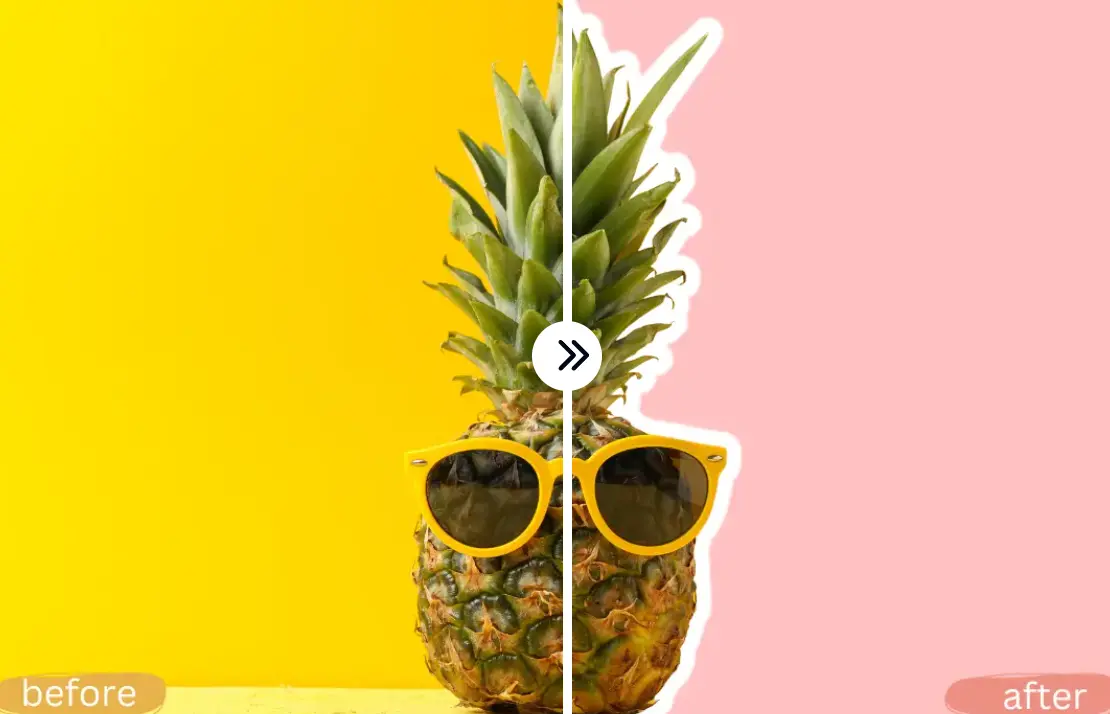
Outline Picture is a free AI photo editing tool that removes image backgrounds and adds custom strokes to subjects.
It provides a simple way to make your visuals more impactful without needing any design experience. You can remove the background completely for a transparent PNG, or enhance your subject with a colored outline.
As you can see in the image below, the tool accurately isolates the red starfish from its beach background and adds a distinct yellow outline. This highlights the starfish and makes it easy to use on a new background.

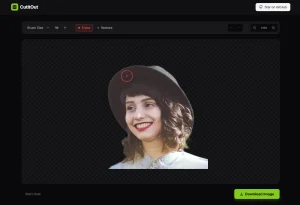
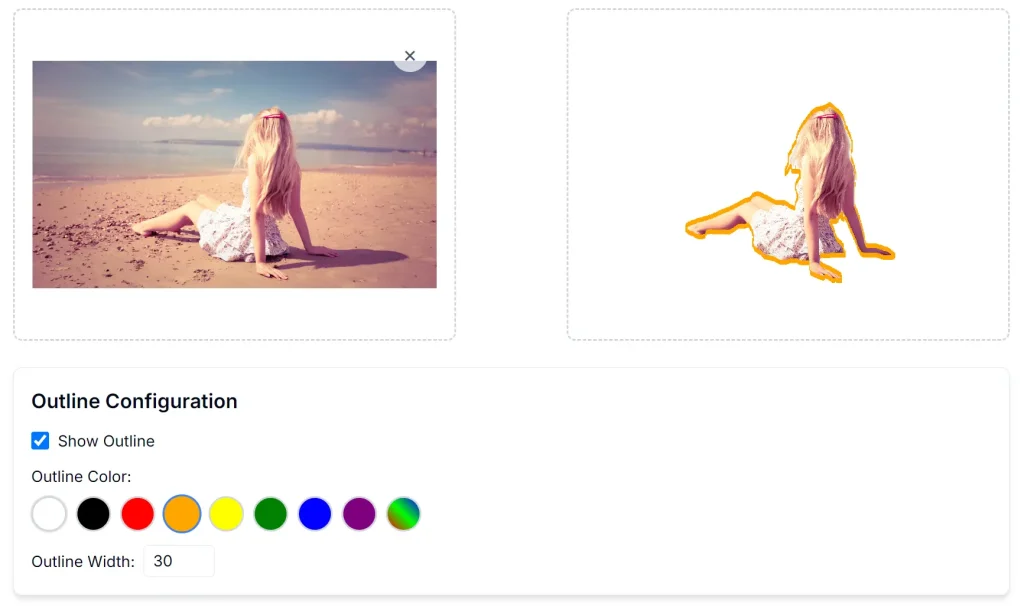
I uploaded a more complex photo of a young girl sitting on a beach. Outline Pciture successfully identified the girl as the main subject, removed the sea and beach background, and added a yellow stroke around her figure. This demonstrated the AI’s ability to handle intricate images with multiple elements.
How to use it:
1. Go to the Outline Picture web app and upload the image you want to edit. The platform accepts common formats like JPG, JPEG, PNG, and WEBP. Your image needs to be between 50 x 50 pixels and 16,000 x 16,000 pixels. I recommend keeping your file size below 2MB for faster processing and a smoother preview experience.
2. The AI automatically removes the background as soon as you upload your image. The outline option is selected by default. Processing usually takes around 10 seconds, but it might take longer for larger files. The platform prioritizes delivering a quality result.
3. Outline Picture starts with an orange outline. You can change this using the configuration panel below the image. Here you can adjust the outline color and width. If you select a white outline, the platform temporarily adds a gray background to make it visible online. Don’t worry, your downloaded image will have a transparent background.
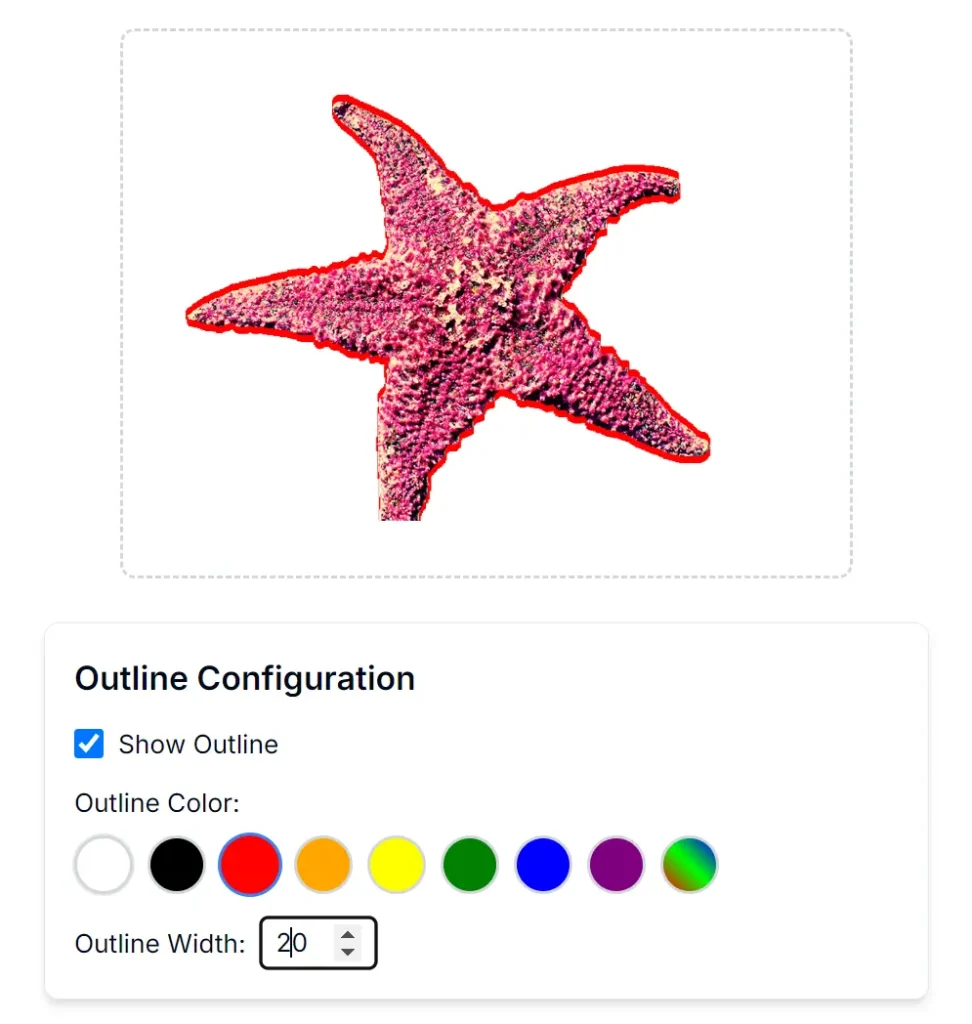
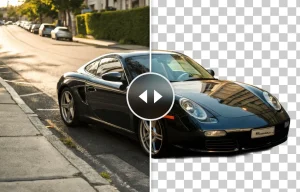
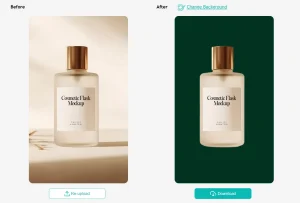
4. After customizing your image, you can now download it as a high-quality PNG file. As demonstrated in the examples above, you can use this feature to create images with transparent backgrounds for easy placement on new backgrounds or to highlight your subject with a colored outline for a more stylized look.