Ticketify is a free AI ticket generator that transforms raw bug reports, feature requests, and task descriptions into professionally structured project management tickets.
The platform utilizes advanced language models to interpret natural language input and generate detailed tickets with proper formatting, acceptance criteria, and metadata, ready to be pasted into Jira, Linear, Trello, or any other project management system you use.
Features
- Multi-Language: Write your requirements in any language. The AI automatically translates and formats everything into professional English tickets.
- Intelligent Ticket Type Generation: Five ticket types: Bug, Error, Epic, Task, and Story. Each type follows industry-standard templates with appropriate sections for that specific ticket format.
- Customizable Output Parameters: Four adjustable sliders let you control formality level, technical detail depth, text volume, and urgency rating.
- Linear Integration: Registered users can connect their Linear workspace and send tickets directly from Ticketify.
- Automatic Time Tracking: Each generated ticket includes an estimate of time saved compared to manual ticket creation.
Use Cases
- QA Bug Reporting: Testers can paste a quick, messy description of an error (e.g., “Login button broken on iOS 16”). Ticketify expands this into a full bug report with “Steps to Reproduce,” “Expected Results,” and “Environment” sections.
- Non-Native English Teams: Distributed teams can write complex requirements in their local language. Ticketify ensures the final ticket in the backlog is in clear, professional English for international collaboration.
- Product Backlog Refinement: Product Managers can dump raw feature ideas or meeting notes into the tool. The AI organizes these thoughts into structured User Stories with clear Acceptance Criteria ready for sprint planning.
Case Study: The Mobile Landing Page Bug
I wanted to test how much context Ticketify could actually infer from a lazy input. We’ve all been there: you find a bug, but you don’t have the energy to write out the full “Steps to Reproduce” manually.
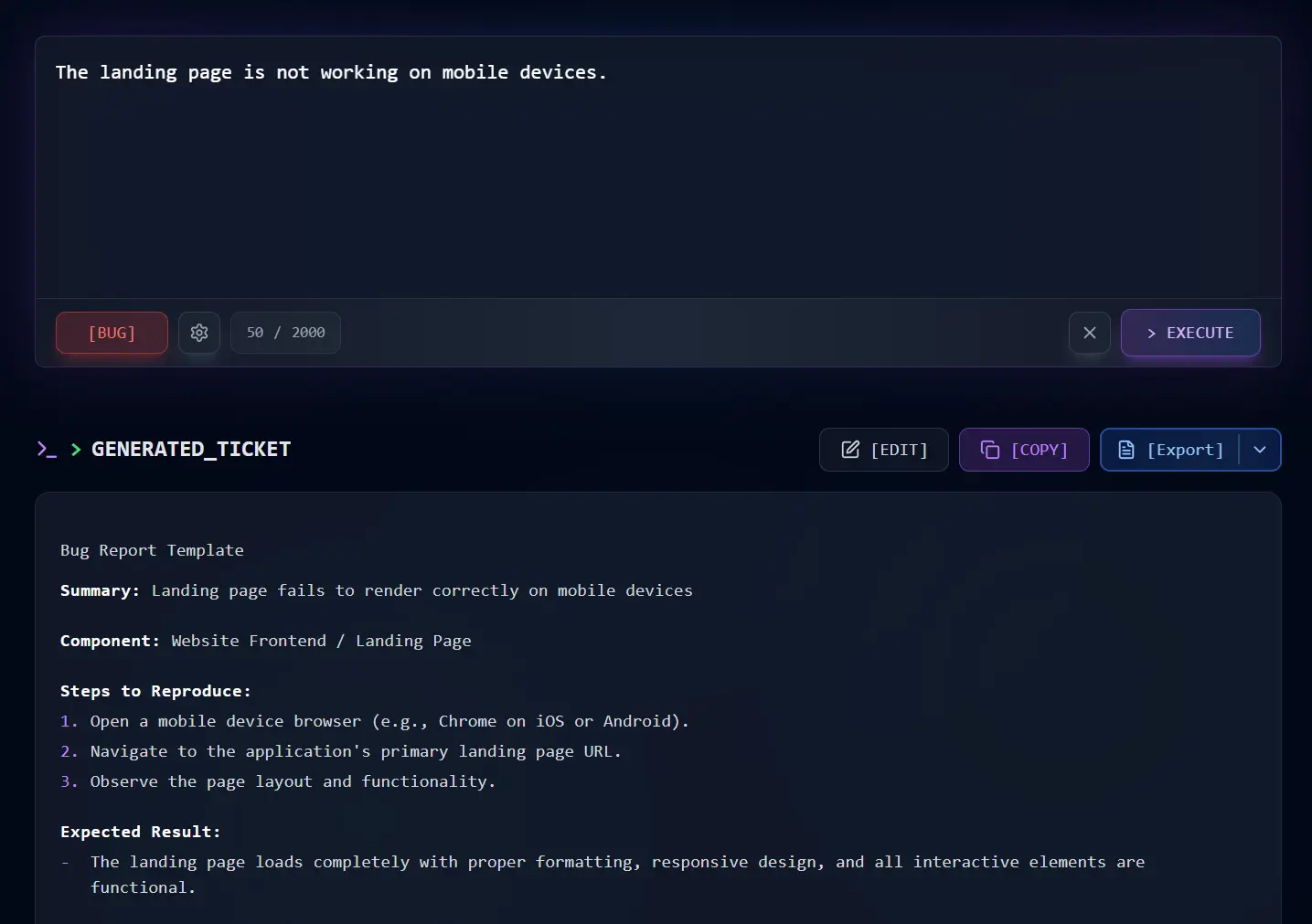
I opened Ticketify and entered a single, vague sentence into the input field:
“The landing page is not working on mobile devices.”
I didn’t provide device logs, browser versions, or specific layout errors. I just wanted to see how the AI would handle the ambiguity.
The Results
Ticketify instantly transformed that one sentence into a detailed Bug Report Template. It didn’t just pad the text; it logically structured the ticket for a developer:
Bug Report Template

Summary:Landing page fails to render correctly on mobile devices

Component:Website Frontend / Landing Page

Steps to Reproduce:

1. Open a mobile device browser (e.g., Chrome on iOS or Android).
2. Navigate to the application's primary landing page URL.
3. Observe the page layout and functionality.

Expected Result:
- The landing page loads completely with proper formatting, responsive design, and all interactive elements are functional.

Actual Result:
- The page layout is broken, with overlapping elements, misaligned text, and non-functional navigation buttons.

Environment:
- iOS 16+ Safari, Android 13+ Chrome
- Various mobile device screen sizes

Priority: Medium
Severity: Major

Attachments:[Link to screenshots or logs, if any]
The “Aha” Moment
What impressed me most was the AI Insights section at the bottom of the generation. It calculated that this specific automation saved me approximately 135 seconds.
While two minutes sounds trivial, I realized that for a QA engineer logging 20 bugs a day, this tool effectively recovers nearly an hour of productive work daily. The generated ticket was 70% formal and 70% technical, which was the exact sweet spot for our engineering team.
How To Use It
1. Go to the Ticketify website and type your bug report, feature idea, or task. Unregistered users can input up to 500 characters per ticket. If you need more room (and you probably will for complex issues), register for a free account. This increases your character limit to 2000 characters per ticket and unlocks Linear integration.
2. Choose the category that best fits your ticket: Error, Bug, Epic, Task, Story.
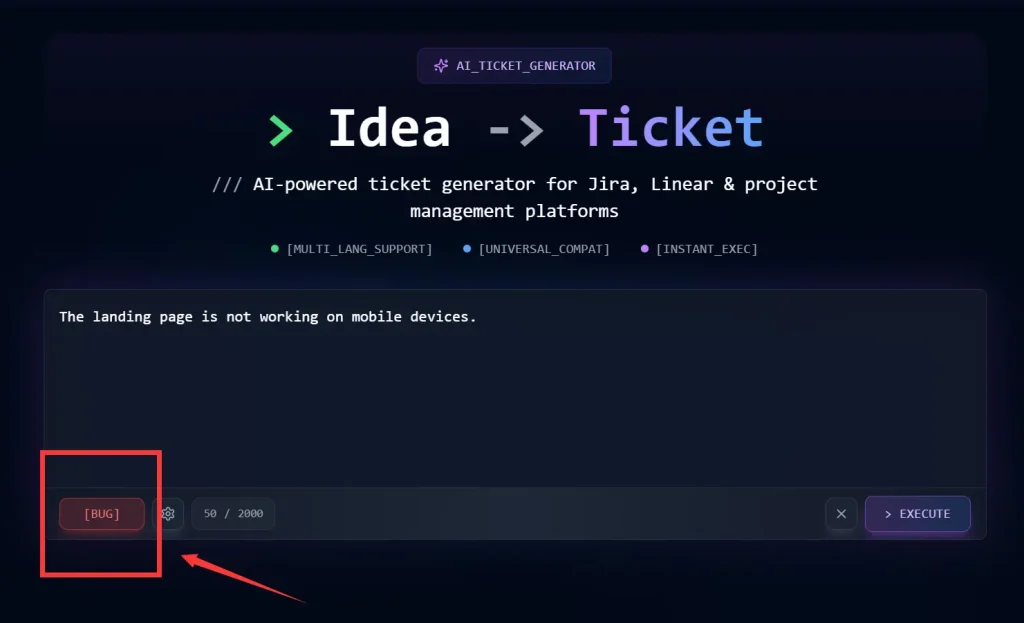
3. Click the settings icon to fine-tune the output with four key parameters:
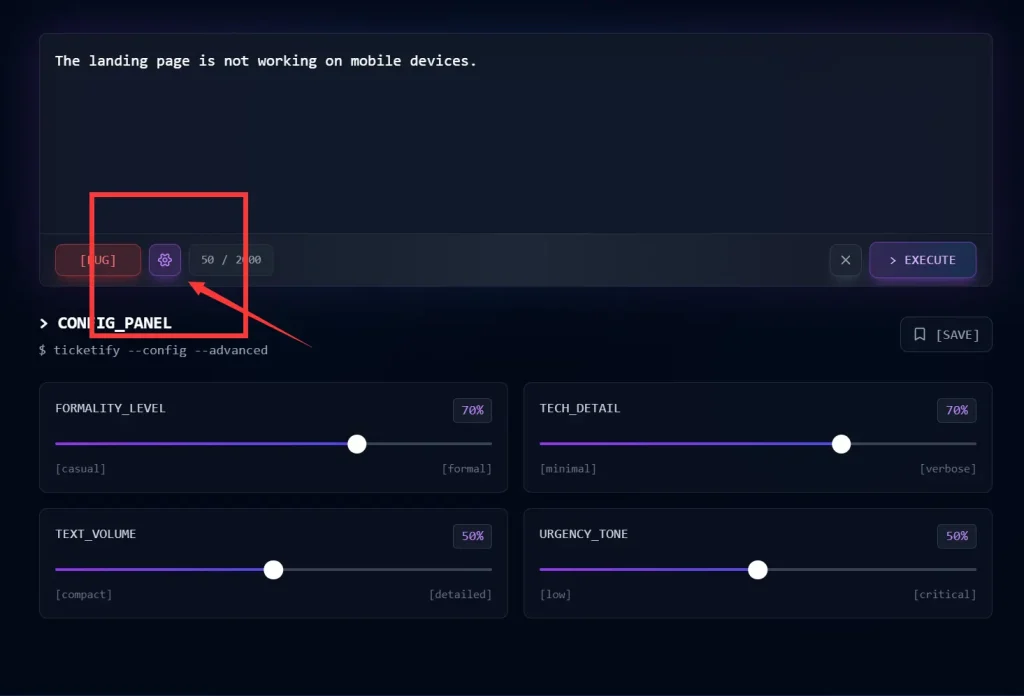
| Parameter | What It Controls | Recommended Setting |
|---|---|---|
| Formality | Language tone. Low = casual; High = formal, corporate. | High for client-facing teams; Medium for internal dev teams. |
| Technical Detail | Depth of technical jargon and assumed knowledge. | High for engineering teams; Low for stakeholder summaries. |
| Text Volume | Length and verbosity of the generated ticket. | Medium for clarity; Low for quick tasks. |
| Urgency | Influences the priority and severity labels in the output. | Set based on actual business impact, not the detail of the description. |
4. Click the Execute button, and the AI processes your input and generates a complete ticket in about two seconds. The output includes all standard sections like summary, description, reproduction steps (for bugs), acceptance criteria (for stories), priority levels, and any other fields relevant to the ticket type you selected.
5. Review the generated ticket in the output area. You can edit the text directly if you need to adjust any details. The AI does an excellent job but you may want to add specific assignee names, adjust priority levels based on current sprint capacity, or add links to related tickets.
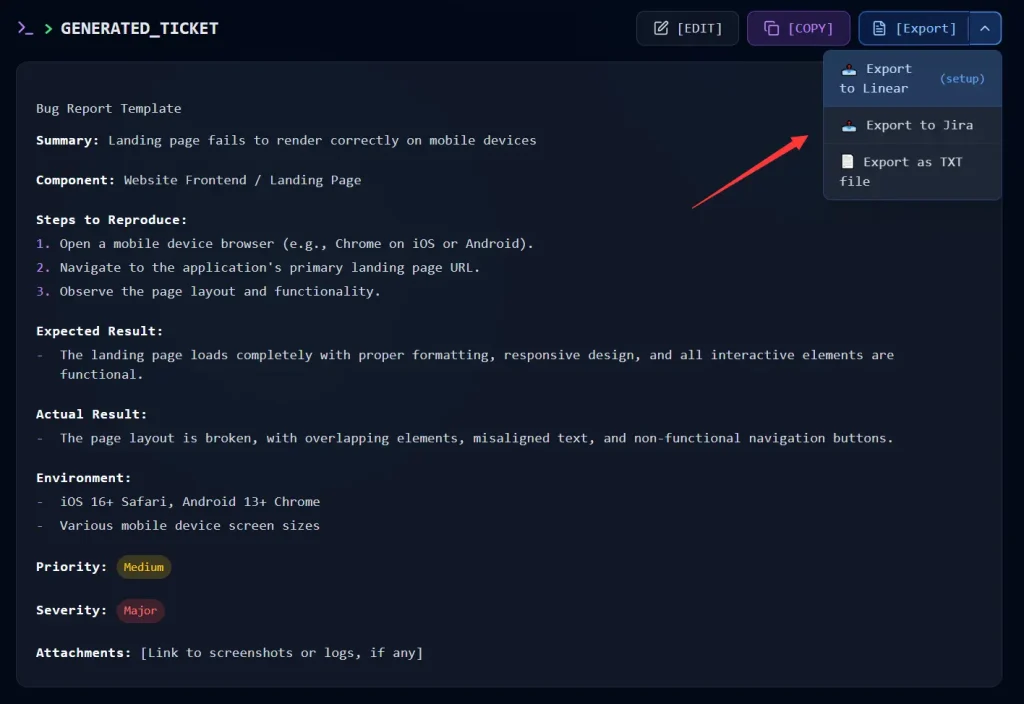
6. Export your ticket using one of three methods. Copy it to your clipboard and paste it into your project management tool. Export it as a text file if you want to save it locally before importing. Or, if you’re a registered user with Linear connected, send it directly to your workspace.
Pros
- Speed: It reduces the time required to write a ticket from scratch.
- Consistency: All tickets follow a uniform structure.
- Free Core Functionality: The primary ticket generation features work without payment.
Cons
- Manual Copy-Paste: Direct integration is currently limited to Linear. Jira and Trello users must copy and paste the output manually.
- Input Dependency: Extremely vague inputs can still result in generic tickets that require human editing.
- Character Limits: Unregistered users are capped at 500 characters, which may not be enough for complex crash logs.
FAQs
Q: Is my data used for AI training?
A: No. Your input text and generated tickets are processed only to create your output. Ticketify doesn’t feed your data back into model training. If you enable history saving as a logged-in user, your tickets are stored for your personal reference only.
Q: Can I customize the ticket templates?
A: Not directly within Ticketify. You get control over formality, detail, volume, and urgency through the sliders, but you can’t modify the underlying template structure.
Q: Do I need an account to use Ticketify?
A: You can generate tickets anonymously with a 500-character input limit. Creating a free account increases this to 2000 characters and adds features like Linear integration and ticket history.
Q: How accurate are the generated tickets?
A: Accuracy correlates directly with input quality. Clear, specific descriptions with concrete details produce accurate, useful tickets. Vague descriptions produce generic tickets that need heavy editing. The AI excels at structuring information and adding standard sections, but it can’t invent missing details about your specific situation.