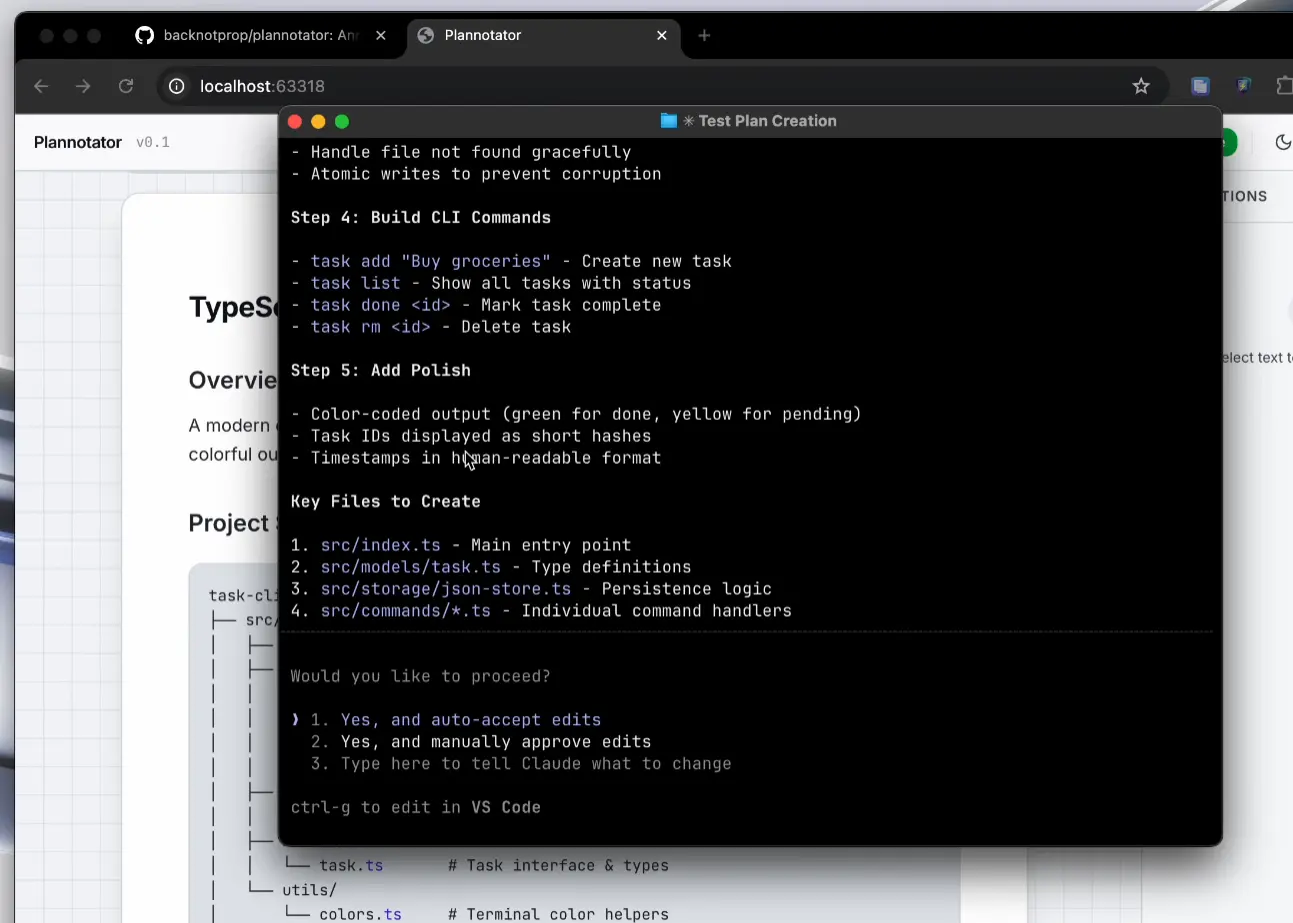
Plannotator is an open-source Claude Code plugin that allows you to annotate, review, and share AI-generated coding plans visually. It integrates with Claude Code or OpenCode to transform the terminal-based plan approval process into an interactive visual workflow.
Most AI coding agents display plans in the terminal where you must read through everything linearly, then either approve or deny the entire plan. You can type out specific feedback, but referencing exact sections becomes awkward.
Plannotator was designed to address this. It opens a web UI in your browser when your AI agent finishes planning. You can select specific text in the plan, mark it for deletion, add comments, or suggest replacements.
When you’re ready to share, the entire plan and all annotations compress into a URL using deflate compression (similar to itty.bitty). You can send this link to teammates who can add their own annotations. When you approve or request changes, your feedback flows back to the agent automatically in a structured format that it can act on.
Features
- Local-First: Plannotator runs entirely in your browser. Plans and annotations never leave your machine.
- Visual Annotation System: You can select any text in a plan and choose from three actions: mark for deletion, add a comment, or suggest a replacement. Annotations appear in a sidebar with clear indicators showing what you’ve marked.
- URL-Based Sharing: Plans and all their annotations compress into the URL itself using deflate compression. You can share a link that contains everything. No accounts required.
- Code Review Mode: You can review git diffs with inline annotations, select specific line numbers to annotate, switch between different diff views, and send feedback directly to your agent.
- Image Annotation: You can attach images to your feedback and annotate them using pen, arrow, and circle drawing tools.
- Obsidian Support: Approved plans auto-save to your Obsidian vault with YAML frontmatter, auto-extracted tags from the plan title and code languages, and backlinks via
[[Plannotator Plans]]for graph connectivity. - Bear Notes Integration: Plans can also auto-save to Bear Notes for users who prefer that note-taking system.
- Claude Code Hook System: For Claude Code users, Plannotator uses the PermissionRequest hook to intercept the ExitPlanMode event. The UI launches automatically when Claude exits plan mode.
Claude Code Demo
Use Cases
- Team Plan Alignment: A backend developer shares a plan URL during sprint planning. Frontend teammates annotate API contract sections needing clarification before implementation starts.
- Architectural Decision Records: After approving a microservice decomposition plan, it saves to Obsidian with tags like #database and #refactoring. Months later, you search these tags to understand past choices.
- Pre-Merge Code Review: You run
/plannotator-reviewon a feature branch diff. Annotate three lines requiring null checks, then send feedback so the agent regenerates the implementation correctly.
How to Use It
Installation for Claude Code
You need to install both the binary command and the Claude Code plugin. The binary handles the UI server while the plugin integrates with Claude Code’s hook system.
Install the binary command:
On macOS, Linux, or WSL:
curl -fsSL https://plannotator.ai/install.sh | bashOn Windows PowerShell:
irm https://plannotator.ai/install.ps1 | iexThe install script can be customized with environment variables. Set OPENCODE_INSTALL_DIR or XDG_BIN_DIR to control the installation directory if you don’t want the default location.
Install the Claude Code plugin:
Open Claude Code and run these commands:
/plugin marketplace add backnotprop/plannotator
/plugin install plannotator@plannotator
After installing the plugin, you must restart Claude Code. The hooks system requires a fresh session to recognize the new plugin.
If the marketplace approach doesn’t work, you can use the manual hook approach. Check the apps/hook/README.md file in the repository for detailed instructions on manually configuring the hooks in your .claude/settings.json file.
Installation for OpenCode
Add the plugin to your opencode.json config file:
{
  "plugin": ["@plannotator/opencode@latest"]
}
Run the install script to get the /plannotator-review command:
On macOS, Linux, or WSL:
curl -fsSL https://plannotator.ai/install.sh | bashOn Windows:
irm https://plannotator.ai/install.ps1 | iexThe install script also clears any cached plugin versions to avoid conflicts. Restart OpenCode after running the script.
Using Plannotator
- Start a coding task with Claude Code in plan mode (press Shift+Tab twice to enter plan mode)
- Claude generates a plan and the Plannotator UI opens automatically in your browser
- Read through the plan in the visual interface
- Select any text you want to modify
- Choose your action: delete, comment, or replace
- Your annotations appear in the right sidebar
- Click “Approve” to let Claude proceed, or “Request Changes” to send your annotations back to Claude
Claude Code commands:
/plugin marketplace add backnotprop/plannotator: Add the Plannotator marketplace/plugin install plannotator@plannotator: Install the Plannotator plugin/plugin list: Verify Plannotator appears in your installed plugins/plannotator-review: Launch review mode for git diffs (after installing binary)
OpenCode commands:
/plannotator-review: Launch review mode for git diffs
Binary installation options:
OPENCODE_INSTALL_DIR=/custom/path: Set custom installation directory for the binaryXDG_BIN_DIR=$HOME/.local/bin: Use XDG directory standard for installation
Hook events (for manual configuration):
ExitPlanMode: Claude Code hook that triggers when the agent exits plan modePermissionRequest: Claude Code hook that Plannotator uses to intercept plan approval
Pros
- Privacy First: Runs locally with no external network requests required.
- Zero-Infrastructure Sharing: Uses URL compression to share states.
- Workflow Integration: Saves directly to popular note-taking apps like Obsidian and Bear.
Cons
- Limited Agent Support: Currently supports only Claude Code and OpenCode.
- Installation Friction: Requires running a shell script and configuring agent plugins separately.
Related Resources
- Claude Code Documentation: Official documentation for Claude Code, covering hooks, plugins, and integration options.
- OpenCode Documentation: Complete documentation for OpenCode, including plugin development, custom tools, and configuration.
- Plannotator GitHub Repository: Source code, issue tracking, and detailed technical documentation for Plannotator.
- Obsidian: Note-taking application that integrates with Plannotator for automatic plan archiving.
- Claude Code Hooks Reference: Technical reference for implementing hooks in Claude Code.
- Awesome Claude Code: Curated list of Claude Code plugins, agent skills, hooks, and related tools.
FAQs
Q: Does Plannotator store my plans on a remote server?
A: No. Plannotator runs entirely locally in your browser from a Bun server on your machine. Plans never leave your computer unless you explicitly generate and share a URL.
Q: What happens if two people annotate the same section of a shared plan differently?
A: The tool shows all annotations in the sidebar. You can see both perspectives, but Plannotator doesn’t have built-in conflict resolution. You’ll need to coordinate with your team about which annotation to follow. The last person to click “Request Changes” determines what feedback goes back to the agent.
Q: Can I customize which Obsidian vault receives approved plans?
A: Yes. Open Plannotator settings (gear icon) and you’ll see a dropdown of all detected vaults. Select the one you want to use.