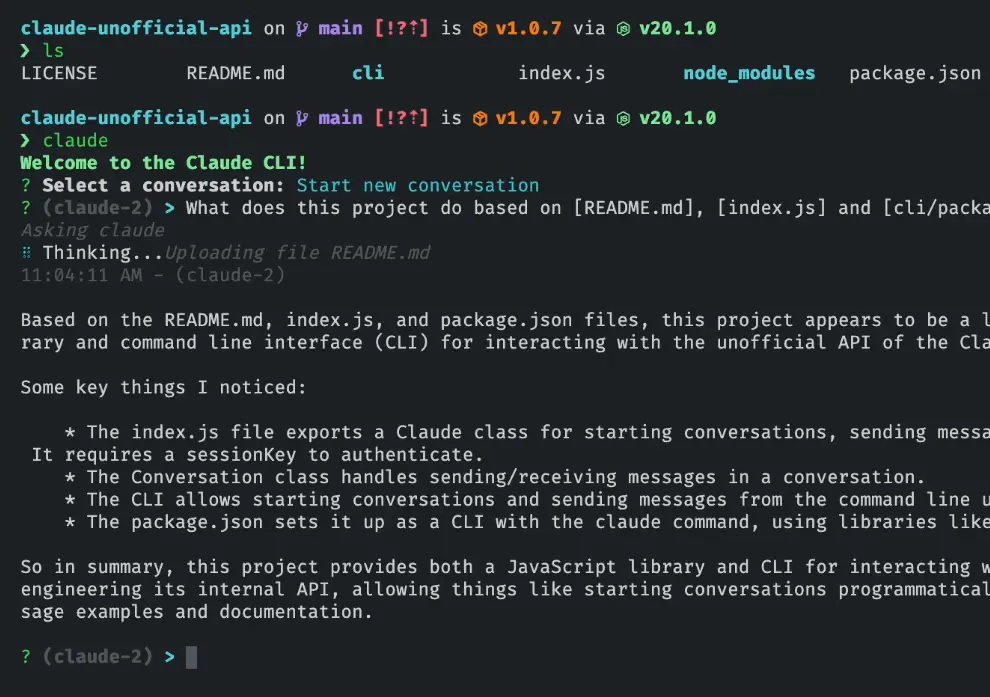
claude-unofficial-api is a lightweight JavaScript library that enables developers to easily integrate and interact with the Claude AI chatbot through its unofficial internal API. Supports all Claude models like claude-2, claude-1.3, claude-instant-100, and more.
It provides methods to start new conversations, get and respond to existing chats, upload files, and more. The library is async/await ready with modern JavaScript syntax for simple integration into any project.
How to use it:
1. Install and import the JavaScript library.
// regular
npm install claude-ai
// CLI
npm install -g claude-cli
const Claude = require('claude-ai'); 2. Initialize a new Claude instance with your session key, which you can get from the sessionKey cookie via the Claude website.
const claude = new Claude({
      sessionKey: 'SESSION KEY'
});
3. Start a new conversation or fetch existing ones by invoking the startConversation() or getConversations() methods, respectively.
const conversation = await claude.startConversation('Prompt Text');4. Continue the chat by using the sendMessage() method.
await conversation.sendMessage('Prompt Text');5. Available options for the sendMessage() method.
await conversation.sendMessage('Prompt Text',{
      retry: false,
      timezone: "America/New_York",
      attachments: [],
      model: "claude-2", // claude-1.3, claude-instant-100k
      done: () => { },
      progress: () => { },
      rawResponse: () => { }
});
6. More API methods.
// clear all conversations
Claude.clearConversations()
// uploda a file
Claude.uploadFile(file)
// get the current conversation
conversation.getInfo()
// delete the conversation
conversation.delete()
See It In Action
How to get a sessionKey from the Claude website
1. Go to https://claude.ai/chats and log in to your account.
2. Open the DevTools in your browser (F12).
3. You’ll see a top bar with various tabs. Locate and click on the tab labeled Application.
4. Within the Application tab, look at the sidebar on the left. Here, you’ll find a section labeled Storage. Expand this section and click on the option that says Cookies.
5. In the list that appears after you’ve clicked on Cookies, search for an entry titled https://claude.ai. Click on this entry to reveal its contents.
6. Upon expanding the https://claude.ai entry, you’ll see a list of fields. Scan through these fields to locate the one named sessionKey. Once you’ve found it, click on the corresponding value (it should start with sk-ant-sid01…). Right-click to copy this session key for your use.