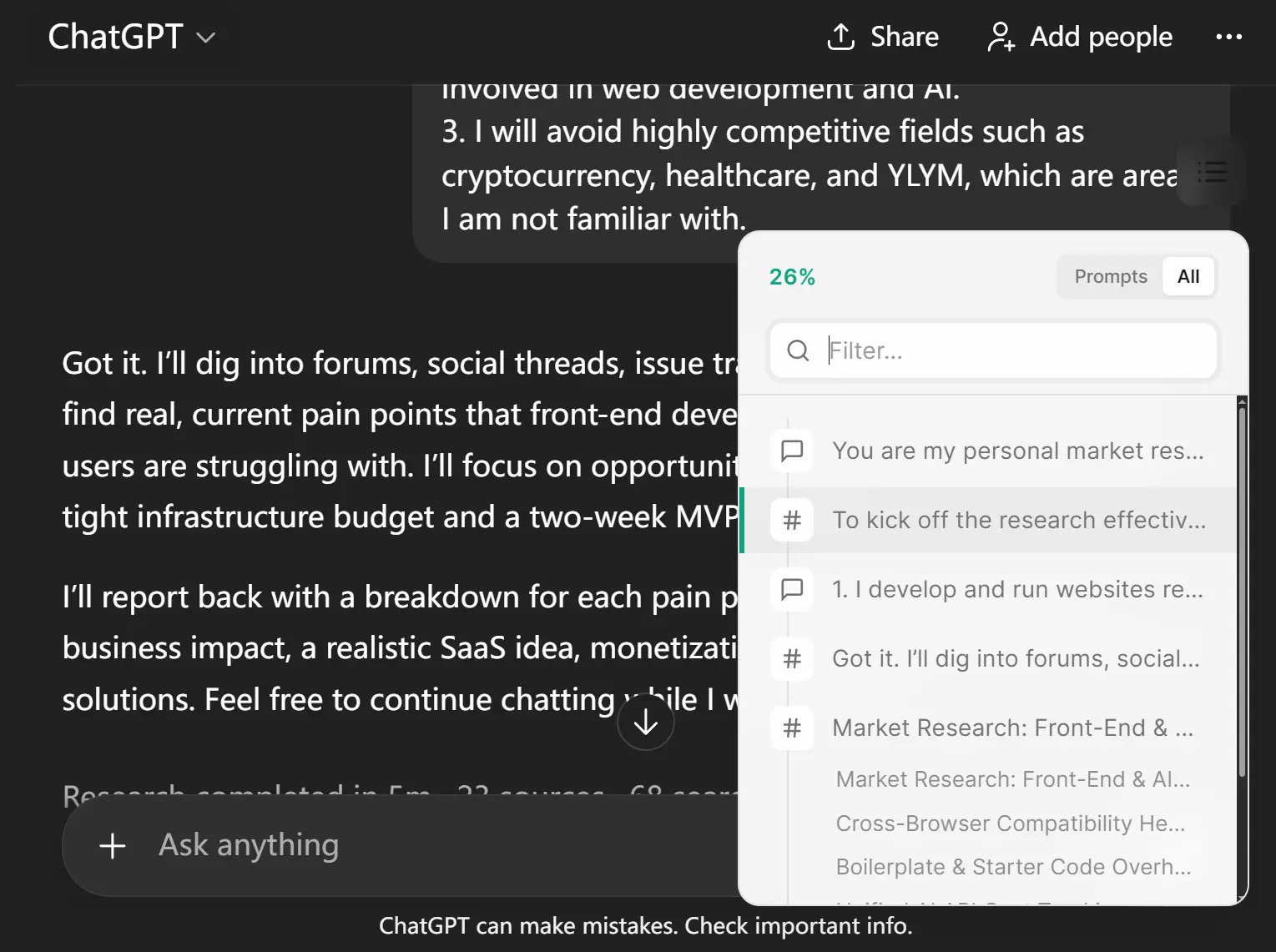
Scroll is a free, open-source Chrome extension that creates a real-time, clickable table of contents for your conversations on ChatGPT, Claude, and Gemini apps.
When an AI chat stretches over dozens of messages, scrolling back to find a previous prompt or a specific piece of code becomes a tedious chore. You lose your train of thought and waste time.
Scroll fixes this by indexing every exchange directly within the chat window you are already using. It runs locally on your machine, so your private conversations are never sent to an external server.
Features
- Instant Navigation: Click any item in the TOC to jump to that exact message.
- Heading Detection: Automatically identifies headings within AI responses.
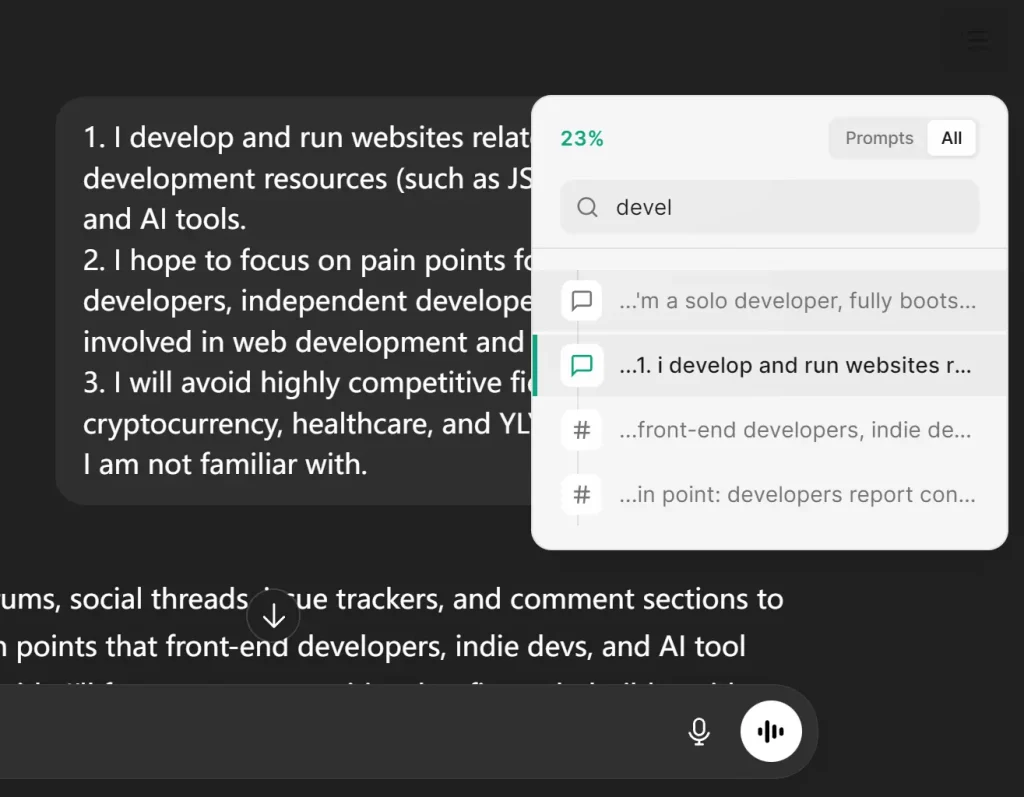
- Real-Time Search: Type in the search box to filter the entire conversation.
- Visual Progress Bar: A progress indicator shows your current position in the conversation thread.
- View Modes: Toggle between seeing all messages or just your prompts.
- Keyboard Control: Full keyboard shortcuts for opening the sidebar, moving between items, and jumping to messages.
Use Cases
- Complex Code Debugging: Developers often paste large error logs and go through multiple iterations of fixes. You can use Scroll to jump back to the original code block.
- Long-form Content Creation: Writers can navigate between their initial outline and specific generated chapters.
- Academic Research: Researchers can use the search filter to locate specific citations or data points discussed earlier in a lengthy analysis thread.
- Prompt Engineering: You can switch to “Prompts Only” view to review your chain of thought.
How to Use It
1. Go to the Chrome Web Store and install the Scroll extension.
2. Open any conversation on ChatGPT, Claude, or Gemini. You’ll see a small toggle button appear on the right side of your screen. Click this button or press Cmd+. (Mac) or Ctrl+. (Windows/Linux) to open the sidebar.
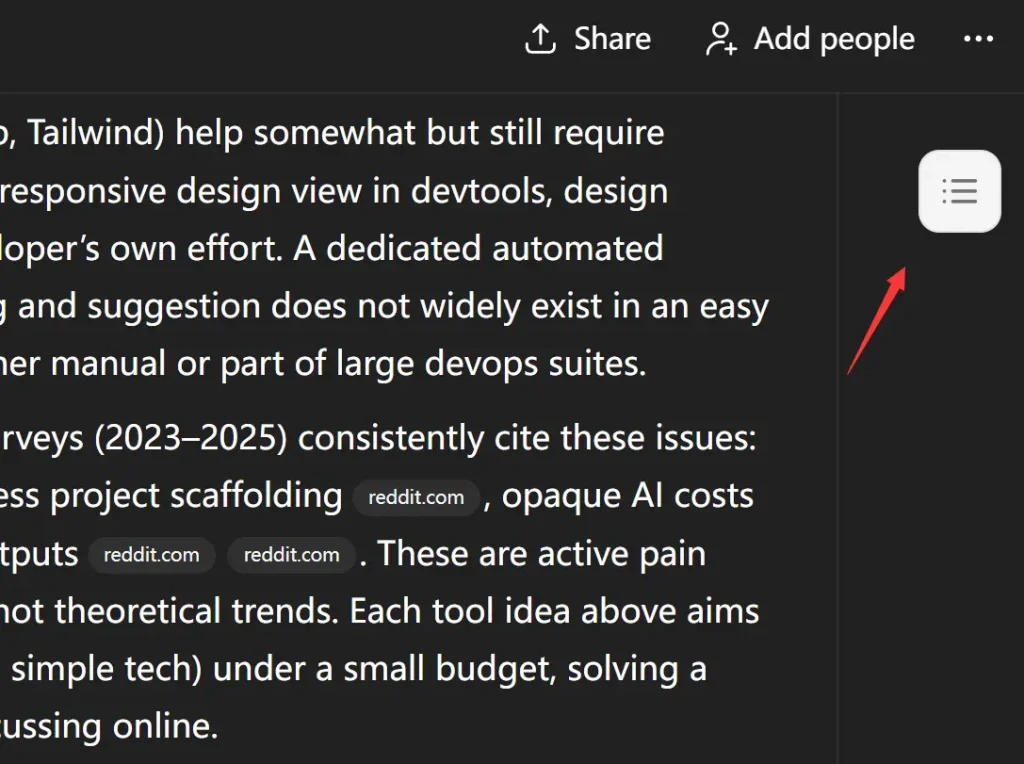
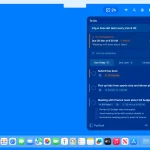
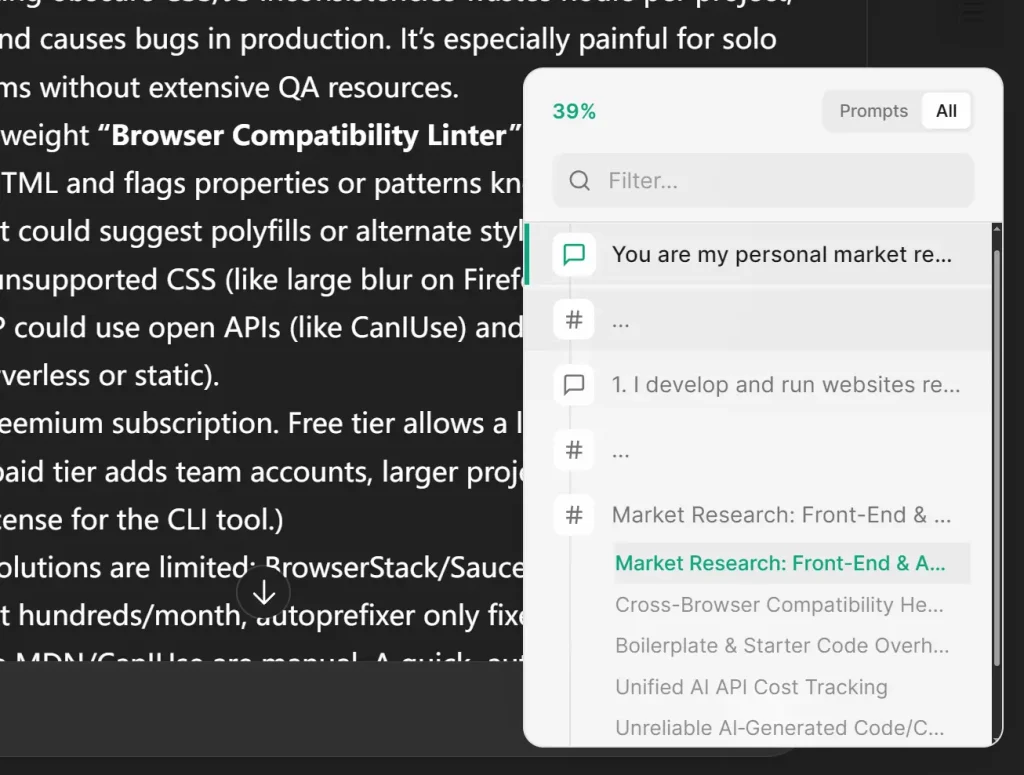
3. The sidebar displays your entire conversation as a structured list. Click any entry to jump directly to that point in your conversation. The main chat window will scroll automatically to display the selected message.
4. Use the search box at the top of the sidebar to find specific messages. Type any word or phrase from your conversation. The sidebar filters in real time to show only matching results.
5. Switch between view modes using the left and right arrow keys. The “All Messages” view shows every prompt and response. The “Prompts” view displays just your questions. The prompts-only view helps when you want to review your line of questioning without rereading all the responses.
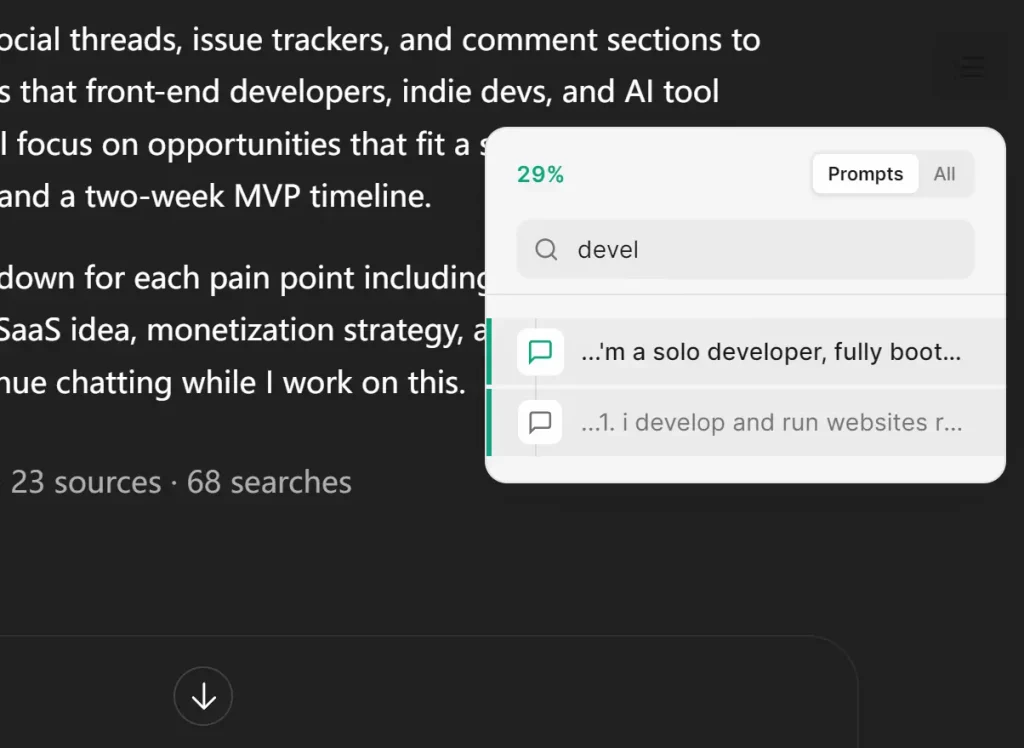
6. The keyboard shortcuts speed up navigation substantially. Press j or k to move the selection highlight up or down the list. Press Enter to jump to the highlighted message. Press Esc to clear your search or close the sidebar. These vim-style shortcuts keep your hands on the keyboard (though the extension works perfectly fine with just mouse clicks if you prefer).
7. The heading detection feature activates automatically when AI responses contain formatted headers. Long responses often include sections like “Method 1”, “Approach 2”, or “Step 3”. Scroll identifies these and creates sub-items in the navigation list. You can jump directly to a specific section within a long response rather than scrolling through the entire answer.
Pros
- Privacy First: The extension runs locally on your device.
- Open Source: You can inspect the full source code on GitHub.
- Cross-Platform Support: It works on the three major AI platforms (ChatGPT, Claude, Gemini) with a single installation.
Cons
- Desktop Only: The tool works as a browser extension. You cannot use it on mobile apps.
- Browser Limitation: It currently requires a Chromium-based browser (like Chrome, Brave, or Edge).
Related Resources
- Scroll GitHub Repository: View the source code, submit issues, or contribute to development.
- Free Tools for ChatGPT: Discover more tools, extensions, and apps for ChatGPT.
- Free Browser Extensions: Discover more AI-powered extensions for Chrome.
FAQs
Q: Does Scroll work on mobile devices?
A: No. Scroll is a Chrome browser extension that works only on desktop and laptop computers.
Q: Can I use Scroll with the ChatGPT desktop app?
A: No. Scroll works only in web browsers. The ChatGPT desktop application uses a different architecture that doesn’t support browser extensions.
Q: Does the extension slow down my AI conversations?
A: No noticeable impact. Scroll uses lightweight JavaScript that parses your conversation and builds the navigation list.
Q: Can I customize the keyboard shortcuts?
A: Not directly through the extension’s settings.
Q: What happens to Scroll when I start a new conversation?
A: The sidebar updates automatically. When you begin a new chat, Scroll detects the change and regenerates the navigation list for the new conversation.