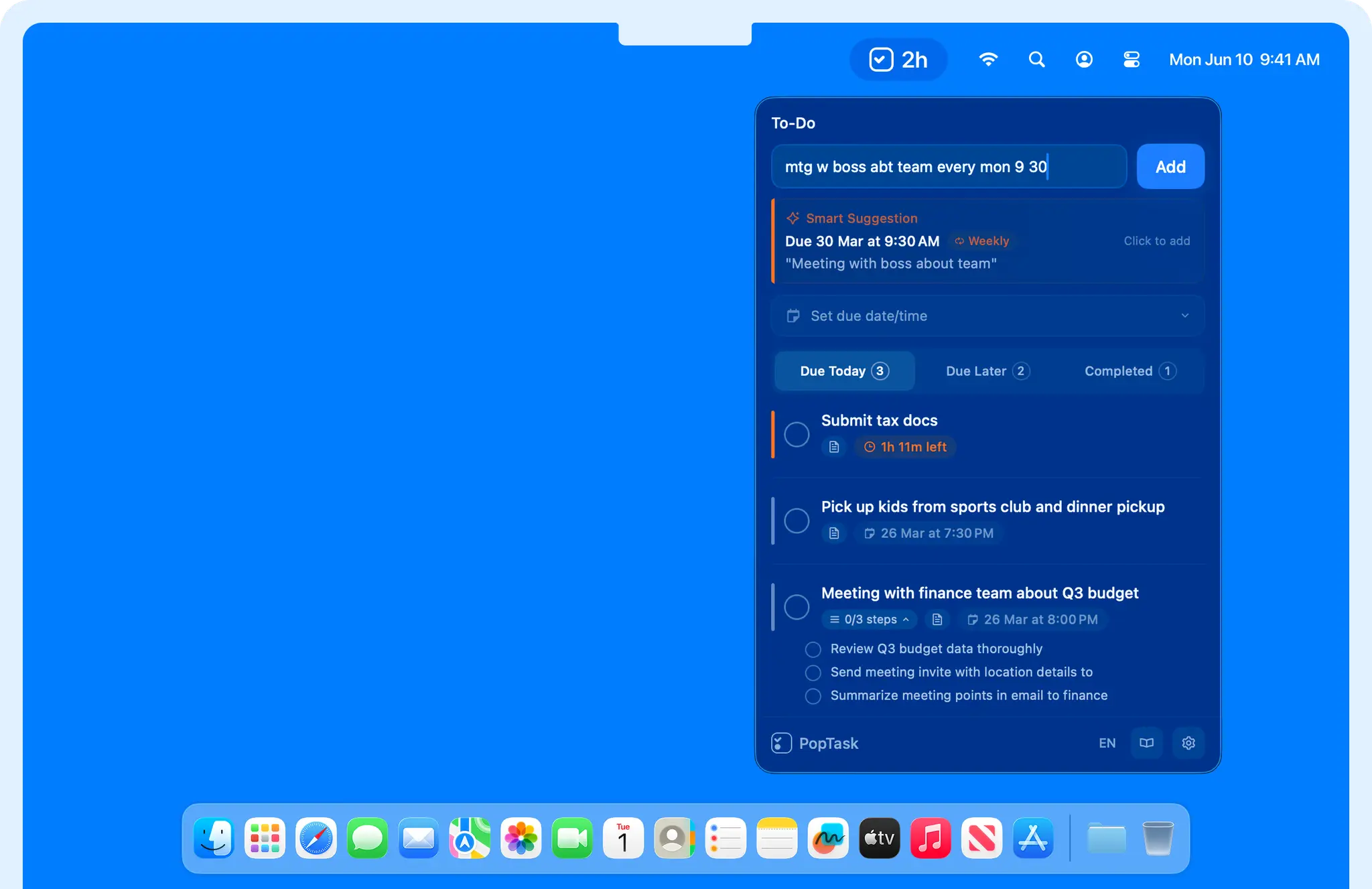
PopTask is a free macOS menu bar app that captures, schedules, and manages tasks using natural language.
Type a task the way you’d say it out loud, and a four-stage AI pipeline extracts the date, cleans the title, and sets a reminder automatically.
It lives in your menu bar, opens in one click, and closes when you’re done.
Features
- Lives in the macOS menu bar for instant access.
- Parses natural language input like “tomorrow 9am” or “in 20 min” directly on your device.
- Uses GPT model in the cloud for complex inputs like recurring schedules or vague phrasing.
- Shows live countdown timers next to each task so you see exactly how much time remains.
- Generates three actionable subtasks from any task with one tap of the AI button.
- Supports recurrence rules for daily, weekdays, weekly, or monthly tasks.
- Snoozes tasks using presets (15 min, 1 hour, Tomorrow 9 AM) or natural language like “in 2 hours.”
- Sends native macOS notifications when tasks hit their deadlines or based on early reminder offsets (5, 10, 15, 30, or 60 minutes before).
- Stores all tasks locally on your Mac.
- Parses dates and times in 9 languages: English, Urdu/Hindi (Roman), Arabic (transliterated), Spanish, French, German, Chinese (pinyin), and Japanese (romaji).
- Supports 7 languages: English, Arabic, Spanish, French, German, Chinese, and Japanese.
- Sorts tasks automatically into Due Today, Due Later, and Completed sections.
- Surfaces overdue items to the top of the list automatically.
Use Cases
- Capture a quick meeting reminder while you’re in the middle of something else. Type “mtg w team 3pm” and get back to work.
- Break down vague tasks like “plan birthday party” into three specific subtasks you can start immediately.
- Set up weekly standing meetings with recurrence so the next occurrence appears automatically when you complete the current one.
- Manage tasks in your native language.
- Keep work tasks separate from personal tasks by using two different Mac user accounts. Each account stores its own local task list.
How to Use It
Table Of Contents
Adding a Task
Type your task in plain language. PopTask displays a live preview showing the parsed title, date, time, and recurrence before you confirm. Tap the smart suggestion banner to add the task instantly. Edit the preview fields manually if the parse needs adjustment.
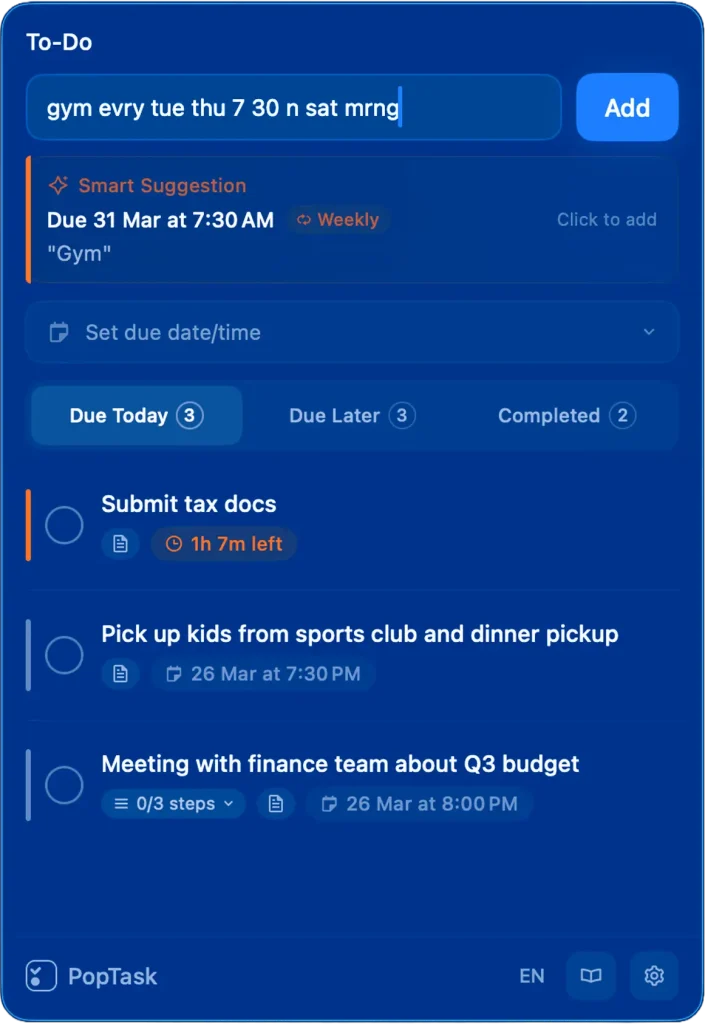
Quick chip shortcuts available at input:
| Chip | Action |
|---|---|
| 1h | Sets the due time to 1 hour from now |
| 3h | Sets the due time to 3 hours from now |
| Tomorrow | Sets the due date to the next calendar day |
Input examples the parser handles:
| Input | What PopTask Extracts |
|---|---|
| “call dad in 20 min” | Title: Call Dad / Due: now + 20 minutes |
| “dentist Friday at 2pm” | Title: Dentist / Due: next Friday, 2:00 PM |
| “submit report eod” | Title: Submit Report / Due: end of day |
| “mtg w team mon wed fri 9am” | Title: Mtg with Team / Recurring: Mon, Wed, Fri at 9 AM |
| “mañana a las 3” (Spanish) | Title: [parsed] / Due: tomorrow at 3:00 PM |
| “kal subah” (Urdu/Hindi Roman) | Title: [parsed] / Due: tomorrow morning |
| “morgen 9 Uhr” (German) | Title: [parsed] / Due: tomorrow at 9:00 AM |
Notification Settings
PopTask fires a native macOS notification at the task’s due time. Open Settings to configure an early reminder offset. Available options:
| Offset | When the notification fires |
|---|---|
| 5 minutes before | 5 minutes ahead of the due time |
| 10 minutes before | 10 minutes ahead of the due time |
| 15 minutes before | 15 minutes ahead of the due time |
| 30 minutes before | 30 minutes ahead of the due time |
| 60 minutes before | 1 hour ahead of the due time |
AI Task Breakdown
Open any task and tap the AI button. PopTask generates three focused subtasks: what to prepare before, what to handle during execution, and what to follow up on after.
Each subtask gets its own checkbox for independent progress tracking. This feature runs on-device on macOS 26+, and via cloud AI on earlier macOS versions.
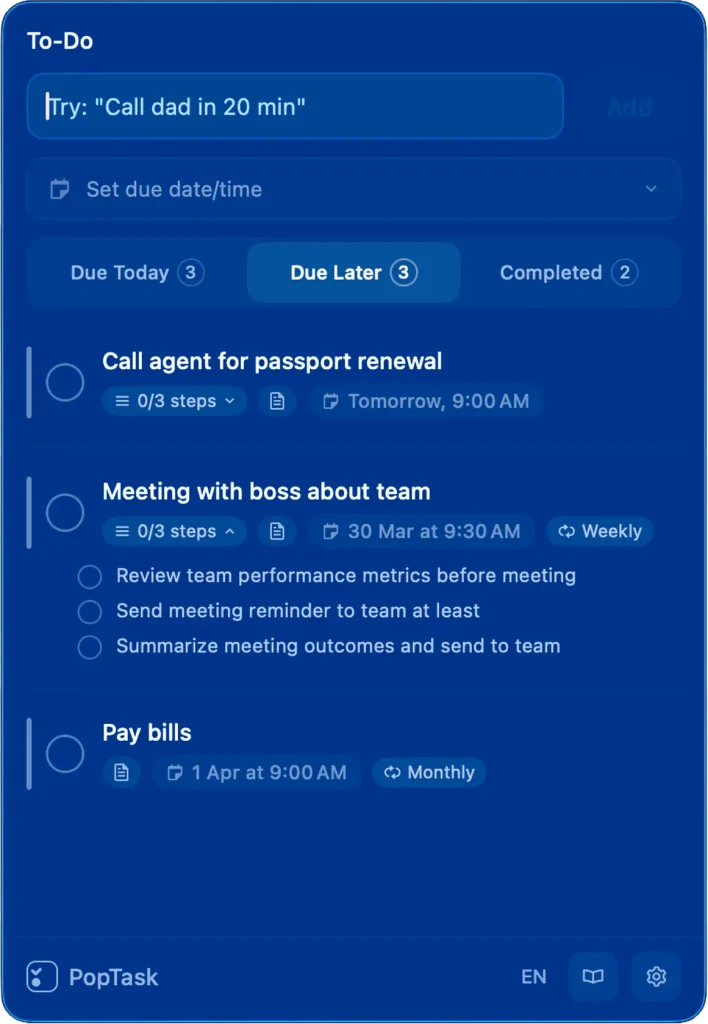
Recurring Tasks
Open a task and navigate to the recurrence settings. Available options:
| Recurrence | Schedule |
|---|---|
| Daily | Repeats every calendar day |
| Weekdays | Repeats Monday through Friday |
| Weekly | Repeats once a week on the same day |
| Monthly | Repeats once a month on the same date |
When you mark a recurring task complete, PopTask auto-creates the next occurrence with the same title and subtasks.
Snoozing a Task
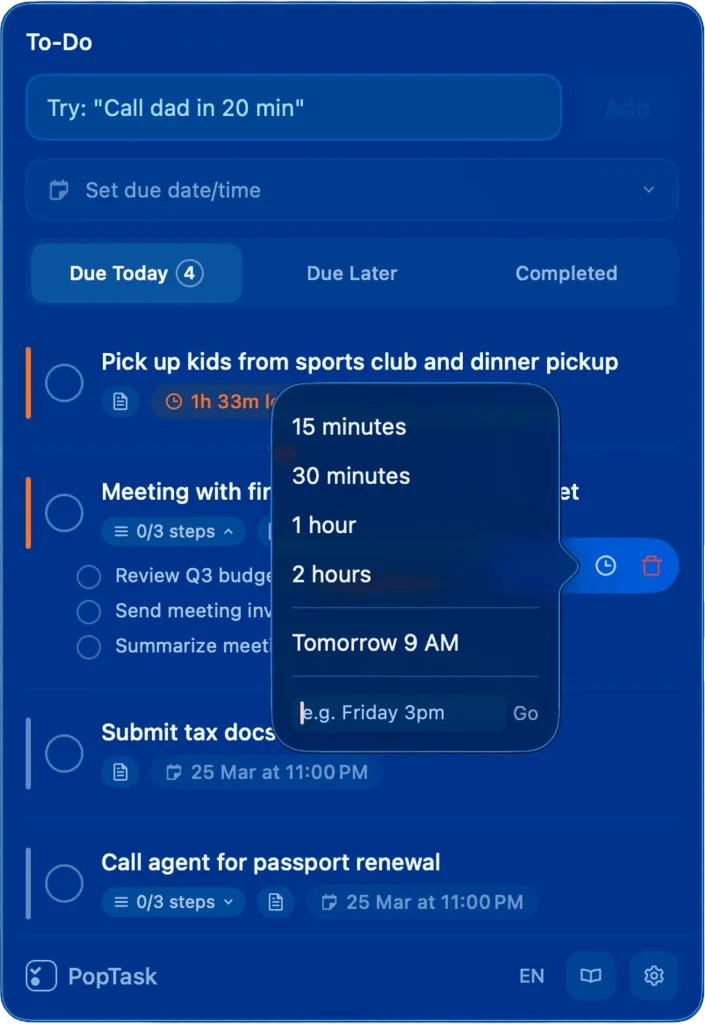
Right-click any task or use the edit button. Type a natural language expression into the snooze field (“Thursday 3pm,” “in 2 hours”) or select a preset:
| Preset | Snooze Duration |
|---|---|
| 15 min | Snoozes the task 15 minutes forward |
| 1 hour | Snoozes the task 1 hour forward |
| Tomorrow 9 AM | Snoozes the task to the next day at 9:00 AM |
Editing a Task
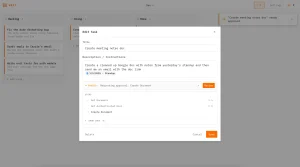
Right-click any task or tap the edit button to update the title, due date, recurrence rule, snooze time, or subtasks. Tasks with no due date are stored indefinitely and editable at any point.
Offline Behavior
Simple inputs resolve on-device with no internet required. Complex inputs, including vague date expressions and recurring rules, require the cloud AI.
If you’re offline when entering a complex task, PopTask still saves it. You’ll need to set the date manually after reconnecting.
Pros
- Works entirely from the menu bar.
- Stores everything locally.
- Creates subtasks automatically.
- You can type the way you actually speak.
- Requires no account.
- Sends native macOS notifications.
Cons
- Requires an internet connection to process complex recurring schedules.
- Lacks project boards and folder organization.
Related Resources
- PopTask Official Website: Feature overview, FAQ, and contact form for bug reports and feature requests.
- Apple Intelligence Overview: Developer documentation on the on-device AI framework.
- Coddo: Free Kanban & Chat UI for Claude Code on macOS.
- lil agents: Free AI Dock Companions for macOS.
- Recap: Free AI Meeting Summarizer for macOS Users.
FAQs
Q: Does PopTask work on iPhone or iPad?
A: No. PopTask is a native macOS menu bar app. iOS and iPadOS versions do not exist.
Q: What macOS version do I need?
A: PopTask supports on-device AI processing on macOS 26 and later. On earlier macOS versions, complex parsing tasks route to cloud AI via GPT-4o-mini. The app page on the Mac App Store lists the exact minimum version requirement.
Q: Can I add a task with no due date?
A: Yes. Type a task title with no date or time, and it saves to your list without a countdown or reminder. You can add a due date later by editing the task.
Q: How does the AI task breakdown decide what subtasks to generate?
A: The AI focuses on the workflow around the task: what to prepare beforehand, what to handle during execution, and what to follow up afterward. It always returns exactly three checkable subtasks.
Q: What happens to subtasks when a recurring task resets?
A: The next occurrence auto-creates with the same title and the original subtask set. Checked subtasks from the prior cycle do not carry over as completed.
Q: Can I edit tasks after adding them?
A: Yes. You can edit the title, change the due date, update recurrence, snooze, or add subtasks at any time. Just right click any task or use the edit button.