Screen Monitor
ScreenMonitorMCP is an MCP server that lets the AI see, understand, and interact with your computer screen in real time.
This means your AI assistant can go from just processing text to analyzing what’s on your display, clicking on UI elements with natural language commands, and pulling text from anywhere on the screen.
Features List
- Smart Monitoring: It uses an AI-powered system to analyze screen activity and detect significant changes.
- Natural Language Clicks: You can tell the AI to “click the Save button,” and it will locate and click the described element.
- On-Screen Text Extraction: It can pull text from any region of your screen using OCR.
- Cross-Platform: Works on Windows, macOS, and Linux.
- Multi-AI Support: You can connect it to OpenAI, OpenRouter, or even custom endpoints.
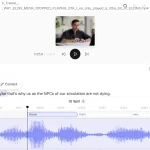
- Visual Analysis: It can capture screenshots or record video of your screen and have an AI analyze the content.
How to Use It
1. Clone the repository from GitHub and install the dependencies.
git clone https://github.com/inkbytefo/ScreenMonitorMCP.git
cd ScreenMonitorMCP
pip install -r requirements.txt
2. Create your environment file from the example and add your OpenAI API key.
cp .env.example .env
# Edit the .env file with your API key
3. Start the server with a simple command.
python main.py4. To connect the MCP server with Claude Desktop, you need to add a configuration to your claude_desktop_config.json file. Make sure to use the correct path to the main.py script.
{
  "mcpServers": {
    "screenMonitorMCP": {
      "command": "python",
      "args": [
        "/path/to/ScreenMonitorMCP/main.py"
      ]
    }
  }
}
Of course. Here is a concise list of all 21 tools available in ScreenMonitorMCP, categorized for clarity.
All Available Tools
Smart Monitoring (6 tools)
- start_smart_monitoring(): Activates real-time screen monitoring based on configured triggers like ‘significant_change’ or ‘error_detected’.
- get_monitoring_insights(): Provides an AI-powered summary and analysis of the screen activity recorded during the monitoring session.
- get_recent_events(): Retrieves a history log of all detected screen changes and triggered events since monitoring started.
- stop_smart_monitoring(): Deactivates the screen monitoring process while keeping the collected insights available for review.
- configure_monitoring_triggers(): Sets or updates the specific visual triggers (e.g., ‘text_appears’, ‘image_changes’) that activate monitoring events.
- get_monitoring_status(): Checks whether the smart monitoring system is currently active or idle.
UI Interaction (2 tools)
- smart_click(): Clicks a UI element on the screen using a natural language description, like “the blue login button” or “the text field labeled ‘Username'”.
- extract_text_from_screen(): Performs Optical Character Recognition (OCR) on a specified screen region (or the entire screen) to extract all visible text.
Visual Analysis (3 tools)
- capture_and_analyze(): Takes a single screenshot of the current screen and sends it to the AI for a detailed visual analysis based on a prompt.
- record_and_analyze(): Records a short video of screen activity and provides an AI-powered summary of the events that occurred in the recording.
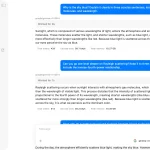
- query_vision_about_current_view(): Lets you ask a direct question about the current screen content, such as “What kind of chart is being displayed?”
System Performance (7 tools)
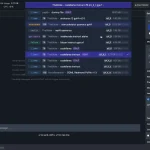
- get_system_metrics(): Returns a dashboard of system health, including CPU usage, memory consumption, and other performance data.
- get_cache_stats(): Shows performance statistics for the image cache, such as hit rate and size, to help optimize performance.
- optimize_image(): Applies compression and optimization to an image to reduce its file size before processing.
- clear_cache(): Purges all stored images and data from the cache to free up memory.
- get_server_config(): Displays the current server configuration, including the selected AI model and API endpoints.
- set_server_config(): Updates a server configuration parameter, such as changing the active AI provider.
- ping_server(): A simple utility to check if the MCP server is running and responsive.
Input Simulation (2 tools)
- simulate_keystrokes(): Types a given string of text or simulates pressing specific keyboard keys (e.g., ‘Enter’, ‘Ctrl+C’).
- simulate_mouse_movement(): Moves the mouse cursor to specific X/Y coordinates on the screen or performs a click/drag action.
Utility (1 tool)
- list_tools(): Provides a complete and documented list of all available tools and their functions within the ScreenMonitorMCP server.
FAQs
Q: Does this constantly send my screen to a third-party API?
A: No, it runs locally. It only sends a screenshot or video to an external AI model (like OpenAI) when you explicitly use a function that requires visual analysis, such as capture_and_analyze() or smart_click(). You control when that happens.
Q: How does the smart_click() function work?
A: It captures an image of your current screen, sends that image to a vision-capable AI, and asks it to find the coordinates of the element you described (e.g., “the email input field”). Once it gets the coordinates back, it simulates a mouse click at that location.
Q: Can I use this with AI models other than OpenAI?
A: Yes. The server is designed to support multiple AI backends, including OpenRouter and custom API endpoints. You can configure this in the settings.
Q: Is it fast enough for something like real-time gaming?
A: It’s not intended for high-speed, low-latency applications like gaming. The screen monitoring features an adaptive frame rate designed for general desktop applications and workflows, not for situations requiring instant feedback.
Latest MCP Servers
Paper Search
Codebase Memory
CVE
Featured MCP Servers
Codebase Memory
Notion
Claude Peers
FAQs
Q: What exactly is the Model Context Protocol (MCP)?
A: MCP is an open standard, like a common language, that lets AI applications (clients) and external data sources or tools (servers) talk to each other. It helps AI models get the context (data, instructions, tools) they need from outside systems to give more accurate and relevant responses. Think of it as a universal adapter for AI connections.
Q: How is MCP different from OpenAI's function calling or plugins?
A: While OpenAI's tools allow models to use specific external functions, MCP is a broader, open standard. It covers not just tool use, but also providing structured data (Resources) and instruction templates (Prompts) as context. Being an open standard means it's not tied to one company's models or platform. OpenAI has even started adopting MCP in its Agents SDK.
Q: Can I use MCP with frameworks like LangChain?
A: Yes, MCP is designed to complement frameworks like LangChain or LlamaIndex. Instead of relying solely on custom connectors within these frameworks, you can use MCP as a standardized bridge to connect to various tools and data sources. There's potential for interoperability, like converting MCP tools into LangChain tools.
Q: Why was MCP created? What problem does it solve?
A: It was created because large language models often lack real-time information and connecting them to external data/tools required custom, complex integrations for each pair. MCP solves this by providing a standard way to connect, reducing development time, complexity, and cost, and enabling better interoperability between different AI models and tools.
Q: Is MCP secure? What are the main risks?
A: Security is a major consideration. While MCP includes principles like user consent and control, risks exist. These include potential server compromises leading to token theft, indirect prompt injection attacks, excessive permissions, context data leakage, session hijacking, and vulnerabilities in server implementations. Implementing robust security measures like OAuth 2.1, TLS, strict permissions, and monitoring is crucial.
Q: Who is behind MCP?
A: MCP was initially developed and open-sourced by Anthropic. However, it's an open standard with active contributions from the community, including companies like Microsoft and VMware Tanzu who maintain official SDKs.