Speech2Speech is an open-source, AI-powered, completely private AI voice assistant that runs in your Browser.
It lets you convert your speech to text, send that text to a local AI language model, and then hear the AI’s response spoken back to you. Nothing gets sent to outside servers.
Features
- Moonshine Speech Recognition: Transcribes spoken English into text using Useful Sensors’ lightweight model
- AI Processing Integration: Connects to any local or remote language model API endpoint for intelligent responses
- Kokoro Text-to-Speech: Converts AI responses back to natural-sounding speech using advanced synthesis
- Complete Privacy: All processing happens in your browser – zero data transmission to external servers
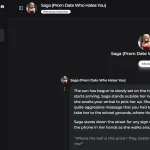
- Conversation History: Tracks your dialogue sessions with full transcription records
- Configurable System Prompts: Customize how your AI assistant behaves and responds
- WebGPU Acceleration: Leverages modern browser capabilities for faster processing
Use Cases
- Hands-Free AI Interaction: Perfect when you’re coding, cooking, or driving and need to query your AI assistant without typing
- Accessibility Support: Helps users with mobility limitations or visual impairments interact with AI models through voice
- Language Learning Practice: Use it to practice pronunciation and conversation with AI tutors that respond naturally
- Content Creation: Brainstorm ideas, dictate rough drafts, or get instant feedback on creative projects through voice
- Technical Documentation: Quickly ask complex technical questions and get spoken explanations while working
- Privacy-Conscious Users: Ideal for those who need AI assistance but refuse to send sensitive data to cloud services
Installation
1. You NEED a local chat LLM server running. Tools like Ollama, llama-server, or LM Studio can help you set this up. This server is what Speech2Speech will send text to and get responses from
2. Make sure your web browser (like Chrome or Edge) have JavaScript AND WebGPU enabled.
3. Clone the Speech2Speech repository from GitHub and host these files on your web server.
Configuration
1. Open the application in your web browser.
2. Navigate to the “Settings” tab.
3. Set the “Chat Inference Server URL” to the endpoint your local LLM server is listening on (e.g., http://localhost:8080/completion if that’s what your LLM server uses).
4. You can also configure the “System Prompt” here. This is important as it guides the AI assistant’s personality and how it responds. For example, you could tell it “You are a helpful assistant that provides concise answers.”
Usage
1. Go to the “Conversation” tab.
2. Click “Start Recording” and speak your query or statement (in English).
3. Click “Stop Recording.” The app will transcribe your speech.
4. The transcribed text is then sent to your local LLM.
5. Wait for your LLM to process the text and generate a response.
6. The AI’s text response will be spoken aloud using the selected voice.
7. You’ll see the conversation history in the “Transcription” section.
Pros
- Complete Privacy Control: Your voice data never leaves your browser, making this ideal for sensitive conversations or proprietary information.
- Local AI Integration: Works with any language model API, giving you flexibility to use different models or maintain complete offline operation.
- No Subscription Costs: Completely free to use once you have the technical setup in place.
- Modern Technology Stack: Built on cutting-edge browser APIs and AI models that provide fast, accurate processing.
- Customizable Behavior: System prompts let you tailor the AI assistant’s personality and response style to your needs.
- Real-Time Processing: Fast transcription and speech synthesis create natural conversation flow.
Cons
- Technical Setup Required: You need to run your own language model server, which can be challenging for non-technical users.
- Browser Compatibility Limits: Requires WebGPU support, which isn’t available in all browsers or older devices.
- English-Only Recognition: Moonshine currently only supports English speech recognition, limiting multilingual use.
- Local Resource Intensive: Running everything in-browser can consume significant CPU and memory resources.
- No Cloud Backup: Since everything stays local, you lose conversation history if you clear browser data.
Related Resources
- Moonshine Speech Recognition: Check out Useful Sensors’ Moonshine repository for technical details about the speech recognition model and its capabilities.
- Kokoro Text-to-Speech: Visit the Kokoro GitHub project to learn more about this advanced speech synthesis engine and its features.
- Hugging Face Transformers.js: Explore Transformers.js documentation to understand how machine learning models run efficiently in web browsers.
FAQs
Q: Does Speech2Speech send my voice data to the cloud?
A: No. All processing, from speech-to-text to the LLM interaction (assuming your LLM is local) to text-to-speech, happens in your browser and on your local machine.
Q: Can I use Speech2Speech in languages other than English?
A: Currently, the speech recognition component (Moonshine) is for English only. So, for now, your input needs to be in English. Kokoro TTS can support multiple languages for output, but the input pipeline is English-first.
Q: Do I need an internet connection to use Speech2Speech?
A: You need internet initially to load the application and download the AI models, but after that, everything can run offline if you’re using a local language model server. The speech recognition and text-to-speech models get cached in your browser.
Q: How accurate is the speech recognition?
A: Moonshine performs quite well for clear English speech in quiet environments. Accuracy drops with background noise, heavy accents, or mumbled speech. The model works best with standard American or British English pronunciation.