Tambourine is a free, open-source AI voice dictation assistant that types your words directly into any desktop application.
Press a hotkey, speak naturally, and the tool transcribes your voice into clean, formatted text at your cursor position.
Tambourine serves as a transparent alternative to proprietary dictation tools like Wispr Flow and Superwhisper. You can run it with your own API keys for cloud services or set it up for fully local, offline processing.
Features
- Real-time Speech-to-Text: Fast transcription using configurable STT providers (Cartesia, Deepgram, AssemblyAI, Whisper).
- AI-powered text formatting: LLMs remove filler words, add proper punctuation, and apply your personal dictionary for technical terms.
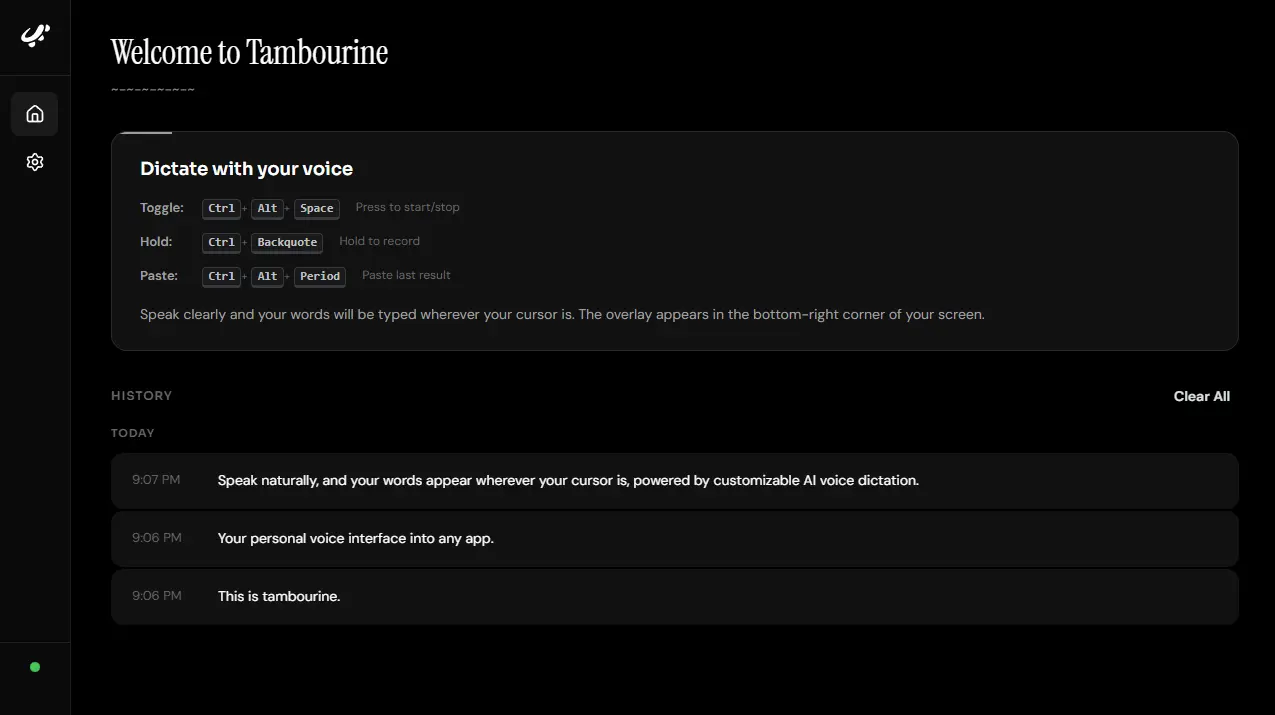
- Dual recording modes: Hold-to-record (Ctrl+Alt+`) or toggle mode (Ctrl+Alt+Space).
- Customizable hotkeys: Configure keyboard shortcuts to match your workflow.
- Recording overlay: Visual indicator appears in the bottom-right corner during dictation.
- Transcription history: View and copy previous dictations from the interface.
- Paste last transcription: Re-type your previous dictation with Ctrl+Alt+.
- Auto-mute audio: System audio mutes automatically while you dictate (Windows/macOS).
- In-app provider selection: Switch between STT and LLM providers without restarting.
- System tray: Access settings and controls from the system tray.
- Custom prompts: Edit formatting rules, add personal dictionary entries, and create custom text processing rules.
- Device selection: Choose your preferred microphone from the available inputs.
- Sound feedback: Audio cues play when recording starts and stops.
- Fully local or cloud: Run completely offline with Whisper and Ollama, or use cloud AI services.
See It In Action
Use Cases
- Writing emails and documents: Speak at 130-160 words per minute instead of typing at 40-50 wpm. Capture thoughts before they disappear.
- Coding and documentation: Dictate code comments, technical documentation, and commit messages. The personal dictionary learns technical terms and proper nouns specific to your work.
- Accessibility and ergonomics: Give your hands and wrists a break from constant keyboard use. Users with RSI or carpal tunnel can maintain productivity.
- Quick messaging and communication: Dictate messages in Slack, Discord, or other chat applications without switching between keyboard and mouse.
- Terminal commands and scripts: Speak commands into your terminal window. The AI formatting adapts to your specific application context.
How to Use It
1. To get started, you need Rust, Node.js, pnpm, Python, and uv (Python package manager) installed on your system.
Linux users must install additional dependencies:
sudo apt-get install libwebkit2gtk-4.1-dev build-essential curl wget file \
  libxdo-dev libssl-dev libayatana-appindicator3-dev librsvg2-dev libgtk-3-dev
2. Sign up for at least one STT provider and one LLM provider. Some options with free tiers include:
- Cartesia (https://cartesia.ai) for STT
- Cerebras (https://cloud.cerebras.ai) for LLM
- Gemini (https://aistudio.google.com) for LLM
- Groq (https://console.groq.com) for both STT and LLM
Or run completely offline with ollama:
ollama run llama3.23. Clone the Tambourine project from GitHub and navigate to the server directory.
git clone https://github.com/kstonekuan/tambourine-voice.git
cd server
4. Edit .env and add your API keys:
# ============================================================================
# Tambourine Server Configuration
# ============================================================================
# Copy this file to .env and fill in your actual API keys
# At least one STT provider and one LLM provider are required
# ============================================================================

# ----------------------------------------------------------------------------
# Speech-to-Text (STT) Providers - At least one required
# ----------------------------------------------------------------------------

# AssemblyAI
# https://www.assemblyai.com
# ASSEMBLYAI_API_KEY=your_assemblyai_api_key_here

# Cartesia Ink-Whisper
# https://cartesia.ai
# CARTESIA_API_KEY=your_cartesia_api_key_here

# Deepgram
# https://console.deepgram.com
# DEEPGRAM_API_KEY=your_deepgram_api_key_here

# AWS Transcribe
# https://aws.amazon.com/transcribe
# AWS_ACCESS_KEY_ID=your_aws_access_key_id_here
# AWS_SECRET_ACCESS_KEY=your_aws_secret_access_key_here
# AWS_REGION=us-east-1

# Azure Speech
# https://azure.microsoft.com/en-us/products/ai-services/speech-services
# AZURE_SPEECH_KEY=your_azure_speech_key_here
# AZURE_SPEECH_REGION=eastus

# OpenAI Whisper (uses OpenAI API key)
# https://platform.openai.com
# Set OPENAI_API_KEY below to enable

# Google Speech (uses Google service account)
# https://cloud.google.com/speech-to-text
# GOOGLE_APPLICATION_CREDENTIALS=/path/to/service-account.json

# Groq (uses Groq API key)
# https://console.groq.com
# Set GROQ_API_KEY below to enable

# Local Whisper (no API key required)
# Runs locally using faster-whisper
# Enabling this will download the Whisper model on first run
# WHISPER_ENABLED=false

# ----------------------------------------------------------------------------
# Large Language Model (LLM) Providers - At least one required
# ----------------------------------------------------------------------------

# OpenAI
# https://platform.openai.com
# OPENAI_API_KEY=your_openai_api_key_here
# OPENAI_BASE_URL=https://api.openai.com/v1  # Optional: for OpenAI-compatible endpoints

# Google Gemini
# https://aistudio.google.com/apikey
# GOOGLE_API_KEY=your_google_api_key_here

# Anthropic
# https://console.anthropic.com
# ANTHROPIC_API_KEY=your_anthropic_api_key_here

# Cerebras
# https://cloud.cerebras.ai
# CEREBRAS_API_KEY=your_cerebras_api_key_here

# Groq
# https://console.groq.com
# GROQ_API_KEY=your_groq_api_key_here

# Google Vertex AI (uses Google service account)
# https://cloud.google.com/vertex-ai
# GOOGLE_APPLICATION_CREDENTIALS=/path/to/service-account.json

# Ollama (local, requires base URL to enable)
# https://ollama.ai
# OLLAMA_BASE_URL=http://localhost:11434

# OpenRouter
# https://openrouter.ai
# OPENROUTER_API_KEY=your_openrouter_api_key_here

# ----------------------------------------------------------------------------
# Server Configuration (Optional)
# ----------------------------------------------------------------------------
# HOST=127.0.0.1
# PORT=8765

# ----------------------------------------------------------------------------
# Logging Configuration (Optional)
# ----------------------------------------------------------------------------
# Options: DEBUG, INFO, WARNING, ERROR, CRITICAL
# LOG_LEVEL=INFO
5. Start the server:
uv sync
uv run python main.py
6. The server starts on localhost:8765 by default. You can customize the host and port:
uv run python main.py --host 0.0.0.0 --port 9000 --verbose7. Set Up the App
cd app
pnpm install
pnpm dev
8. Your OS will prompt for microphone access. Accept this permission. macOS users need to grant accessibility permissions:
- Running the built app: Add “Tambourine” to accessibility settings
- Running in development: Add your IDE (Visual Studio Code) or Terminal to accessibility settings
9. Press Ctrl+Alt+Space to start recording, speak your text, and press Ctrl+Alt+Space again to stop. Or hold Ctrl+Alt+` while speaking and release when done. Your cleaned, formatted text appears at your cursor position.
10. Click the system tray icon to access settings. You can:
- Switch STT and LLM providers
- Select your microphone
- Customize hotkeys
- Edit formatting prompts
- Add personal dictionary entries
- Toggle sound feedback and auto-mute
- View transcription history
Pros
- Open-source: Full access to the codebase. Modify any aspect of the tool to match your needs.
- Provider flexibility: Choose from multiple STT and LLM providers, or run completely offline with local models.
- Compatibility: Works in any application where your cursor can accept text input.
- Speed advantage: Speaking is 3x faster than typing for most people.
- Custom formatting: Create your own rules for punctuation, capitalization, and text processing.
- Personal dictionary: Add technical terms, names, acronyms, and domain-specific vocabulary.
- Privacy options: Run fully local with no data leaving your machine.
- Free to use: No subscription fees or per-minute charges.
Cons
- Setup complexity: Requires technical knowledge to install Rust, Node.js, Python, and configure the environment.
- Linux support incomplete: Works best on Windows and macOS. Linux functionality is experimental.
- No mobile support: Desktop-only tool. Android and iOS versions are not available.
- Server dependency: You must run the Python server for the app to function.
- Development stage: The project is under active development. Expect breaking changes to code and configuration.
- Manual provider management: You need to obtain and manage your own API keys for cloud services.
Related Resources
- Tauri: The Rust-based framework used to build the cross-platform desktop application.
- Whisper by OpenAI: Local speech-to-text model that can run offline.
- Ollama: Tool for running local LLMs on your machine.
FAQs
Q: Do I need an internet connection to use Tambourine?
A: No. You can run Tambourine completely offline using Whisper for speech-to-text and Ollama for LLM formatting.
Q: Can I use Tambourine while other audio is playing?
A: Yes. The auto-mute feature temporarily silences system audio while you dictate (Windows and macOS only). This prevents the microphone from picking up background sounds.
Q: How accurate is the transcription compared to native dictation?
A: Transcription accuracy depends on your chosen STT provider. Cloud providers like Deepgram and Cartesia typically outperform native OS dictation.
Q: Can I use Tambourine with multiple languages?
A: The tool supports multiple languages if your chosen STT provider supports them. Whisper, for example, handles over 90 languages.
Q: How do I add custom words to the dictionary?
A: Open the settings panel from the system tray. Navigate to the LLM Formatting Prompt section and add entries to the Personal Dictionary area. Include the word, its correct spelling, and any context about when to use it.
Q: Can I share my configuration with team members?
A: Yes. Copy your .env file and app configuration settings to share provider choices and formatting rules.