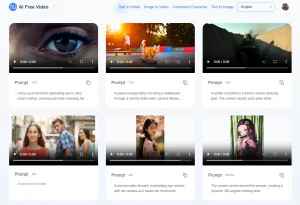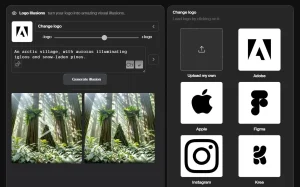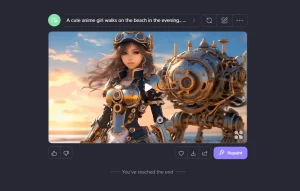
ImageToVideo AI is a free AI tool that converts still images into high-quality MP4 videos. It lets you easily experience advanced image-to-video capabilities without any cost or registration.
The free access allows anyone to experiment with AI-powered video generation. I anticipate that they may introduce paid plans in the future as the user base grows. For now, anyone can jump in and see what it can do.
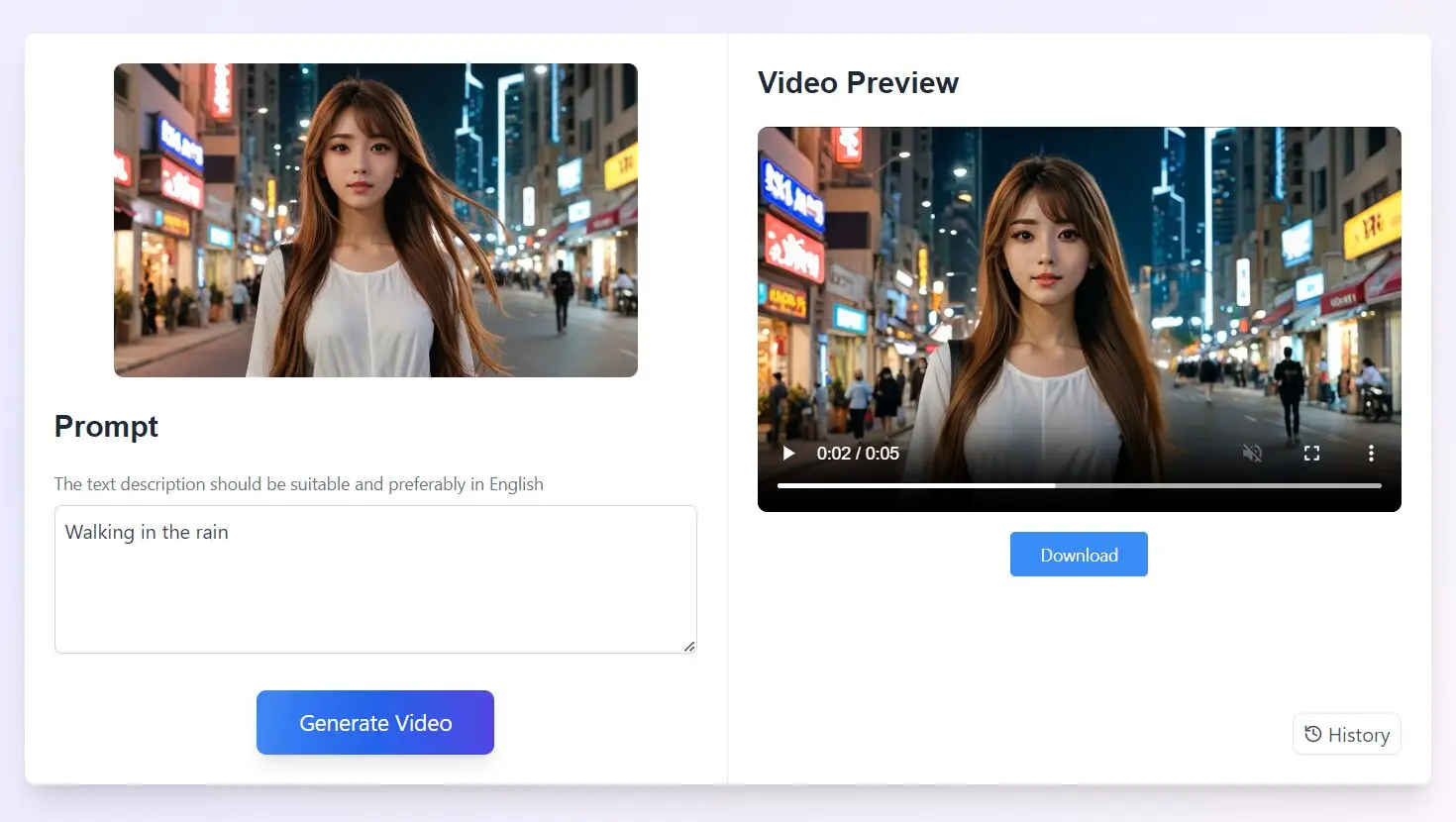
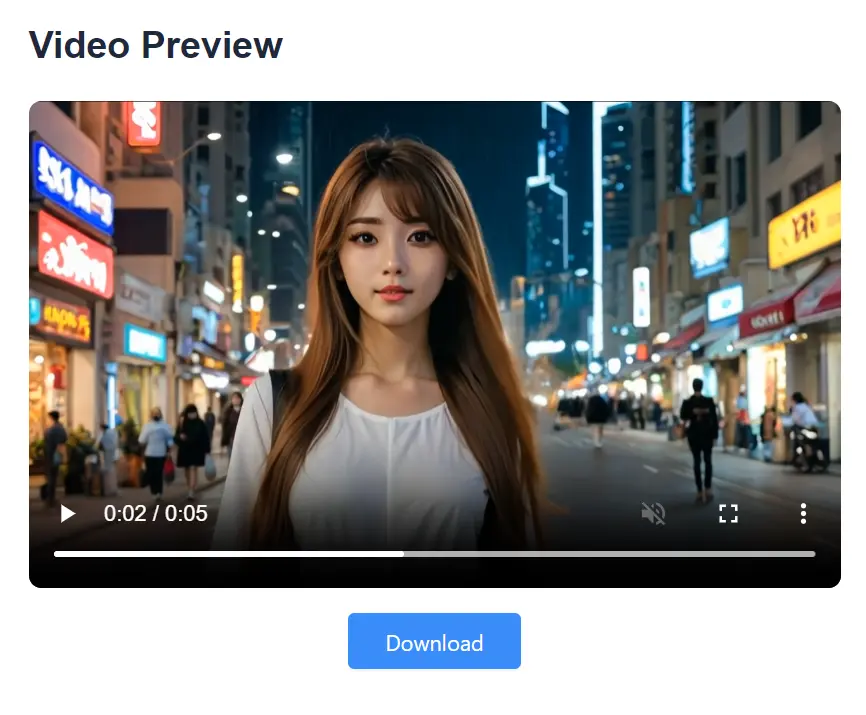
I tested ImageToVideo AI by uploading a simple image and entering the prompt “walking in the rain.” Within seconds, the tool generated a stunning video that perfectly matched my description.

The video had smooth transitions and realistic effects, demonstrating how effortlessly this tool can bring ideas to life. The best part? It was entirely free and watermark-free.
Features
- Simple and User-Friendly Interface: Upload images and input text prompts to generate videos quickly.
- Supports Multiple Image Formats: Upload images in JPG, PNG, and WEBP formats.
- Watermark-Free Exports: Download MP4 videos without watermarks.
- No Registration Required: Access all features without creating an account or providing payment information.
- MP4 Video Output: Converted videos are available in the widely compatible MP4 format.
- Mobile and Desktop Compatibility: Use the tool on any device with a web browser.
Use Cases
- Social Media Content: Turn static product photos or artwork into video posts for platforms like Instagram or X.
- Website Enhancements: Create animated backgrounds or short explainer videos from existing images to improve website engagement.
- Educational Materials: Convert static diagrams or charts into dynamic visuals for presentations or online courses.
- Marketing Campaigns: Develop eye-catching video ads from promotional images for digital marketing campaigns.
- Personal Projects: Bring personal photos to life by adding movement and effects.
How to Use it
1. Upload Your Image: Go to the ImageToVideo AI website. Click the upload button and select an image file in JPG, PNG, or WEBP format.
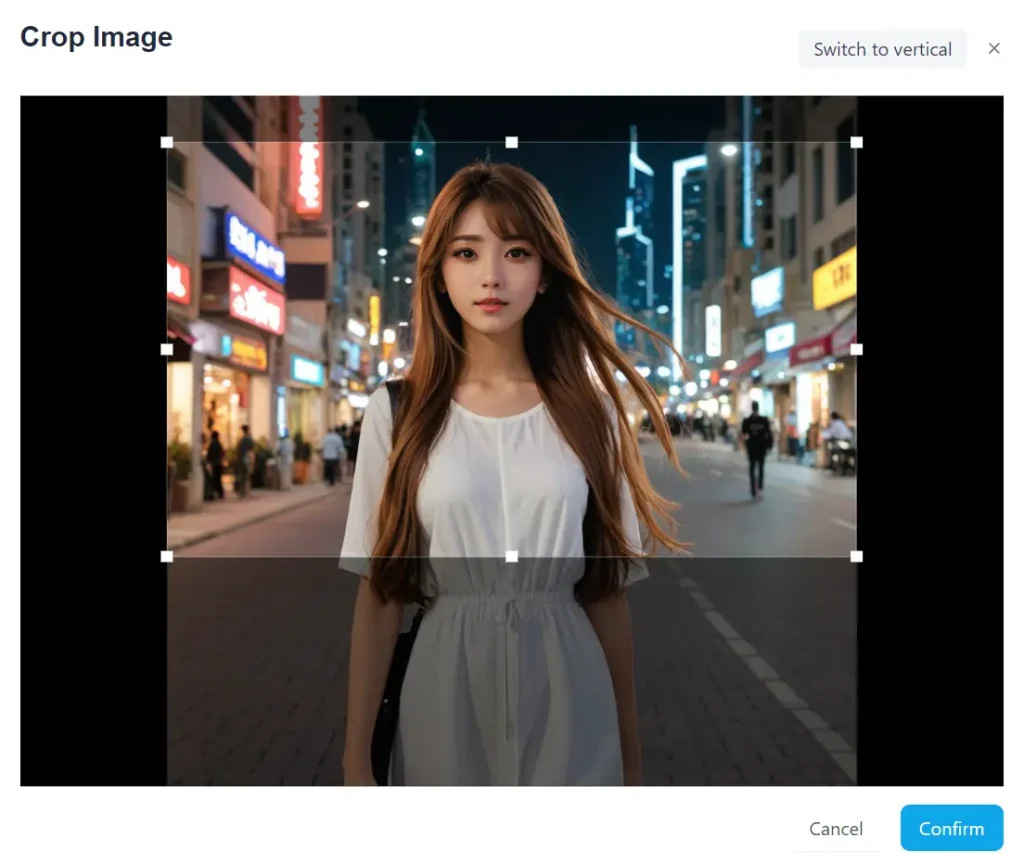
2. Crop Image: Use the cropping tool to adjust the image to fit the desired video dimensions.
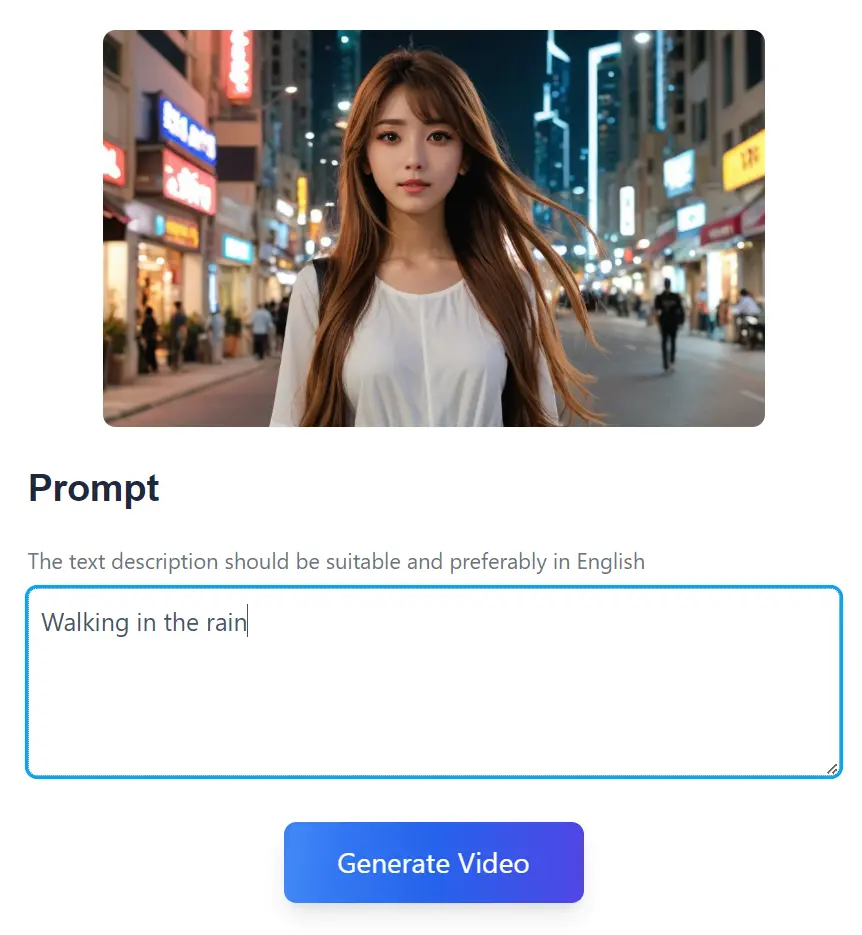
3. Enter Your Prompt: In the text box, describe the type of video you want to create. Be specific about the style, motion, and effects you want to apply.
4. Download the Video: Click the generate button and wait for the AI to process your request. Once complete, download the MP4 video file.
Pros
- Completely Free: Access all features without any cost.
- Easy to Use: Simple interface and intuitive workflow.
- Fast Processing: Generates videos quickly.
- High-Quality Output: Produces clear videos without watermarks.
- No Registration: Immediate access without signing up.
Cons
- Limited Customization: Advanced editing options are not available.
- Dependency on Prompt Quality: Output quality heavily relies on the clarity and specificity of the text prompt.
- Potential Future Costs: The tool is currently free, but paid plans may be introduced.
FAQs
Q: What image sizes work best?
A: Higher resolution images typically produce more detailed videos.
Q: How long are generated videos?
A: Typically in 5 seconds.
Q: Can I regenerate videos with different styles?
A: Yes, you can upload the same image multiple times with different prompts.
Q: Are there content restrictions?
A: Standard AI content guidelines apply. Avoid inappropriate or offensive content.
Q: How accurate is the AI in interpreting prompts?
A: Accuracy depends on prompt clarity and image complexity.
Q: How long does video generation take?**
A: Video creation typically takes a few seconds to a minute, depending on the image and prompt complexity.