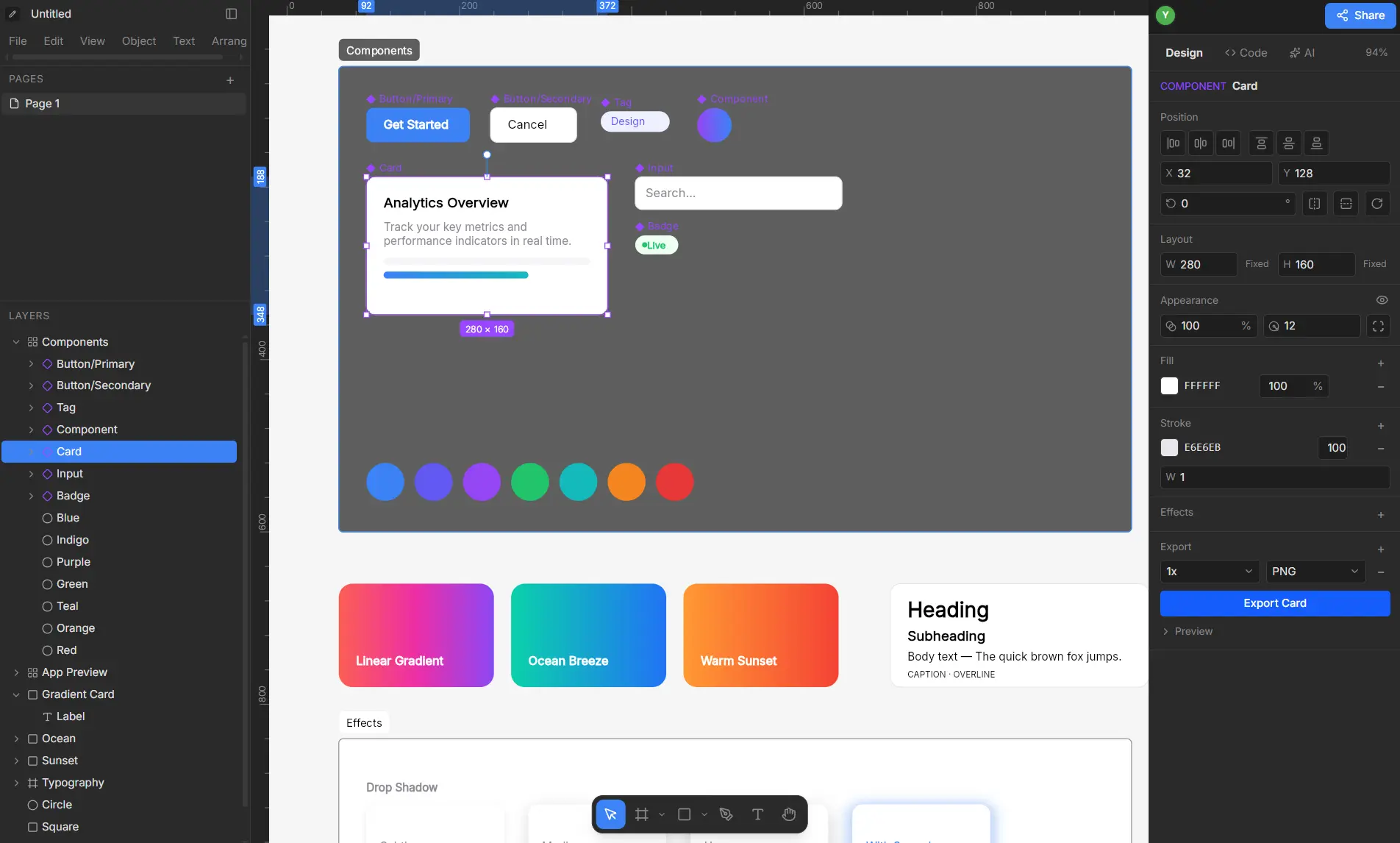
OpenPencil is a free, open-source, AI-powered design editor that reads and writes native Figma .fig files, runs a full headless CLI, and connects to any MCP-compatible AI coding tool.
It serves as a ~7 MB desktop app for macOS, Windows, and Linux, and it also runs directly in the browser with no installation required.
Figma is a closed platform. Its files live in a proprietary binary format. In February 2026, Figma 126.1.2 silently stripped the --remote-debugging-port flag on startup, killing third-party automation tools overnight.
OpenPencil treats that kind of vendor dependency as a supply-chain risk and addresses it directly. Your .fig files open natively, all operations are scriptable, and you bring your own AI API key with no lock-in to any provider.
Features
- Figma file import and export: OpenPencil reads and writes native Figma files and copies/pastes nodes between OpenPencil and Figma using the same Kiwi binary format.
- AI chat with 75 tools: A built-in chatbot lets you describe what you want, and the AI constructs it using 75 tools wired simultaneously to chat, CLI, and MCP.
- MCP server: An MCP server connects AI coding tools such as Claude Code, Cursor, and Windsurf to read and modify
.figfiles headlessly. - Headless CLI: A command-line interface inspects, searches, analyzes, and renders
.figfiles with no GUI required. - Real-time P2P collaboration: Collaborators co-edit over WebRTC.
- Drawing tools: The editor includes shapes, a pen tool with vector networks, rich text with system fonts, auto-layout, components with live sync, and variables with modes and collections.
- Fully local operation: The app runs with no internet connection required and no account needed.
How To Use It
Table Of Contents
Installation
Option 1: Web App (No Installation)
Go to app.openpencil.dev. The editor loads directly in your browser. No account, no login.
Option 2: Desktop App
Download the latest release from the GitHub releases page. Choose the binary for your platform.
Note: Code signing certificates are still in progress, so macOS and Windows may show an unverified developer warning on first launch.
Option 3: Build from Source
You need Bun and (for the desktop app) Rust installed. Clone the repository, then:
bun install
bun run dev
That starts the dev server at http://localhost:1420. For the native desktop app:
bun run tauri devmacOS Prerequisites
xcode-select --installWindows Prerequisites
rustup default stable-msvcThen install Visual Studio Build Tools with the “Desktop development with C++” workload. WebView2 is pre-installed on Windows 10 (1803+) and Windows 11.
Linux Prerequisites (Debian/Ubuntu)
sudo apt install libwebkit2gtk-4.1-dev build-essential curl wget file \
  libxdo-dev libssl-dev libayatana-appindicator3-dev librsvg2-dev
Using the AI Chat
Open a .fig file or start a new canvas. Click the AI chat panel. Type what you want built. The AI has access to 75 tools covering shape creation, fills, strokes, layout, variables, vectors, boolean operations, viewport control, and node search. You do not need to learn a specific prompt syntax. Plain descriptions work.
You supply your own API key in the settings panel. The project currently supports common AI providers, with Anthropic API, Claude Code subscription, Gemini, and local models via Ollama listed as coming additions.
CLI Cheatsheet
Install the CLI globally:
bun add -g @open-pencil/cli| Command | Description |
|---|---|
bunx @open-pencil/cli info design.fig | Print document stats, node types, and fonts |
bunx @open-pencil/cli tree design.fig | Display a visual node tree |
bunx @open-pencil/cli find design.fig --type TEXT | Search nodes by type |
bunx @open-pencil/cli find design.fig --name "Header" | Search nodes by name |
bunx @open-pencil/cli export design.fig | Render to PNG (default) |
bunx @open-pencil/cli export design.fig -f jpg | Render to JPG |
bunx @open-pencil/cli export design.fig -f jpg -s 2 -q 90 | Render to JPG at 2x scale, 90% quality |
All commands accept --json for machine-readable output.
MCP Server Setup
The MCP server exposes all 75 tools to any MCP-compatible AI client, including Claude Code, Cursor, and Windsurf.
Stdio Transport (Claude Code, Cursor, Windsurf)
Install globally:
bun add -g @open-pencil/mcpAdd this to your MCP client config:
{
  "mcpServers": {
    "open-pencil": {
      "command": "openpencil-mcp"
    }
  }
}
HTTP Transport (Scripts, Browser Extensions, CI)
openpencil-mcp-httpThe server runs at http://localhost:3100/mcp by default.
HTTP Security Options:
| Option | Default | How to Override |
|---|---|---|
| Bind address | 127.0.0.1 | Set HOST environment variable |
eval tool | Disabled | Not configurable for security |
| File access root | Current working directory | Set OPENPENCIL_MCP_ROOT |
| Authentication | None | Set OPENPENCIL_MCP_AUTH_TOKEN; send Authorization: Bearer <token> or x-mcp-token header |
| CORS | Disabled | Set OPENPENCIL_MCP_CORS_ORIGIN to allow a specific origin |
Real-Time Collaboration
- Click the share button in the top-right panel.
- Copy and share the generated link:
app.openpencil.dev/share/<room-id>. - Collaborators see your cursor, selection, and edits in real time.
- Click a peer’s avatar to follow their viewport.
All sync happens peer-to-peer via Trystero (WebRTC). The document state persists locally in IndexedDB, so refreshing keeps your work.
Build Scripts Reference
| Command | Description |
|---|---|
bun run dev | Dev server at http://localhost:1420 |
bun run build | Production build |
bun run check | Lint + typecheck |
bun run test | E2E visual regression (Playwright) |
bun run test:update | Regenerate screenshot baselines |
bun run test:unit | Unit tests |
bun run tauri dev | Desktop app with hot reload (requires Rust) |
bun run tauri build | Production desktop build |
bun run tauri build --target universal-apple-darwin | macOS universal binary |
Pros
- Truly free, no account required: No subscription, no login, no telemetry opt-out required.
- Native .fig file support: Read and write Figma files directly, plus copy-paste nodes between OpenPencil and Figma.
- MCP server for AI agent integration: Claude Code, Cursor, and Windsurf can create and modify design nodes headlessly.
- 75 AI tools: Chat, CLI, and MCP all share the same tool set.
- Serverless collaboration: WebRTC P2P collaboration needs no backend, no paid plan, and no self-hosted server.
- Tiny install size: At ~7 MB the desktop app is considerably lighter than most design tools.
- MIT license: You can fork, modify, and self-host without restriction.
- Runs fully offline: No internet connection required after installation.
Cons
- Development Status: The software remains in active development.
- Incomplete Parity: The rendering engine lacks full parity with Figma.
- Complex Setup: The desktop build requires Rust and C++ build tools.
Related Resources
- OpenPencil Web App: Try OpenPencil in the browser with no installation.
- OpenPencil GitHub Repository: Access the full MIT-licensed source code, releases, and issue tracker.
- OpenPencil Documentation: Read the official docs covering MCP tools, CLI reference, and getting started guides.
FAQs
Q: Does OpenPencil replace Figma?
A: Not at this stage. OpenPencil is in active development and explicitly not ready for production use. It opens and writes .fig files natively and shares copy-paste compatibility with Figma, but rendering parity is still incomplete. Think of it as a programmable, AI-native companion to Figma, particularly useful for automated workflows, headless file operations, and AI agent integration where Figma’s tooling falls short.
Q: Do I need an AI provider API key to use OpenPencil?
A: The AI chat features require your own API key. The rest of the editor, including the drawing tools, CLI, collaboration, and .fig file import/export, all work without any API key or internet connection.
Q: What AI providers does OpenPencil support?
A: The project currently supports common AI providers. The roadmap lists Anthropic API, Claude Code subscription, Gemini, and local models via Ollama as upcoming additions.
Q: Can I use OpenPencil in a CI/CD pipeline?
A: Yes. The headless CLI and HTTP MCP server both target this use case. You can inspect, search, analyze, and render .fig files with no GUI, and the HTTP transport for the MCP server works from scripts and CI environments like GitHub Actions.
Q: How does the collaboration work without a server?
A: OpenPencil uses Trystero to establish direct WebRTC connections between peers. Yjs handles document state as a CRDT, and IndexedDB persists the document locally in each browser. No backend server is involved, and no account is required to start or join a collaboration session.
Q: Is OpenPencil safe to use with sensitive design files?
A: The app runs fully locally. No files upload to a remote server during normal use. The MCP HTTP server binds to 127.0.0.1 by default, restricts file access to a configurable root directory, and supports optional bearer token authentication.
Q: Will OpenPencil always be free?
A: The project is MIT-licensed with no subscription, no account, and no monetization mechanism currently in place. The README states “free forever” explicitly.