Perplexity’s Comet is a free AI-powered web browser that acts as a personal AI assistant to automate tasks and simplify your online activities like shopping, email management, and research across apps.
It integrates Perplexity’s AI search engine to help you answer questions about web pages, summarize content, manage web content, and navigate pages on your behalf.
After launching at $200 per month in July 2025, Perplexity made Comet free for everyone in October 2025, positioning it as a serious alternative to Google Chrome and OpenAI ChatGPT Atlas.
Jan 6, 2026 Update: Comet is now available to everyone, for free!
Features
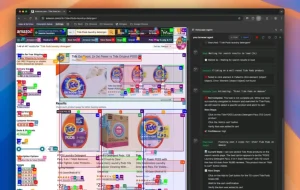
- Assistant Sidebar (Alt + A): A collapsible AI assistant that understands every webpage you visit. It can analyze content, explain concepts, describe images, and compare information across multiple tabs. The assistant can also automate tasks like composing emails, scheduling meetings, and making purchases. It fills out forms, navigates webpages, and engages with web content without you needing to click through manually.
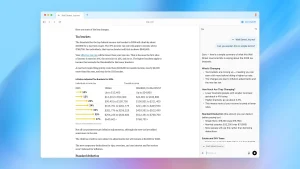
- One-Click Summarization (Alt + S): Every webpage gets instant summaries. The feature works on articles, videos, PDFs, and social media content. Perplexity keeps history for each page, so notes and prompts for a specific article remain on the right side even after running other prompts on different pages.
- Voice Mode (Shift + Alt + V): Control Comet entirely through speech. You can browse, search, and manage tabs hands-free, which comes in handy when you’re multitasking or just don’t feel like typing.
- Smart Tab Management: The AI automatically groups related tabs by topic, closes duplicate or unused tabs, creates color-coded collections, and maintains context when you switch between tabs. This addresses the universal problem of having 47 tabs open and no idea what half of them contain.
- Built-in Shortcuts: Comet includes pre-programmed shortcuts for common tasks. These range from academic needs (like /cite for generating citations in MLA, APA, and Chicago formats) to practical tools (like /dupe to find cheaper alternatives to products you’re viewing). The /job-fit shortcut analyzes job descriptions against your LinkedIn profile, while /announcements reviews your inbox for recent course announcements.
- Chrome Import: You can import all your Chrome data with one click, including bookmarks, saved passwords, autofill data, extensions, browsing history, and preferences. The transition takes minutes rather than hours.
- Comet Plus Integration: Subscribers get access to curated news from partners like CNN, Conde Nast, Fortune, Le Figaro, Le Monde, The Los Angeles Times, and The Washington Post. This functions similarly to Apple News Plus but integrated directly into your browsing experience.
Use Cases
- Students: Use /add-classes to add course times directly to your calendar, /order-textbooks to find and cart required textbooks, and /due-dates to extract exam and assignment deadlines from syllabi. The /flashcards and /quiz commands generate interactive study materials from any webpage. When researching papers, the assistant can compare sources across tabs and cite them properly.
- Remote Workers: Connect Gmail and Calendar so Comet can brief you for the day, find answers in your inbox, or send and schedule emails on your behalf. The browser can show you who you’re meeting with, check your schedule, move meetings to different times, and list action items for the day. It groups research tabs into collections and highlights interesting news from your feeds.
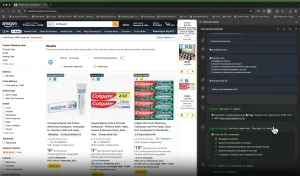
- Online Shoppers: Ask Comet to handle shopping from start to finish. It compares products, reads reviews, finds student or other discounts (using /save-money), suggests budget-friendly alternatives (/dupe), and can complete checkout. The assistant clicks, types, submits, and autofills so you don’t have to navigate multiple product pages manually.
- Content Creators: Summarize videos you’ve watched, extract key points from articles, and use the @tab feature to have Comet reference specific open tabs when you ask questions. The assistant searches through your history, videos, and documents to find information you’ve already encountered. This saves time when you remember seeing something useful but can’t recall where.
- Job Seekers: The /job-fit command provides analysis based on your LinkedIn profile when you’re viewing job descriptions. Comet can scan LinkedIn for interesting connection requests and help you draft messages that reference your upcoming schedule. The cross-tab intelligence lets you compare multiple job postings side by side with AI assistance.
How to Use It
1. Download the AI browser from comet.perplexity.ai. Comet currently works on macOS (M1/M2 processors) and Windows (10/11).
2. If you’re coming from Chrome, click to import everything at once. This pulls in your bookmarks, passwords, autofill data, extensions, and browsing history. If you’re switching from another browser, you can still import but might need to manually move some data depending on the source browser.
3. Set Comet as your default browser through Settings → Default browser. This makes links from email and other apps open in Comet automatically.
4. Configure advertising preferences under Settings → Privacy → Ad block. Comet gives you granular control over privacy settings, including the ability to delete browsing history, search history, cookies, and cached data anytime.
5. Start using the assistant by pressing Alt + A. The sidebar appears on the right side of your browser. You can ask questions about the current page, request summaries (or just press Alt + S), or give it more complex commands. The assistant understands context, so you can reference previous questions and it knows what “it” or “that” means.
7. Try voice mode with Shift + Alt + V if you want hands-free interaction. This works well when you’re eating lunch at your desk or need to look at something else while browsing.
8. Connect Gmail and Google Calendar through the settings if you want Comet to manage email and scheduling. This unlocks features like briefing you for the day, finding information in your inbox, and sending messages on your behalf.
9. Use the @tab feature when asking questions to reference specific open tabs. If you have five research articles open and want to compare their methodologies, you can ask something like “How does the approach in @tab-nature differ from @tab-science?” and Comet knows exactly which tabs you mean.
10. Be specific with your commands when you want the assistant to take control of your browser. Saying “take control of my browser and find me a cheap office chair under $200 with good lumbar support” works better than “help me shop for chairs.” The more detail you provide, the fewer clarifying questions Comet needs to ask.
11. The agent can navigate and complete tasks, but hallucinations remain a problem. When I asked Comet to book accommodations, it entered wrong dates and still wanted me to complete checkout anyway. I had to explicitly tell it the dates were non-negotiable and ask it to find another location. Double-check any important details before confirming transactions, especially for travel or purchases with specific requirements.
Pros
- No Cost: Comet is completely free. Perplexity committed to maintaining a free version forever, which is rare for a browser with this level of AI integration. Even users who don’t subscribe to Perplexity Pro or Max can access the core functionality.
- Context Awareness: The browser maintains page-specific history, so your notes and prompts for each webpage remain accessible even after you’ve run other queries on different pages. This specific history feature becomes indispensable once you get used to it.
- Autonomous Task Completion: Unlike AI assistants that just answer questions, Comet actually navigates websites, fills out forms, and completes multi-step processes. It clicks, types, and submits on your behalf, which saves considerable time on routine tasks.
- Cross-Tab Intelligence: The assistant can analyze and compare information across all your open tabs simultaneously. This beats manually switching between tabs to cross-reference information, particularly during research.
- Built-in Perplexity Search: Every search uses Perplexity’s AI-powered search engine, which provides fast, accurate answers with source citations. You get the choice to navigate the web normally or check sources for original facts.
- Chrome Compatibility: Comet supports Chrome extensions, settings, and bookmarks, making the switch from Chrome nearly painless. You don’t lose access to your essential tools or spend hours reconfiguring preferences.
Cons
- No Cross-Device Sync: Comet doesn’t offer the ability to sync data between multiple devices. If you regularly switch between desktop and laptop, you’ll need to repeat setups and won’t have access to previous conversations or browsing history from your other machine.
- Hallucination Issues: The AI agent can mess up key details during autonomous tasks. During my testing for hotel bookings, Comet entered completely wrong dates and still proceeded toward checkout. You need to review what the assistant does before confirming any transaction, which reduces some of the time-saving benefits.
- Limited Platform Support: Comet only works on macOS (M1/M2 processors) and Windows (10/11) right now. Mobile versions are in development but not yet available. If you need to browse on your phone or tablet, you’re out of luck for now.
- Controversial User Agent Handling: Perplexity’s assistant can act as if it were human because of how their Terms of Service handle user agents, bypassing certain defenses that would normally block AI bots. While this makes Comet’s agentic abilities work on most sites, the practice is controversial. OpenAI and Google do the same thing, but that doesn’t make everyone comfortable with it.
Related Resources
- Perplexity Documentation: Official guides for using Perplexity’s AI search engine and understanding how it powers Comet. Useful for learning advanced search techniques that transfer to browser usage.
- Comet Quick Start Guide: The official getting-started documentation with setup instructions, keyboard shortcuts, and feature explanations. Check here first when you encounter questions about specific functionality.