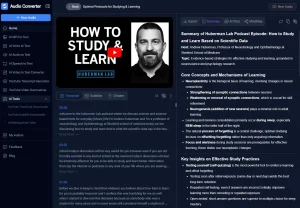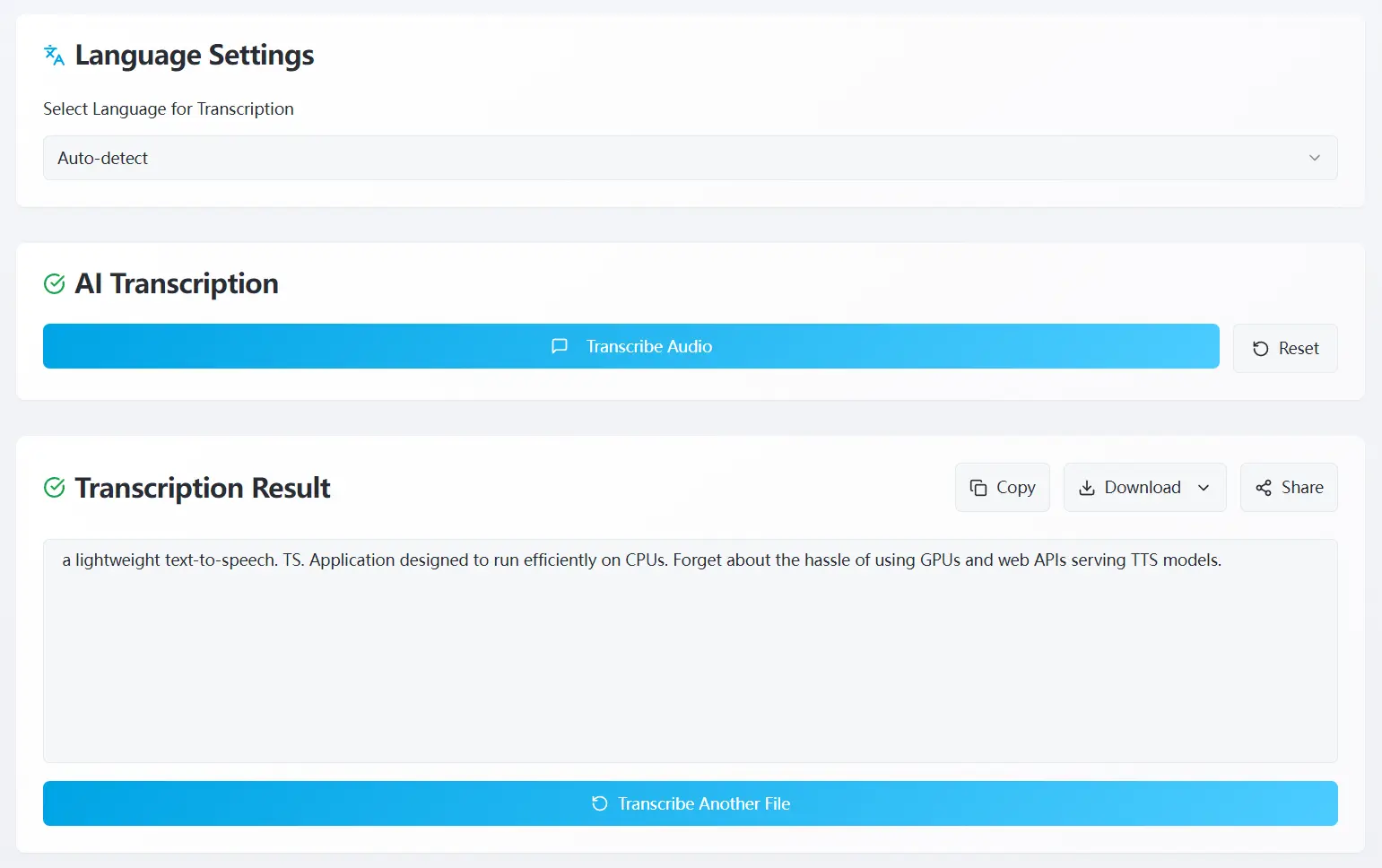
TalkToTextly is a free AI-powered audio transcription tool that converts speech to text entirely within your browser using OpenAI’s Whisper model.
It delivers roughly 95% transcription accuracy across 44 languages, and processes every audio file locally on your device. No audio sent to an external server.
Features
- Runs all transcription processing locally in the browser using OpenAI’s Whisper model.
- Achieves roughly 95% transcription accuracy on clear recordings, including technical terms and proper nouns.
- Supports 44 languages with an automatic language detection option.
- Accepts MP3, WAV, M4A, FLAC, OGG, WebM, and additional audio formats up to 100MB per file.
- Records audio directly from your microphone.
- One minute of audio takes about 15 seconds to transcribe.
- Splits large audio files into chunks automatically for optimal processing.
- Exports transcripts as plain text (.txt), SubRip subtitles (.srt), WebVTT subtitles (.vtt), or Word documents (.doc).
Use Cases
- Convert WhatsApp voice messages to readable text.
- Transcribe business meetings and conference calls for meeting notes.
- Create searchable transcripts for podcast episodes and interviews.
- Transcribe academic research interviews, lectures, and recordings.
- Convert phone recordings and video calls into text documentation.
How to Use TalkToTextly
1. Drag an audio file onto the upload area, or click it to open a file browser. TalkToTextly accepts MP3, WAV, M4A, FLAC, OGG, WebM, and other common audio formats. The maximum file size per upload is 100MB.
2. You can also click the Record button to capture audio from your device’s microphone directly. This works well for quick voice memos or real-time dictation.
3. Choose the spoken language from the language selector. The “Auto Detect” option works well for most files, including recordings with multiple languages.
4. Click Transcribe Audio. The first time you run this tool, it downloads the Whisper AI model (approximately 500MB) to your browser cache. This happens once. For subsequent transcriptions, the tool loads the model from cache and processes new files instantly.
5. The processing ratio is 1:4. A one-minute audio file takes about 15 seconds.
6. The transcription appears in an editor where you can review and make corrections. Then you can copy the full text or download it in your preferred format:
| Format | Extension | Best For |
|---|---|---|
| Plain Text | .txt | Notes, archiving, copy-paste use |
| SubRip Subtitles | .srt | Video captions (YouTube, Vimeo) |
| Web Subtitles | .vtt | HTML5 video caption tracks |
| Word Document | .doc | Annotation and editing in Microsoft Word |
7. Tips for better accuracy:
- Record with the speaker close to the microphone.
- Minimize background noise in the source audio.
- Avoid recordings with overlapping speakers.
- Higher bitrate audio consistently produces higher accuracy.
Pros
- No account or credit card required.
- Unlimited transcriptions.
- Audio never leaves your device.
- Works offline after the initial model download.
- Supports 44 languages with auto-detection.
Cons
- 500MB initial download for the AI model.
- 100MB file size limit.
- The browser tab must stay open during processing.
Related Resources
- OpenAI Whisper: Read the official research paper behind the transcription model.
- FFmpeg: A free command-line tool for compressing or splitting audio files.
- Audacity: A free audio editor for cleaning up recordings, reducing background noise, and exporting to a supported format before transcription.
- Best Free AI Audio Transcription Tools: Discover the 10 best & free audio transcription tools at ScriptByAI.com.
FAQs
Q: Does TalkToTextly store my audio files after transcription?
A: No. All processing happens locally in your device. The tool is GDPR compliant and collects no personal data or file content.
Q: What should I do with audio files larger than 100MB?
A: Compress the audio to a lower bitrate or split the recording into segments before uploading. FFmpeg handles both tasks from the command line at no cost.
Q: How accurate are the transcriptions?
A: TalkToTextly targets 95%+ accuracy on clear audio. Accuracy drops with heavy background noise, overlapping speakers, or low-quality recordings. Reviewing technical terms and proper nouns in the built-in editor before export.
Q: How accurate are the transcriptions?
A: 95%+ accuracy for clear audio recordings. Accuracy depends on audio quality, background noise, and speaker clarity.