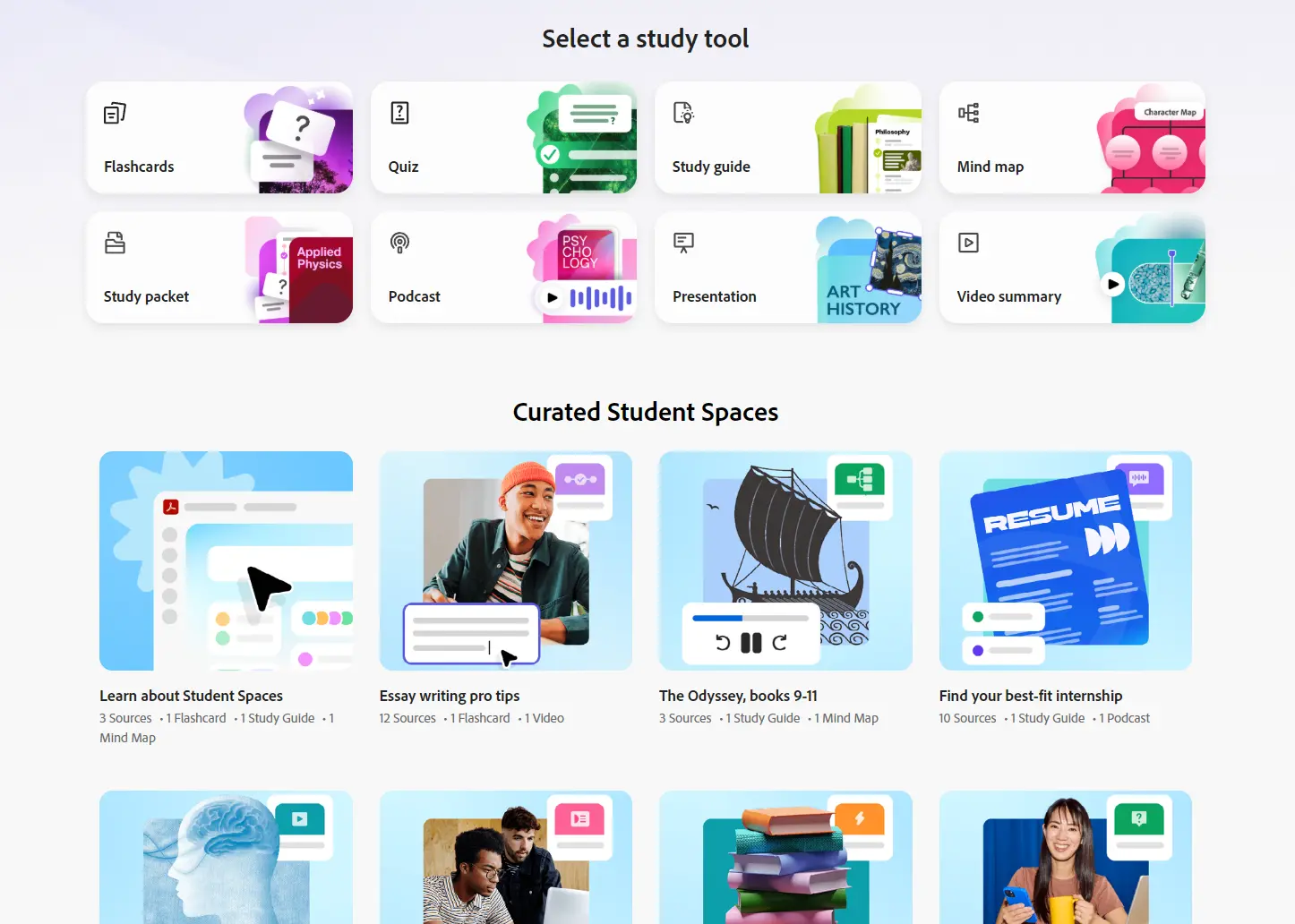
Adobe Student Spaces is a free AI-powered study hub that converts course materials into interactive study tools. Upload textbooks, notes, slides, and other documents, and the AI then generates flashcards, quizzes, mind maps, presentations, podcasts, and video summaries from those files.
The core pitch is consolidation. Students typically bounce between a PDF reader, a note-taking app, a flashcard tool, and a group chat. Student Spaces folds those functions into one browser-based workspace so course materials, study aids, and classmate collaboration all stay in one place.
It is completely free during the beta period, with all features unlocked via a free Adobe account, including premium tools like podcast and video generation.
Features
- Generates flashcards directly from uploaded course documents.
- Creates practice quizzes based on your specific file content.
- Produces study guides and study packets drawn from your source materials.
- Builds mind maps to visualize relationships between concepts.
- Generates editable presentations powered by Adobe Express.
- Creates audio podcasts from study materials for auditory review.
- Produces video overviews and summaries of uploaded content.
- AI Assistant answers questions about your files and cites the exact source passage behind each answer.
- Clickable citations link back to the specific document or URL that supports each AI response.
- Accepts up to 100 files per Space, with each file capped at 600 pages.
- Supports PDFs, Word documents, PowerPoint files, Excel spreadsheets, URLs, handwritten notes, and transcript files.
- Allows you to share a Space with classmates at a chosen access level for group study.
Use Cases
- Upload lecture slides, textbook chapters, and notes to create a quiz before an exam.
- Turn dense reading material into flashcards and study guides for quick review.
- Convert notes into podcasts or audio summaries for review during a commute or workout.
- Build a shared study space for a group project and generate presentations from the same source set.
- Ask Acrobat AI Assistant to explain a hard concept and check the answer against the cited source passage.
How to Use It
1. Open Student Spaces on Acrobat web and start a new space.
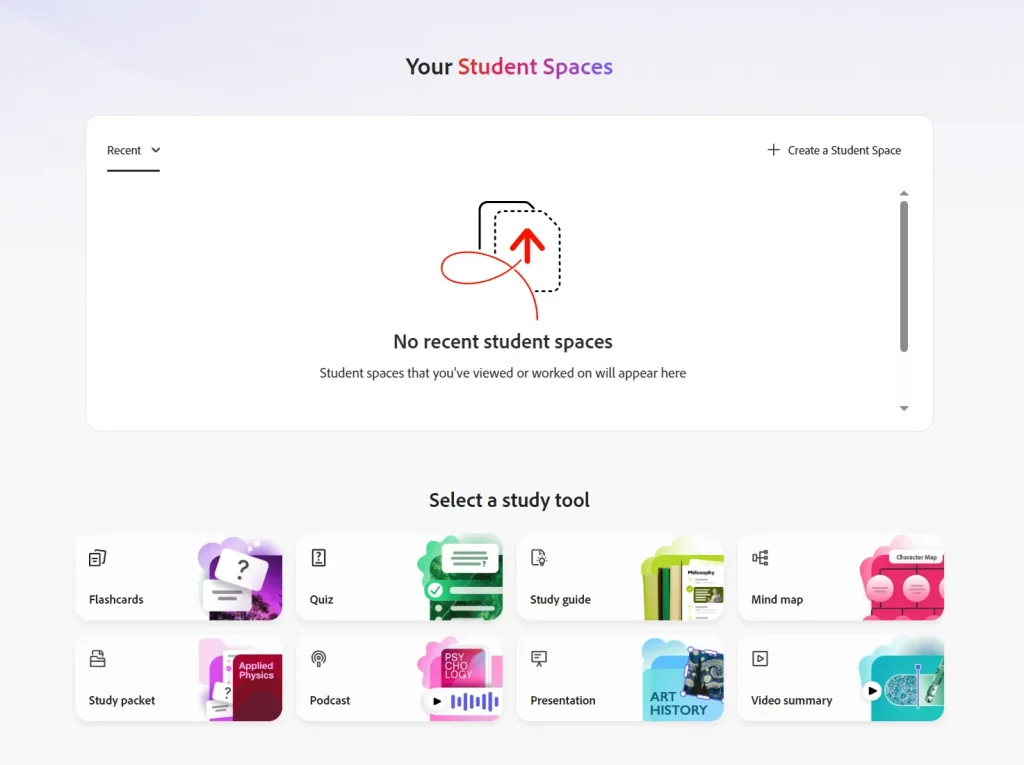
2. Upload the material for one class, one exam, or one project. The tool supports PDFs, Docs, PowerPoint files, Excel files, URLs, handwritten notes, and transcript files. A clean setup works best when each space covers a single subject or project.
3. Pick a study output. Student Spaces can generate flashcards, quizzes, study guides, study packets, mind maps, podcasts, presentations, and video summaries. Use one output per goal so the source set stays focused.
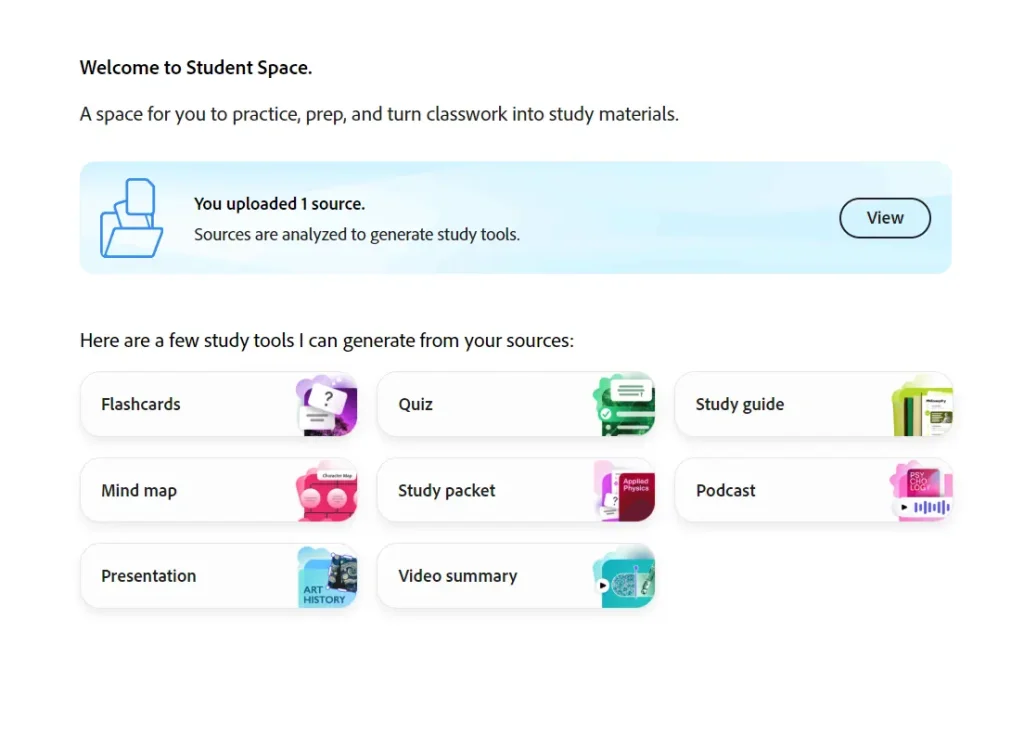
4. Ask a direct study prompt in the chat. Good prompts include “Create a quiz to help me practice,” “Generate flashcards to help me review,” and “Help me prepare with a study guide.” Adobe ties answers back to the uploaded material through citations.
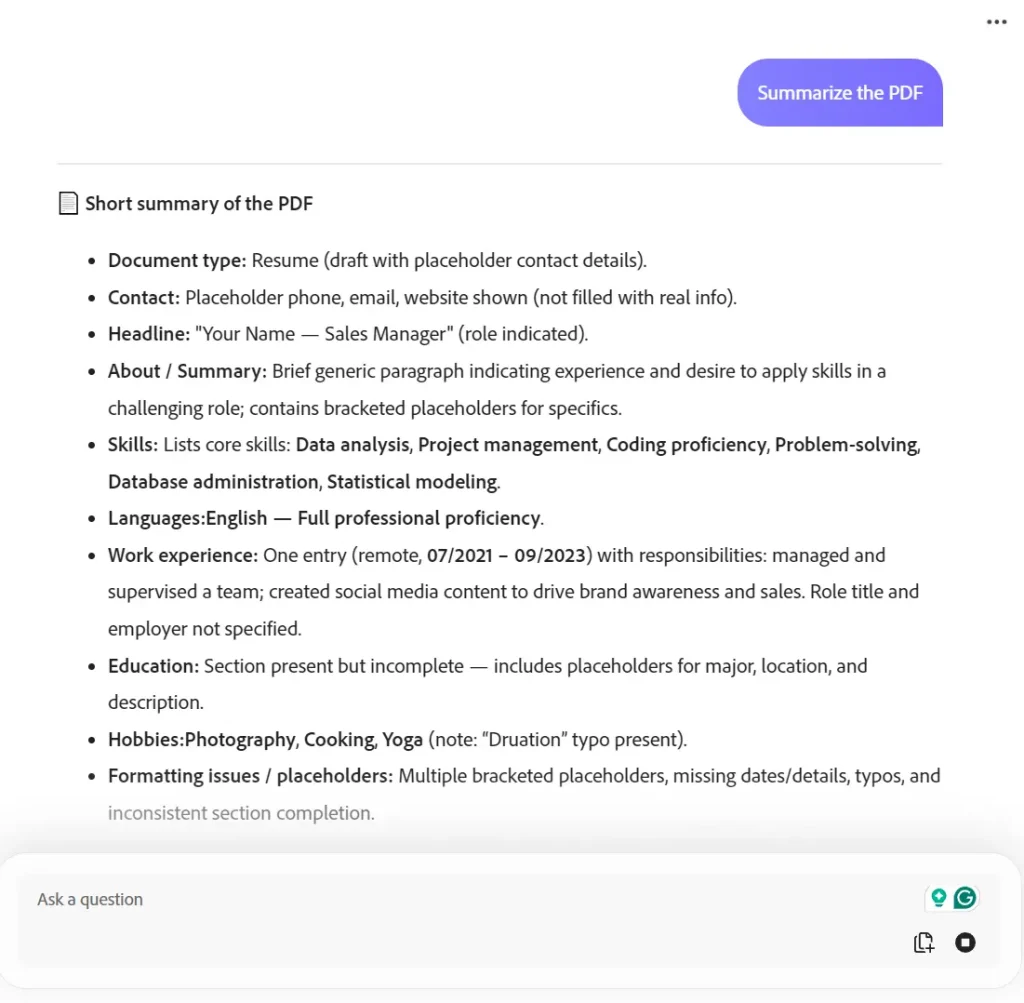
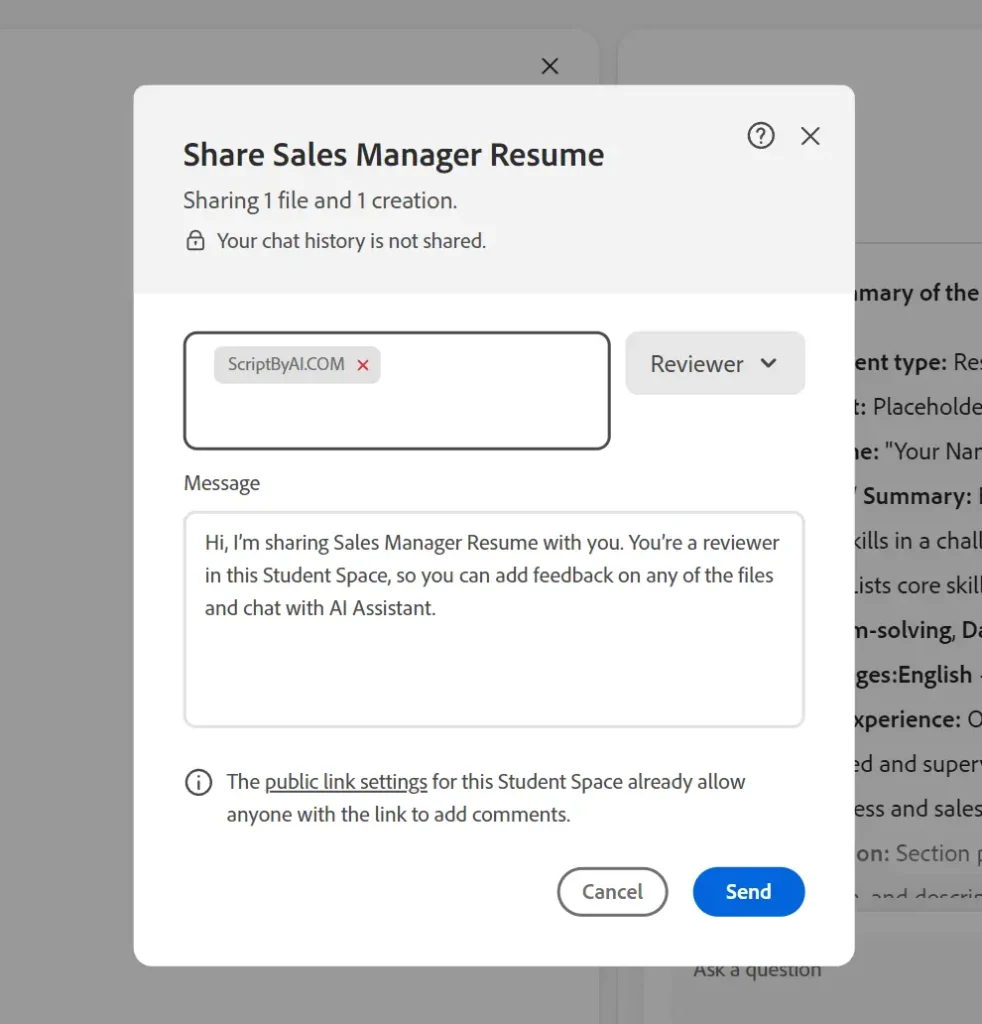
5. Click Share to invite classmates to your Space. Set each person’s access level to control what they can view or edit. All collaborators access the same files and study tools. Individual chat histories with the AI tutor remain private per user.
Pros
- Keeps reading, AI Q and A, and study tool generation in one place.
- Covers several study formats in one workspace.
- Uses source citations inside responses.
- Supports group collaboration.
- Starts free and works in the browser.
Cons
- Beta status means the feature set may shift.
- File upload limit of 100 files per Space.
- Runs only in the browser.
Related Resources
- Adobe Acrobat AI Assistant: Explore the full AI Assistant feature set within Acrobat for deeper document analysis outside the Student Spaces environment.
- Adobe Acrobat Flashcard Maker: Use the standalone flashcard tool to generate cards from a single document.
- Adobe Acrobat Quiz Maker: Generate practice quizzes from individual files.
- Adobe Generative AI User Guidelines: Review Adobe’s policies on responsible AI use before relying on AI-generated content for academic submissions.
FAQs
Q: Does Adobe Student Spaces cost money?
A: Student Spaces is free during its beta period, with fair-use limits on standard tools like flashcards, quizzes, study guides, and mind maps.
Q: What file types can I upload to Student Spaces?
A: Student Spaces accepts PDFs, Word documents, PowerPoint presentations, Excel files, handwritten note scans, transcript files, and URLs. Each Space holds up to 100 files, with a 600-page limit per individual file.
Q: How accurate are the AI-generated study tools?
A: AI-generated answers and study tools cite the specific source passages from your uploaded files. You can click any citation to verify the exact text the AI referenced. I recommend double-checking AI responses for accuracy before relying on them for academic work.
Q: Does the AI tutor pull answers from the internet?
A: The AI Assistant bases its answers on the files and links you upload to your Student Space. This keeps responses grounded in your actual course material and reduces the chance of inaccurate or off-topic answers.