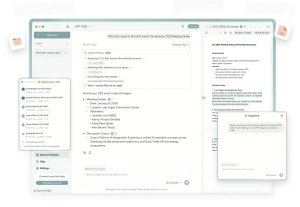
Nano PDF Editor is a free, open-source CLI tool that lets you edit PDF slides using natural language and Google’s Nano Banana Pro image editing model.
You can use this CLI to fix typos across multiple slides, update branding elements, refresh data visualizations, or generate entirely new slides that match your deck’s existing style.
The tool preserves the searchable text layer in your PDFs through OCR re-hydration, so your edited documents remain fully functional.
Features
- Natural Language Editing: Type commands in plain English to modify PDF content. Tell it to “update the graph to include data from 2025” or “change the tagline in the logo” and the tool executes your instructions directly on the PDF pages.
- Multi-Page Processing: Edit multiple pages in one command with parallel processing. You can update the date on page 1, add a logo on page 5, and fix a typo on page 10 all in the same operation.
- New Slide Generation: Create brand-new slides that automatically match your existing design. The tool analyzes your existing slides and generates new content with matching fonts, colors, and layout patterns.
- OCR Re-hydration: Preserves the searchable text layer after editing. The tool uses Tesseract OCR to restore text searchability to AI-generated images.
- Resolution Control: Choose between 4K, 2K, or 1K resolution output.
- Google Search Integration: The model can pull real-time information from Google Search when enabled. This helps when you need current data like market statistics or recent events inserted into your slides.
- Context Awareness: Include full document context in generation requests. The tool can read your entire PDF to maintain consistency when adding new slides or making edits.
- Style References: Manually specify which pages the model should use as visual style guides. This allows you to control how the AI matches fonts, colors, and layouts.
Use Cases
- Correcting Recurring Errors: Fix a misspelled company name or an incorrect date that appears on every slide of a 30-page deck.
- Updating Data Visualizations: Refresh the numbers in financial charts or market analysis graphs for a new quarterly report.
- Last-Minute Branding Changes: Apply a new logo, change a color scheme, or modify a header format across an entire presentation.
- Generating Missing Content: Create and insert a title slide, an agenda, or a summary slide that you forgot to include initially.
- Batch Translation of Static Elements: Change language-specific text in slide master elements, like footer labels, for region-specific versions.
Case Studies
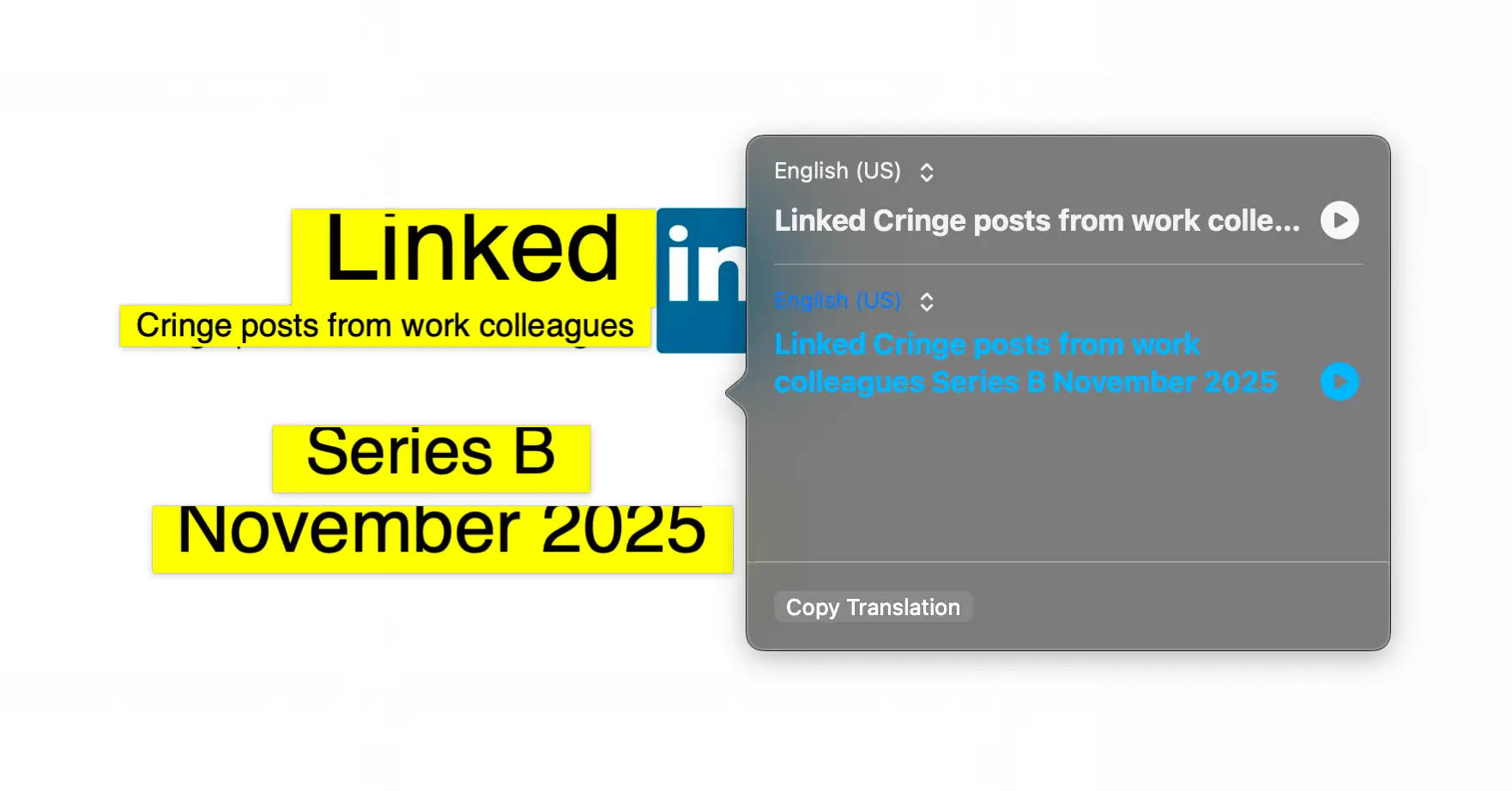
Nano PDF Editor’s official GitHub repository includes a detailed example using LinkedIn’s 2004 Series B pitch deck.
The original deck has a standard LinkedIn logo and date. By using a single prompt, Nano PDF changed the tagline to read “Cringe posts from work colleagues” and updated the date field.
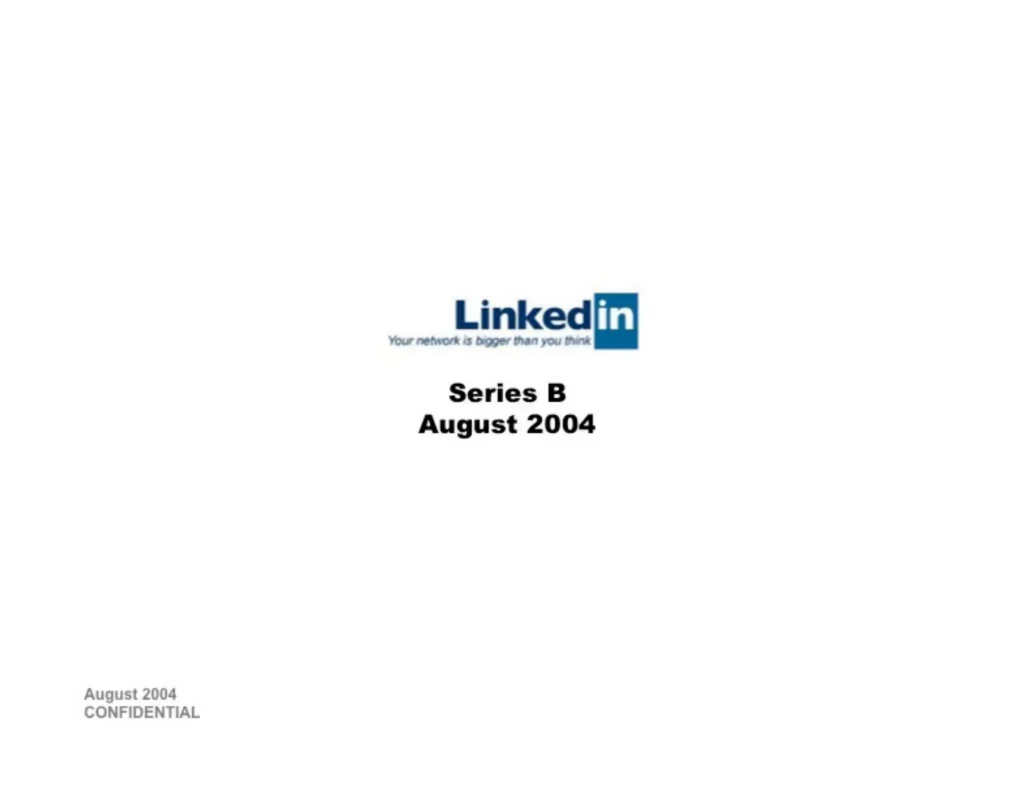
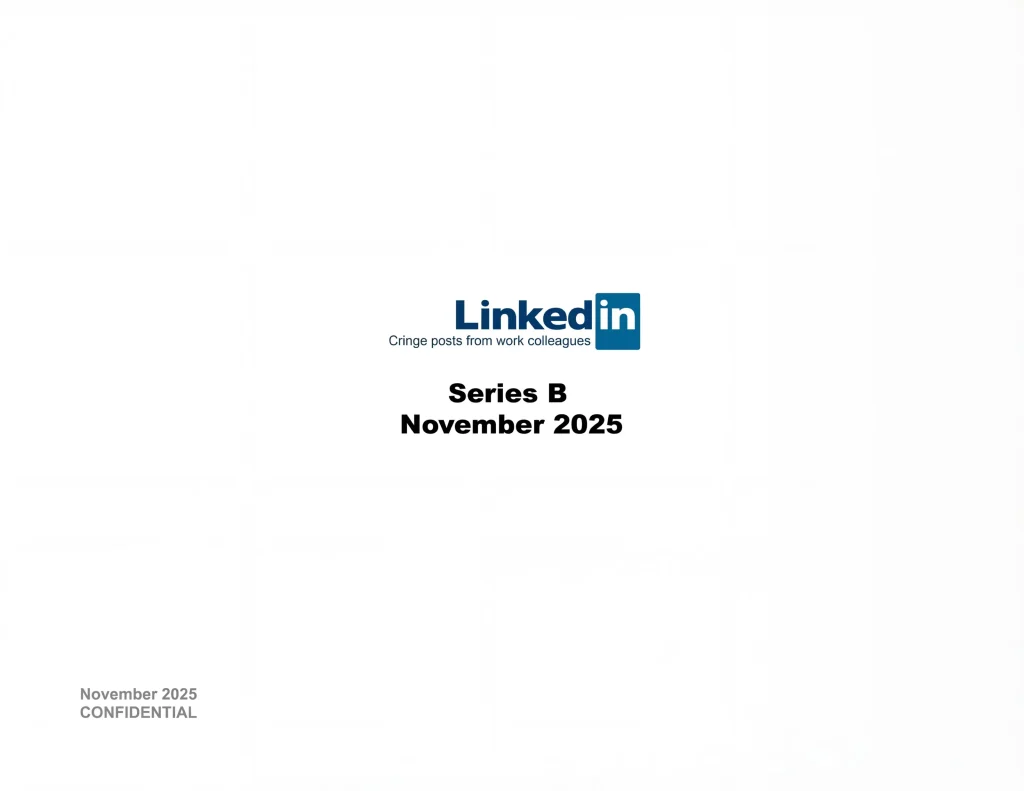
The before and after images show the tool successfully modified specific text elements while preserving the overall slide design, layout, and formatting.
How to Use Nano PDF Editor
1. Install the necessary poppler for rendering and tesseract for OCR.
macOS:
brew install poppler tesseractWindows:
choco install poppler tesseractLinux:
sudo apt-get install poppler-utils tesseract-ocr2. Install Nano PDF Editor and all its dependencies.
pip install nano-pdf3. Get a paid Google Gemini API key. The free tier does not support the Nano Banana image generation capabilities.
- Go to Google AI Studio and get an API key.
- Enable billing for your project.
- Check the current API pricing here before running large batch jobs.
- Set the environment variable in your terminal:
export GEMINI_API_KEY="your_api_key_here"4. Run the nano-pdf command to edit your PDF. This example changes a title on page 2:
nano-pdf edit my_deck.pdf 2 "Change the title to 'Q3 Results'"5. Insert a new slide at the beginning of a deck using the add command:
nano-pdf add my_deck.pdf 0 "Title slide with 'Q3 2025 Review'"6. The --use-context flag includes your full PDF text in the generation request.
nano-pdf edit report.pdf 5 "Update the chart colors to match the theme" --use-context
7. The --style-refs parameter specifies which pages serve as visual style guides.
nano-pdf edit slides.pdf 1 "Make the header background blue" --style-refs "2,3"
8. The --output parameter saves your edited PDF under a new filename.
nano-pdf edit pitch_deck.pdf 7 "Change Q4 2024 to Q1 2025" --output updated_deck.pdf
9. The --resolution parameter controls image quality.
nano-pdf edit presentation.pdf 12 "Update revenue chart to show Q3 at $2.5M" --resolution "2K"
10. The --disable-google-search flag restricts the model to your provided context only.
nano-pdf add deck.pdf 3 "Add a summary slide" --disable-google-search
Pros
- Saves Manual Effort: It automates tedious visual edits you would otherwise do manually in PowerPoint or Illustrator.
- Context-Aware Generation: The
addcommand uses your document’s full text by default, so generated slides are thematically relevant. - Handles Bulk Operations: Editing 50 slides takes one command, not 50 separate manual actions.
Cons
- Requires a Paid API Key: You cannot use the free Gemini API tier.
- OCR Isn’t Perfect: The text re-hydration works well for clean slides, but stylized fonts or complex backgrounds can cause OCR errors.
- Command-Line Only: There’s no graphical interface. It’s built for developers, analysts, and technical users comfortable with the terminal.
Related Resources
- Poppler: The underlying PDF rendering library used by the tool.
- Tesseract OCR: Information about the OCR engine used for text re-hydration.
FAQs
Q: How much does it cost to use?
A: You only incur costs from Google for using the Gemini 3 Pro Image API. Pricing is based on the number of images generated and their resolution.
Q: Can it edit text in scanned PDFs?
A: Not directly. The tool works by rendering PDF pages as images, editing them, and then adding a new text layer.
Q: What if the AI doesn’t understand my edit?
A: Be more specific. Instead of “make it look better,” try “change the background color to light gray and increase the title font size.”
Q: Can I use this to edit non-presentation PDFs, like contracts or articles?
A: You can, but it’s optimized for slide-based content. Editing a dense, text-heavy document page by page with image generation is less practical than using a proper text-based PDF editor.
Q: How do I reduce API costs when testing the tool?
A: Start with 1K resolution and disable Google Search with --disable-google-search. Test on single pages before running batch operations. Use --style-refs to improve results on the first try rather than regenerating multiple times.