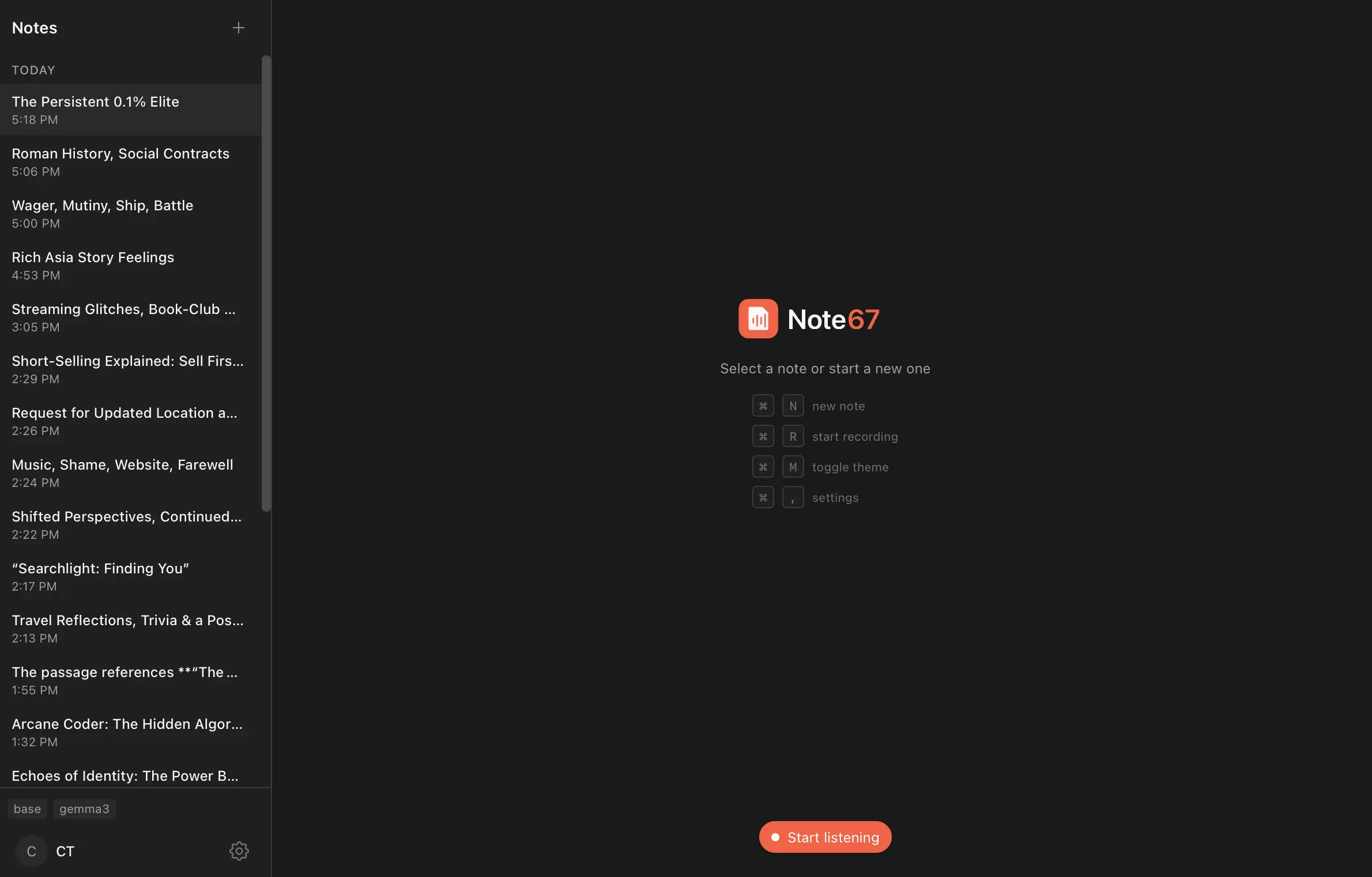
Note67 is a free, open-source meeting notes assistant that records audio, transcribes it locally using Whisper, and generates AI-powered summaries through Ollama. It runs entirely on your Mac. No cloud services, no data uploads, no subscriptions.
Privacy-conscious professionals face a constant dilemma with meeting note tools. Most popular options like Otter.ai and Fireflies.ai upload your audio to their servers for processing. This creates compliance headaches for lawyers, healthcare workers, and consultants who handle sensitive conversations.
Note67 solves this problem by keeping everything local. Your audio files stay on your machine, transcription happens through on-device Whisper models, and AI summaries generate through locally-installed language models via Ollama.
Features
- Local Whisper transcription: Uses whisper-rs to run speech-to-text models directly on your device.
- Speaker distinction: Separates your voice from other participants. It captures your speech through the microphone and labels it as “You,” then records system audio (other participants) and tags it as “Others.”
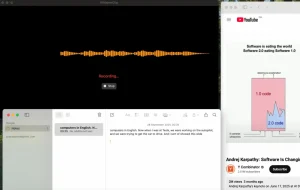
- Real-time transcription: Text streams to your screen as people talk. You can pause and resume recording at any point, and the app continues transcribing from where you left off.
- Echo deduplication: Voice Activity Detection (VAD) filters out silence and ambient noise from your mic input. The system also compares mic transcripts against a 30-second rolling history of system audio.
- Private AI summaries: Ollama integration lets you generate meeting minutes, action items, and summaries using local language models.
- SQLite storage: All notes, transcripts, and metadata save to a local SQLite database on your device. You can search past conversations, filter by speaker, and export everything to Markdown.
- System audio capture: ScreenCaptureKit captures audio from video calls and presentations.
Use Cases
- Legal Consultations and Client Meetings: Attorneys and paralegals can transcribe sensitive discussions without violating attorney-client privilege or data sovereignty laws.
- Healthcare Team Huddles and Patient Notes: Medical professionals can document meetings and patient interactions, complying with regulations like HIPAA by keeping all protected health information on a local device.
- Confidential Business and Contract Negotiations: Executives and consultants can capture precise notes from high-stakes strategy sessions. No proprietary information is exposed to external AI APIs.
- Journalistic Interviews and Research: Reporters and academics can record interviews with greater ethical assurance, as sources can be confident their words are not being analyzed by cloud services.
- Personal Knowledge Management: Individuals who prefer local-first software can build a private, searchable archive of important lectures, podcasts, or personal brainstorming sessions.
How To Use It
1. Visit the official Note67 website and download the .dmg file for your Mac’s processor (Apple Silicon or Intel). The app requires macOS 13 (Ventura) or later. Drag the application to your Applications folder to install it.
2. Set up your Ollama.
- Download the installer from the official Ollama website.
- Run the installer and open the application.
- Open your terminal or command prompt.
- Run the following command to pull a model (Gemma3 is recommended for speed):
bash ollama pull gemma3
3. You must grant specific permissions for the app to function correctly.
- Open System Settings.
- Go to Privacy & Security.
- Enable Microphone access for Note67 (for your voice).
- Enable Screen Recording access (this allows the app to capture system audio/other speakers).
4. Connect and Record.
- Launch Note67.
- Open the Settings tab.
- Navigate to the AI section.
- Select the Ollama model you downloaded earlier (e.g.,
gemma3). - Return to the main screen and click the record button to start a meeting.
- Click “End” when finished.
- Use the “Summarize” button to generate notes based on the transcript.
Pros
- Total Privacy: Your data stays on your hard drive.
- No Subscriptions: You pay nothing for the software or the transcription usage.
- High Customization: You can swap out different Whisper models or Ollama LLMs based on your hardware capabilities.
- Smart Audio Handling: The built-in Voice Activity Detection (VAD) and echo cancellation filter out silence and feedback loops.
Cons
- Hardware Dependent: Performance relies entirely on your computer’s CPU and RAM.
- Setup Friction: You must install and manage Ollama separately.
- Storage Space: Local models and audio files consume significant disk space over time.
Related Resources
- Whisper by OpenAI: The speech recognition model that powers Note67’s transcription.
- Ollama: Run large language models locally on your machine. Check out the model library to find LLMs optimized for summarization tasks.
- whisper-rs: Rust bindings for Whisper. This library handles the actual transcription processing in Note67.
- ScreenCaptureKit Documentation: Apple’s framework for capturing system audio on macOS.
FAQs
Q: Can I use Note67 for Zoom or Google Meet calls?
A: Yes. Note67 captures system audio from any video conferencing app. Start a recording before your call begins. Your microphone picks up your voice (labeled “You”), and ScreenCaptureKit captures the audio from Zoom/Meet/Teams participants (labeled “Others”). The app distinguishes between sources automatically.
Q: Does Note67 work with languages other than English?
A: Whisper supports dozens of languages. The model automatically detects what language is being spoken.
Q: What happens if my Mac crashes during a recording?
A: Note67 saves audio and transcripts to SQLite continuously. If the app crashes, your data persists up to the last processed segment (usually within a few seconds of the crash). You can reopen the note and continue recording from that point.
Q: Can I edit transcripts after recording?
A: You can export to Markdown and edit the text in any editor. Changes won’t sync back to the SQLite database, so exported files become your working copies.
Q: Does Note67 require an internet connection after setup?
A: No. Once you install Whisper models and download at least one Ollama LLM, the app functions completely offline. All transcription and summarization happens locally. You only need internet if you want to pull additional Ollama models.