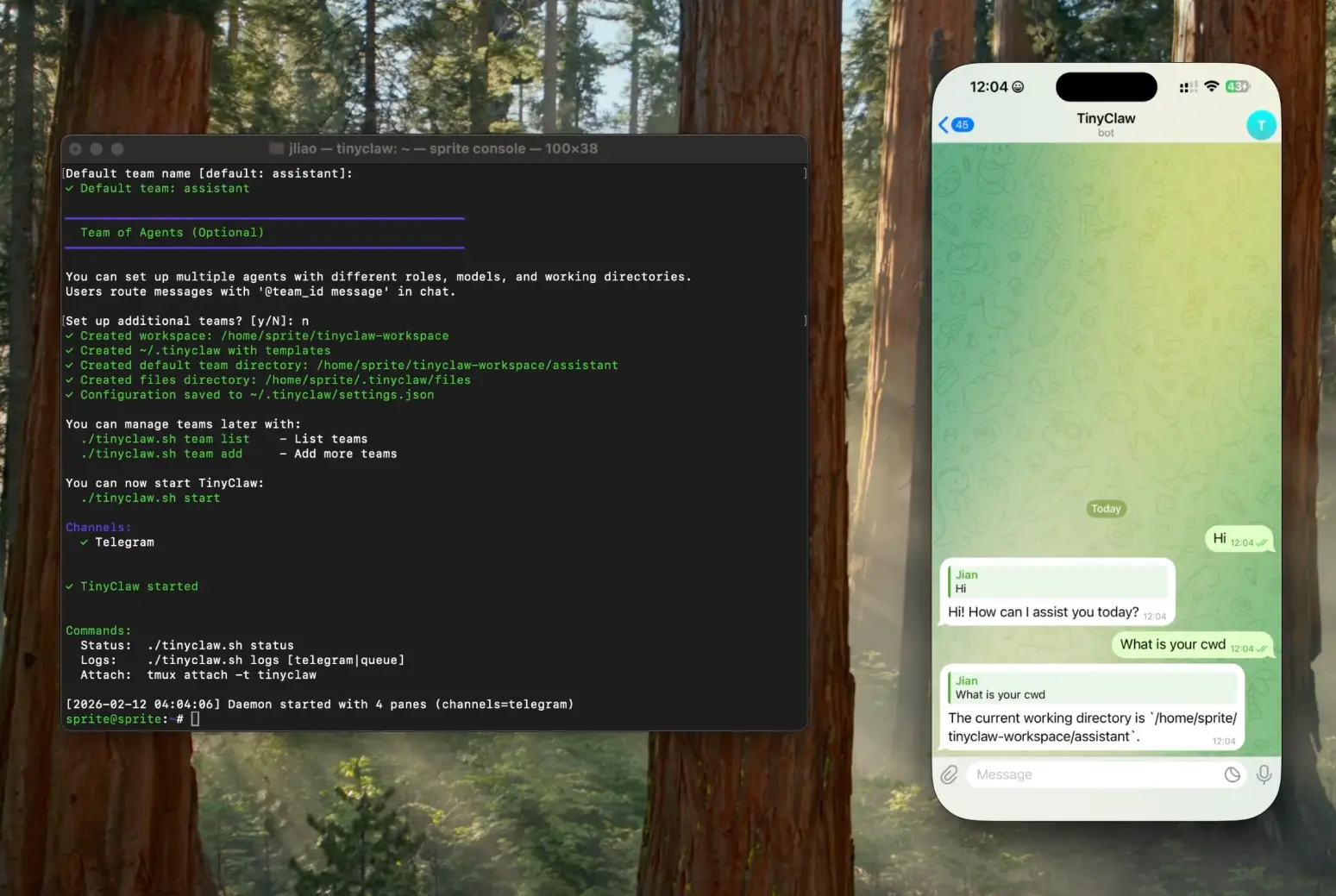
TinyClaw is a free open-source AI assistant that runs multiple AI agents across Discord, WhatsApp, and Telegram simultaneously. It lets you maintain separate AI assistants for coding, writing, research, or any other task you need help with. Each agent operates in its own workspace with an independent conversation history.
The assistant positions itself as a simpler alternative to OpenClaw. TinyClaw handles multi-channel messaging through a file-based queue system that prevents race conditions. You can route messages to specific agents using simple @agent_id syntax, and your conversations persist across system restarts.
TinyClaw supports both Anthropic’s Claude models (Sonnet and Opus) and OpenAI’s GPT models. It runs continuously in tmux, so your AI assistants stay active 24/7 without requiring your computer to stay awake.
Features
- Multi-Agent Architecture: Run multiple AI agents at the same time, each with its own role and workspace.
- Multiple AI Providers: Switch AI providers and models on the fly through simple CLI commands.
- Three Messaging Channels: Access your AI assistants through Discord, WhatsApp, and Telegram.
- Parallel Processing: Different agents process messages concurrently. Your coding agent can work on a bug fix at the same time your writing agent drafts documentation.
- Persistent Sessions: Conversation context stays intact across system restarts. Your chat history lives in the workspace directory.
- File-Based Queue: Messages move through incoming, processing, and outgoing directories.
- Always-On Operation: Runs in tmux sessions for 24/7 availability. Your AI assistants respond even when you’re away from your computer.
- Heartbeat System: Set intervals for proactive check-ins. Your agents can remind you about pending tasks or flag errors they detect.
See It In Action
Use Cases
Development Workflows: Set up a @coder agent for debugging and code review, a @docs agent for documentation, and a @reviewer agent for pull request analysis. Route tasks to specialized agents based on the work type.
Content Production: Run separate agents for different writing tasks. A @writer agent drafts blog posts, a @editor agent reviews them, and a @seo agent optimizes titles and meta descriptions.
Research Assistance: Create a @researcher agent that finds academic papers and summarizes findings. Route it alongside a @summarizer agent that condenses long documents into key points.
Cross-Device Access: Message your AI assistant from your phone via WhatsApp during commutes, switch to Discord on your desktop at work, then use Telegram on your tablet at home. All channels access the same conversation history.
Task Automation: Configure heartbeat intervals to get proactive reminders. Your assistant checks for pending tasks, unread messages, and errors at set intervals and takes action when needed.
How to Use It
Table Of Contents
Installation
TinyClaw requires macOS or Linux, Node.js v14+, tmux, and Bash 4.0+ (macOS users need to run
brew install bash). You’ll also need Claude Code CLI for Anthropic models or Codex CLI for OpenAI models.
You can install TinyClaw through three methods. The recommended approach uses a one-line installer:
curl -fsSL https://raw.githubusercontent.com/jlia0/tinyclaw/main/scripts/remote-install.sh | bashFor the release version, download and extract the bundle:
wget https://github.com/jlia0/tinyclaw/releases/latest/download/tinyclaw-bundle.tar.gz
tar -xzf tinyclaw-bundle.tar.gz
cd tinyclaw && ./scripts/install.sh
The source installation clones the repository directly:
git clone https://github.com/jlia0/tinyclaw.git
cd tinyclaw && npm install && ./scripts/install.sh
Initial Setup
Start TinyClaw to launch the interactive setup wizard:
tinyclaw start- The wizard walks you through the configuration in seven steps:
- Select your messaging channels (Discord, WhatsApp, Telegram).
- Enter bot tokens for each enabled channel.
- Name your workspace directory.
- Configure your default agent with a name and role.
- Choose your AI provider (Anthropic or OpenAI).
- Select your model (Sonnet, Opus, GPT-5.3, etc.).
- Set your heartbeat interval in seconds for proactive check-ins.
Channel Configuration
Discord setup requires a bot token from the Discord Developer Portal. Create an application, add a bot, copy the token, and enable “Message Content Intent” in the bot settings. Generate an OAuth2 invite URL to add the bot to your server.
Telegram setup uses BotFather. Open Telegram, search for @BotFather, send /newbot, and follow the prompts to get your bot token.
WhatsApp setup displays a QR code after starting TinyClaw. Open WhatsApp on your phone, go to Settings > Linked Devices > Link a Device, and scan the code.
Command Reference
Commands work with
tinyclawif you installed the CLI globally, or./tinyclaw.shif running directly from the project directory.
Core Commands
| Command | Description |
|---|---|
start | Start the TinyClaw daemon and all configured channels |
stop | Stop all running processes and channels |
restart | Restart TinyClaw completely |
status | Display current system status and recent activity |
setup | Re-run the configuration wizard to change settings |
logs [type] | View logs (discord/telegram/whatsapp/queue/heartbeat/all) |
attach | Attach to the tmux session for direct access |
Agent Management
| Command | Description |
|---|---|
agent list | List all configured agents with their settings |
agent add | Add a new agent through interactive prompts |
agent show <id> | Display configuration for a specific agent |
agent remove <id> | Delete an agent and its workspace |
agent reset <id> | Clear conversation history for an agent |
Configuration Commands
| Command | Description |
|---|---|
provider [name] | Show current provider or switch to anthropic/openai |
provider <name> --model <model> | Switch both provider and model in one command |
model [name] | Show current model or switch to a different one |
reset | Clear all conversation histories |
channels reset <channel> | Reset authentication for a specific channel |
Messaging Commands
| Command | Description |
|---|---|
send <message> | Send a message directly to the default agent |
send @agent_id <message> | Route a message to a specific agent via CLI |
update | Update TinyClaw to the latest release version |
In-Chat Usage
Messages work the same across Discord, Telegram, and WhatsApp. Type normally to reach your default agent. Route to specific agents with @agent_id message (note the required space after the ID). List all available agents with /agent. Reset a specific agent’s conversation with @agent_id /reset. Reset your global conversation with /reset or !reset.
Agent Workspace Structure
Each agent operates in an isolated directory under your configured workspace path (typically ~/tinyclaw-workspace/{agent_id}/). The workspace contains .claude/ for agent configuration, heartbeat.md for proactive check-in prompts, and AGENTS.md for agent documentation. Agents maintain separate conversation histories through the Claude Code CLI.
You can customize heartbeat behavior per agent:
nano ~/tinyclaw-workspace/coder/heartbeat.mdThe default heartbeat prompt checks for pending tasks, errors, and unread messages, then takes action if needed. Customize this file to change what each agent monitors during heartbeat intervals.
Updating TinyClaw
TinyClaw checks for updates automatically on startup (once per hour). Run manual updates:
tinyclaw updateThe update process checks for the latest release, shows the changelog URL, downloads the bundle, creates a backup of your current installation, and installs the new version. Disable automatic update checks with export TINYCLAW_SKIP_UPDATE_CHECK=1.
Pros
- Data Privacy: The queue and conversation history live on your local machine.
- Cost Control: You pay only for the API usage (OpenAI/Anthropic).
- Stability: The file-based queue system prevents message loss during crashes.
- No “Context Bleed”: Agents have strictly isolated workspaces, so the “coder” agent doesn’t get confused by the “writer” agent’s context.
Cons
- Technical Barrier: Requires comfort with CLI,
tmux, and basic server management. - No Native GUI: All configuration happens via terminal or JSON files.
Related Resources
- Claude Code CLI: Install the Anthropic CLI that TinyClaw wraps for Claude models.
- OpenAI Codex CLI: Documentation for the OpenAI provider integration.
- AGENTS.md Documentation: Read detailed agent architecture, configuration examples, and use cases.
- QUEUE.md Documentation: Learn how the message queue system handles parallel processing.
FAQs
Q: Can I run TinyClaw on Windows?
A: TinyClaw requires Unix-based systems (macOS or Linux). Windows users can run it through Windows Subsystem for Linux (WSL) or a Linux virtual machine. The core dependencies (bash, tmux, node) all work in WSL2.
Q: How does the file-based queue prevent race conditions?
A: Messages move between directories using atomic file system operations. A message lands in incoming/, gets moved to processing/ when an agent picks it up, then moves to outgoing/ after the agent responds. Only one process can move a file at a time, so two agents never process the same message.
Q: Do I need separate API keys for multiple agents?
A: No. All agents share the same API configuration you set during setup. You choose one provider (Anthropic or OpenAI) and one model, though you can switch these settings globally through CLI commands.
Q: What happens to my conversations when I restart TinyClaw?
A: Conversation histories persist in each agent’s workspace directory. The Claude Code CLI maintains context across restarts. Your chat history remains intact after stopping and restarting TinyClaw.
Q: Can I customize what each agent monitors during heartbeat checks?
A: Yes. Each agent has a heartbeat.md file in its workspace directory. Edit this file to change what the agent checks and how it responds during proactive check-ins.
Q: Does TinyClaw store my messages locally?
A: Messages pass through the queue directory temporarily and get deleted after processing. Conversation history lives in each agent’s workspace directory through the Claude Code CLI. All data stays on your local machine.