agent-browser: Free Browser Automation CLI for AI Agents
agent-browser from Vercel Labs delivers zero-config browser automation for AI agents. Rust-powered CLI with headless mode and session isolation.
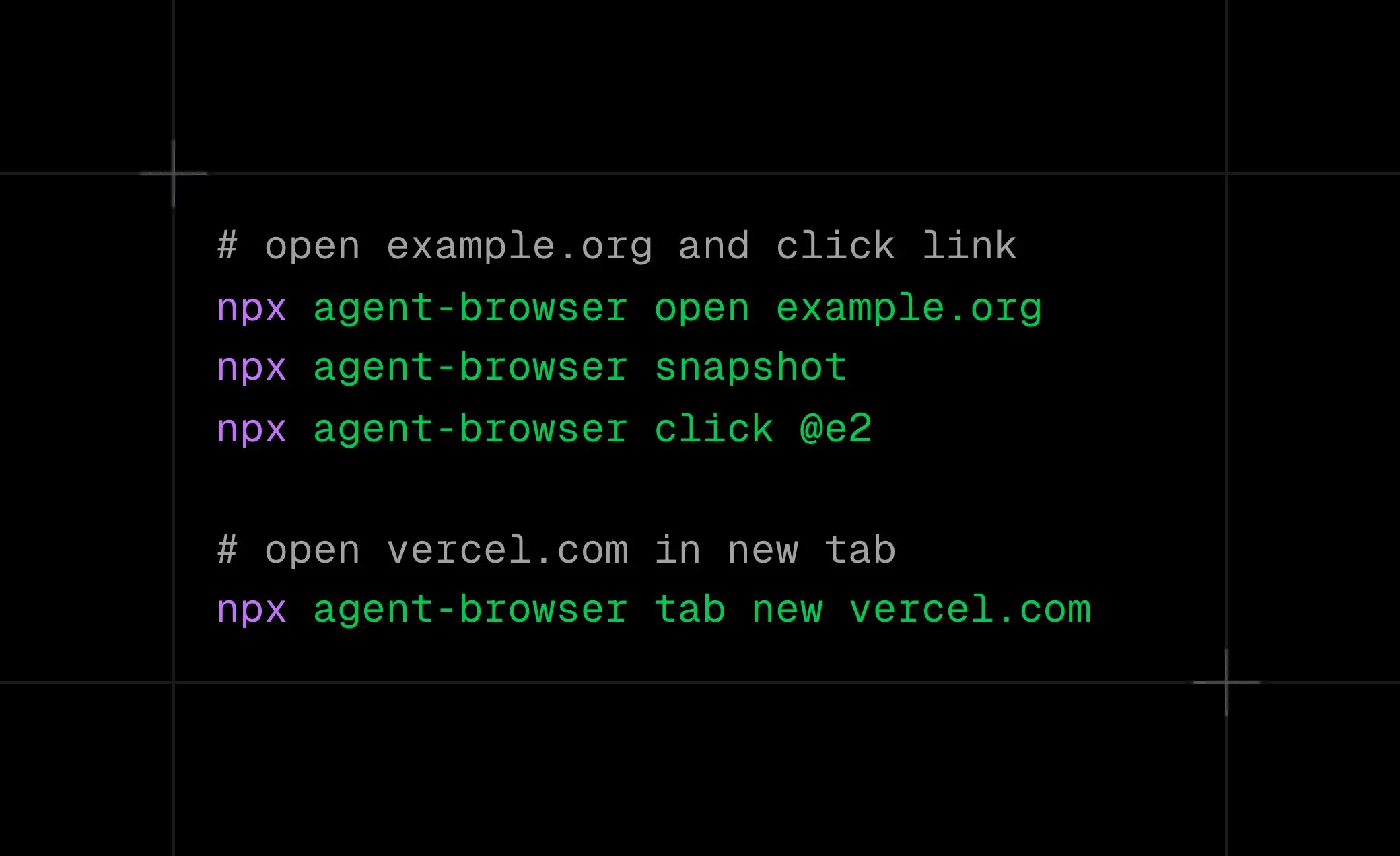
agent-browser is a free, headless browser automation command-line tool built for AI agents. It lets coding assistants like Claude Code or CodeX control a web browser to automate tasks, scrape data, and test websites.
The CLI tool uses a fast Rust implementation with a Node.js fallback. It runs headless by default but supports visual debugging through headed mode.
The core innovation lies in its snapshot-based approach that provides element references instead of sending complete DOM trees or heavy screenshots to AI models.
Features
- Context Reduction: Cuts context usage by up to 93% through snapshot-based element references.
- Zero Configuration Setup: You can install the CLI globally via npm and run commands immediately. No configuration files, no setup scripts, just install Chromium and start automating.
- Dual Browser Modes: The headless mode runs silently in the background for batch operations and production workflows. The headed mode displays a visible browser window for real-time debugging and observing AI behavior.
- Rust Performance: The underlying Rust CLI delivers faster startup times, lower resource consumption, and more stable execution compared to pure JavaScript implementations.
- Command Set: Supports 60+ commands covering navigation, element interaction, form filling, screenshot capture, tab management, cookie handling, network interception, and more.
- Session Isolation: Multiple browser instances run independently through named sessions. Each session maintains separate cookies, storage, navigation history, and authentication state.
- Semantic Locators: Find elements by ARIA role, text content, label, placeholder, alt text, or test ID.
- Smart Snapshot Filtering: Reduce snapshot output size through interactive-only mode, compact mode, depth limiting, or CSS selector scoping.
- Authentication Headers: Set HTTP headers scoped to specific origins for authenticated browser sessions.
- Custom Browser Support: Use lightweight Chromium builds for serverless deployment or connect to existing browser installations.
Use Cases
- AI Agent Testing: Deploy autonomous testing agents that navigate your application, fill forms, click buttons, and verify UI behavior. The snapshot mechanism lets agents understand page structure and locate elements without fragile selectors.
- Web Scraping for AI: Extract data from websites that require JavaScript execution or complex interactions. The agent captures screenshots, fills search forms, navigates pagination, and retrieves rendered content.
- E2E Test Generation: Generate end-to-end test scripts automatically by showing the AI a workflow once. The agent observes element references, records interactions, and produces reproducible test code.
- Documentation Creation: Capture screenshots and workflow descriptions automatically while navigating your application. The AI generates user guides, release notes, and onboarding materials based on actual interface interactions.
- Authenticated Workflow Automation: Skip repetitive login flows during development by using header-based authentication. The agent accesses protected endpoints directly with authorization tokens scoped to specific domains.
How to Use It
1. You have three ways to install the CLI depending on your environment.
NPM (Recommended)
npm install -g agent-browser
agent-browser install  # Downloads the Chromium binary
From Source (For Rust Performance)
git clone https://github.com/vercel-labs/agent-browser
cd agent-browser
pnpm install
pnpm build
pnpm build:native   # Requires Rust (rustup.rs)
pnpm link --global
agent-browser install
Linux Dependencies
agent-browser install --with-deps
# Or manually: npx playwright install-deps chromium
2. Here is the basic command loop to verify your setup.
agent-browser open example.com
agent-browser snapshot                    # Returns accessibility tree with refs
agent-browser click @e2                   # Click element using ref from snapshot
agent-browser fill @e3 "[email protected]" # Fill input field
agent-browser get text @e1                # Read text
agent-browser screenshot page.png
agent-browser close
3. These are your primary tools for navigation and interaction.
open <url>: Navigate to a URL (Aliases:goto,navigate).click <sel>: Click an element.dblclick <sel>: Double-click an element.focus <sel>: Bring an element into focus.type <sel> <text>: Type text into an element.fill <sel> <text>: Clear an input and fill it.press <key>: Press a specific key (e.g.,Enter,Tab,Control+a).keydown/keyup <key>: Hold or release a key.hover <sel>: Hover the mouse over an element.select <sel> <val>: Choose an option in a dropdown.check/uncheck <sel>: Toggle checkboxes.scroll <dir> [px]: Scrollup,down,left, orright.scrollintoview <sel>: Scroll until an element is visible.drag <src> <tgt>: Drag one element to another.upload <sel> <files>: Upload files to a file input.screenshot [path]: Save a screenshot (use--fullfor the whole page).pdf <path>: Save the page as a PDF.eval <js>: Execute custom JavaScript on the page.
4. The snapshot command is the most critical feature for AI. You can filter the output to save tokens.
-i, --interactive: Show only interactive elements (buttons, inputs, links).-c, --compact: Remove empty structural elements.-d, --depth <n>: Limit the tree depth.-s, --selector <sel>: Scope the snapshot to a specific CSS selector.--json: Output raw JSON for machine parsing.
Example Workflow:
agent-browser snapshot -i -c # Get a compact, interactive-only tree5. You can select elements in three ways.
Refs (Recommended): Use @e1, @e2 from the snapshot. This is deterministic and fast.
CSS/XPath: Use standard selectors like #submit or xpath=//button.
Semantic Locators: Find elements by their human-readable attributes.
find role <role> <action>: e.g.,find role button click --name "Submit"find text <text> <action>: e.g.,find text "Sign In" clickfind label <label> <action>: e.g.,find label "Email" fill "[email protected]"find placeholder <ph> <action>: Find by input placeholder.find alt/title/testid: Find by alt text, title attribute, ordata-testid.find first/last/nth: Select specific matches (e.g.,find nth 2 "a" text).
6. Use these commands to read data or verify UI states.
Get Info:
get text <sel>: Read text content.get html <sel>: Get inner HTML.get value <sel>: Get input value.get attr <sel> <attr>: Get an attribute (likehref).get title/get url: Get page metadata.get count <sel>: Count matching elements.get box <sel>: Get bounding box coordinates.
Check State:
is visible <sel>is enabled <sel>is checked <sel>
7. Modern web pages are dynamic. Use wait to prevent errors.
wait <selector>: Wait for an element to appear.wait <ms>: Pause for X milliseconds.wait --text "Welcome": Wait for text to appear.wait --url "**/dash": Wait for the URL to match a pattern.wait --load networkidle: Wait until network traffic stops.wait --fn "window.ready === true": Wait for a JS condition.
8. You can spoof the browser environment to test different conditions.
set viewport <w> <h>: Change window size.set device <name>: Emulate a device (e.g., “iPhone 14”).set geo <lat> <lng>: Set geolocation coordinates.set offline [on|off]: Toggle offline mode.set headers <json>: Add global HTTP headers.set credentials <u> <p>: Set HTTP Basic Auth.set media [dark|light]: Emulate color schemes.
9. Manage session data to handle logins and preferences.
Cookies: cookies (list), cookies set <name> <val>, cookies clear.
Storage: storage local (list), storage local set <k> <v>, storage local clear. (Same for session storage).
Authenticated Sessions: Use headers to bypass login UIs.
agent-browser open api.example.com --headers '{"Authorization": "Bearer <token>"}'10. Intercept and manipulate network traffic.
network route <url>: Intercept requests.network route <url> --abort: Block requests (e.g., ads).network route <url> --body <json>: Mock API responses.network requests: View tracked requests (use--filterto narrow down).
11. Handle complex multi-context workflows.
tab: List tabs.tab new [url]: Open a new tab.tab <n>: Switch to tab indexn.tab close: Close current tab.window new: Open a new window.frame <sel>: Switch context to an iframe.frame main: Return to the main page.
12. Dialogs & Debugging.
Dialogs: dialog accept [text] (handle alerts/prompts) or dialog dismiss.
Debug:
trace start/stop [path]: Record execution traces.console: View browser console logs.errors: View page errors.highlight <sel>: Visually highlight an element.state save/load <path>: Save or load full authentication state (cookies/storage) to a file.
Headed Mode: Run with --headed to see the browser window.
CDP Mode: Connect to an existing browser (Chrome/Electron) via the Chrome DevTools Protocol using --cdp <port>.
13. You can run multiple isolated browser instances simultaneously. Each session has its own cookies, storage, and history.
agent-browser --session agent1 open site-a.com
agent-browser --session agent2 open site-b.com
14. Custom Browser Executable. For serverless environments (like AWS Lambda or Vercel), you can use a custom Chromium build.
agent-browser --executable-path /path/to/chromium open example.com15. You can integrate this tool into your AI workflows in three ways:
Direct Prompting: Simply tell the agent, “Use agent-browser to test the login flow.”
System Instructions: Add a section to your AGENTS.md or system prompt explaining the “Open -> Snapshot -> Click @ref” workflow.
Claude Code Skill: For Claude, you can install a dedicated skill.
mkdir -p .claude/skills/agent-browser
curl -o .claude/skills/agent-browser/SKILL.md https://raw.githubusercontent.com/vercel-labs/agent-browser/main/skills/agent-browser/SKILL.md
Pros
- Massive Context Savings: The ability to snapshot with
-i(interactive only) and-c(compact) drastically reduces the tokens sent to the LLM. - Granular Control: Unlike simple scrapers, you have full control over mouse movements, keyboard presses, and even network routing.
- Robust Locators: The combination of Snapshot Refs (
@e1) and Semantic Locators (find role) covers almost every selection scenario. - Performance: The Rust architecture makes it significantly snappier than pure Node.js alternatives.
- Session Management: Isolated sessions allow you to run multiple agents (e.g., “Buyer” and “Seller”) simultaneously.
Cons
- State Persistence: The CLI is stateful during a session, but if the background daemon crashes, you lose your navigation history and variables.
- Limited Browser Engine Support: The tool uses Chromium exclusively in the default configuration. Firefox and WebKit support exists through Playwright but requires additional setup.
Related Resources
- Playwright Documentation: The underlying browser automation library that powers agent-browser. Learn advanced techniques for handling frames, dialogs, and complex interactions.
- Claude Code Skills: The official skill file that teaches Claude Code how to use agent-browser effectively.
- Sparticuz Chromium: A lightweight Chromium build optimized for serverless deployment. Reduce Lambda package size from 684MB to approximately 50MB.
- Chrome DevTools Protocol: The CDP specification that enables agent-browser to connect to external browser instances.
- ARIA Authoring Practices Guide: Learn proper ARIA roles and attributes to write more reliable semantic locators.
FAQs
Q: Can I use my own Chrome browser instead of the downloaded one?
A: Yes. You can specify a custom path using the --executable-path flag or the AGENT_BROWSER_EXECUTABLE_PATH environment variable.
Q: How do I handle multi-step authentication?
A: You can use agent-browser state save auth.json after logging in manually or via script. For subsequent runs, use agent-browser state load auth.json to restore your cookies and local storage.
Q: Does it support JavaScript execution?
A: Yes. You can use agent-browser eval "console.log('hello')" to run arbitrary JavaScript on the page.
Q: Can I run this in a Docker container?
A: Absolutely. You will need to install the necessary system dependencies (using agent-browser install --with-deps or manually installing Playwright deps). You should also run with the --headless flag (default) to avoid display errors.