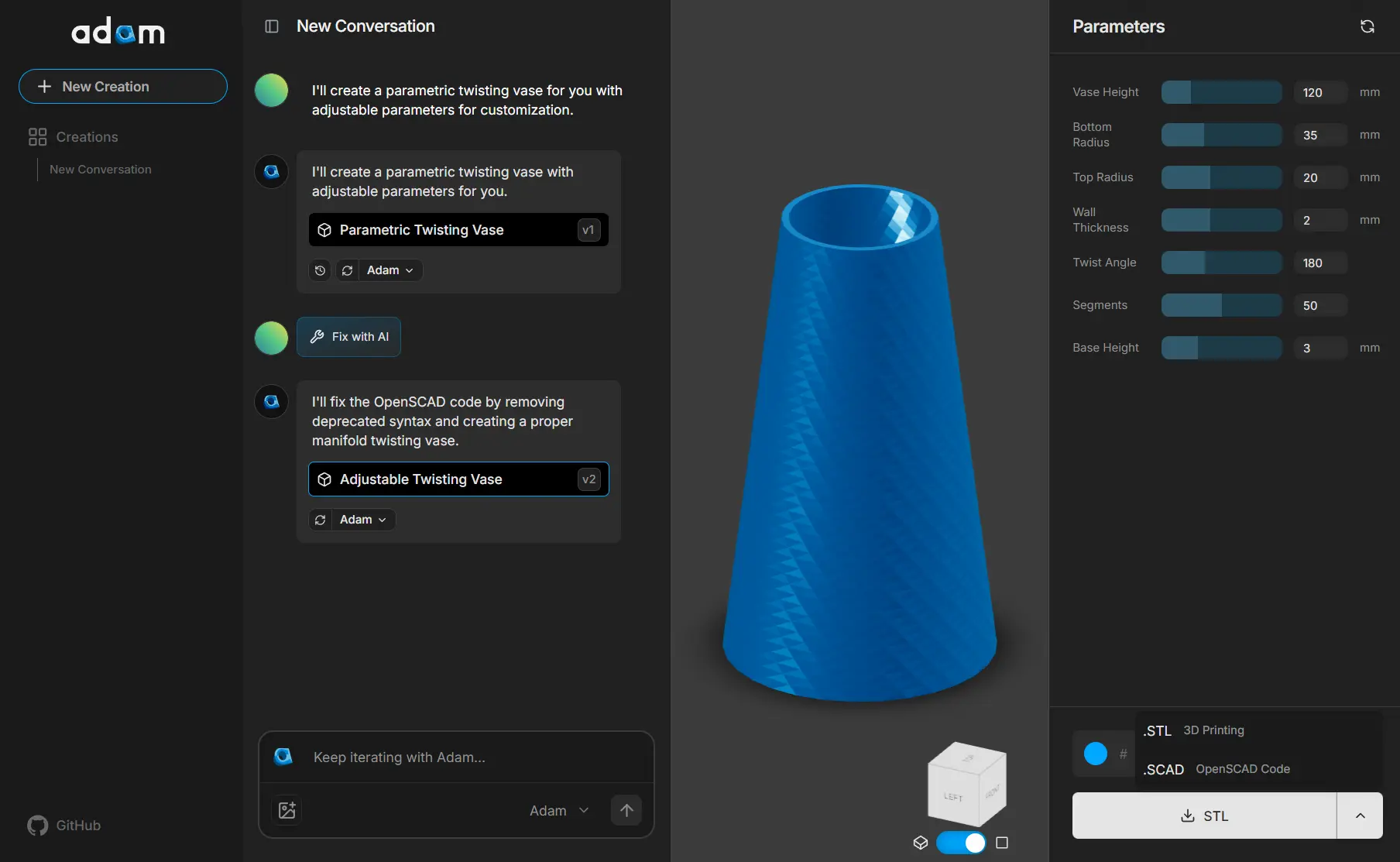
CADAM is a free, open-source AI tool that transforms natural language descriptions and images into customizable 3D CAD models.
It transforms text prompts or visual references into customizable CAD designs that can be exported for 3D printing or further modification in OpenSCAD.
Features
- AI-Powered Generation: Converts natural language descriptions and uploaded images into functional 3D models using advanced AI algorithms.
- Parametric Controls: Provides interactive sliders that allow instant adjustments to model dimensions without requiring AI regeneration.
- Multiple Export Formats: Supports both STL files for direct 3D printing and SCAD files for further editing in OpenSCAD.
- Browser-Based Operation: Runs completely in web browsers without requiring software installation or powerful hardware.
- Library Support: Includes BOSL, BOSL2, and MCAD libraries for enhanced modeling capabilities.
- Real-time Preview: Uses Three.js to display instant visual feedback as parameters change.
- Parameter Extraction: Automatically identifies and exposes adjustable dimensions from generated models.
- Custom Font Support: Features built-in Geist font support for incorporating text elements into models.
Use Cases
- Rapid Prototyping: Quickly generate and iterate on 3D models for product designs or mechanical parts.
- Custom Product Design: Create personalized items like phone stands or jewelry holders without needing to be a CAD expert.
- Educational Purposes: A great tool for students and beginners to learn the basics of 3D modeling and CAD.
- Hobbyist Projects: Perfect for makers and hobbyists who want to bring their creative ideas to life.
How to Use It
1. Visit CADAM’s live demo to access the online tool.
2. Type a natural language description of your desired 3D model or upload an image that represents the object you want to create. The description should be specific enough to convey the basic shape and any important features. For example, “Create a cylindrical vase with a narrow neck and flared base” provides clear geometric guidance.
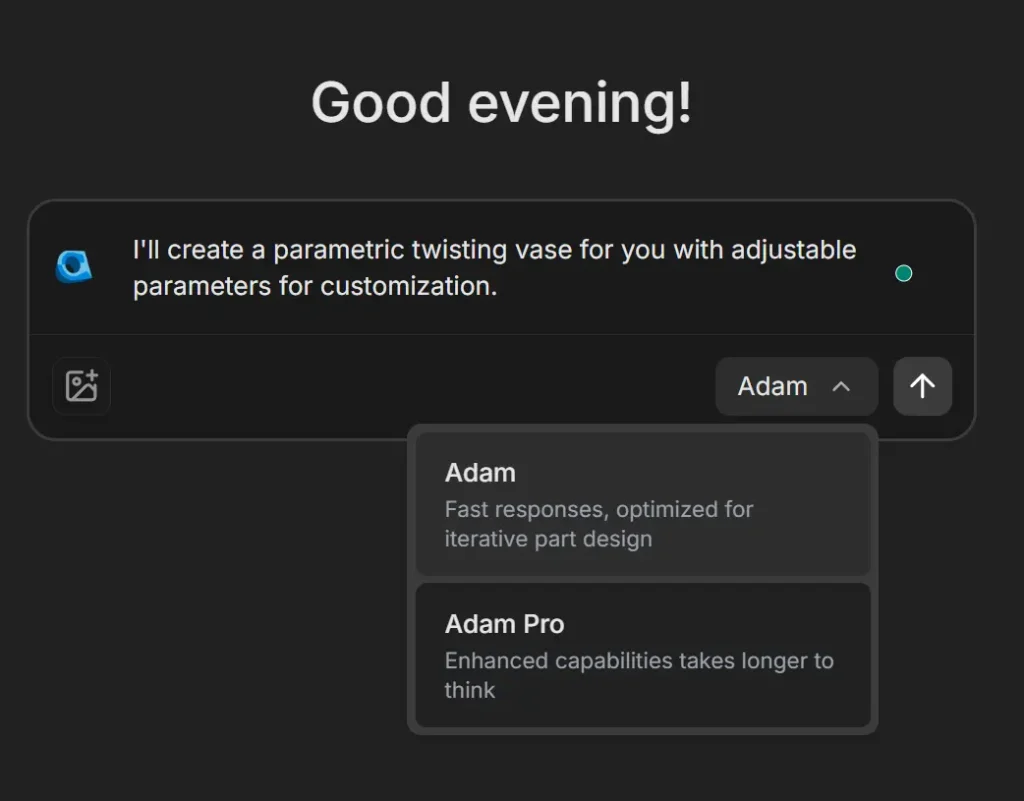
3. Choose between two AI model options based on your needs. Adam provides faster responses optimized for iterative design work, while Adam Pro offers enhanced capabilities that take longer to process but deliver more sophisticated results.
4. Click the Run button to initiate the AI generation process. The system analyzes your input and creates both the 3D model geometry and the underlying OpenSCAD code that defines the parametric structure.
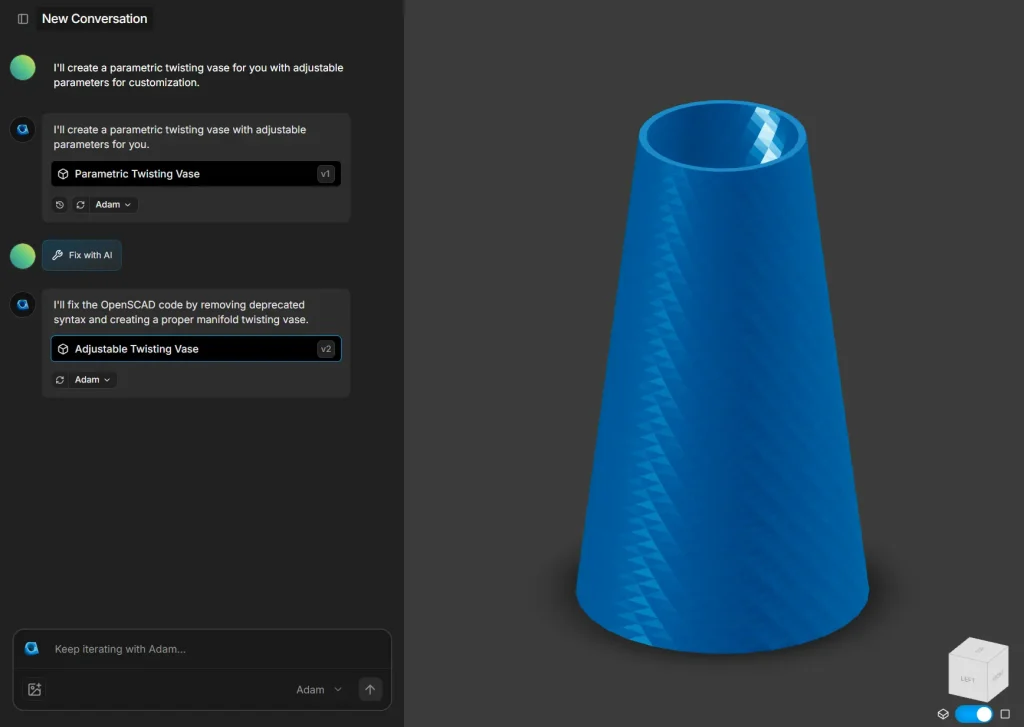
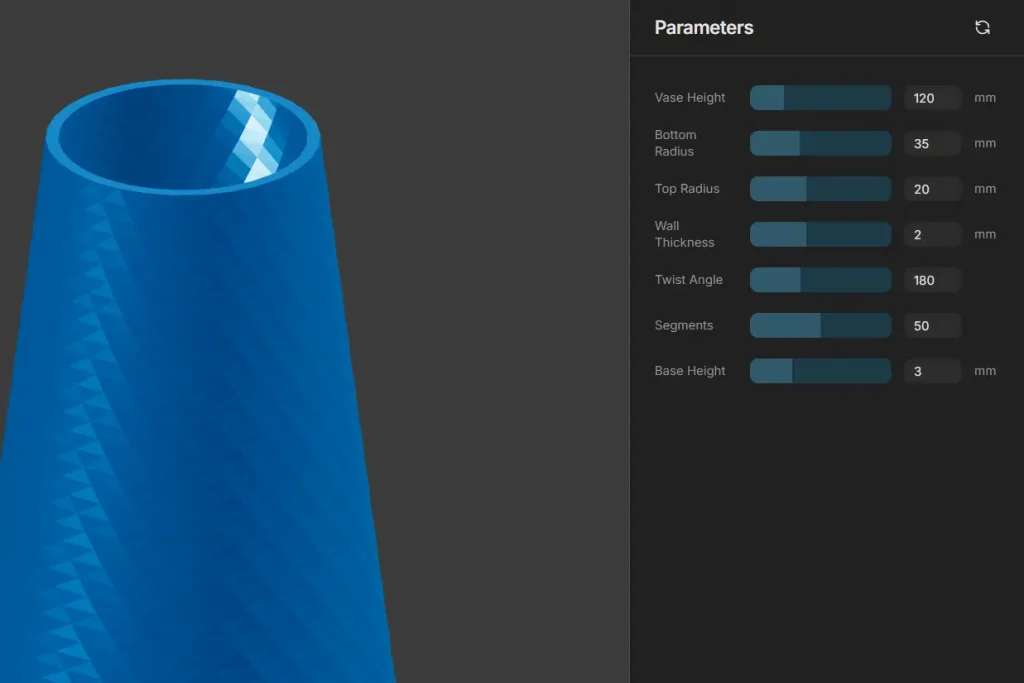
5. Use the parameter controls to fine-tune your model. The parameters include height, radius measurements, wall thickness, twist angles, segment counts, and color properties. These controls update the model in real-time without requiring regeneration.
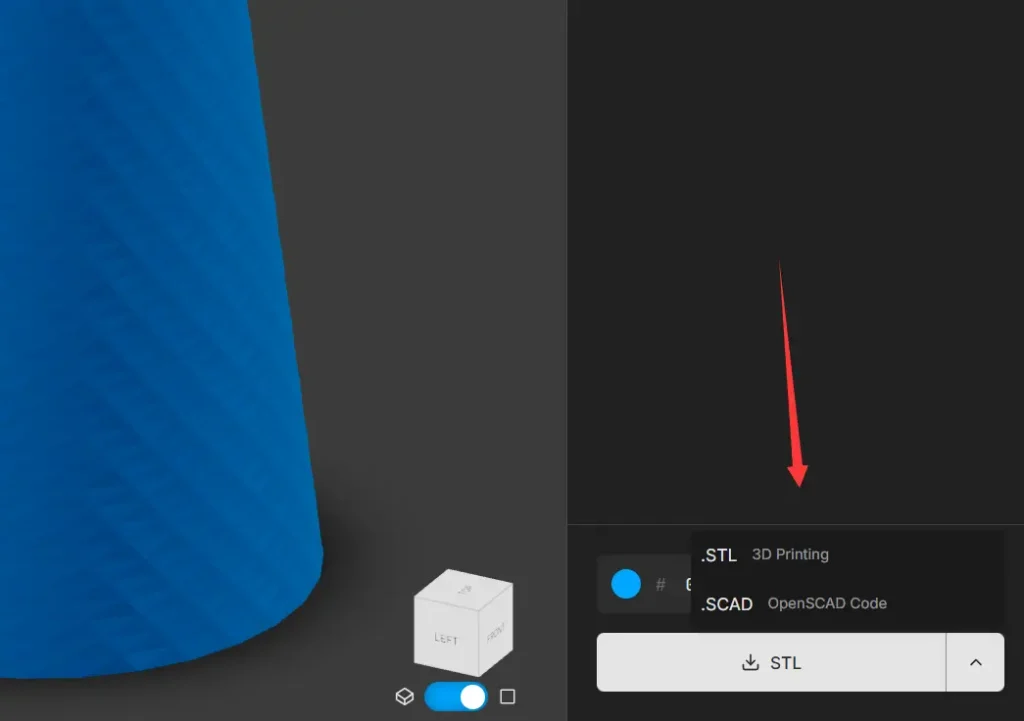
6. Export your finished model in either STL format for immediate 3D printing or SCAD format for further modification in OpenSCAD or other compatible software.
Self-Host CADAM
The live demo is a great way to try out CADAM, but for stable and high-quality results, self-hosting is the way to go. This gives you full control over the environment and connects directly to your own API keys.
1. Before you start, make sure you have these tools installed:
- Node.js and npm
- Supabase CLI
- ngrok (this is necessary for letting the AI model access your local images)
2. Clone the source code from GitHub.
# Clone the repository
git clone https://github.com/Adam-CAD/CADAM.git
# Navigate into the project directory
cd CADAM
3. Install all the required Node.js packages.
npm install4. You’ll need to set up two separate environment files for the frontend and the backend functions.
For the Frontend:
- In the root directory, copy the template file:
cp .env.local.template .env.local - Open the new
.env.localfile and add your Supabase URL and anon key. You’ll get these when you start Supabase in the next steps.
VITE_SUPABASE_ANON_KEY="<Your Supabase Test Anon Key>"
VITE_SUPABASE_URL='http://127.0.0.1:54321'
For Supabase Functions:
- Navigate to the Supabase functions directory and copy the template:
cp supabase/functions/.env.template supabase/functions/.env - Open the new
supabase/functions/.envfile and add your API keys and ngrok URL.
ANTHROPIC_API_KEY="<Your Anthropic API Key>"
ENVIRONMENT="local"
NGROK_URL="<Your ngrok URL>"
5. CADAM uses the Anthropic Claude API for image analysis, which requires a publicly accessible URL to fetch the image. ngrok creates a secure tunnel to your local machine to make this possible.
- If you don’t have ngrok, install it:
# Via npm
npm install -g ngrok
# Or via Homebrew on macOS
brew install ngrok- In a new terminal window, start an ngrok tunnel pointing to your local Supabase instance, which runs on port
54321.
ngrok http 54321- ngrok will give you a public URL (e.g.,
https://random-string.ngrok.io). Copy this URL and paste it as theNGROK_URLvalue in yoursupabase/functions/.envfile.
6. Now you can start the Supabase backend and the frontend development server.
- Start all the local Supabase services. This will also give you the local URL and API keys you need for your
.env.localfile.
npx supabase start- Serve the edge functions. The
--no-verify-jwtflag is used for local development.
npx supabase functions serve --no-verify-jwt- In your original terminal window (in the project’s root directory), start the frontend development server.
npm run devYour self-hosted CADAM application is running and accessible at http://localhost:5173.
Pros
- No CAD experience required: Natural language interface makes 3D modeling accessible to beginners.
- Instant customization*: Parametric sliders allow quick adjustments without re prompting the AI.
- Open source advantage: Self hosting option provides control over performance and privacy.
- Cost-effective: Completely free to use with no subscription requirements.
- Format flexibility: Supports both 3D printing (STL) and coding (SCAD) workflows.
- Library integration: Built in OpenSCAD libraries expand design possibilities.
Cons
- Learning curve: Specific prompting techniques yield better results than vague descriptions.
- Processing limitations: Complex designs may exceed browser based computation capabilities.
- Quality variability: Output quality depends on prompt specificity and AI interpretation.
- Local setup complexity: Self hosting requires technical knowledge of Node.js and Supabase.
Related Resources
- OpenSCAD Documentation: Guide to the underlying CAD language that powers CADAM’s parametric capabilities.
- BOSL2 Library Guide: Documentation for one of the advanced libraries integrated into CADAM for enhanced modeling functions.
- Three.js Learning Resources: Tutorials for understanding the 3D rendering technology used in CADAM’s preview system.
- 3D Printing Basics: Fundamental concepts for users planning to print their CADAM-generated models.
- FreeCAD Software: Open-source CAD alternative for users who need more advanced modeling capabilities beyond CADAM’s scope.
FAQs
Q: Can CADAM handle complex mechanical parts with precise tolerances?
A: CADAM excels at generating basic geometric shapes and simple mechanical components, but it’s not designed for precision engineering applications. The AI interpretation of natural language descriptions may not capture the tight tolerances required for mechanical assemblies. For complex parts requiring specific tolerances, traditional CAD software remains the better choice.
Q: How does the self-hosting option differ from the online version?
A: Self-hosting provides more stable performance and eliminates dependency on external servers. The setup process requires Node.js, Supabase CLI, and an Anthropic API key, but offers better control over processing speed and availability. The online version at adam.new/cadam is suitable for testing and light usage, while self-hosting supports production workflows.
Q: Can I import existing CAD files into CADAM for modification?
A: CADAM is designed for generation rather than import functionality. It works best when starting from natural language descriptions or reference images. If you need to modify existing CAD files, traditional CAD software or tools like FreeCAD would be more appropriate.
Q: Are there limits on commercial use of models generated by CADAM?
A: Since CADAM is open-source under the GPLv3 license, generated models can be used commercially.