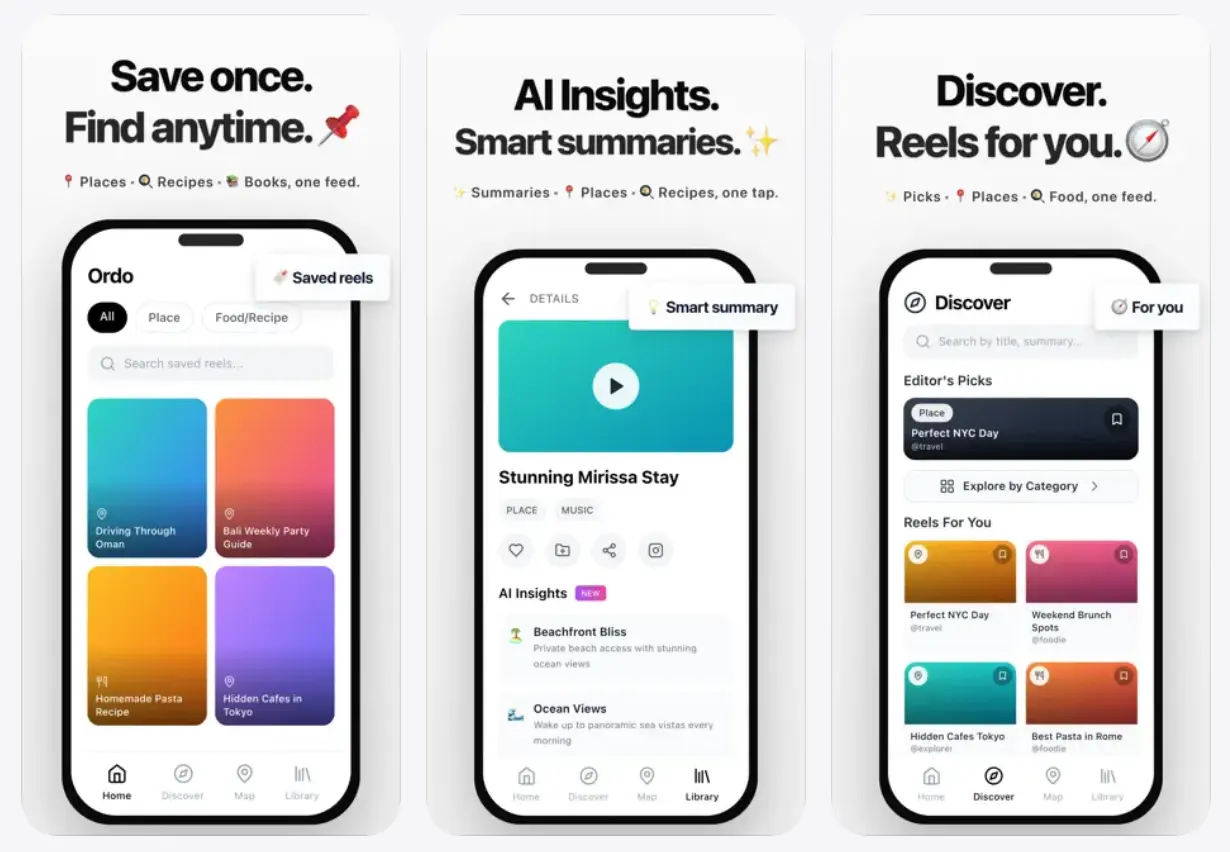
Ordo is a free AI-powered content organization app that saves and automatically categorizes reels from Instagram, YouTube, and TikTok. The app extracts key information from saved content and organizes it into searchable categories so you can find what you saved when you need it.
You save a recipe reel on Instagram. Three weeks later, you want to cook it but can’t remember where you saw it. This happens to most people who use social media for discovery.
Ordo addresses this by capturing your saved content and sorting it into categories like Places, Food, Books, and Travel. It works through your phone’s share function and requires no login.
Features
- One-Tap Saving: Share any reel directly to Ordo from Instagram, TikTok, or YouTube.
- Auto-Organization: The AI creates folders and tags based on content type (Places, Food/Recipe, Books, Film/TV, Music, Workout, Product).
- Smart Content Extraction: The app pulls relevant details from each reel. For places, it extracts location data, photos, ratings, and opening hours. For recipes, it organizes ingredients and cooking steps. For books and films, it shows ratings, authors, and descriptions.
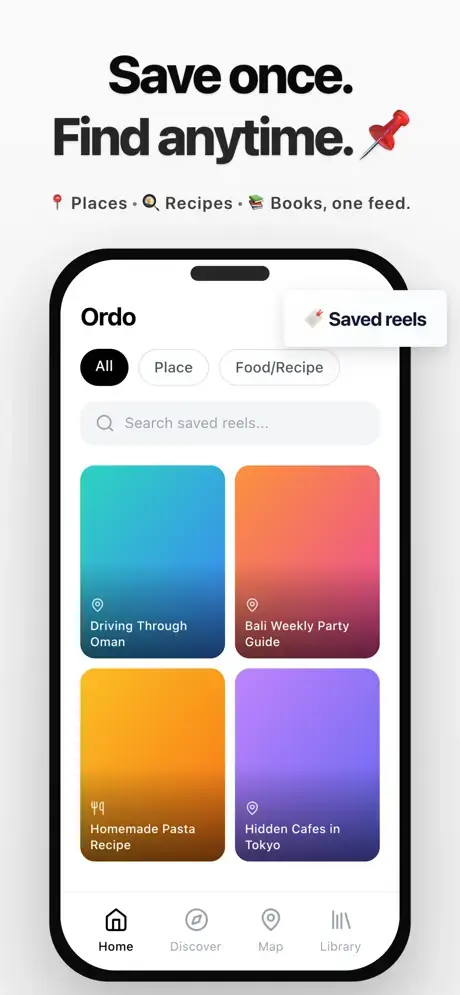
- Distraction-Free Library: The app has no feed or recommendation algorithm. Your home screen shows only what you’ve saved in a clean grid layout.
- Map View for Places: All saved locations appear as pins on a map. You can zoom into cities and get directions to saved spots.
- Custom Collections: Create collections to group related content (e.g., “Japan Trip 2026”, “Workout Ideas”, “Recipes to Try”).
- Search Functionality: Find any saved content by searching across titles, summaries, and categories.
- Privacy-Focused Design: The app doesn’t track activity, monitor browsing, sell data, or show ads. It stores only references and metadata needed for organization.
- No Login Required: You can use Ordo without creating an account. The app works immediately after download.
Use Cases
Trip Planning: You see Instagram reels about cafés in Tokyo, restaurants in Rome, and hidden spots in Bali. Save them all to Ordo. When you book your trip, open the Map view to see every saved location. Tap a place to get directions and details.
Recipe Collection: Save cooking reels from different platforms. Ordo extracts ingredients, prep time, and instructions. When you want to cook, search “pasta” and see all your saved pasta recipes with complete details.
Content Creation Research: You’re a creator looking for inspiration. Save trending reels, viral formats, and interesting techniques. Organize them into collections by topic. Search through your library when planning your next video.
Book and Film Tracking: Save book and movie recommendations from reels. Ordo pulls ratings, descriptions, and cast information. Your Library becomes a curated watchlist and reading list.
Fitness Routine Building: Save workout reels and organize them by muscle group or workout type. Ordo extracts exercise details, duration, and difficulty level. Build your custom workout plan from saved content.
How to Use It
Download Ordo from the App Store. Open the app. No account creation or login is needed. The app is ready to use immediately.
Table Of Contents
Saving Content
Find a reel you want to save on Instagram, TikTok, or YouTube. Tap the Share button. Select Ordo from the share menu. The app saves the content in the background. You don’t need to open Ordo or copy any links.
You can save:
- Instagram Reels
- TikTok videos
- YouTube Shorts
- Web links
The app captures the content reference and begins processing it automatically.
Home Screen
Open Ordo. The Home screen displays everything you’ve saved in a grid layout. Content appears even if it’s still loading details.
Content Detail Views
Ordo extracts different information based on content type:
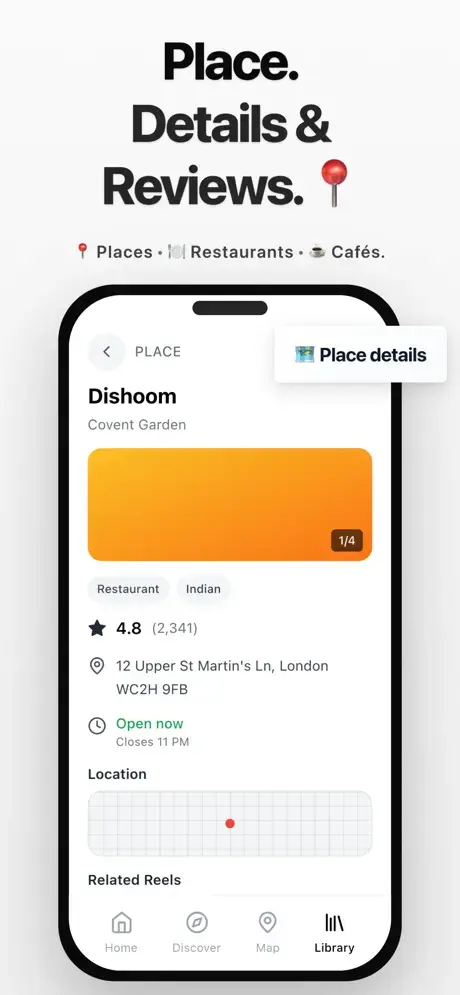
Place Details:
- Name and category (Restaurant, Café, Hotel, etc.)
- Rating and review count
- Address and opening hours (with “Open now” or “Closed” status)
- Location map for directions
- Photos
- Related reels that mention the same place
Food/Recipe Details:
- Prep time, cook time, total time
- Servings and course type
- Complete ingredients list
- Step-by-step cooking instructions
- Cuisine type
Book Details:
- Cover image
- Author name
- Rating and number of ratings
- Page count and publication year
- Genre tags
- Description
- Links to preview or purchase
Film/TV Details:
- Poster image
- Release year
- IMDB rating and vote count
- Runtime and content rating (PG-13, R, etc.)
- Genre tags
- Plot summary
- Director and cast list
Music Details:
- Artist name
- Album and release year
- Genre
- Mood tags (Upbeat, Night drive, etc.)
- Key highlights
- Link to listen (YouTube)
Workout Details:
- Type (HIIT, Strength, Cardio, Yoga)
- Difficulty level
- Duration
- Target muscles
- Required equipment
- Key benefits
- Exercise tips
Product Details:
- Key features
- Ideal use cases
- Pricing information
- Pros and cons list
Discover Mode
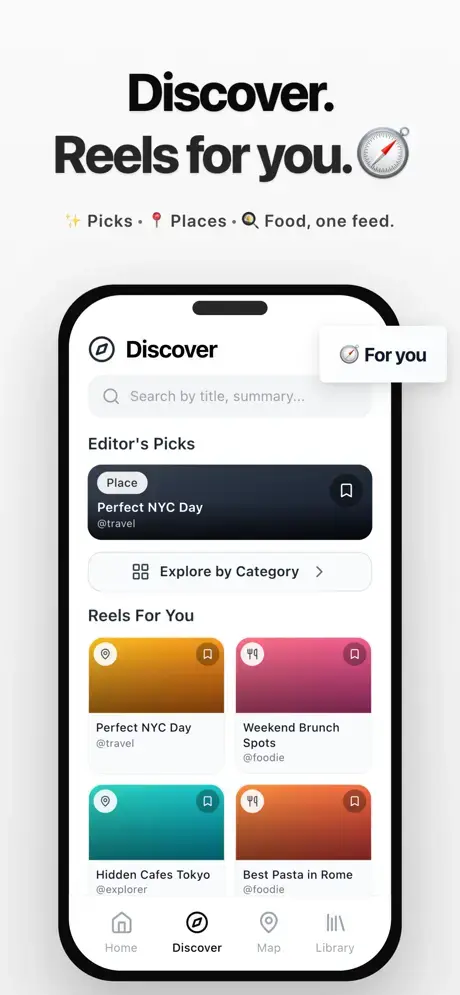
The Discover screen helps when you’re planning something specific. Tap Discover at the bottom of the screen.
You’ll see:
- Editor’s Picks (curated collections like “Perfect NYC Day”)
- Category browsing (Travel, Food, Books, etc.)
- Enhanced search that shows actual places when you search for cities
Use this when you’re actively planning a trip, meal, or project rather than just browsing saved content.
Map View
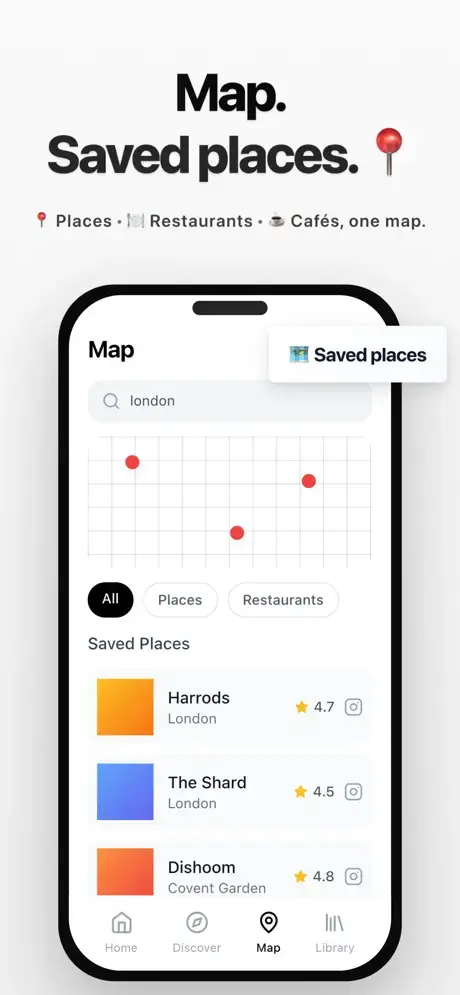
Tap Map at the bottom of the screen. All your saved places appear as pins. Use the category filters at the top:
- All
- Places
- Restaurants
Zoom into specific cities to explore saved locations in that area. Tap any pin to view place details. Tap again to get directions in your maps app.
This works best for travel planning and finding saved restaurants or cafés near your current location.
Library and Collections
Tap Library at the bottom of the screen. You’ll see:
- Collections you’ve created
- Content organized by category
- Favorites (items you’ve hearted)
To create a collection:
- Tap the “+” button
- Name your collection (e.g., “Summer Recipes”, “London Trip”)
- Add saved items to the collection
Collections help organize content that doesn’t fit neatly into auto-generated categories.
Search Function
Tap the search bar on the Home screen. Type any keyword. The app searches across:
- Titles
- Summaries
- Categories
- Tags
- Location names
Results appear instantly. This is faster than scrolling through your entire library when you remember part of what you saved.
Pros
- No Login Friction: Start using the app immediately after download. No account creation or personal information required.
- Actually Finds Saved Content: The category system and search function work better than scrolling through platform-native “Saved” lists.
- Useful Detail Extraction: Getting ingredients from recipe reels or addresses from place reels saves significant time.
- Clean Interface: No ads, no feed, no algorithmic recommendations trying to keep you engaged.
- Cross-Platform Saving: Save from Instagram, TikTok, and YouTube in one app.
- Privacy Respecting: The app doesn’t track what you browse or sell your data.
Cons
- iOS Only: Android users can’t access the app.
- Depends on Original Content: If someone deletes their reel, your saved reference breaks. Ordo doesn’t re-host videos.
- AI Categorization Errors: The automatic sorting sometimes misidentifies content type. You’ll need to manually recategorize some items.
- No Offline Video Storage: You can’t watch saved videos without an internet connection.
- Limited to Short-Form Content: Long YouTube videos don’t work as well as Shorts. The app is built specifically for reel-length content.
FAQs
Q: Does Ordo download and store the actual videos?
A: No. Ordo saves only references to content (like links) and metadata for organization. The original videos stay on their platforms. If someone deletes their reel, your saved reference will break.
Q: What happens to my data if I delete the app?
A: Your saved content and collections are removed when you delete the app. Ordo doesn’t maintain cloud backups of your data. If you reinstall, you start fresh.
Q: How accurate is the AI categorization?
A: The AI correctly categorizes most content, but errors happen. A food reel filmed at a restaurant might get tagged as “Place” instead of “Food/Recipe”. You can manually recategorize items when this occurs.
Q: Does Ordo notify me when saved content gets deleted?
A: No. The app doesn’t send notifications when original content disappears from platforms. You’ll discover broken references when trying to view them.