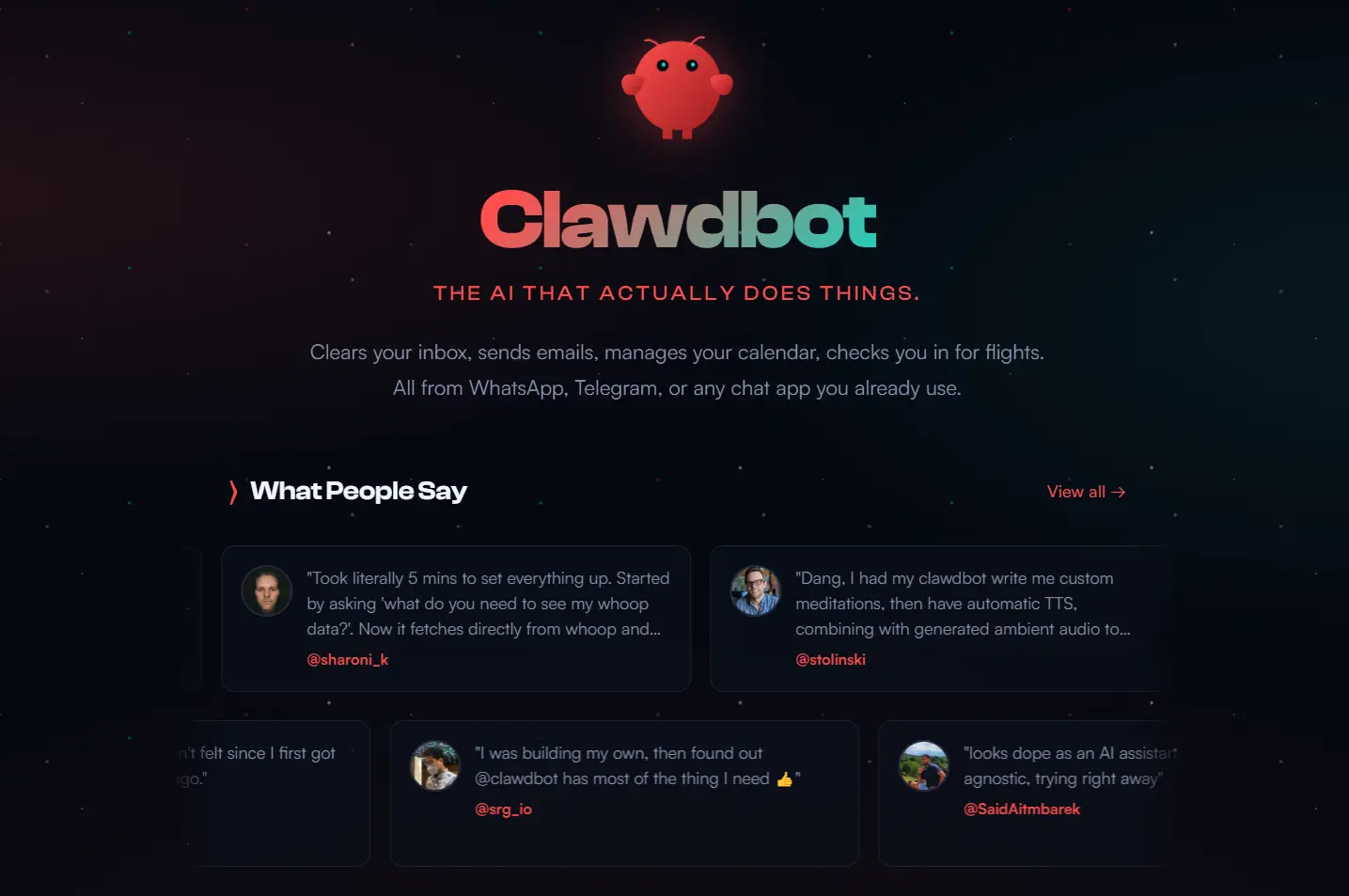
Clawdbot is an open-source, self-hosted personal AI assistant that runs locally on your devices and integrates with messaging platforms like WhatsApp, Telegram, Discord, Slack, and iMessage.
The assistant uses a local Gateway server to connect your chosen AI model (like Claude) to everyday communication channels. You can control it entirely through text messages sent from platforms you already use.
Your data stays on your device, the assistant remembers context between conversations, and it can perform actual system-level operations like managing files, running scripts, and automating browser tasks.
Features
Persistent Memory and Context: The assistant maintains conversation history and preferences across sessions. It remembers your workflows, coding patterns, and personal information to provide increasingly relevant responses over time.
Proactive Automation: Clawdbot can message you first through cron jobs, webhooks, and event triggers. Configure morning briefings, traffic-based reminders, health data monitoring from wearables, or alerts when specific conditions are met.
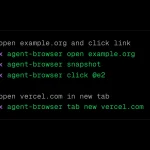
Browser Control and Automation: A dedicated Chrome/Chromium instance lets the assistant navigate websites, fill forms, extract data, and perform research tasks.
System-Level Tool Access: Execute shell commands, manage Git repositories, read and write files, control smart home devices, and interact with any command-line tool installed on your system. The assistant can modify its own configuration and restart itself when needed.
Canvas and Visual Workspace: The Canvas feature provides an agent-driven interface for dynamic UI creation. The assistant can push visual elements, reset displays, evaluate code, and capture snapshots for analysis.
Voice Capabilities: On macOS, iOS, and Android, use voice wake commands and talk mode for hands-free interaction. The assistant supports transcription, text-to-speech output, and continuous conversation flows.
Skills and Extensions Platform: Install pre-built skills from the community repository (ClawdHub) or have the assistant generate custom skills during conversations.
Multi-Agent Coordination: Run multiple Clawdbot instances that communicate with each other via session tools. Agents can list other active sessions, retrieve transcripts, and send messages between workspaces.
Flexible Model Support: Compatible with Anthropic Claude (recommended), OpenAI models, or local LLMs through custom integrations. You can switch between models based on task requirements or API availability through automatic failover.
Security Controls: Default pairing mode requires approval before unknown contacts can interact with your assistant. Configure allowlists per channel, sandbox non-main sessions in Docker containers, and restrict tool access based on context.
Use Cases
Email and Calendar Management: Scan your inbox for urgent messages, draft responses based on context, organize emails into folders, schedule meetings by analyzing availability, and send automated follow-ups. The assistant can process thousands of messages overnight using filtering rules you define.
Development Workflows: Review pull requests, run test suites, deploy code to staging servers, analyze error logs, generate documentation from comments, and maintain GitHub repositories.
Research and Data Collection: Aggregate information from multiple sources, summarize articles, extract structured data from websites, monitor competitors, track price changes, and compile reports.
Content Creation and Publishing: Generate blog post drafts, create social media captions, schedule posts across platforms, analyze engagement metrics, and respond to comments.
Personal Productivity: Morning briefings with news and schedule overviews, traffic-based departure reminders, health data summaries from fitness trackers, grocery list management, travel planning with flight check-ins, and custom meditation generation with text-to-speech.
Business Operations: Process insurance claims, handle reimbursement workflows, generate weekly status reports, manage customer communications, track project milestones, and automate administrative tasks that normally require switching between multiple applications.
Home Automation: Control smart lights, thermostats, and appliances through natural language commands. The assistant can create complex routines that trigger based on time, sensor data, or external events.
Trading and Market Analysis: Monitor specific stock tickers, track unusual options activity, analyze market sentiment, compile research from financial news sources, and execute trades through API integrations.
Real-world Use Cases
How to Use It
1. Install Node.js v22+ on your OS. Windows users should set up Windows Subsystem for Linux 2 (WSL2) for the best experience, though native Windows installation is possible.
2. Install & download Clawdbot and all dependencies.
curl -fsSL https://clawd.bot/install.sh | bash
# Windows (PowerShell)
iwr -useb https://clawd.bot/install.ps1 | iex
# OR NPM
npm install -g clawdbot@latest
3. Launch the onboarding wizard.
clawdbot onboard --install-daemon
4. Get an Anthropic API key or an OpenAI key, and enter your credentials when prompted.
5. Choose which messaging channels to connect. For WhatsApp, you’ll scan a QR code with your phone to link the device. For Telegram, you’ll provide a bot token obtained from BotFather. Discord requires a bot token and optional guild configuration. Each channel has specific setup requirements documented in the wizard.
6. Configure security settings for direct messages. The default pairing policy requires you to approve new contacts before they can interact with your assistant. You can switch to an allowlist policy if you prefer to specify approved contacts manually, or open policy for public access (not recommended).
7. Set up your workspace directory where the assistant will store skills, configuration files, and persistent data. The default location is ~/clawd but you can specify a different path. The wizard creates several prompt files that define the assistant’s personality and capabilities.
8. Once configuration completes, the wizard installs the Gateway as a background service. On macOS, this uses launchd. On Linux, it uses systemd. The service starts automatically and restarts if it crashes.
9. Test your installation by sending a message through your configured channel. Try something simple like “What files are in my downloads folder?” The assistant should respond with a directory listing. Then try “Organize them by type” to see it execute a file management task.
Command Reference
| Command | Description |
|---|---|
clawdbot gateway --port 18789 --verbose | Start the Gateway server manually with detailed logging. |
clawdbot agent --message "your text" --thinking high | Send a direct message to the assistant from terminal. |
clawdbot message send --to +1234567890 --message "text" | Send a message through a configured channel. |
clawdbot channels login | Connect a new messaging channel to your Gateway. |
clawdbot pairing approve <channel> <code> | Approve a pairing request from a new contact. |
clawdbot doctor | Run diagnostics on your installation and surface configuration issues. |
clawdbot update --channel stable|beta|dev | Switch between release channels and update the software. |
clawdbot nodes list | Show all connected device nodes (iOS, Android, macOS). |
Chat Commands
Send these in WhatsApp/Telegram/etc.
| Command | Description |
|---|---|
/new or /reset | Clears the current context and starts a fresh session. |
/status | Shows the current model, token usage, and session cost. |
/think <level> | Sets reasoning level (off, minimal, low, medium, high, xhigh). |
/compact | Summarizes the current conversation to save context window space. |
/verbose on|off | Toggles detailed logging in the chat response. |
/usage off|tokens|full | Controls whether the bot displays token usage after every reply. |
/restart | Restarts the gateway process (Owner only). |
/activation mention|always | Toggles whether the bot replies to every message or only mentions (Groups). |
Key Settings
The main configuration file lives at ~/.clawdbot/clawdbot.json. You can edit this file directly to adjust behavior:
Model Configuration: Specify which AI model to use, set thinking levels (off, minimal, low, medium, high, xhigh for supported models), configure failover models, and adjust token limits.
Channel Settings: Enable or disable specific messaging platforms, set allowlists per channel (channels.whatsapp.allowFrom, channels.telegram.allowFrom, channels.discord.dm.allowFrom), configure group policies (require mentions, allowlist groups), and adjust media size limits.
Security Policies: Set DM policy to pairing (default), allowlist, or open. Configure sandbox mode for non-main sessions to run untrusted contexts in Docker. Specify which tools are available (allowlist approach) or denied (denylist approach).
Gateway Options: Choose the bind address (loopback recommended unless using Tailscale). Set authentication mode to none, token, or password. Configure Tailscale Serve or Funnel for remote access. Enable or disable the Control UI and WebChat.
Agent Workspace: Define the workspace directory path. Configure which prompt files to load (AGENTS.md, SOUL.md, TOOLS.md). Set default activation modes for sessions. Adjust queue behavior and retry policies.
Automation Features: Configure cron jobs for scheduled tasks. Set up webhooks for incoming events. Enable Gmail Pub/Sub integration for email triggers. Define heartbeat intervals for proactive check-ins.
Pros
- Privacy: Your data resides on your hardware.
- Cost: The software is free and open-source. You only pay for the API usage.
- Flexibility: It works with almost any messaging app.
- Action-Oriented: The tool executes real commands.
Cons
- Technical Barrier: You must be comfortable with the terminal.
- Security Risks: Giving an AI access to your terminal and file system carries inherent risks. You must configure sandboxing and permissions carefully.
Related Resources
- Official Documentation: Start with the complete reference covering installation, configuration, channels, tools, and troubleshooting.
- GitHub Repository: View the source code, report issues, and contribute improvements to the project.
- ClawdHub Skills Directory: Browse community-built skills for common workflows and automation patterns.
- Discord Community: Join discussions, get support from experienced users, and share your own implementations.
- Getting Started Guide: Follow the step-by-step beginner tutorial for first-time installation.
- Security Documentation: Understand security implications before exposing your Gateway to external access.
- Skills Platform Guide: Learn how to create, manage, and share custom skills for your workflows.
- Claude Cowork Alternatives: 5 Best & Open-source Claude Cowork Alternatives
FAQs
Q: Can Clawdbot really automate my entire workflow?
A: It depends on your workflow complexity and technical comfort level. Simple tasks like file organization, calendar checks, and basic research work immediately after installation. Advanced automation like multi-platform social posting, complex trading alerts, or custom business workflows require hours of setup time. You’ll need to build skills, configure API access, and test thoroughly.
Q: Is my data safe with a self-hosted assistant?
A: Your data stays on your hardware and only leaves your network when you explicitly configure external API calls. This is more private than cloud-based assistants. However, you’re responsible for security. Use the default pairing mode for DM access, run non-main sessions in sandboxed environments, and never expose the Gateway to the public internet without proper authentication.
Q: What happens if the Gateway crashes or my computer restarts?
A: The daemon installation (recommended setup) automatically restarts the Gateway when your system boots and recovers from crashes. Conversations persist through restarts because the session data is stored on disk. You might miss messages that arrive during downtime, but the assistant picks up where it left off once running again.
Q: How does Clawdbot compare to ChatGPT or Claude directly?
A: ChatGPT and Claude are pure conversational interfaces. They answer questions but can’t execute tasks on your computer. Clawdbot uses these models as reasoning engines but adds the ability to actually perform actions like managing files, running scripts, controlling browsers, and automating workflows. Think of it as giving ChatGPT hands and letting it work while you’re away from your desk.
Q: Can multiple people share the same Clawdbot instance?
A: You can configure multi-user access, but it’s designed as a personal assistant. Each person would see all conversations and share the same context. A better approach is running separate Gateway instances for each person with their own configurations and workspaces. The multi-agent coordination features let different instances communicate when needed.