Open-Source AI Voice Assistant for macOS – Jarvis
Get AI-powered voice-to-text on Mac without monthly fees. Jarvis removes filler words, fixes grammar, and works offline. 100% free and open source.
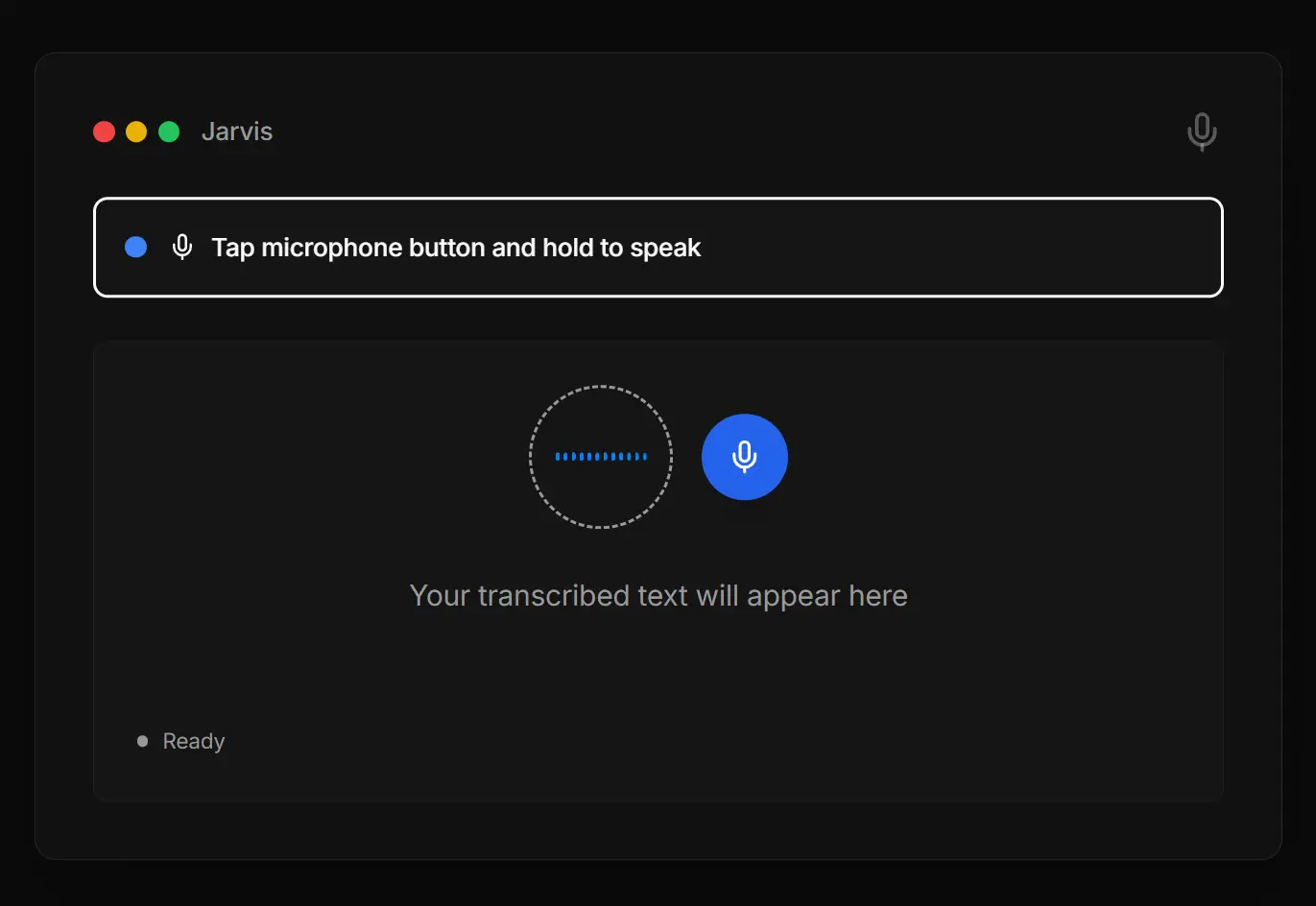
Jarvis is a free, open-source AI voice assistant for macOS that enables you to execute actions across apps using natural language. It runs 100% offline or connects to free AI APIs for faster processing.
The developer built Jarvis in response to Wispr Flow raising $81 million for a subscription-based dictation app. He spent three months coding it after hours and released everything as open source under the MIT license. You get all the features without subscriptions, usage limits, or monthly fees.
Features
- App Compatibility: Works across all macOS apps, including VS Code, Slack, Chrome, email clients, and text editors. Pressing the Fn key activates voice input wherever the cursor is located.
- Text Cleanup: Removes verbal fillers and hesitations from your speech automatically. The tool transcribes “um, so like I think we should, uh, meet tomorrow” into clean, readable sentences without the verbal debris.
- Grammar and Formatting: Fixes grammatical errors on the fly and adds proper punctuation. You can also command it to rephrase text, convert to bullet points, or expand abbreviated notes into full sentences.
- Offline Operation: Runs completely local using OpenAI’s Whisper models in tiny, base, or small variants. Your voice data never leaves your machine when you choose this mode.
- Free API: Connects to Deepgram for transcription (with $200 in free credits) and Google Gemini for AI processing (1 million tokens daily for free). This setup delivers faster transcription than local processing without any cost.
- Privacy-First: Stores zero telemetry and tracks nothing. Voice recordings get deleted immediately after transcription. API keys stay on your device.
Use Cases
Professional Email Writing
peak casual thoughts like “hey can we meet tmrw about the thing” and command Jarvis to “make this more professional.” It transforms your words into “Hello, would you be available to meet tomorrow? I’d like to discuss the project details with you.”
Tone Adjustment
Take harsh language such as “I can’t do this by Friday, this is impossible” and tell Jarvis to “make this sound more diplomatic.” The output becomes “I’m concerned about the Friday deadline. Could we discuss a more realistic timeline that ensures quality delivery?”
Instant Translation
Dictate text in English and command “translate to Spanish” for immediate conversion. This works for quick communication with international colleagues or translating reference materials.
Content Expansion
Start with a brief note like “Remote work is better” and ask Jarvis to “expand this with reasons.” It generates a full paragraph explaining the advantages of remote work, including eliminated commute time and improved work-life balance.
Meeting Notes
Capture spoken ideas during brainstorming sessions without typing. Jarvis cleans up the transcription so your notes read clearly later.
Code Documentation
Dictate comments and documentation while coding. The tool works inside VS Code and other development environments without interrupting your workflow.
How to Use It
1. Download the appropriate DMG file for your Mac chip type from the official website. Apple Silicon users need the M1/M2/M3/M4 version. Intel Mac users grab the x64 build.
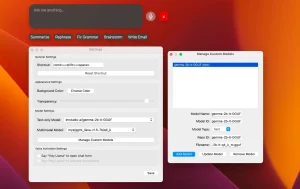
2. Open the downloaded DMG and drag Jarvis to your Applications folder. Launch the app for the first time. You’ll see a setup screen with two options for voice processing.
3. For offline operation, select Local Whisper in the settings menu. Choose between tiny, base, or small models depending on your accuracy needs versus processing speed preference. The tiny model runs fastest but with slightly lower accuracy. The small model delivers better transcription but takes longer to process. This mode requires no API keys and works without an internet connection.
4. For faster processing, grab free API keys from Deepgram and Google Gemini. Deepgram offers $200 in credits (roughly 3,000+ hours of transcription). Google Gemini provides 1 million tokens daily for free. You can get your API key from Google AI Studio. Paste both keys into Jarvis settings. The app connects to these services for blazing-fast transcription that still costs nothing.
5. Once configured, position your cursor in any application where you want text to appear. Hold down the Fn key. A waveform indicator appears showing Jarvis is recording. Speak clearly and naturally. Release the Fn key when finished. The text appears instantly at your cursor position.
6. Double-tap the Fn key to toggle hands-free mode. This keeps recording active without holding the key down. Press Escape anytime to cancel a recording.
7. Try voice commands by speaking action phrases like “make this more professional” or “translate to French” after dictating text. Jarvis processes the command and updates your text accordingly.
Pros
- Completely Free: No subscriptions, no usage limits, no hidden costs.
- Offline Capable: Your data never leaves your machine.
- Works Everywhere: Runs across all Mac applications.
- Intelligent Cleanup: Automatic removal of filler words saves editing time.
Cons
- Mac-Only: Currently supports macOS exclusively. Windows and Linux users must wait for future versions.
- Limited Voice Commands: Basic actions like opening apps or setting timers work now, but the command library remains small compared to dedicated voice assistants.
- Accuracy Trade-offs: Local Whisper models sacrifice some accuracy for offline capability. The tiny model sometimes misses words in complex sentences or technical jargon.
Related Resources
- OpenAI Whisper: The speech recognition model. The documentation explains different model sizes and accuracy benchmarks.
- Deepgram API Documentation: Learn about the transcription service that provides fast cloud-based processing for Jarvis.
- Google Gemini API: Documentation for the AI model handling text transformation and formatting commands.
- Jarvis GitHub Repository: The source code and issue tracker for contributing features or reporting bugs.
FAQs
Q: Does Jarvis store my voice recordings or transcriptions?
A: No. Voice data gets deleted immediately after transcription. When using local Whisper mode, nothing leaves your computer. With API mode, the data passes through Deepgram and Gemini for processing, but Jarvis itself stores nothing.
Q: Can I customize the Fn key trigger?
A: The current version uses Fn as the default trigger. The developer plans to add custom keyboard shortcut options in future updates. You can track this feature request on the GitHub issues page.
Q: How accurate is the offline Whisper model compared to cloud processing?
A: Local Whisper tiny model achieves roughly 85-90% accuracy on clear speech. The base model reaches 90-95%. Cloud processing through Deepgram typically hits 95-98% accuracy. Results vary based on accent, background noise, and technical vocabulary.
Q: Can I use Jarvis for languages other than English?
A: Whisper models support multiple languages for transcription. The translation command works for major languages.
Q: Is there a limit to recording length?
A: No hard limit exists but longer recordings take more time to process, especially with local models. Recordings under 30 seconds give the best user experience.