GiniGen Canvas is a free AI image generation & image editing tool that combines object extraction, background generation, and ratio adjustments to help you create complete images quickly.
Upload an image and you can then extract objects, change backgrounds, and customize image’s aspect ratios without any image editing skills or expensive paid AI image editing tools.
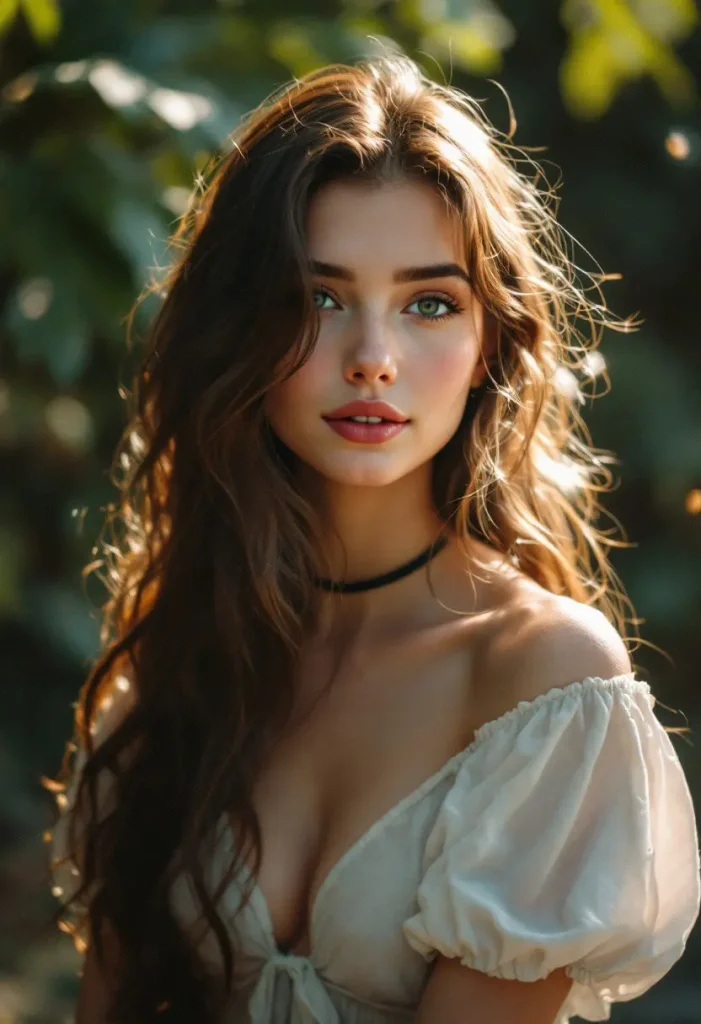
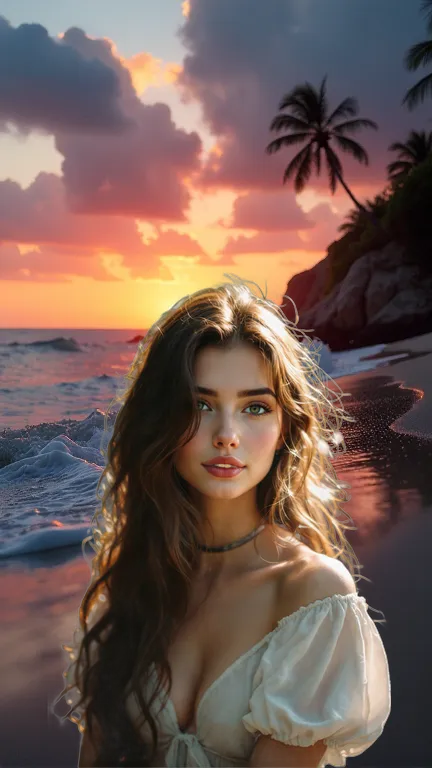
In testing this AI tool, I uploaded a photo of a girl. I then used the tool to extract “the girl” from the original picture. I described “On the beach in the evening” as the desired background. I selected my preferred aspect ratio. I then adjusted the girl’s position and size within the new image using the tool’s available options.
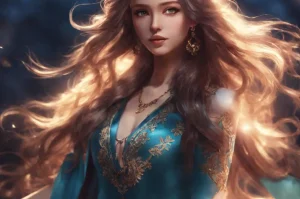
After processing for approximately one minute, GiniGen Canvas generated a new image with the girl placed against a beach background as follows:
Use Cases
- Social Media Content Creation: Combine extracted product images with custom backgrounds for eye-catching social media posts.
- E-commerce Product Mockups: Quickly create mockups of products against diverse backgrounds for online stores.
- Personalized Graphics: Generate unique images by combining personal photos with AI-generated backgrounds.
- Creative Visualizations: Combine extracted elements from various sources to generate surreal or imaginative artworks.
- Marketing Materials: Develop visuals for ads, brochures, and presentations using custom-built image compositions.
Playground
How To Use It
- Visit the GiniGen Canvas’ Hugging Face Space.
- Upload your photo.
- Enter the object you want to extract. For example, ‘the girl.’
- Describe the desired background. This step is optional. For example, ‘On the beach in the evening.’
- Select the preferred aspect ratio for the final image: 1:1, 16:9, 9:16, or 4:3.
- Set the object’s placement using the provided position options.
- Adjust the object size from 0 to 200%.
- Click the process button to start generating the new image.
- Wait for approximately one minute.
- Download the combined image or the extracted object.
Pros
- Free to use
- No technical expertise required
- Multiple output options
- Quick image transformation
- User-friendly interface
Cons
- Limited to web-based platform
- Potential quality variations
- Processing time around one minute
FAQs
Q: Can I extract multiple objects from one image?
A: No, GiniGen Canvas extracts only one specified object per image.
Q: Is there a limit to the file size of the image I upload?
A: There may be some file size restrictions depending on the Hugging Face Space limits.
Q: What background options are available for the extracted object?
A: You provide a description of the background to be generated by AI and can specify the aspect ratio.
Q: Is there a watermark on the generated images?
A: No, GiniGen Canvas provides watermark-free outputs.